
Daily Guardian UAEDaily Guardian UAE
  • Home
  • UAE
  • What’s On
  • Business
  • World
  • Entertainment
  • Lifestyle
  • Sports
  • Technology
  • Travel
  • Web Stories
  • More
    • Editor’s Picks
    • Press Release
What's On

WhatsApp has begun testing a long-overdue group chat feature

January 25, 2026

AI moves from promise to proof as organisations face a defining year, says Nintex’s Samir Akel

January 25, 2026

OnePlus 15T leak spills details on a curious camera situation

January 25, 2026

Tesla Model 3 got outsold by an EV from a Chinese smartphone brand

January 25, 2026

You Asked: OLED decisions, upscaling truths, and Dolby Vision 2

January 25, 2026
Facebook X (Twitter) Instagram
Finance Pro
Facebook X (Twitter) Instagram
Daily Guardian UAE
Subscribe
  • Home
  • UAE
  • What’s On
  • Business
  • World
  • Entertainment
  • Lifestyle
  • Sports
  • Technology
  • Travel
  • Web Stories
  • More
    • Editor’s Picks
    • Press Release
Daily Guardian UAEDaily Guardian UAE
Home » How to schedule an email in Outlook for Mac, Windows, and web
Technology

How to schedule an email in Outlook for Mac, Windows, and web

By dailyguardian.aeJanuary 25, 20243 Mins Read
Share
Facebook Twitter LinkedIn Pinterest Email

If you want to get your email in bright and early, on top of the boss’s inbox, there’s no need to set your alarm; you can just schedule an email to be sent at a bright and early hour. And that works if you want to look like you’re working late, too, just delay your email in Outlook for after work hours and you’ll instantly look like an overachiever. No matter your reasoning for scheduling an email in Outlook to be delivered later, we’ve got the means to do so for all of your devices. It’s just one of the many great Outlook tricks we’ve covered over the years.

Schedule an Outlook email on Windows

If you want to delay your Outlook email from a Windows PC, just follow these simple steps:

Step 1: Open Outlook on Windows and click New email or reply to an existing message.

Step 2: Compose your email, add the recipient, and enter the subject line as normal.

Step 3: Go to the Options tab in the message window and select Delay delivery in the ribbon.

Step 4: In the Properties box that opens, go down to the Delivery options section. Check the box for Do not deliver before and choose the date and time to send the email.

Step 5: Click Close to exit Properties.
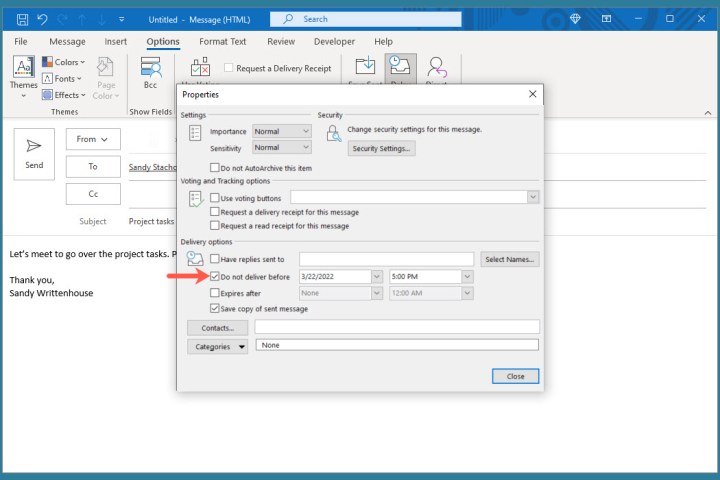
Properties box to choose the delivery date and time in Outlook.

Step 6: You’ll return to the email window. Click Send to send the message later.

Step 7: To view, edit, or cancel a scheduled email, go to your Outbox folder.

Schedule an Outlook email on Mac

Have a great MacBook but unsure how to work your way around Outlook on it? Follow these steps to delay your email:

Step 1: Open Outlook on Mac and click New email or New message depending on your version. Alternatively, you can reply to an existing message.

Step 2: Compose your email, add the recipient, and enter the subject line as you normally would.

Step 3: When you’re ready to schedule the email, click the arrow to the right of the Send button at the top and choose Send later.
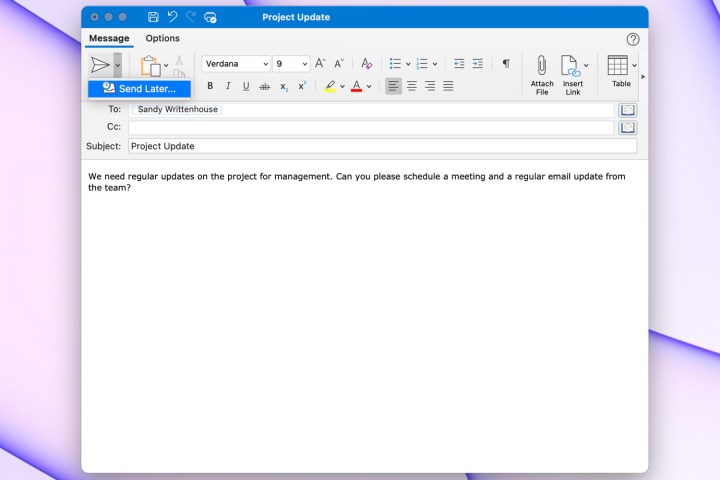
Send Later option in Outlook on Mac.

Step 4: Select the date and time and click Send.
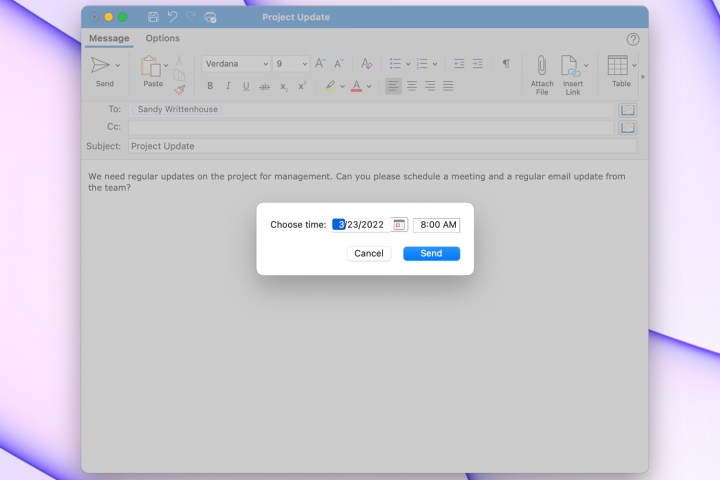
Choose the delivery date and time in Outlook.

Step 5: To view or cancel an email you’ve scheduled, head to your Drafts folder.

Schedule an Outlook email on the web

You can even delay an Outlook message from the browser version of the app, if you follow these steps:

Step 1: Visit Outlook on the web, sign in, and click New message on the top-left or reply to an existing email.

Step 2: Compose your email, add the recipient, and enter the subject line as normal.

Step 3: To schedule the email, click the arrow to the right of the Send button at the bottom and choose Send later.
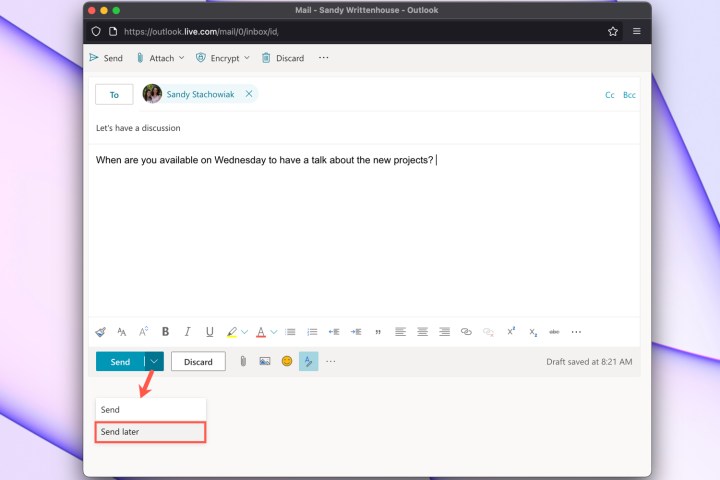
Send Later option in Outlook on the web.

Step 4: Select one of the suggested date and times or pick Custom time to enter your own.

Step 5: Click Send.
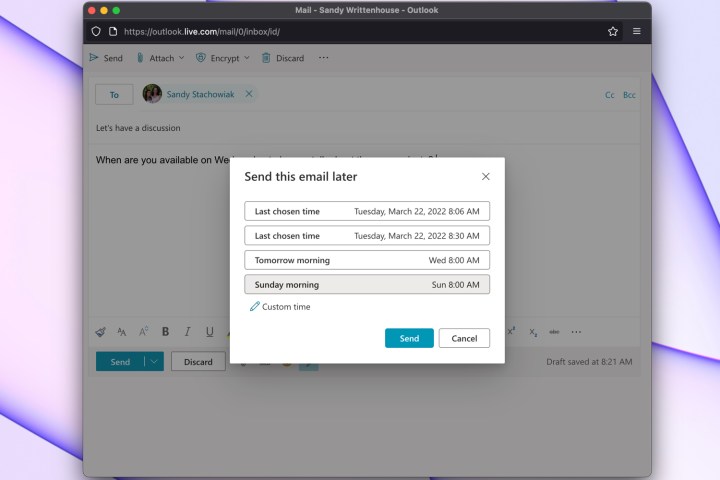
Choose the delivery date and time in Outlook.

Step 6: To view a scheduled email, edit it, or cancel the sending of it, open your Drafts folder.

For similar features, learn how to schedule a Skype call through Outlook. Or, for ways to manage your inbox, take a look at how to stop spam emails. Finally, don’t forget that — should you make a mistake — there are ways to recall an email in Outlook and try again.

Editors’ Recommendations


Share. Facebook Twitter Pinterest LinkedIn Tumblr Email

Keep Reading

WhatsApp has begun testing a long-overdue group chat feature

OnePlus 15T leak spills details on a curious camera situation

Tesla Model 3 got outsold by an EV from a Chinese smartphone brand

You Asked: OLED decisions, upscaling truths, and Dolby Vision 2

Your charging cable might get a workout if you try ‘Charchery’

Your WhatsApp voice notes could help screen for early signs of depression

Your future BMW electric M3 will still sound like a real M car

New study shows AI isn’t ready for office work

This is the tech that makes Volvo’s latest EV a major step forward

Editors Picks

AI moves from promise to proof as organisations face a defining year, says Nintex’s Samir Akel

January 25, 2026

OnePlus 15T leak spills details on a curious camera situation

January 25, 2026

Tesla Model 3 got outsold by an EV from a Chinese smartphone brand

January 25, 2026

You Asked: OLED decisions, upscaling truths, and Dolby Vision 2

January 25, 2026

Subscribe to News

Get the latest UAE news and updates directly to your inbox.

Latest Posts

Your charging cable might get a workout if you try ‘Charchery’

January 25, 2026

Your WhatsApp voice notes could help screen for early signs of depression

January 25, 2026

Your future BMW electric M3 will still sound like a real M car

January 25, 2026
Facebook X (Twitter) Pinterest TikTok Instagram
© 2026 Daily Guardian UAE. All Rights Reserved.
  • Privacy Policy
  • Terms
  • Advertise
  • Contact

Type above and press Enter to search. Press Esc to cancel.