

Ever since the earth-shattering release of ChatGPT, the computing world has been waiting on a local AI chatbot that can run disconnected from the cloud. Nvidia now has an answer with Chat with RTX, which is a local AI chatbot that allows you to harness an AI model to skim through your offline data.
In this guide, we’ll show you how to set up and use Chat with RTX. This is just a demo, so expect some bugs as you work with the tool. But hopefully it will open the door to more local AI chatbots and other local AI tools.
How to download Chat with RTX
The first step is to download and configure Chat with RTX, which is actually a bit more complicated than you might expect. All you need to do is run an installer, but the installer is prone to fail, and you’ll need to satisfy some minimum system requirements.
You need an RTX 40-series or 30-series GPU with at least 8GB of VRAM, along with 16GB of system RAM, 100GB of disk space, and Windows 11.
Step 1: Download the Chat with RTX installer from Nvidia’s website. This compressed folder is 35GB, so it may take a while to download.
Step 2: Once it’s finished downloading, right-click the folder and select Extract all.
Step 3: In the folder, you’ll find a couple files and folders. Choose setup.exe and walk through the installer.
Step 4: Before installation begins, the installer will ask where you want to store Chat with RTX. Make sure you have at least 100GB of disk space in the location you select, as Chat with RTX actually downloads the AI models.
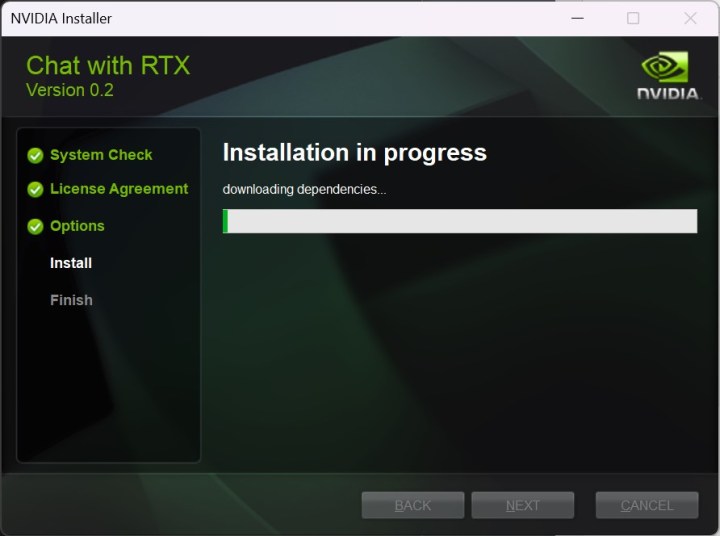
Step 5: The installer can take upwards of 45 minutes to complete, so don’t worry if you see it hanging briefly. It can also slow down your PC, especially while configuring the AI models, so we recommend stepping away for a moment while the installation finishes.
Step 6: The installation may fail. If it does, simply rerun the installer, choosing the same location for the data as before. The installer will resume where it left off.
Step 7: Once the installer is finished, you’ll get a shortcut to Chat with RTX on your desktop and the app will open in a browser window.
How to use Chat with RTX with your data
The big draw to Chat with RTX is that you can use your own data. It uses something called retrieval-augmented generation, or RAG, to flip through documents and give you answers based off of those documents. Instead of answering any question, Chat with RTX is good at answering specific questions about a particular set of data.
Nvidia includes some sample data so you can try out the tool, but you need to add your own data to unlock the full potential of Chat with RTX.
Step 1: Create a folder where you’ll store your dataset. Note the location, as you’ll need to point Chat with RTX toward that folder. Currently, Chat with RTX supports .txt, .pdf, and .doc files.
Step 2: Open Chat with RTX and select the pen icon in the Dataset section.
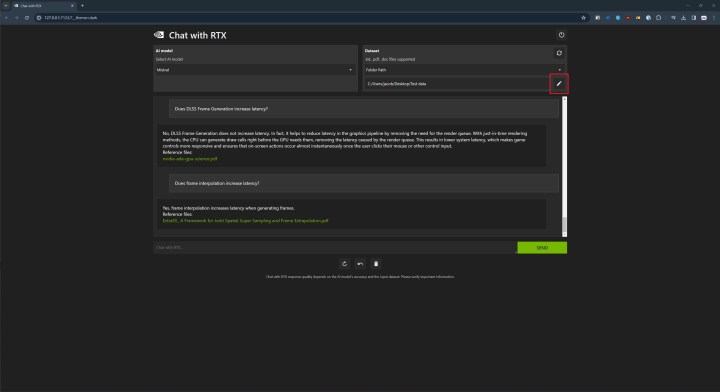
Step 3: Navigate to the folder where you stored your data and select it.
Step 4: In Chat with RTX, select the refresh icon in the Dataset section. This will regenerate the model based on the new data. You’ll want to refresh the model each time you add new data to the folder or select a different dataset.
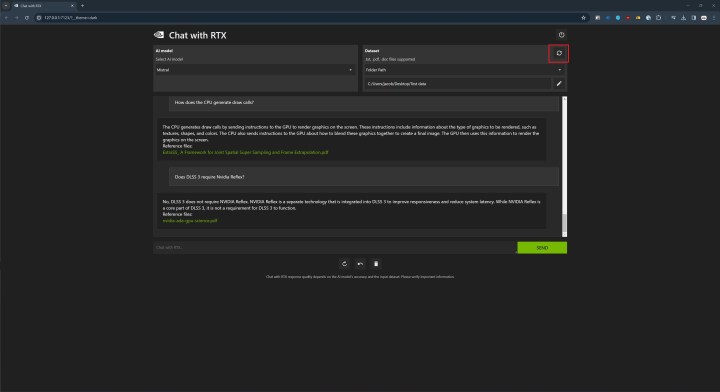
Step 5: With your data added, select the model you want to use in the AI model section. Chat with RTX includes Llama 2 and Mistral, with the latter being the default. Experiment with both, but for new users, Mistral is best.
Step 6: From there, you can start asking questions. Nvidia notes that Chat with RTX doesn’t take context into account, so previous responses don’t influence future responses. In addition, specific questions will generally yield better results than general questions. Finally, Nvidia notes that Chat with RTX will sometimes reference the wrong data when providing a response, so keep that in mind.
Step 7: If Chat with RTX stops working, and a restart doesn’t fix it, Nvidia says you can delete the preferences.json file to solve the problem. This is located at C:Users
How to use Chat with RTX with YouTube
In addition to your own data, you can use Chat with RTX with YouTube videos. The AI model goes by the transcript from a YouTube video, so there are some natural limitations.
First, the AI model doesn’t see anything not included in the transcript. You can’t ask, for example, what someone looks like in a video. In addition, YouTube transcripts aren’t always perfect. In videos with messy transcripts, you may not get the responses you want.
Step 1: Open Chat with RTX, and in the Dataset section, select the dropdown and choose YouTube.
Step 2: In the field below, paste a link to a YouTube video or playlist. Next to this field, you’ll find a number that notes the maximum number of transcripts you want to download.
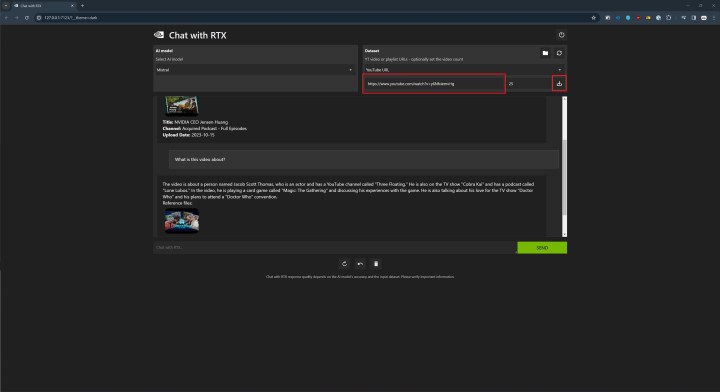
Step 3: Select the download button next to this field and wait until the transcripts have finished downloading. When they’re done, click on the refresh button.
Step 4: Once the transcript is done, you can chat just like you did with your own data. Specific questions are better than general questions, and if you’re chatting about multiple videos, Chat with RTX may get the reference wrong if your question is too general.
Step 5: If you want to chat about a new set of videos, you’ll need to manually delete the old transcripts. You’ll find a button to open an Explorer window next to the refresh button. Head there and delete the transcripts if you want to chat about other videos.
Editors’ Recommendations