
Daily Guardian UAEDaily Guardian UAE
  • Home
  • UAE
  • What’s On
  • Business
  • World
  • Entertainment
  • Lifestyle
  • Sports
  • Technology
  • Travel
  • Web Stories
  • More
    • Editor’s Picks
    • Press Release
What's On

ONE Development Awards Main Construction Contract for Flagship Laguna Project

January 26, 2026

DXC Partners with Ripple to Empower Global Banks with Scalable Digital Asset Custody and Payments

January 26, 2026

BITS Pilani Dubai Campus Reflects on a Landmark 2025, Sets Course for an Ambitious 2026

January 26, 2026

The psychology of the re-check: What Claritycheck says about digital trust

January 26, 2026

Joobie: Your interactive, trendy AI companion for every moment

January 26, 2026
Facebook X (Twitter) Instagram
Finance Pro
Facebook X (Twitter) Instagram
Daily Guardian UAE
Subscribe
  • Home
  • UAE
  • What’s On
  • Business
  • World
  • Entertainment
  • Lifestyle
  • Sports
  • Technology
  • Travel
  • Web Stories
  • More
    • Editor’s Picks
    • Press Release
Daily Guardian UAEDaily Guardian UAE
Home » How to print a PowerPoint presentation with notes
Technology

How to print a PowerPoint presentation with notes

By dailyguardian.aeFebruary 29, 20243 Mins Read
Share
Facebook Twitter LinkedIn Pinterest Email

PowerPoint makes it easy to give a great presentation thanks to intuitive software that lets anyone craft an eye-catching deck. What’s even better, however, is the option to use Presenter View. This lets you leave notes for yourself that can be viewed on your computer screen while everyone else is only seeing your presentation.

However, if you’re worried about a technical hiccup taking down your slide or don’t want to be glued to the computer, you’ll probably want to print out your PowerPoint presentation with notes. This lets you see both your slides and your presenter notes, giving you an analog way to carry on the presentation without the need for a monitor.

Interested in the feature? Here’s how to print a PowerPoint presentation with notes on Windows, Mac, or directly from the web.

Print PowerPoint slides with notes on Windows

Printing your presentation in PowerPoint on Windows takes only a few steps. If you want notes with your slides, it’s a simple setting.

Step 1: Open PowerPoint to the presentation you want to print.

Step 2: Select the File tab.

Step 3: Choose Print and select your printer in the Printer drop-down if necessary.

Step 4: In the first drop-down box below Settings, pick which slides you want to print. You can print them all, the current slide, or a custom range.

Step 5: Click the next drop-down box for Print layout and select Notes page. You’ll see a preview on the right.
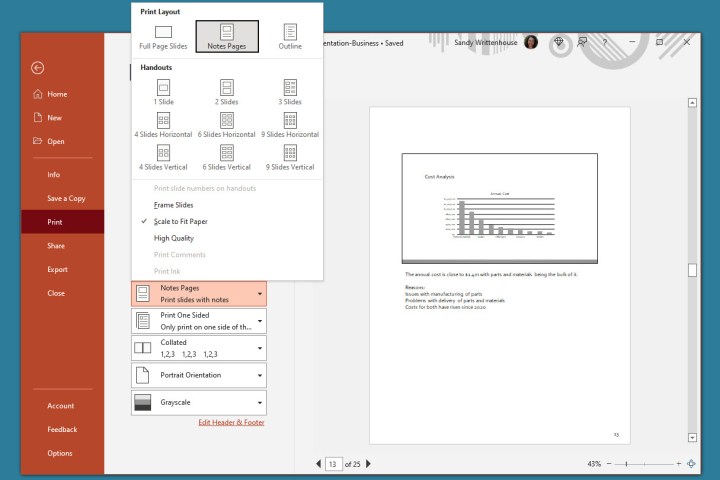
Notes Pages selected to print in PowerPoint.

Step 6: Adjust any other settings you’d like before printing, such as switching Portrait orientation to Landscape orientation or Color to Grayscale.

Step 7: Click Print.
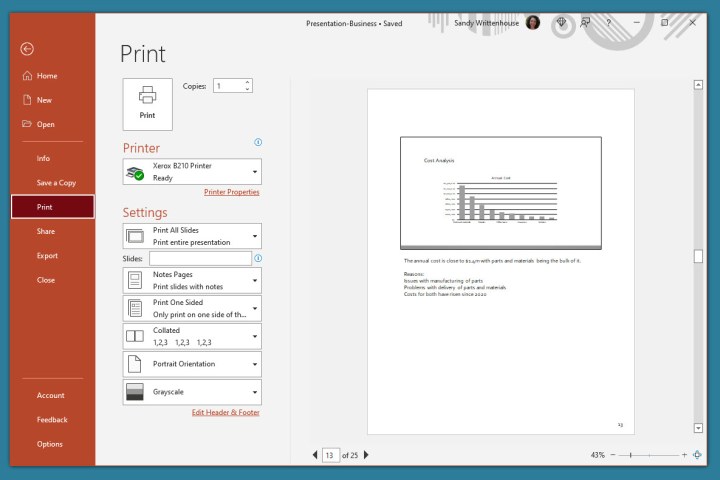
Print screen in PowerPoint on Windows.

Print PowerPoint slides with notes on Mac

If you use Microsoft PowerPoint on Mac, you can print your slides with notes a just a few steps, like on Windows.

Step 1: Open PowerPoint on your Mac to the presentation you’d like to print.

Step 2: Click File > Print from the menu bar.

Step 3: In the pop-up window, choose your printer in the Printer drop-down box at the top if necessary.

Step 4: Choose which slides you’d like to print. You can print all slides, specific numbers, selected slides, or a custom range.
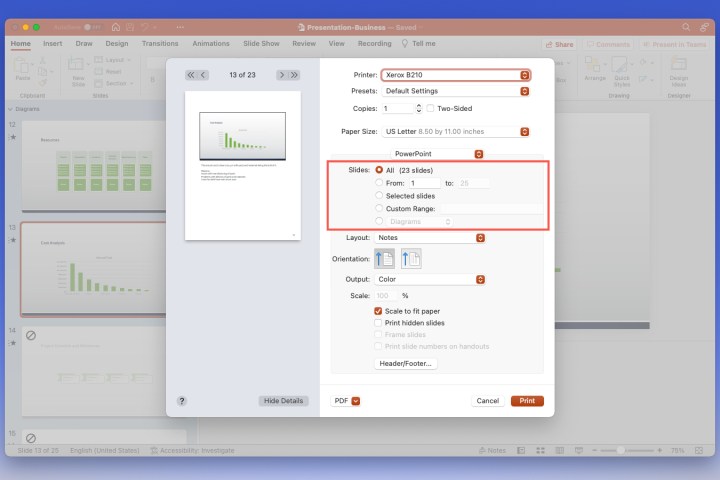
Print all slides in PowerPoint on Mac.

Step 5: Click the Layout drop-down box and choose Notes. You’ll see a preview on the left.
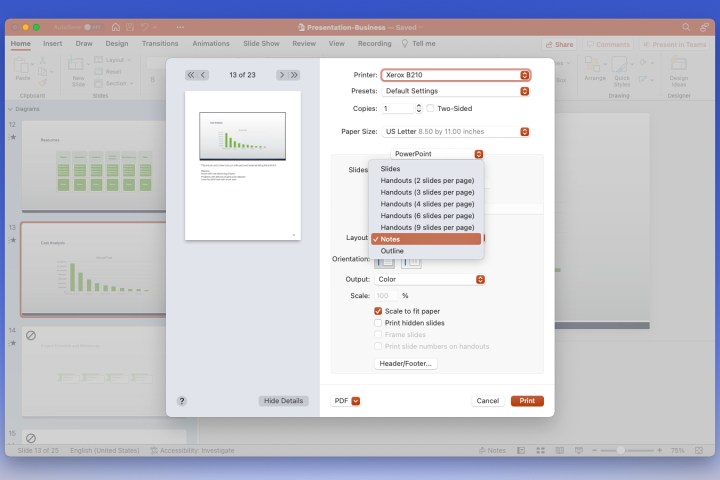
Notes selected to print in PowerPoint.

Step 6: Optionally, adjust any other settings you’d like such as Orientation, Output, or Scale.

Step 7: Click Print.
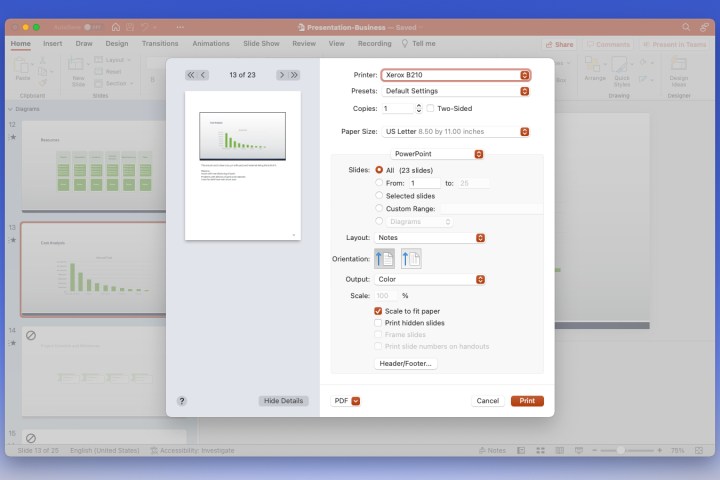
Print screen in PowerPoint on Mac.

Print PowerPoint slides with notes on the web

Maybe you’re using PowerPoint on the web and prefer to print from there.

Step 1: Visit PowerPoint on the web, sign in, and open your presentation.

Step 2: Select the File tab.

Step 3: Choose Print and pick Print notes pages.
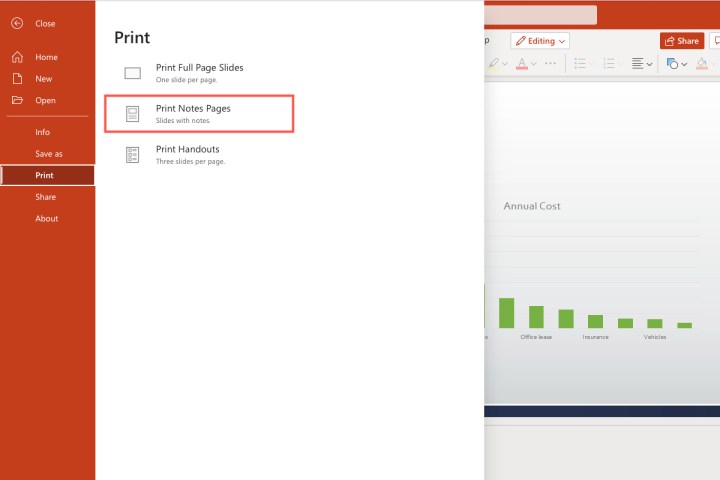
Print Notes Pages selected in PowerPoint on the web.

Step 4: In the small pop-up window, select Open PDF to view your presentation file.
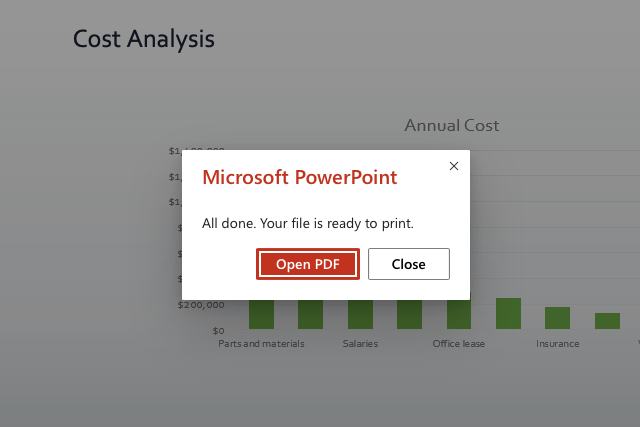
Open PDF dialog box for PowerPoint on the web.

Step 5: Depending on your web browser, click the Print button or download the file to print on your computer.

For additional PowerPoint features, check out Microsoft’s implementation of real-time closed captioning.

Editors’ Recommendations


Share. Facebook Twitter Pinterest LinkedIn Tumblr Email

Keep Reading

The psychology of the re-check: What Claritycheck says about digital trust

Joobie: Your interactive, trendy AI companion for every moment

Next-gen lunar spacesuit redefines mobility

WhatsApp has begun testing a long-overdue group chat feature

OnePlus 15T leak spills details on a curious camera situation

Tesla Model 3 got outsold by an EV from a Chinese smartphone brand

You Asked: OLED decisions, upscaling truths, and Dolby Vision 2

Your charging cable might get a workout if you try ‘Charchery’

Your WhatsApp voice notes could help screen for early signs of depression

Editors Picks

DXC Partners with Ripple to Empower Global Banks with Scalable Digital Asset Custody and Payments

January 26, 2026

BITS Pilani Dubai Campus Reflects on a Landmark 2025, Sets Course for an Ambitious 2026

January 26, 2026

The psychology of the re-check: What Claritycheck says about digital trust

January 26, 2026

Joobie: Your interactive, trendy AI companion for every moment

January 26, 2026

Subscribe to News

Get the latest UAE news and updates directly to your inbox.

Latest Posts

Holcim UAE joins IRENA’s Alliance for Industry Decarbonization (AFID)

January 26, 2026

Next-gen lunar spacesuit redefines mobility

January 26, 2026

WhatsApp has begun testing a long-overdue group chat feature

January 25, 2026
Facebook X (Twitter) Pinterest TikTok Instagram
© 2026 Daily Guardian UAE. All Rights Reserved.
  • Privacy Policy
  • Terms
  • Advertise
  • Contact

Type above and press Enter to search. Press Esc to cancel.