Daily Guardian UAEDaily Guardian UAE
  • Home
  • UAE
  • What’s On
  • Business
  • World
  • Entertainment
  • Lifestyle
  • Sports
  • Technology
  • Travel
  • Web Stories
  • More
    • Editor’s Picks
    • Press Release
What's On

Nothing’s “Essential Apps” let you build personalized widgets with text-based prompts

February 11, 2026

Lynk & Co Opens Flagship Showroom on Sheikh Zayed Road and Launches the All-New Lynk & Co 900 in the UAE with Galadari Motors

February 11, 2026

Google now helps you wipe your sensitive personal data and photos from Search

February 11, 2026

Liv and Union Coop enter strategic partnership to offer more value and rewards to UAE consumers in collaboration with Mastercard

February 11, 2026

AI is helping call center scammers dupe more victims worldwide

February 11, 2026
Facebook X (Twitter) Instagram
Finance Pro
Facebook X (Twitter) Instagram
Daily Guardian UAE
Subscribe
  • Home
  • UAE
  • What’s On
  • Business
  • World
  • Entertainment
  • Lifestyle
  • Sports
  • Technology
  • Travel
  • Web Stories
  • More
    • Editor’s Picks
    • Press Release
Daily Guardian UAEDaily Guardian UAE
Home » How to change your default browser in Windows 11
Technology

How to change your default browser in Windows 11

By dailyguardian.aeMarch 2, 20243 Mins Read
Share
Facebook Twitter LinkedIn Pinterest Email

Changing the default browser is a great way to improve your Windows 11 web-browsing experience. If you’ve got a favorite — we’re willing to bet it’s Chrome — then you can switch the default browser in Windows 11 so that you aren’t always closing down Edge before launching your preferred browser.

Here’s how to change the default browser in Windows 11 in just a few quick steps.

How to change the default browser in Windows 11

Changing your default browser in Windows 11 is very straightforward. If you only have one browser you want to use for everything, you can set it simply within the Settings menu.

Step 1: Open the Windows 11 Settings menu by pressing Windows key + I. Then select Apps from the left-hand menu.

Step 2: Select Default apps from the central menu.
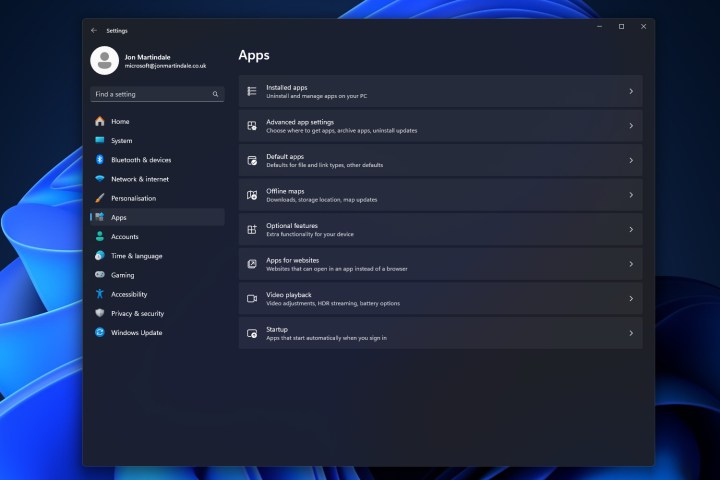
Opening the default apps menu.

Step 3: Scroll down the list to find the application that you want to set as your default browser, then select it. In our case, we’ll be selecting Brave.
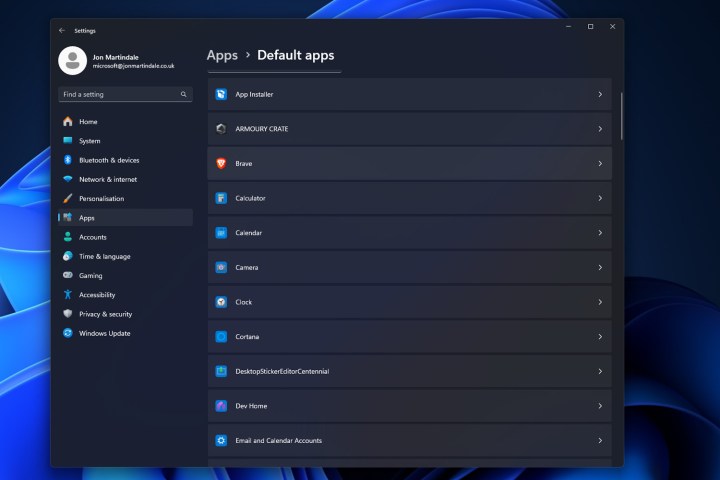
Selecting the Brave browser from the list in Windows 11.

Step 4: Select the Set as default button in the top-right corner.
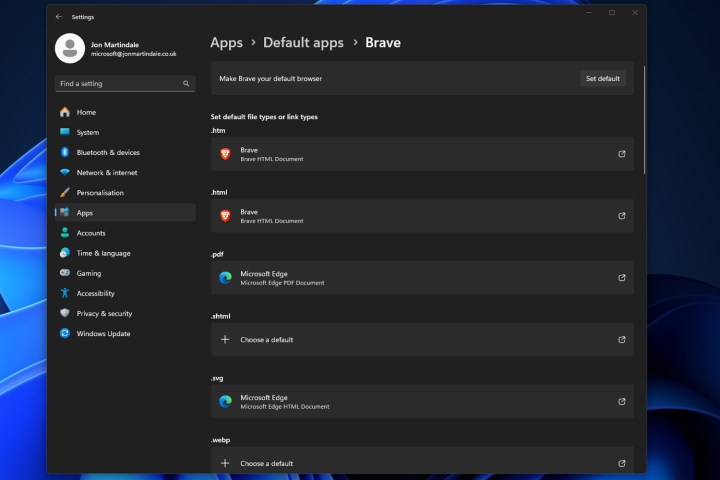
Selecting Brave as the default browser in Windows 11.
Setting default apps in Windows 11.

How to change the default browser for certain file types

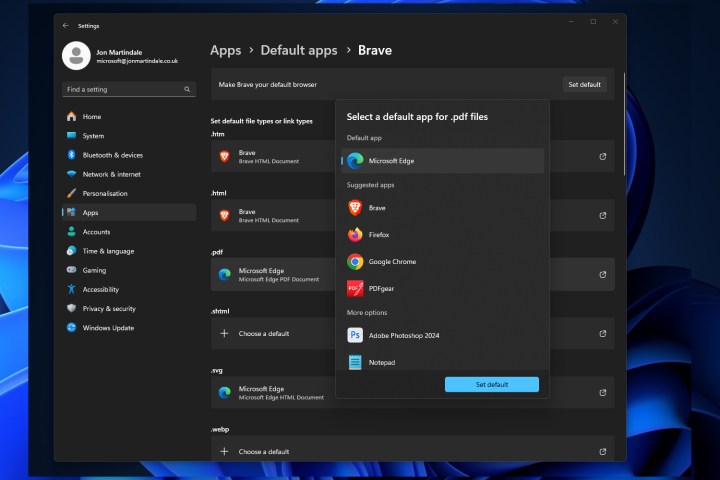
You might want to use your browser for any links you open, but are there any particular file types you might prefer another browser to open? Maybe you like the way Edge handles PDF documents. Whatever it is, though, you can customize which browsers open which type of file. Here’s how.

Step 1: As above, navigate to Settings > Apps > Default apps, then select the browser application that you want to make a default for a certain file type.

Step 2: On the browser’s page, you’ll find a long list of different web-related file types, including .htm, .html, .webp, and others. Scroll down the list of file names until you find the one you want to change. Select it.

Step 3: From the window that appears, select the app that you want to be the default application to handle that file type. It doesn’t technically have to be a browser, but if you’re reading this article, you probably want it to be. That said, if it’s PDFs you want to open, I can heartily recommend PDFGear.

Once you’ve selected it, select the blue Set default button to finalize it.

Step 4: Your browser of choice should be listed in the range of applications to choose from, but if it’s not, scroll down past More options and select Choose an app on your PC. Then use the Windows 11 File Explorer to set the default app that you want for that file type. Then select Open.

If you’ve just changed your default apps because you really don’t like the ones Windows comes with, you can remove them completely if you like. Here’s how to purge Windows 11 of Edge and its related Windows family.

Editors’ Recommendations


Share. Facebook Twitter Pinterest LinkedIn Tumblr Email

Keep Reading

Nothing’s “Essential Apps” let you build personalized widgets with text-based prompts

Google now helps you wipe your sensitive personal data and photos from Search

AI is helping call center scammers dupe more victims worldwide

The next wave of spec-monster phones could get a 100-megapixel selfie camera

NextSense wants your sleep fixed by EEG sleep earbuds, not apps

YouTube Music can now turn your thoughts into a personalized playlist

Rivian’s new Watch app turns your wrist into a car remote

Google insists YouTube Music’s paywalled lyrics are just a ‘limited experiment’

You’ll soon make WhatsApp video calls right in your browser

Editors Picks

Lynk & Co Opens Flagship Showroom on Sheikh Zayed Road and Launches the All-New Lynk & Co 900 in the UAE with Galadari Motors

February 11, 2026

Google now helps you wipe your sensitive personal data and photos from Search

February 11, 2026

Liv and Union Coop enter strategic partnership to offer more value and rewards to UAE consumers in collaboration with Mastercard

February 11, 2026

AI is helping call center scammers dupe more victims worldwide

February 11, 2026

Subscribe to News

Get the latest UAE news and updates directly to your inbox.

Latest Posts

Burjeel Holdings Delivers 39.5% Net Profit Growth in 2025

February 11, 2026

The next wave of spec-monster phones could get a 100-megapixel selfie camera

February 11, 2026

Aster DM Healthcare unveils game changing projects set to redefine the future of healthcare for people of UAE

February 10, 2026
Facebook X (Twitter) Pinterest TikTok Instagram
© 2026 Daily Guardian UAE. All Rights Reserved.
  • Privacy Policy
  • Terms
  • Advertise
  • Contact

Type above and press Enter to search. Press Esc to cancel.