

Your iPhone shows the current status of your battery in the upper-right corner of the screen, featuring an indicator that is white when the battery is draining and green when the battery is charging. But what if you want to see your iPhone’s battery percentage and know exactly how much battery is remaining? It’s easier than you might think to view the precise battery percentage on your iPhone. Here, we’re going to show you how to do it.
There are a few different ways to show your iPhone’s battery percentage. From finding it in your iPhone’s Control Center or adding a widget to permanently displaying it on your status bar, here’s everything you need to know about showing the battery percentage on your iPhone.
How to show battery percentage in your iPhone status bar
If you’re using an iPhone 8, iPhone SE, or just about any earlier model with Touch ID, the battery percentage should already show up beside the battery icon in your status bar. This was added to the iPhone 3GS in 2009, and while Apple has always provided a setting to turn it off for those who prefer not to see it, the percentage is enabled by default.
Unfortunately for battery gauge enthusiasts, when Face ID came along on the iPhone X, the notch for the TrueDepth camera left no room for the battery percentage. Pressed for screen space, Apple went with only the visual “fuel gauge” style indicator, giving you no way to easily see your exact battery level at a glance. This continued for all subsequent notched iPhones until iOS 16 arrived with a redesigned status bar icon.
This offered a number for the battery percentage on these newer models by superimposing it on the battery icon. For whatever reason, the iPhone XR, iPhone 11, and the iPhone 12 mini and iPhone 13 mini were initially left out of the party, but Apple rectified that a few weeks later when iOS 16.1 was released — an update that also brought back the visual level indicator that has been eliminated in iOS 16 in favor of simplified colors to represent low, normal, and charging status.
The catch is that even though it’s now possible to constantly see your specific battery level in the status bar, the feature is off by default on all Face ID equipped iPhone models. Here’s how to toggle it on:
Step 1: Open the Settings app on your iPhone.
Step 2: Scroll down and select Battery.
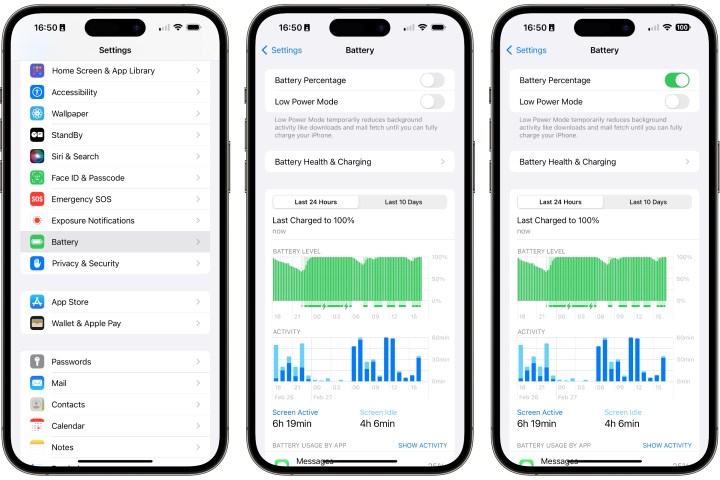
Step 3: Toggle on the switch next to Battery Percentage.
With this enabled, you’ll now see your iPhone’s battery percentage at the top right of your screen. When you have under 20% battery remaining, the icon turns red. When your iPhone is charging, the battery icon turns green.
This setting has been available on Touch ID-equipped iPhone models for years. Before iOS 9 added the dedicated Battery section in settings, it was found under General > Usage. However, if you’re using an iPhone that old, it’s probably time to upgrade.
How to quickly check battery percentage on your iPhone
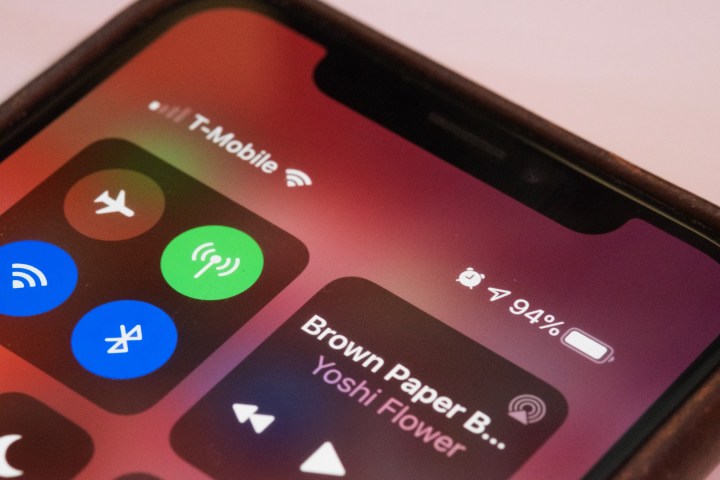
If you’d prefer not to show your battery percentage in your status bar, you can still quickly check it at any time using your iPhone’s Control Center. This works on modern iPhone models with Face ID, older Touch ID models, and those with only a Home Button, although the way of bringing it up varies.
Step 1: If you have an iPhone that uses Face ID, swipe down from the top-right corner of your screen.
If you have an iPhone with a Home Button (whether it has a Touch ID sensor or not), swipe up from the bottom of your screen.
Step 2: Look at the top-right corner to find your iPhone’s current battery percentage.
How to add a battery widget to your iPhone’s home screen
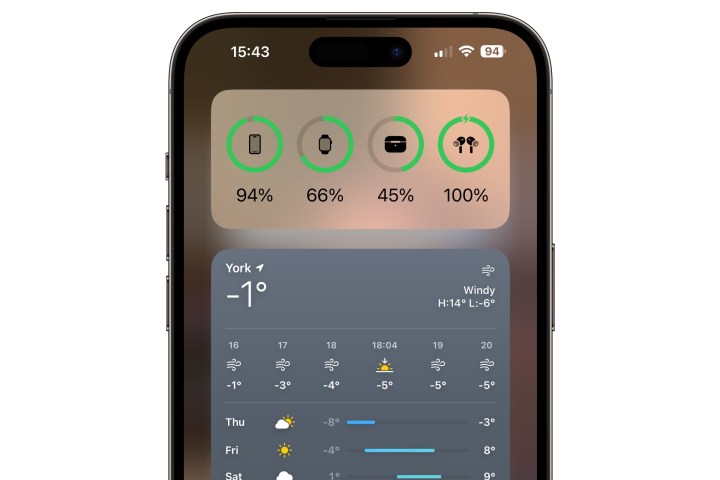
You can also see your battery percentage from any of your iPhone’s home screens using the “Batteries” widget that Apple added in iOS 14. As a bonus, this will also show you the battery level of your Apple Watch and any connected Bluetooth accessories such as AirPods or most other headphones and speakers.
Step 1: Press and hold on any part of your iPhone’s home screen until the icons start wiggling and a plus button appears in the top-left corner.
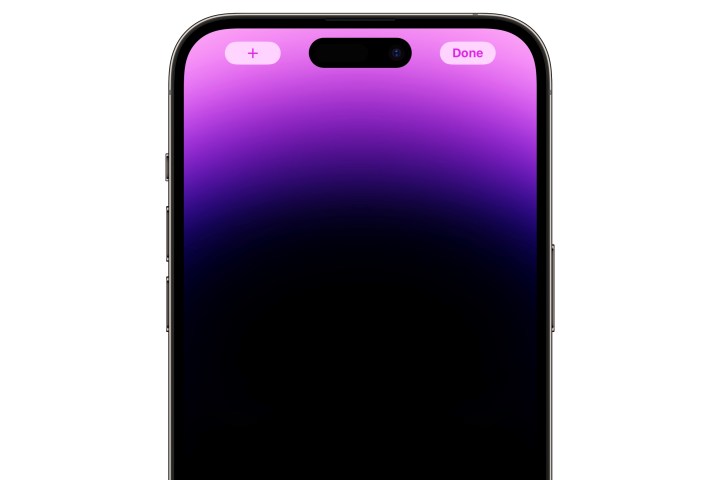
Step 2: Swipe left or right to go to the home screen where you would like to add the Batteries widget. Note that you can swipe to the left of the first home screen to access a dedicated screen for widgets, or you can swipe to the right of the last home screen, just before the App Library, to add your widget to a blank home screen page.
Step 3: Select the plus button.
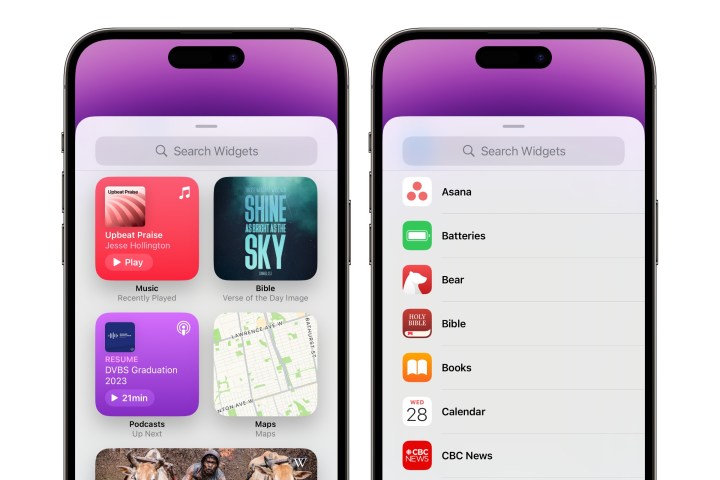
Step 4: Scroll down to find the Batteries widget and select it. You can also select the search box and start typing to filter the list.
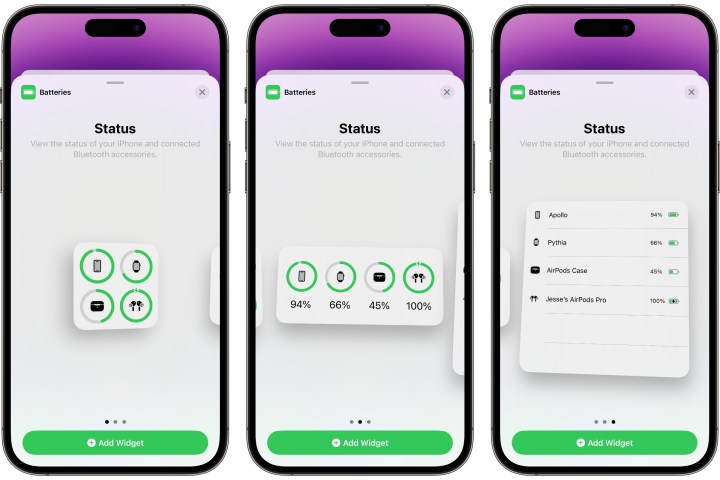
Step 5: Swipe left or right to select one of the three available widget sizes and choose Add Widget.
The widget will be added in the top-left corner of the current home screen, pushing everything else out of the way. You can select it and drag it to move it to your preferred location.
How to add a battery widget to your iPhone’s lock screen
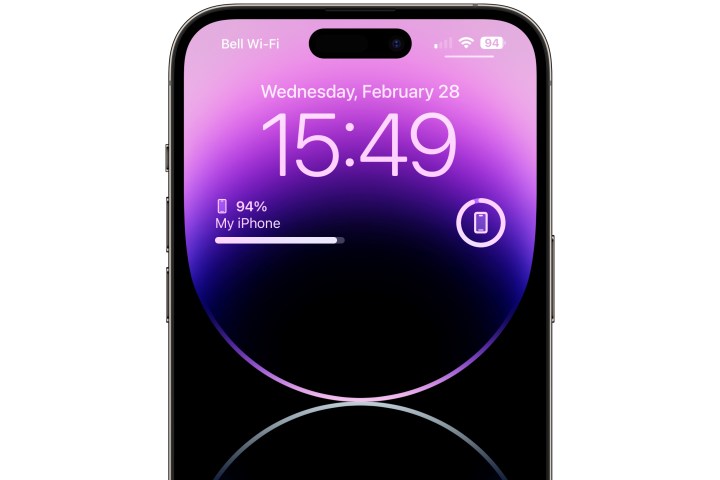
As long as you’re running iOS 16 or later, you can also add some widgets to your iPhone’s lock screen, including the Batteries widget. This one can be a little bit trickier to set up for your iPhone, as it defaults to showing the battery level of your Apple Watch or AirPods, but the good news is that’s easy enough to change. Here’s how:
Step 1: From your lock screen, press and hold your wallpaper to enter editing mode.
Step 2: Swipe left or right to select the lock screen you would like to add the Batteries widget to and choose Customize.
Step 3: Select your Lock Screen on the left.
Step 4: Select the frame below the clock. This will contain any widgets you’ve already added or the words Add Widgets if you haven’t added any yet.
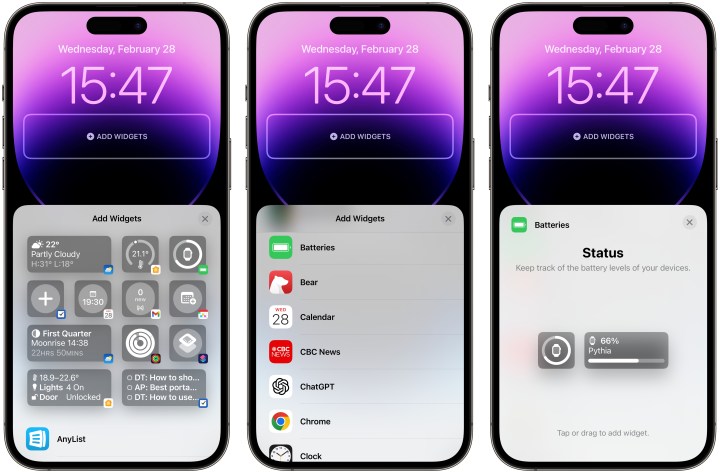
Step 5: The widget picker will come up. Scroll down and select Batteries.
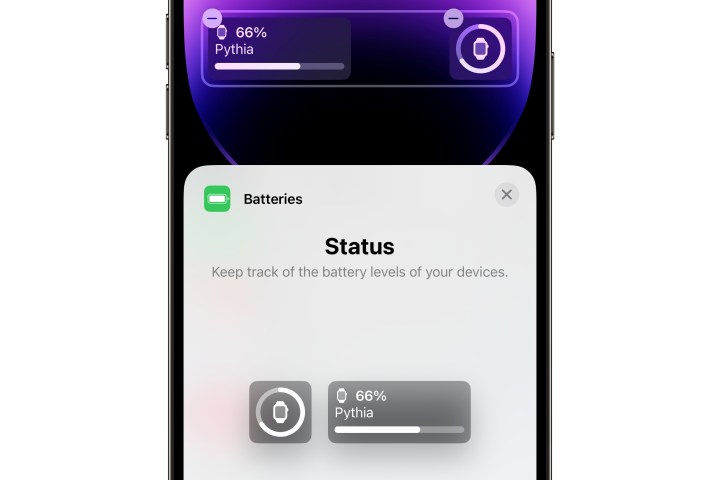
Step 6: Select the battery widget you would like to add to your lock screen. It will move into the widget frame. You can add multiple battery widgets here if you like, which could be useful if you want to see the battery status of other connected devices like your Apple Watch.
The lock screen battery widgets default to automatically showing the status of the most relevant connected devices, switching as necessary. For example, if you wear an Apple Watch, they’ll show that by default, but switch to showing the battery life of your AirPods when you put them on.
Step 7: To set the battery widget to show the status of your iPhone, select the widget to bring up a settings screen.
Step 8: Toggle the switch beside Automatic to off.
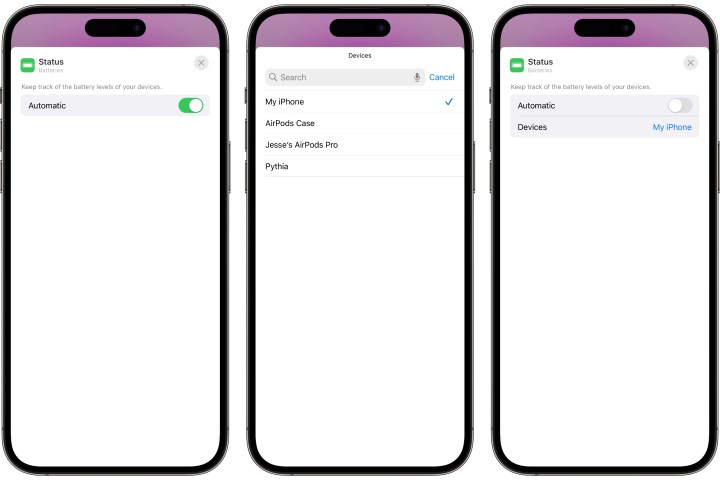
Step 9: Your iPhone should appear beside Devices; if not, select the device that does appear, and choose your iPhone from the list.
Step 10: Select the X in the top-right corner to close the widget settings, and then tap outside the widget picker to dismiss it, and choose Done in the top right corner to finish editing your lock screen.
Editors’ Recommendations