
Daily Guardian UAEDaily Guardian UAE
  • Home
  • UAE
  • What’s On
  • Business
  • World
  • Entertainment
  • Lifestyle
  • Sports
  • Technology
  • Travel
  • Web Stories
  • More
    • Editor’s Picks
    • Press Release
What's On

I’m weirdly excited about Android 17’s upcoming anti-doomscrolling feature

May 17, 2026

ASUS ROG’s first DDR5 memory kit looks fast, flashy, and absurdly expensive

May 17, 2026

I use this iPhone feature every single time someone wants to borrow my device

May 17, 2026

California wants to stop publishers from killing online games, and it just made some progress

May 17, 2026

Mozilla is fighting a losing battle to prove VPNs are essential privacy tools for everyone

May 17, 2026
Facebook X (Twitter) Instagram
Finance Pro
Facebook X (Twitter) Instagram
Daily Guardian UAE
Subscribe
  • Home
  • UAE
  • What’s On
  • Business
  • World
  • Entertainment
  • Lifestyle
  • Sports
  • Technology
  • Travel
  • Web Stories
  • More
    • Editor’s Picks
    • Press Release
Daily Guardian UAEDaily Guardian UAE
Home » How to factory reset a Blink camera (indoor or outdoor)
Technology

How to factory reset a Blink camera (indoor or outdoor)

By dailyguardian.aeMarch 8, 20243 Mins Read
Share
Facebook Twitter LinkedIn Pinterest Email

When it comes to security cameras, few are as well-known as those from Blink. The company has been churning out great products for years, and its catalog is now filled with a variety of indoor and outdoor security cameras. And while all of these cameras come with their own unique features, nearly all of them follow the same process when it comes to performing a factory reset.

A factory reset is a great option if you’re running into troublesome technical glitches or gearing up to sell your camera. That’s because the process wipes all data and customization options, restoring the camera to its original factory settings.

Here’s everything you need to know about how to factory reset a Blink camera. The below process works for most indoor and outdoor cameras in the Blink family, though note their might be slight variations depending on your specific model or if you’re using the Blink Mini.

Is there a reset button on Blink cameras?

All Blink cameras have a reset button on them somewhere. Although for the cameras that connect to the Sync Module, you would reset the module instead of resetting the camera itself. The Blink Mini’s reset button returns the unit back to factory default settings.

How to reset most Blink Cameras

Most Blink cameras (the Indoor, Outdoor, XT, and XT2) require a Blink Sync Module to work and connect to your phone or other devices. The Sync Module is what connects all cameras to the internet. That said, instead of having to reset your cameras, you can simply reset the module and then re-add the cameras to it. Mind you, you may want to power cycle your modem and Sync Module before resorting to resetting the system.

Step 1: Press and hold the reset button on the side of the Sync Module until the LED blinks red.

Step 2: Release the button and wait for the LED to blink green and blue.

Step 3: The Sync Module is now in set up mode. All cameras will now be offline.

Step 4: Delete the Sync Module from your Blink app.
you can buy a security camera for less than prime day 2020 blink mini 2

How to reset the Blink Mini

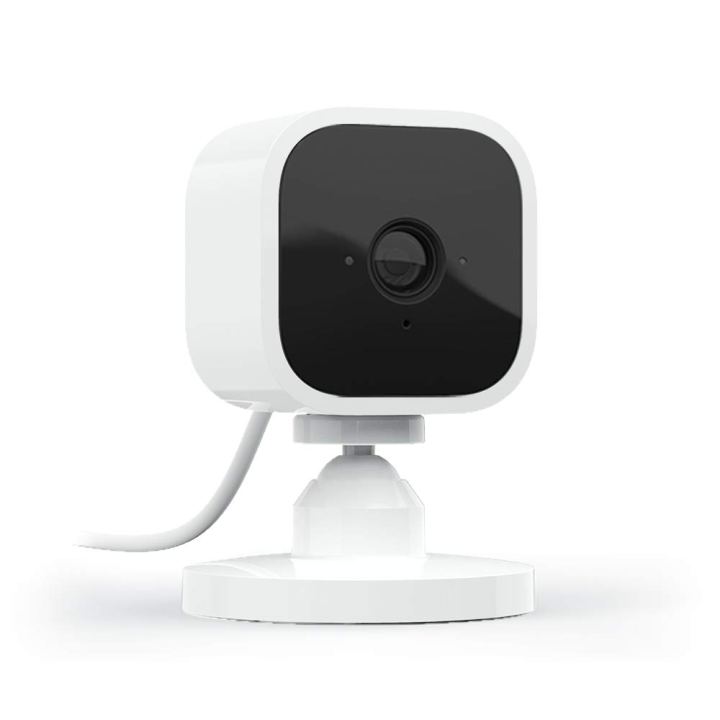
The Blink Mini is a little different from the other cameras in the company’s lineup, as it doesn’t need to connect to a Sync Module. Instead, there’s a small reset button on the bottom side of the camera. You can use this button if your camera isn’t connecting to the internet or has other issues.

Step 1: Press and hold the reset button for 30 seconds.

Step 2: The camera should now be back at its factory defaults mode.

How to reconnect the Blink camera to Wi-Fi

Once you reset your system, you’ll have to reinstall the Sync Module to the Blink app to get it connected to Wi-Fi again. As detailed above, you can only reconfigure your system after resetting it and deleting it from the app.

Step 1: Open the Blink app.

Step 2: Tap the + sign.

Step 3: Select Blink Wireless System.

Step 4: Scan or enter the serial number of the Sync Module.

Step 5: Select your Blink system and tap Discover Devices.

Step 6: Tap Join and Done.

These are all the steps you’ll need to reset your Blink system if it has issues, shows that it’s offline, or if you’re selling it to a new owner. Remember that you should first power cycle the system before resetting if problems arise.

Editors’ Recommendations


Share. Facebook Twitter Pinterest LinkedIn Tumblr Email

Keep Reading

I’m weirdly excited about Android 17’s upcoming anti-doomscrolling feature

ASUS ROG’s first DDR5 memory kit looks fast, flashy, and absurdly expensive

I use this iPhone feature every single time someone wants to borrow my device

California wants to stop publishers from killing online games, and it just made some progress

Mozilla is fighting a losing battle to prove VPNs are essential privacy tools for everyone

Edifier’s new budget headphones put song lyrics on the earcups and I’m confused

I can’t live without iPhone shortcuts. These 7 are my favorites that you must try, too.

OpenAI is bringing in the mighty Codex tool to the ChatGPT app on your phone

Asus ROG and Xreal just built the AR glasses gamers have been waiting for, at a price that stings

Editors Picks

ASUS ROG’s first DDR5 memory kit looks fast, flashy, and absurdly expensive

May 17, 2026

I use this iPhone feature every single time someone wants to borrow my device

May 17, 2026

California wants to stop publishers from killing online games, and it just made some progress

May 17, 2026

Mozilla is fighting a losing battle to prove VPNs are essential privacy tools for everyone

May 17, 2026

Subscribe to News

Get the latest UAE news and updates directly to your inbox.

Latest Posts

Edifier’s new budget headphones put song lyrics on the earcups and I’m confused

May 17, 2026

I can’t live without iPhone shortcuts. These 7 are my favorites that you must try, too.

May 16, 2026

OpenAI is bringing in the mighty Codex tool to the ChatGPT app on your phone

May 16, 2026
Facebook X (Twitter) Pinterest TikTok Instagram
© 2026 Daily Guardian UAE. All Rights Reserved.
  • Privacy Policy
  • Terms
  • Advertise
  • Contact

Type above and press Enter to search. Press Esc to cancel.