

Since the Beats audio brand was started by Dr. Dre and in 2006, its headphones, earbuds, and Bluetooth speakers have maintained a reputation for their for pulse-pounding sound, and in the case of its headphones, exceptional noise cancellation and workout-friendly designs. If you’ve just picked up a pair of Beats headphones, you’re probably here wondering how to pair them to your smartphone, tablet, or laptop. Luckily, it’s easy.
Not to worry though, we’ve got you. Whether you own an in-ear or over-ear Beats product, we’ve put together this guide to teach you how to get your Beats audio device paired to your everyday hardware.
New Beats headphones pair automatically
Conveniently, a new pair of Beats products (we’re talking fresh-out-of-the-box new) will be in pairing mode the moment you power them on. You’ll just want to make sure that you’re no more than 30 feet away from the device you’d like to pair them with, and that said device is set up to receive a Bluetooth handshake.
If this doesn’t happen, move on to the next section.
How to pair Beats headphones
In the event that your Beats headphones need to be paired to a new device, or you’ve reset them and need to re-pair to your phone or laptop, you’ll be able to manually pair your Beats headset to a device by activating pairing mode yourself. Here’s how.
Step 1: To activate pairing mode for the Beats Solo 4, you’ll first need to power the headset on. Press and hold the power button for one second.

Step 2: If you’re going to pair the Solo 4 to an iPhone or iPad, press and hold the power button on the Solo 4 for three seconds. Now hold the headphones no more than 2 inches away from your Apple device. Follow the onscreen instructions, and you’ll be good to go.
Step 3: If you’re pairing to a Mac or any other type of Bluetooth device, press and hold the power button on your Solo 4 until the right ear cup’s indicator light flashes white. Now just head into the Bluetooth settings on your host device and connect to the Solo 4.
Step 4: To put your Beats Studio Pro into pairing mode, start by powering the headset on. If you’re pairing to an Apple device, simply press and hold the system button for three seconds. Then head over to your iPhone or iPad. Hold the headset no more than 2 inches away and follow the onscreen instructions to complete the pairing process.
For any other Bluetooth device, press and hold the system button on the Studio Pro until the fuel gauge lights begin pulsing. Now just head into your Bluetooth settings and choose the Studio Pro.

Step 5: If you own an older set of Beats headphones, such as the Beats Solo 3, the manual pairing process will be near-identical to what we outlined for the Beats Solo 4 and Beats Studio Pro, save for the location of the power/system button on the headset.
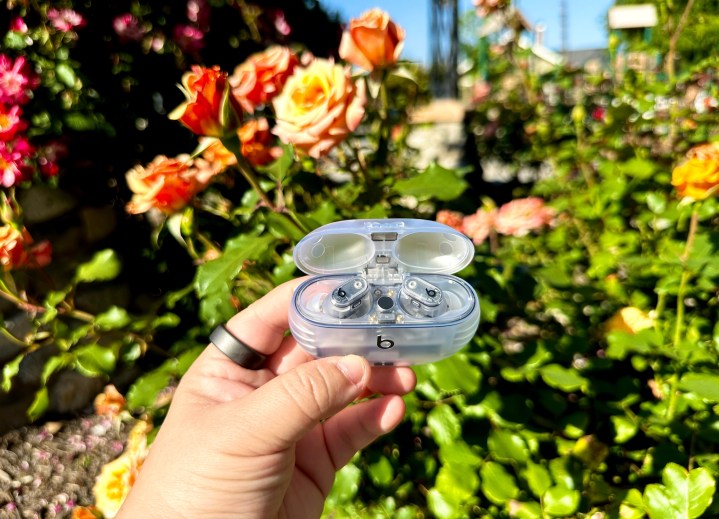
How to pair Beats earbuds
Putting your Beats earbuds into pairing mode is relatively easy. Before you get started, you’ll want to make sure that your host device is ready to accept Bluetooth signals.
The following instructions apply to all current Beats earbuds products, except for the Beats Flex. As these sports buds don’t actually come with a charging case, the power button is located on the right control module instead.
Step 1: To pair your Beats earbuds to an iPhone or iPad, simply place the buds in the charging case and hold the open case next to your unlocked Apple device. Now just follow the instructions on your Apple device’s screen to complete pairing.
It should also be noted that once paired to your Apple device, the Beats Studio Buds and Beats Studio Buds+ will automatically pair to any other Apple device signed in with same Apple ID.
Step 2: To pair Beats earbuds to any other Bluetooth device, put your buds in the charging case and hold them near your host device with the lid open. Now press and hold the system button on the case until the indicator light starts pulsing. Now just head into the Bluetooth settings on your device and connect to your Beats earbuds.
Step 3: If you’re using an Android device, you’ll be pleased to know that the Beats Studio Buds and Beats Studio Buds+ support Android Fast Pair.
To use this feature, first make sure your hardware is running Android 6.0 or later, and that Bluetooth and Location settings are enabled.
With the case lid open, hold the Studio Buds next to your Android device. You should get a notification, at which point you can select Tap to pair.