

While real books still hold a special place in our hearts, there’s no denying an Amazon Kindle is an exceptional piece of kit. Whether it’s simply to save yourself some shelf space (or avoid buying a new bookshelf), to read in the dark, or to give you a lightweight way to travel while carrying lots and lots of books, no avid reader should really be without a Kindle. Best of all, unlike physical books, it’s not too hard to find Kindle books for free.
We have a list of some of the best free Kindle books you can get, but it’s not a comprehensive guide, and you might be looking for something more to your tastes. As such, here are a number of ways you can find free books for your Kindle, from the most simple to the more complex.
How to get free Kindle books on Amazon
Surprisingly, Amazon is the easiest place to get free Kindle books. Yes, there are plenty of free books on Amazon, with available titles including older works that are in the public domain now, as well as first entries from a series that entice you to buy the rest to finish the story. If that sounds good to you, getting hold of these books couldn’t be simpler.
Step 1: Open up the Amazon website or app, and search for “free Kindle books”.
Step 2: Find one you like.
Step 3: Select Buy now with 1-click.
How to get free Kindle books from your library
Did you know you can get Kindle books from your library for absolutely nothing? Libby is a free service that lends out digital library books from across the U.S., and if you’re in the States, it can send them straight to your Kindle as well. All you need in order to get started is a library card.
Step 1: Start by downloading the Libby app for Android or iOS.

Step 2: Open the app and complete the sign-up process by finding your library and entering your library card number.
Step 3: Now, you’ll be able to browse your library’s selection in the app. Select a title to borrow.
Step 4: Head to your Shelf > Loans to find your chosen title.
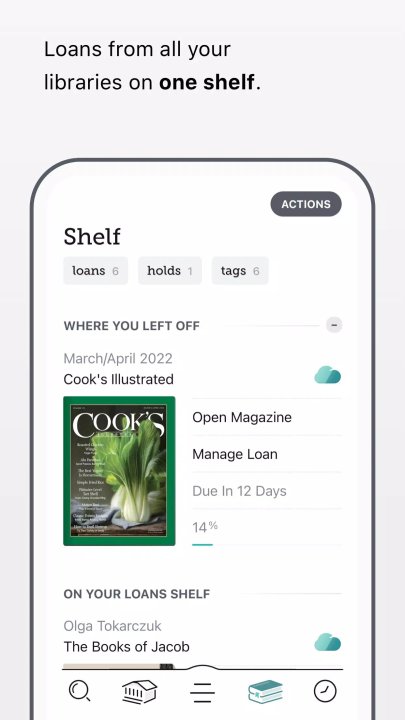
Step 5: Select Read with > Kindle.
Step 6: If you haven’t linked accounts already, you’ll be sent to an Amazon page to sign in.
Step 7: Sign in and choose the Kindle device the book is to be sent to.
Step 8: Finally, choose Get library book to have the book sent to your device.
How to get free Kindle books with Amazon Prime
Did you know an Amazon Prime membership also gives you access to thousands of books through
? While you technically pay a subscription for access to Prime Reading, if you’re paying for Amazon Prime anyway, Prime Reading is a handy bonus.
Prime Reading gives you access to unlimited access to a catalog of books, audiobooks, comics, and magazines at no extra charge. It also comes with a free book every month for a prerelease title. It’s a great deal and one that many people forget they have.
Step 1: To find your Prime Reading options, open the Amazon app or head to the Amazon site.
Step 2: Open the menu (in the bottom right of the app), and select Prime > Prime Reading.
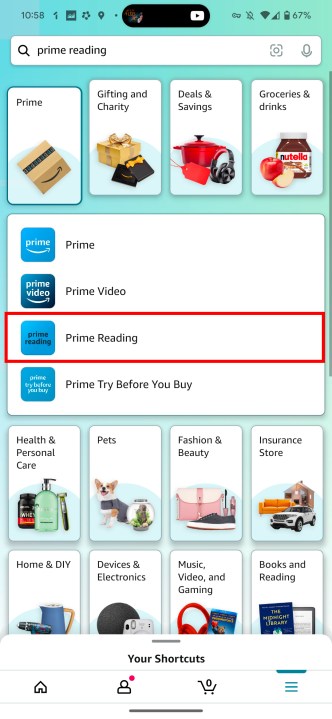
Step 3: On the website, you’ll need to select All > Kindle e-readers & books > Prime Reading.
Step 4: From here, you can use the search bar to search just within Prime Reading, or you can browse the main page’s selection.
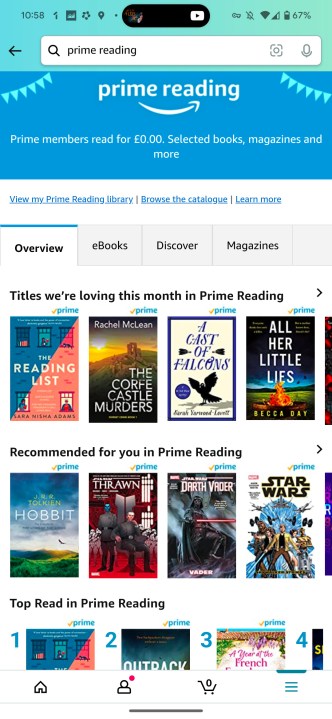
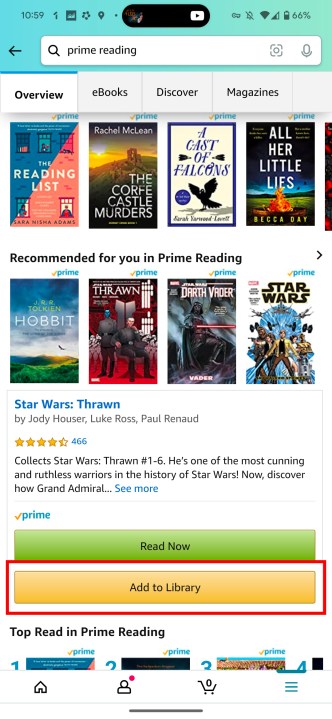
Step 5: Once you find an option you like, select it and choose Add to library.
How to get free Kindle books with Project Gutenberg
The final option can be applied to a number of websites that offer free digital books, but as Project Gutenberg is the most well-known, we’ve chosen to highlight this one.
Project Gutenberg is an enormous repository of some of the most famous books in the world, all of which have fallen into the public domain. As such, you can grab them and read them for absolutely nothing. You’ll need to send each book to your Kindle, but that’s not too difficult; here’s how it’s done.
Step 1: Head to the Project Gutenberg website on your phone or PC.
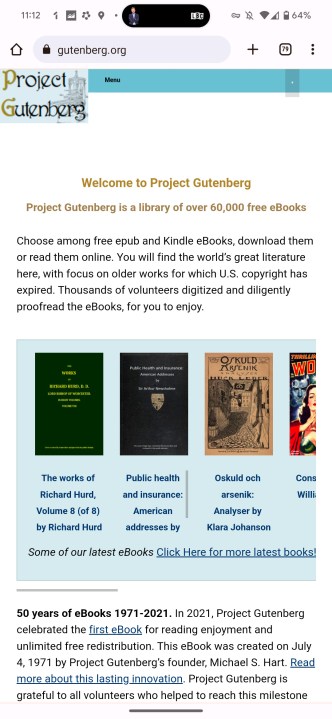
Step 2: Search for or browse until you find a title you want.
Step 3: In the downloads of your chosen title, select one of the downloads. Select a file marked EPUB or Kindle.
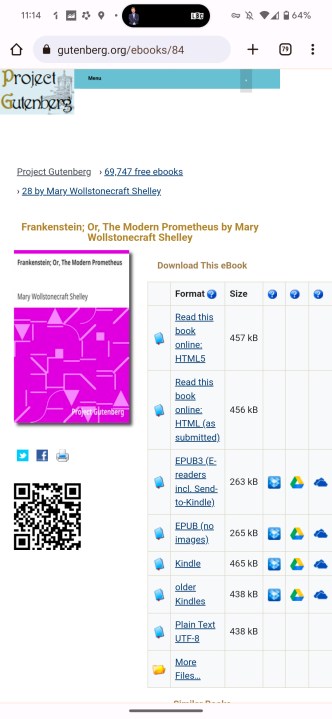
Step 4: Once you have the file, head to the Content and devices page of your Amazon account, then select Devices.
Step 5: Find your Kindle, and copy its individual email address.
Step 6: Open your email app (or website), insert your Kindle’s email address, and attach the file for your new book. Send it, and it’ll be sent to your Kindle.
Editors’ Recommendations