
Daily Guardian UAEDaily Guardian UAE
  • Home
  • UAE
  • What’s On
  • Business
  • World
  • Entertainment
  • Lifestyle
  • Sports
  • Technology
  • Travel
  • Web Stories
  • More
    • Editor’s Picks
    • Press Release
What's On

Nintex debuts new updates to enhance customization and accessibility for Nintex K2

March 13, 2026

Samsung might avoid a price hike on the upcoming Galaxy Z Fold 8, and you can thank Apple for it

March 13, 2026

Thailand Positions Itself as a Hub for Adventure and Sustainable Travel Bangkok, March, 2026

March 13, 2026

Research warns AI agents can be a self-churning propaganda machine

March 13, 2026

AI photo editing without the privacy trade off is almost here

March 13, 2026
Facebook X (Twitter) Instagram
Finance Pro
Facebook X (Twitter) Instagram
Daily Guardian UAE
Subscribe
  • Home
  • UAE
  • What’s On
  • Business
  • World
  • Entertainment
  • Lifestyle
  • Sports
  • Technology
  • Travel
  • Web Stories
  • More
    • Editor’s Picks
    • Press Release
Daily Guardian UAEDaily Guardian UAE
Home » Have Android 14? Here’s how to easily customize your lock screen
Technology

Have Android 14? Here’s how to easily customize your lock screen

By dailyguardian.aeDecember 25, 20233 Mins Read
Share
Facebook Twitter LinkedIn Pinterest Email

Smartphone users unlock their phones, on average, an incredible 150 times a day. That means you’re going to see your lock screen an awful lot, so it should absolutely be something you like looking at. Even if you’re only seeing it for a few seconds while you press your finger to the screen or wait for your face to be scanned, those seconds add up, so why not look at something that makes you smile?

It’s quick and easy to make changes to your Android smartphone’s lock screen, and you can change a number of different elements of it — from the background image to the clock style and font. You can even change exactly what shows up on there, so you can keep private information private. Here’s how to customize your lock screen in Android 14.

How to open the lock screen customization menu

Opening your lock screen customization menu is easy, and you don’t need to go much further than your lock screen itself.

Step 1: Open your phone and long-press on the display. Select Customize lock screen when it appears at the bottom of the screen.
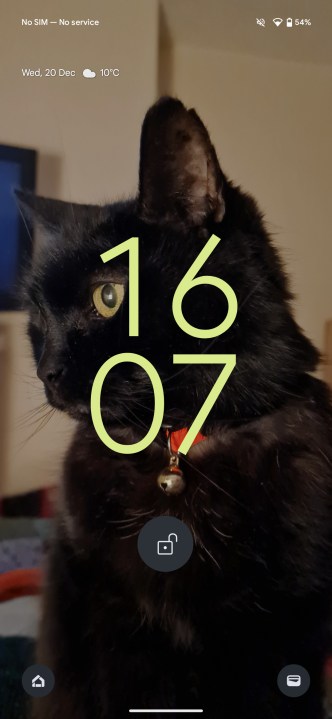
The Android 14 lock screen.

Step 2: If not automatically unlocked through facial recognition, you’ll now need to unlock your phone.
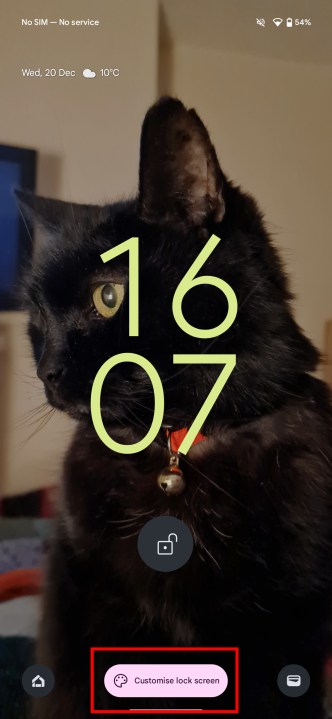
The Android 14 lock screen with the customization option.

Step 3: You’ll find yourself in your customization menu now.
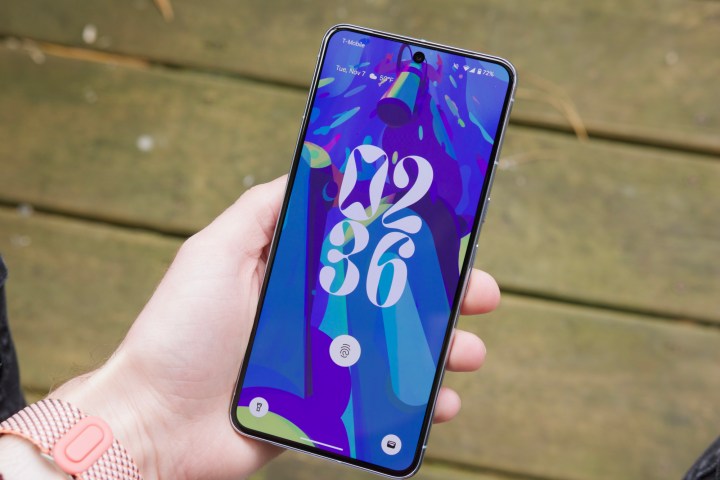
Someone holding the Google Pixel 8 Pro, showing its lock screen.

How to change your lock screen’s wallpaper, clock style, and more

Now you’re in your customization menu, you’ll need to know how to use it to change your lock screen.

We’ll start with the clock options.

Step 1: From the menu, swipe left and right on the small version of your lock screen to swap between clock layouts.
Changing the lock screen clock design in Android 14.

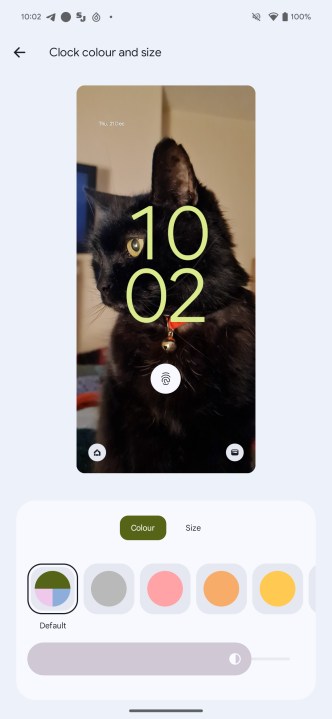
Step 2: Select Clock color and size to change the color and size of your chosen clock face. For the size, you can only pick between Small, which puts the clock in the top-left corner, or Dynamic, which changes the clock size to match your lock screen’s content.

Step 3: You can also change the clock color to match the color theme of your device from the main customization menu.
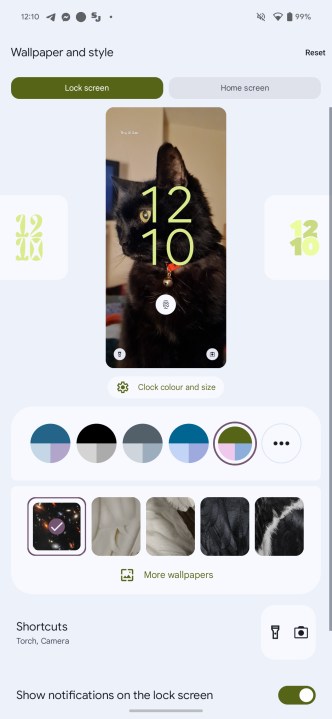
The Android 14 lock screen customization menu.

Step 4: Below this, you can choose a wallpaper. Select More wallpapers to find more options.

Step 5: Now, you can change the two app shortcuts in the bottom corners of your lock screen by choosing Shortcuts. Select Left shortcut and Right shortcut and select the apps or functions you want in both of those areas.
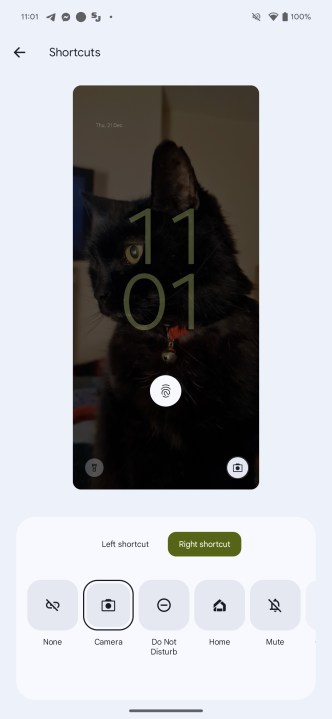
Changing the lock screen shortcuts in Android 14.

Step 6: Show notifications on the lock screen is the box you need to untick if you don’t want any notifications on your lock screen.
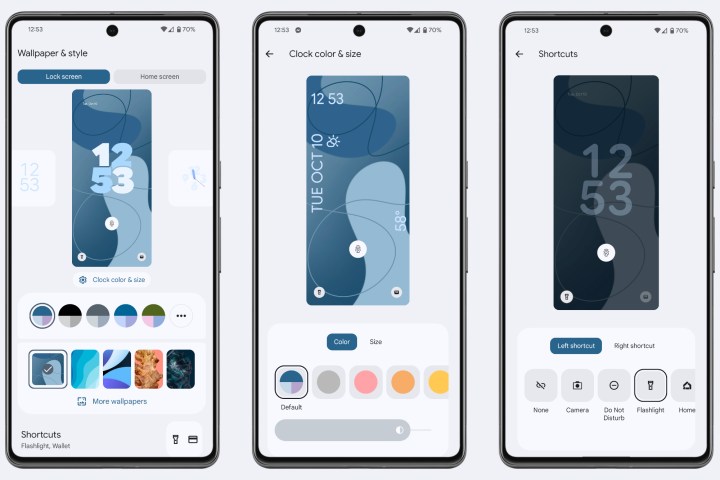
Screenshots of Android 14's lock screen customization options.

How to change even more lock screen options

That’s not all, either. You can go even deeper, changing whether device controls show, whether Now Playing identifies nearby songs, whether the screen wakes up when you get new notifications, and more.

Step 1: To access these options, select More lock screen options.
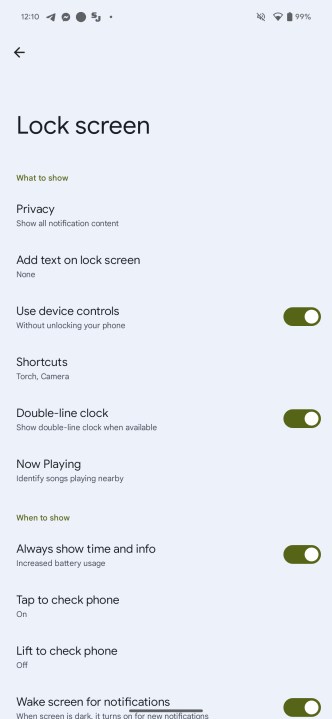
The advanced lock screen options in Android 14.

Step 2: There are too many options here to dive into in any depth, but some interesting options you may want to explore are the Privacy options, which can let you screen out notifications from sensitive apps, and whether you want the lock screen to Always show time and info — as turning this off can help to save battery life.

Editors’ Recommendations


Share. Facebook Twitter Pinterest LinkedIn Tumblr Email

Keep Reading

Samsung might avoid a price hike on the upcoming Galaxy Z Fold 8, and you can thank Apple for it

Research warns AI agents can be a self-churning propaganda machine

AI photo editing without the privacy trade off is almost here

Facebook Marketplace’s new AI ends the “is this available” nightmare

Tinder is adding a bunch of safety features to spare you the horror date

Bumble wants you to trust its Bee AI assistant to date humans

Ford juices up the 2026 Explorer EV with Vehicle-to-Load tech… but not in the U.S.

How to create a protected WhatsApp for kids under 13 years of age?

What is YouTube Premium Lite? All you need to know about YouTube’s cheaper plan

Editors Picks

Samsung might avoid a price hike on the upcoming Galaxy Z Fold 8, and you can thank Apple for it

March 13, 2026

Thailand Positions Itself as a Hub for Adventure and Sustainable Travel Bangkok, March, 2026

March 13, 2026

Research warns AI agents can be a self-churning propaganda machine

March 13, 2026

AI photo editing without the privacy trade off is almost here

March 13, 2026

Subscribe to News

Get the latest UAE news and updates directly to your inbox.

Latest Posts

Facebook Marketplace’s new AI ends the “is this available” nightmare

March 13, 2026

Tinder is adding a bunch of safety features to spare you the horror date

March 13, 2026

Bumble wants you to trust its Bee AI assistant to date humans

March 13, 2026
Facebook X (Twitter) Pinterest TikTok Instagram
© 2026 Daily Guardian UAE. All Rights Reserved.
  • Privacy Policy
  • Terms
  • Advertise
  • Contact

Type above and press Enter to search. Press Esc to cancel.