

Just because your co-worker sent you a PDF file instead of the Excel document you wanted doesn’t mean you’re actually stuck with it. In this guide, we’ll teach you how to convert a PDF into an XLSX document using a few quick and easy steps. We’ll even teach you a few different ways to do it, so that you can use Microsoft Excel to edit the spreadsheet as intended.
If you don’t want to go to the trouble of converting the PDF and would rather just edit it as is, we have a guide to the best PDF editors, too.
Using PDFgear to convert PDFs to Excel documents
PDFgear is a free to download and use PDF reader and editing app. It has a very simple user interface and it’s our preferred method for converting PDFs to Excel documents.
PDFgear is available to use on Windows, macOS, and iOS.
Note: The following instructions only show how to use the desktop app. These instructions were written based on the Windows version of PDFgear.
Step 1: Go to the PDFgear website and then download and install the desktop app version compatible with your device.
Step 2: Open the PDFgear app on your PC. Then select the Convert from PDF tab.
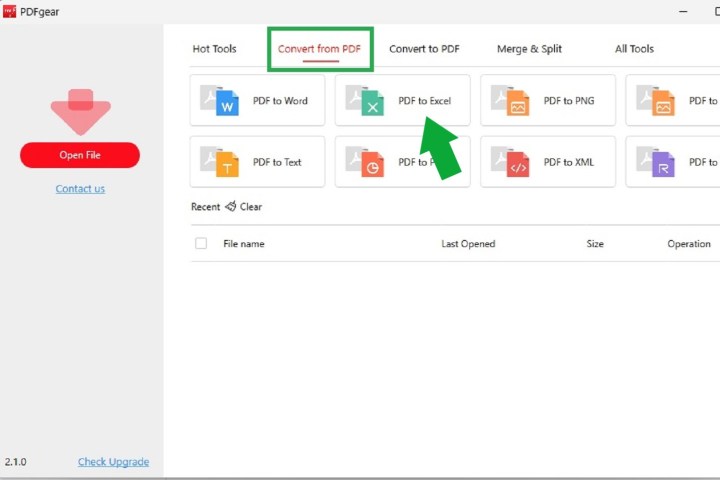
Step 3: Select the PDF to Excel button. On the PDF to Excel screen that appears, choose Add file.
Choose the PDF file you want to convert, then select Open.
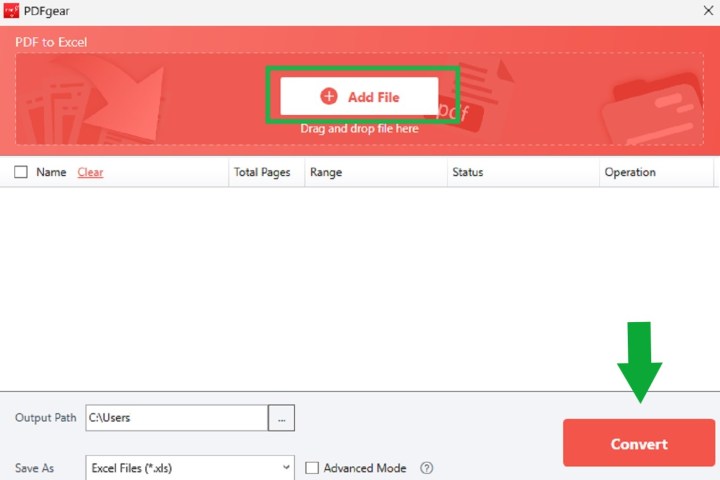
Step 4: Now, select the big red Convert button.
Step 5: Once the conversion is complete, the file location of your newly converted file will appear on your screen. From here, you can access your new Excel file.
Note: The formatting of your new Excel file may be a little off, so you may need to edit the spreadsheet until it looks the way you want. Look for offset columns and other formatting changes. You may need to merge or unmerge some cells.
Using a free web application
We get it, PDFgear might not work for everyone. There are many reasons that you may be unable to install such applications on your system, or maybe you would simply prefer that a remote server handle the brunt of the work for you. That’s OK — there are other methods you can use to convert those files.
You always have the option to convert a PDF to an Excel document online instead. Although there are a number of online converters to choose from, we have a favorite. We strongly recommend PDFtoExcel.com because it’s free, has a clean and user-friendly interface, and does an excellent job quickly.
We recommend caution if you use PDFtoExcel.com. While the company has confirmed it promptly deletes all data received within six hours after upload and doesn’t view your files, it’s better to exert some caution where your privacy rights are concerned.
If you are converting essential or private data, it’s best to use a local conversion method, as this is the safest protocol.
Local conversion methods are best for converting personal, sensitive, or otherwise private information, as they ensure the most protection.
With PDFtoExcel.com, you are in good hands because the efficient conversion method is an easy three-step process that we have laid out below.
Step 1: Open a browser window and go to PDFtoExcel.com.
Step 2: Click the Upload button and select the PDF you want to convert. Alternatively, you can drag and drop it onto the designated area.
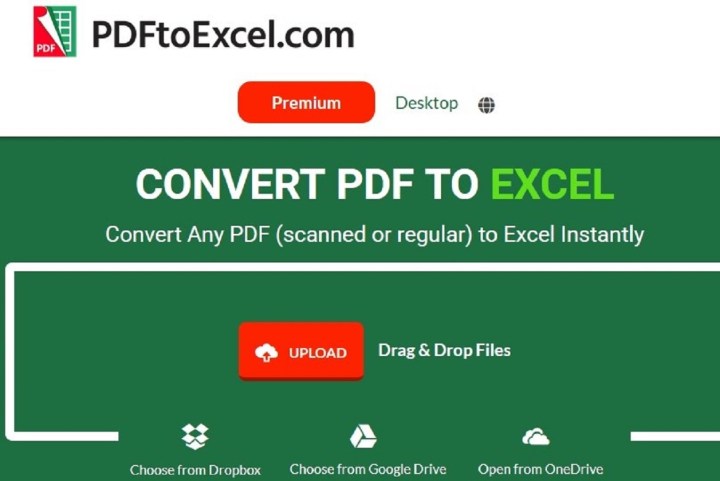
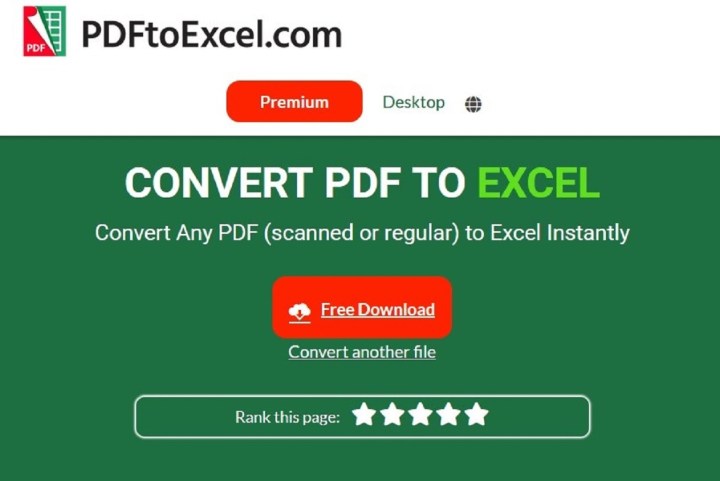
Step 3: If you are working with an extensive PDF and/or data set, uploading the file and converting it may take a little while, but overall, the process should be swift. Once complete, click the Free download button.
After the final step, your PDF file will be in an Excel format that you can download or edit. Again, this converted document may require tweaking or formatting. This can be time-consuming, so refer to these Microsoft Excel keyboard shortcuts to help you become more efficient using spreadsheets.
If you’re regularly sharing documents with colleagues, PDF is a good format, but there are alternatives. You might find it easier to work on the file collaboratively, through your browser. The easiest way to do this is to convert the Excel file to Google Sheets — don’t worry, you can easily change it back again.