
Daily Guardian UAEDaily Guardian UAE
  • Home
  • UAE
  • What’s On
  • Business
  • World
  • Entertainment
  • Lifestyle
  • Sports
  • Technology
  • Travel
  • Web Stories
  • More
    • Editor’s Picks
    • Press Release
What's On

Galaxy S26 Ultra’s 25W wireless charging might not work as advertised

March 19, 2026

Microsoft PowerToys update is bringing three key upgrades to your Windows PC

March 19, 2026

Samsung will rent you a Galaxy S26 Ultra at half the sticker price for a year 

March 19, 2026

AI is reviving Val Kilmer in the upcoming film “As Deep as the Grave”

March 19, 2026

You’re getting a free VPN in Firefox, here’s why it matters

March 19, 2026
Facebook X (Twitter) Instagram
Finance Pro
Facebook X (Twitter) Instagram
Daily Guardian UAE
Subscribe
  • Home
  • UAE
  • What’s On
  • Business
  • World
  • Entertainment
  • Lifestyle
  • Sports
  • Technology
  • Travel
  • Web Stories
  • More
    • Editor’s Picks
    • Press Release
Daily Guardian UAEDaily Guardian UAE
Home » How to alphabetize lists in Microsoft Word
Technology

How to alphabetize lists in Microsoft Word

By dailyguardian.aeSeptember 2, 20241 Min Read
Share
Facebook Twitter LinkedIn Pinterest Email

Microsoft Word is a powerful word processing application that’s capable of creating complex and compelling documents. It can also perform very simple but useful tasks, like alphabetizing a list.

Even if you know how to use Microsoft Word, you might not know how to alphabetize lists. Well, here’s how to do that.

Sort by the first item in a list

In this example, we’ll look at a list of first and last names. We’re going to sort them by the first name.

Step 1: To begin, select all the items in your list.
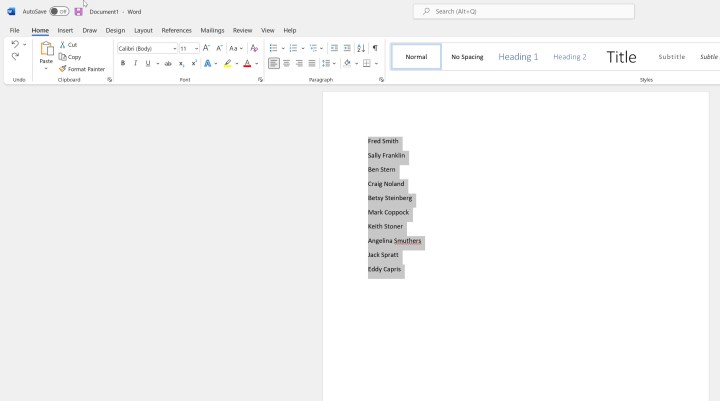
Select list items in Microsoft Word.

Step 2: Select the Sort button from the Home menu.
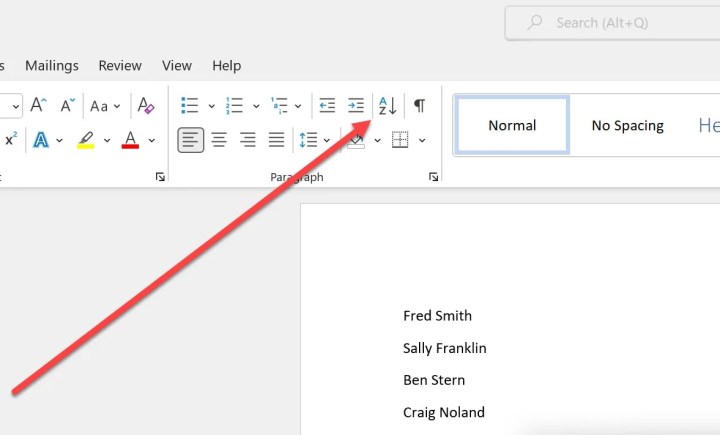
The sort button in Word.

Step 3: Under “Sort by” choose “paragraphs” and choose either “Ascending” (A to Z) or “Descending” (Z to A) on the right.

Step 4: Click OK and the results will now be alphabetized by the first name.

List Sorted by first name in Microsoft Word.

So, as long as you have a list of items to sort, they can be arranged in alphabetical order. Just be sure to place each item on a separate line.

Microsoft Word has a vast collection of features, many of which you may not know about. For example, here’s how to print labels in Microsoft Word.


Share. Facebook Twitter Pinterest LinkedIn Tumblr Email

Keep Reading

Galaxy S26 Ultra’s 25W wireless charging might not work as advertised

Microsoft PowerToys update is bringing three key upgrades to your Windows PC

Samsung will rent you a Galaxy S26 Ultra at half the sticker price for a year 

AI is reviving Val Kilmer in the upcoming film “As Deep as the Grave”

You’re getting a free VPN in Firefox, here’s why it matters

Apple quietly fixes Family Sharing’s biggest flaw a decade after its launch

You might have to wait months for Intel’s latest chips to appear in preferred brand laptops

Hydrogen fuel cars never caught on, but it just might produce next-gen long range drones

Your iPhone could be hacked just by visiting a website if you’re still running iOS 18

Editors Picks

Microsoft PowerToys update is bringing three key upgrades to your Windows PC

March 19, 2026

Samsung will rent you a Galaxy S26 Ultra at half the sticker price for a year 

March 19, 2026

AI is reviving Val Kilmer in the upcoming film “As Deep as the Grave”

March 19, 2026

You’re getting a free VPN in Firefox, here’s why it matters

March 19, 2026

Subscribe to News

Get the latest UAE news and updates directly to your inbox.

Latest Posts

Apple quietly fixes Family Sharing’s biggest flaw a decade after its launch

March 19, 2026

You might have to wait months for Intel’s latest chips to appear in preferred brand laptops

March 19, 2026

Hydrogen fuel cars never caught on, but it just might produce next-gen long range drones

March 19, 2026
Facebook X (Twitter) Pinterest TikTok Instagram
© 2026 Daily Guardian UAE. All Rights Reserved.
  • Privacy Policy
  • Terms
  • Advertise
  • Contact

Type above and press Enter to search. Press Esc to cancel.