

When it comes to voice assistants, few are as popular as Google Assistant. It competes with Amazon’s Alexa and Apple’s Siri, allowing you to control smart home devices such as smart speakers and smart thermostats via voice commands — and it has only grown more useful over the years. Beyond the smart home, Google Assistant can be loaded onto your phone or other devices to carry out tasks like taking hands-free photos or setting reminders. It’s an incredibly versatile piece of software, and Google’s gone so far as to let you customize your assistant’s voice.
But how do you change Google Assistant’s voice? And can you change Google Assistant’s language or speech speed? And what about homes with multiple people — can each person customize their own Google Assistant? Here’s a look at how to access these useful features.
How to change the Google Assistant voice
Changing the voice of your Google Assistant is a simple process. Here’s a quick look at how it works.
Step 1: Open up the Google Home app on your smartphone or tablet. Select the Settings icon (it looks like a gear) in the main menu.
If you prefer voice commands, you can also say “Hey Google, open Assistant settings,” and your phone or tablet will automatically display the Settings screen within the Google Home app.
Step 2: In Settings, scroll until you reach the Google Assistant option (located in the Features subsection). From here, click on the Manage all Assistant settings button.
Step 3: Scroll down until you see the Assistant voice & sounds option. Open this menu, and you’ll be greeted by an array of colorful circles. These represent different voice options. Select one, and your device will automatically update to the new dialect.

How to change the Google Assistant language
Google devices support a wide variety of languages. Here’s how to update which one is used by your Google Assistant.
Step 1: Using your smartphone or tablet, open up the Google Home app. Open the Settings icon on the home page, which looks like a gear.
Step 2: Scroll until you reach Google Assistant and then look for the option that says More Settings. On the next screen, tap Languages.
Step 3: Here, you have an important choice to make. You can change the primary language that the Assistant uses with Choose a new language, or you can add a second language to Google Assistant in addition to the primary language with Add a language. The latter option is useful for bilingual households, etc. Languages available for smart devices include German, French, Italian, Japanese, Spanish, Dutch, Norwegian, Swedish, and more.
Please keep in mind that the languages available on your device may vary based on both what Google Nest device you have and what region you are in. You will have to check your settings to find out specifically what’s available to you.
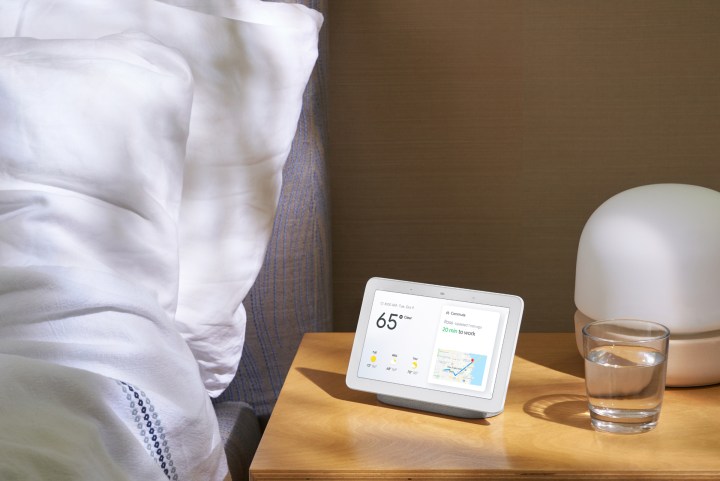
How to give your Google device a celebrity voice
Google Assistant also has the option to assume a variety of celebrity voices, giving you some very unique options for your voice assistant. Using a celebrity voice instead of the more automated voices is a convenient option, especially for those who are tired of the same old voice and are looking for a change. The range of celebrity voices available continues to grow, but popular options currently include John Legend and Issa Rae.
If you’re scrolling through Google Home’s voice options, you’ll discover that there are celebrity voice options you can use, but you don’t have to activate them from that menu. All you have to do is say, “Hey Google, talk like John Legend,” or whoever you prefer, and the voice assistant will address you in that voice until you tell it otherwise.

Assign different voices based on the person Google Home is talking to
A nice bonus of voice customizations is that you don’t have to pick one voice for your Google Home; you can customize it according to who is issuing the voice commands. If you’d prefer to hear a generic voice respond to you, but your partner would prefer to hear Issa Rae’s voice, you can easily achieve this.
Enabling this feature only takes two steps. First, you’ll need to train Google Home to recognize your voice. After the device recognizes your voice, then you’ll use voice commands to set your voice preference so it will respond to the sound of your voice with the one you have chosen. This ability gives you and your household endless flexibility when it comes to personalizing your Google Home.
How to change Google Assistant’s speech speed
If you’re finding that Google Assistant speaks to you a little too rapidly, simply ask, “Can you repeat that slower?” to hear the previous response at a more manageable speed.

Why did my Google Home voice change?
Some users have reported issues with their Google Assistant voice randomly changing or resetting. Unfortunately, there doesn’t seem to be a foolproof solution to this issue, and there are many reasons this might be happening.
For one, it’s possible the software had an update and it accidentally reset your voice settings. This would cause Google Assistant to default to its original settings. Some users have noticed that only certain devices in their home respond with different voice settings, while all others seem to be unimpacted.
Others believe it to be caused by minor hiccups with various versions of Google Assistant, and fixing the issue is as simple as updating your software. Whatever the case, you can always follow the instructions laid out above to return your Google Assistant voice to your preferred settings. It’s a nuisance, but at least it only takes a few seconds to fix.
Editors’ Recommendations