

Google Chrome is fairly plain, but it doesn’t need to be. One way to spice it up is by changing the overall look with a new theme. Not only can you change the New Tab background but you can also change the overall colors of your tabs, bookmarks bar, and more.
This method does not work in the Chromium-based version of Microsoft Edge, nor does it alter the appearance of Google’s website. This method only pertains to Google Chrome, the best browser you can download right now, and its New Tab page.
Here’s how to change your Google background. But before pressing on, be sure to update Chrome, as the following instructions reflect version 119 of Chrome and later.
Find the Theme setting
First, we’ll walk you through how to change your Google Chrome background using a theme. Here, we install a theme you can download from the Chrome Web Store. Themes typically include a custom image that appears on the New tab background and new colors splashed throughout the browser.
First, locate the Theme setting in Google Chrome. To do this:
Step 1: Select the three-dot Customize and control Google Chrome icon located in the top-right corner.
Step 2: Select the Settings option on the drop-down menu.
Step 3: Select Appearance listed on the left.
Step 4: Choose Theme listed on the right. This action takes you to the Chrome Web Store.
Note: You can also access this setting by typing chrome://settings/appearance in the browser’s address field.
Pick your theme
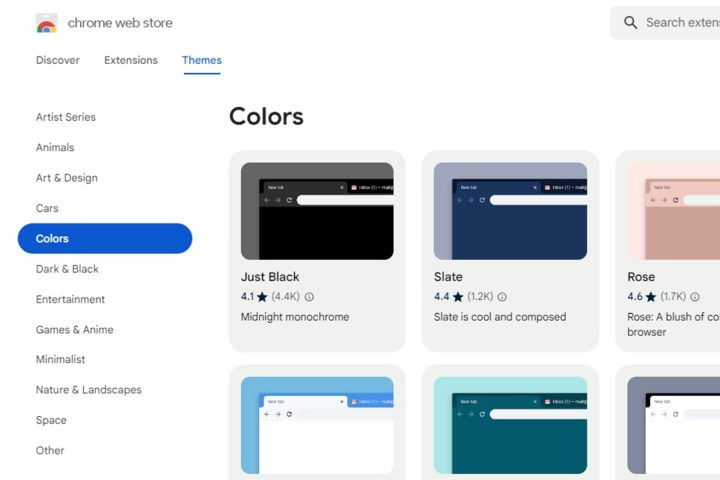
The Chrome Web Store’s Themes section opens in a new tab. Here’s what to do next.
Step 1: Browse the store’s many available themes divided by broad categories. The primary image that you see is typically the image that will appear as your New tab background, so you can use that as a guide for which one to pick. If you need help, these are our favorite themes.
Step 2: Once you select a theme, make sure to check out its preview images and reviews. The Support section (if available for that theme) will also give you information about problems (if any) users have encountered using the theme.
Step 3: Remember, most themes extend their colors and patterns throughout the browser window and tabs, so take a look at the full appearance before installing.
Add it to Chrome
Next, it’s time to add your theme to Chrome. Here’s what to do:
Step 1: If you find something you like, select the blue Add to Chrome button.
Step 2: As Chrome applies the theme, this button should now read Remove from Chrome. You’ll also see a blue Undo button for removing the theme.
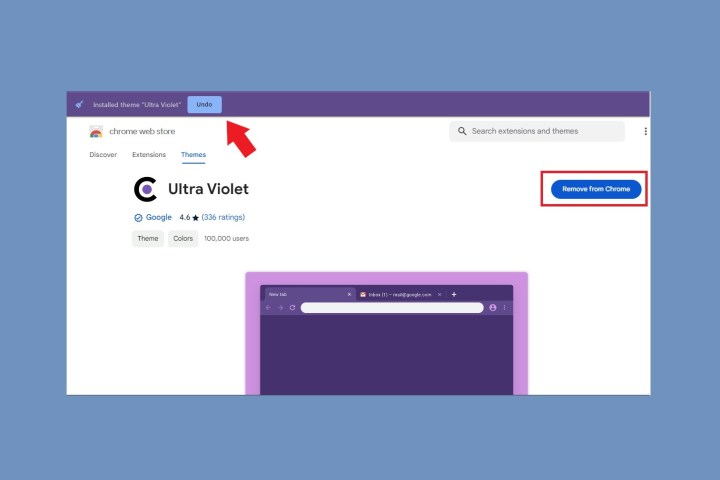
Step 3: Take a look at your new theme, which automatically transforms the browser’s appearance. Tabs may or may not change color, and if you open a new tab, you should see the theme’s primary image.
Step 4: See if you like the overall theme — sometimes you may like the image, but not what it does to your tabs or the colors it adds throughout the browser. If that’s the case, select the Undo button or head back to Appearance in the Settings menu and revert to the default theme.
Warning: While Google supposedly scans everything uploaded to the Chrome Web Store, be cautious about what you install in Chrome. Try to stick with a Google-developed theme or install a custom image for your New tab background. Not all non-Google themes are malicious, but you never know.
Select a custom image
Perhaps you don’t care for any of the themes, or you’d prefer to use a personal image instead. The next few steps walk you through the steps to add a custom image, while the section after shows you how to change colors without installing a theme.
First, let’s install a custom image provided by you or Google.
Step 1: Open a new tab and select the Customize Chrome button located in the bottom-right corner.
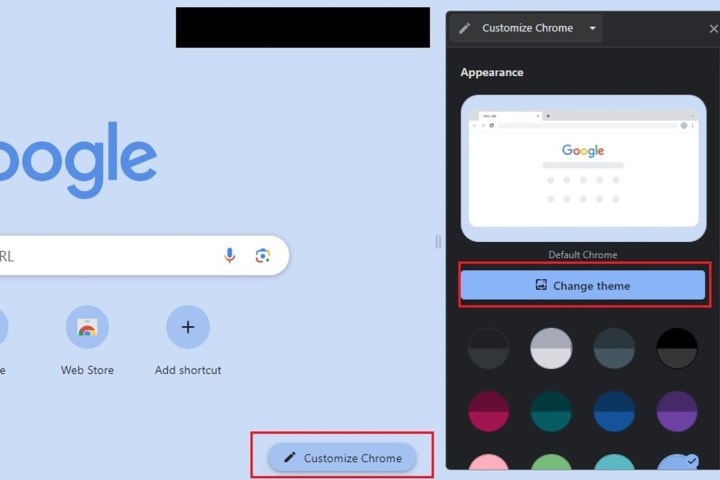
Step 2: To upload your own image, select Change theme > Upload an image. Select your desired image and choose Open.
Step 3: If you’d rather use a preset background from Google, just select your desired background. That’s it. It’ll automatically change.
Step 4: When you open a new tab in Chrome, the image now appears on your screen. You can remove it at any time by selecting the Customize button again — it’s merely a pencil icon in this case — and choosing Reset to default Chrome.
Select a color and theme
You can select a background picture, or if you want a more personalized look, you can customize your entire Chrome layout. If you don’t know which theme you want to install, do the following:
Step 1: Open a new tab and select the Customize Chrome button in the bottom-right corner.
Step 2: An in-browser window should appear. Under the Change theme button, you’ll see an assortment of complementary color swatches — pick your favorite. That’s it: You’ll see the results immediately on your browser.
Step 3: To get rid of your chosen theme, navigate back to the color swatches menu and select the swatch labeled Default color (it should be the very first one, from the left.)
Editors’ Recommendations