

The Other section of your iPhone’s storage is comprised of anything that Apple hasn’t sorted into one of its assigned categories. Common files that go into Other storage include system files, application caches—especially your Safari browser cache—and update files.
In this article, we’ll explain what might be taking up your Other storage and give you some easy ways to clear some of it out, so you can free up additional space on your iPhone.
In the meantime, if you want to check out how much of your phone’s storage is being taken up by “Other” stuff, open Settings> General> iPhone Storage.
Trying to make room on your iPhone? Be sure to also check out our guide on how to free up space on your iPhone.
How to view your iPhone storage
You can see a breakdown of your phone’s storage by following these steps:
Step 1: Under Settings > General > iPhone Storage, your phone will likely provide a few simple recommendations like offloading unused apps, and you can enable a setting that will automatically offload apps you’re not using.
Step 2: You can also opt to automatically delete old text conversations that were sent or received longer than a year ago.
Step 3: If you scroll to the bottom, you’ll find Other storage. Now you’re ready to clear the Other storage out on your iPhone.
What is ‘Other’ storage?
It can be frustrating to stare down the Other category in the iPhone Storage screen. While Apple labels space taken up by installed apps, system files, multimedia, and messages, the Other category presents a mystery. Put simply, the Other section is comprised of anything that Apple hasn’t sorted into one of its assigned categories. Common files categorized within the Other section include system files, application caches, and update files.
The types of ‘Other’ storage and how to clear them
It can be challenging to determine precisely what is categorized as Other storage. Here are some of the most common culprits that could be stealing your iPhone’s storage and detailed instructions on how to clear them.
Safari cache and website data
Safari is the default web browser on iOS devices. To load webpages with increased speed, it may store files on your device for later use. If left unchecked, Safari cache files and website data may grow out of control. Here’s how to clear Safari’s cache on your iPhone:
Step 1: Open the Settings app.
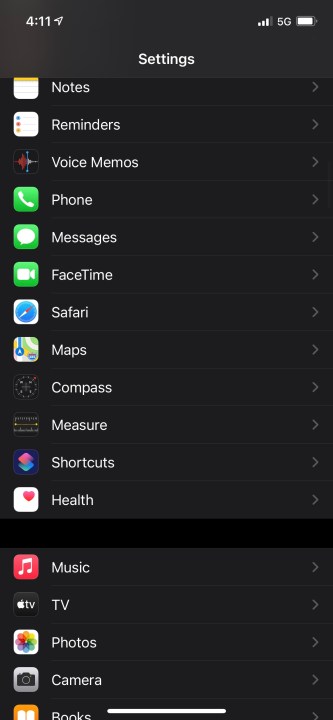
Step 2: Scroll down and select Safari.
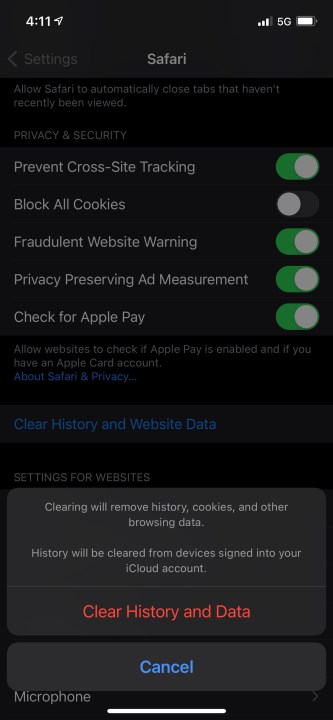
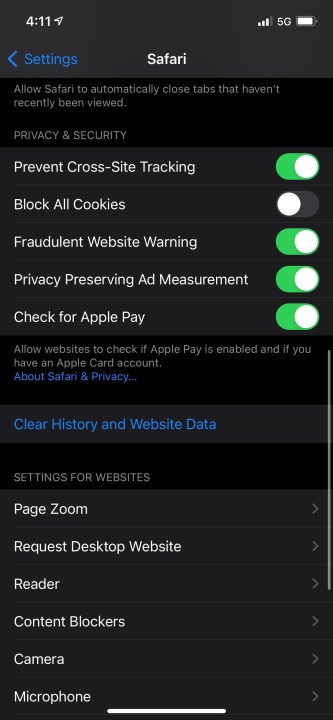
Step 3: Tap Clear History and Website Data.
Old iMessages and text messages
Despite having a dedicated Message category, old messages on your device can take up space under the Other category. If you don’t feel the need to keep your iMessages and text messages forever, you can set them to automatically delete after a set amount of time.
Step 1: Open the Settings app.
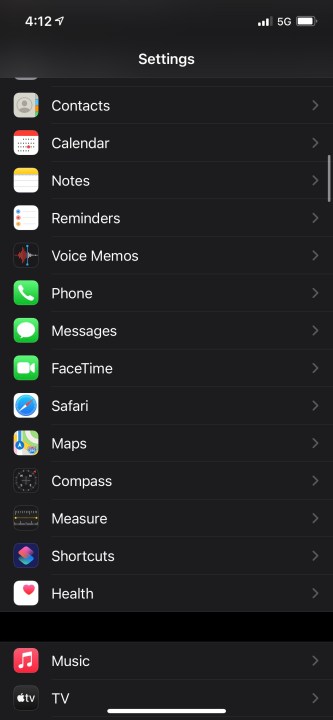
Step 2: Scroll and select Messages.
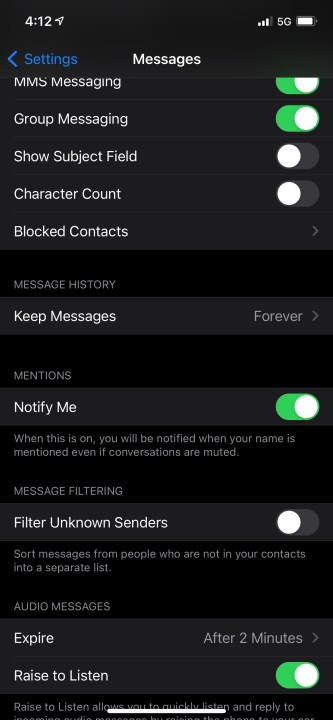
Step 3: Find and click on Keep Messages under Message History.
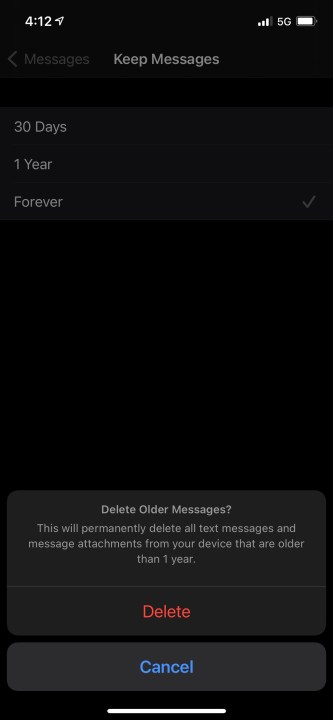
Step 4: Select whether to automatically delete messages after either 30 Days or 1 Year.
More options
As mentioned above, you may also find an option under Settings>General>iPhone storage where you can automatically delete messages and attachments sent more than a year ago. But going under messages allows you to specify the time period.
Mail app cache and files
Another application that stores a local cache on your device is the iOS Mail app. Unfortunately, there is no easy way to clear the cache and all associated files. Our recommendation for tackling this category is merely removing your email account from your iPhone and then re-adding it.
You can manage all current email accounts by opening the Settings app and navigating to the Passwords & Accounts section, then tapping the account and choosing to delete it. If you need further assistance after setting up your email again, check out our guide on adding your email account to an iPhone.
Streaming app cache files
Many streaming apps will use a cache to ensure your experience remains smooth, but this can begin to take up space on your device. Streaming apps include options such as Spotify, Netflix, YouTube, Hulu, Prime Video, HBO Max, and more.
You can offload these apps individually if you’re not using them a lot.
Step 1: Go to Settings> General > iPhone Storage and select the app.
Step 2: Select Offload on the individual app you want to offload.
Still having issues with ‘Other’ storage?
Suppose you’ve followed the above instructions and are still finding that the Other storage category is consuming your iPhone. Remember to close your browser windows when you’re not using them. Leaving dozens of windows open is somewhat common, but this can impact your phone’s performance.
If you really want to clear out your phone, you can try resetting your device and restoring it from a backup. Be sure to check out our guide on how to reset your iPhone if you decide to take this route. Remember to take caution when resetting and restoring your iPhone so as not to lose any photos or unrecoverable data.
Frequently Asked Questions
How do I delete Other storage on my iPhone?
Other storage on your iPhone includes things like system files, application caches, and update files. Your Safari web browser cache can be one of the things cluttering up your Other storage, and you can delete very it easily by doing the following:
- Open the Settings app.
- Scroll down and select Safari.
- Tap Clear History and Website Data.
What does the Other mean on iPhone storage?
Other storage on an iPhone is, simply put, anything that Apple hasn’t sorted into one of its assigned storage categories. Some of the files that wind up in Other storage include system files, application caches, and update files.
Why is my iPhone storage full even after deleting?
If your iPhone storage is full even after deleting a bunch of files, it could point to one of the following:
- Your deleted items are in the Recently Deleted Folder and haven’t been totally cleared from your phone yet. Make sure to clear this folder out occasionally.
- You have your iCloud photo library enabled, so photos on your other Apple devices are synced to your iPhone. Simply disable this in Settings if that’s the case.
- There’s a hiccup with your phone that restarting it might solve.
Editors’ Recommendations