

Do you clear your browser cache regularly? If not, you should. Your browser cache is responsible for storing the data of previously viewed websites. While the purpose behind the cache is for quicker loading times of the sites you frequent, it can work against you over time.
Not only can it slow down your browser, but it makes your private info more vulnerable to breaches. For whichever browser you use, here’s how to clear your cache.
Why you might want to clear your cache
Clearing your browser’s cache can prove fruitful for several reasons. First off, purging the stored data in your cache forces your browser to seek and retrieve the most recent webpage elements instead of recycling the same old components, whether they’re up to date with the developer’s standards or not.
Furthermore, resetting your cache will potentially help in the event of 404, 502, and other errors that may result from a corrupt cache. You can also clear any private data you have stored in the form of login IDs, passwords, and additional sensitive info you’d prefer not to save on your machine. It’s also a simple trick you can employ to shed any unnecessary data, which could slow down your browser.
How to clear cache in Google Chrome
Step 1: Launch Google Chrome and select the Chrome Menu icon represented by three vertical dots in the upper-right corner of the browser window, and then choose Settings near the bottom of the resulting drop-down menu. (You may need to select the Down arrow first to access the Settings option).
Step 2: Then, select Privacy and security in the left sidebar. You’ll then want to look for the Clear browsing data option. Select it, and make sure the box for Cached images and files is checked. You can uncheck the other boxes for Browsing history, Download history, Cookies and other site data, and so on … unless you also want to delete these at the same time for privacy reasons.
Step 3: When ready, select Clear data to begin the process. If it’s been a while since you cleaned Chrome out, this step could take a long time, so schedule accordingly.
If you want to improve Chrome’s functionality now that the cache is cleared, here are our favorite Chrome extensions.
How to clear cache in Firefox
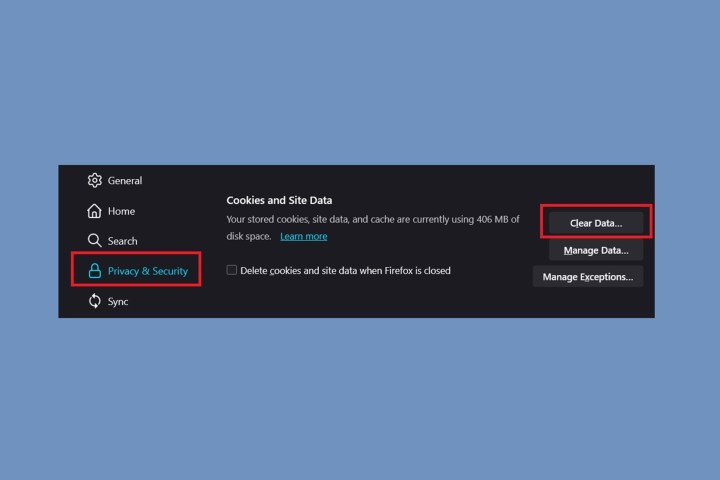
Step 1: Open Firefox, select the button with three bars in the upper-right corner of the browser window, and select Settings from the resulting drop-down menu.
Step 2: Select the Privacy and security tab located on the left side of the screen and head to the Cookies and site data section.
Select Clear data. You’ll want to make sure that the option for Cached web content is checked, and then select Clear.
You can also check the box next to Delete cookies and site data when Firefox is closed to do so automatically when you close the browser.
How to clear cache in Safari
Step 1: Launch Safari, and then select Safari in the upper-left corner of the main menu bar, and choose the Preferences option near the top of the drop-down menu.
Then select the Advanced tab located in the top navigation bar and check the box directly on the bottom that says Show develop menu in Menu Bar. Doing so will add a new menu to Safari by default.
Step 2: Select the Develop menu near the middle of the upper macOS menu bar and then choose the Empty caches option.
How to clear cache in Opera
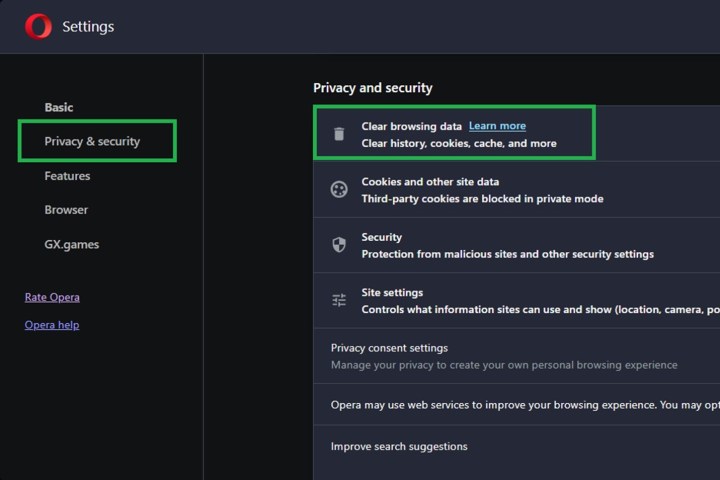
Step 1: Launch Opera, and then select the Menu button in the upper-left corner of the browser window.
Choose the Settings option from the drop-down menu.
Step 2: Select Privacy and security. Then choose Clear browsing data.
Check the box Cached images and files, along with any other browser data you wish to clear. Then, select the time frame you want to erase — to completely clear the cache, choose All time — from the drop-down menu. Afterward, select the Clear data button in the bottom-right corner.
How to clear cache in Microsoft Edge
Step 1: Launch the Microsoft Edge browser (support for the Edge Legacy version of the browser ended on March 9, 2021, and we do not recommend using it).
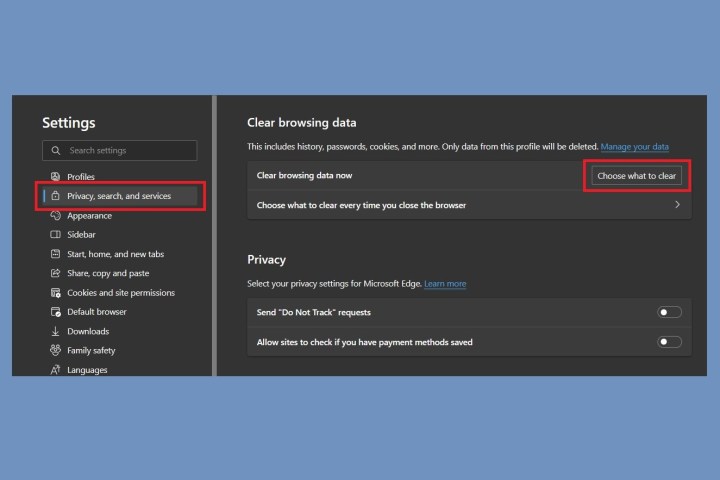
When it loads, choose the Settings and more menu, which is three horizontal dots in the upper right-hand corner of the browser window. Select Settings, which is close to the bottom of the drop-down menu that appears.
Step 2: Select Privacy, search, and services from the left-hand side of your screen. From there, after scrolling down a little, you will see the Clear browsing data section. Select the Choose what to clear button to finalize your selection.
On the next screen, check the box next to Cached images and files and then select Clear now.
Editors’ Recommendations