

There are plenty of reasons to have a remote control for your computer. Maybe you need a way to access your files from outside your home, or you use a “headless” system without a monitor. Or maybe you just don’t want to get up to turn on your HTPC and would rather your phone did all that heavy lifting for you.
Whatever your reason, you can access your PC remotely using a very simple method. Here’s how to do it.
Chrome Remote Desktop
Chrome Remote Desktop is one of the quickest and easiest ways to mirror your desktop to your phone, and it gives you full control, including sound, too.
Despite “Chrome” in the name, the app can, in fact, access anything on your computer as if you were sitting in front of it – file browsers, administrator tools, whatever you want. Google’s interface makes it easy to connect to your computers, even on mobile networks. Installing the extension into your desktop’s Chrome browser also lets you access it from other laptop or desktop operating systems.
Step 1: Open the Chrome browser (or any Chromium-based browser). Make sure you are logged in to your Google account, then navigate to to the Chrome Remote Desktop page and select Access my computer.
Step 2: Select the blue button with the arrow next to Set up remote access. When it takes you to the Chrome extension page, select Add to chrome and agree to Add extension when the popup appears.
If necessary, select the blue arrow button to download the Remote Desktop app.
Step 3: Choose your system’s name and select the blue Next button.
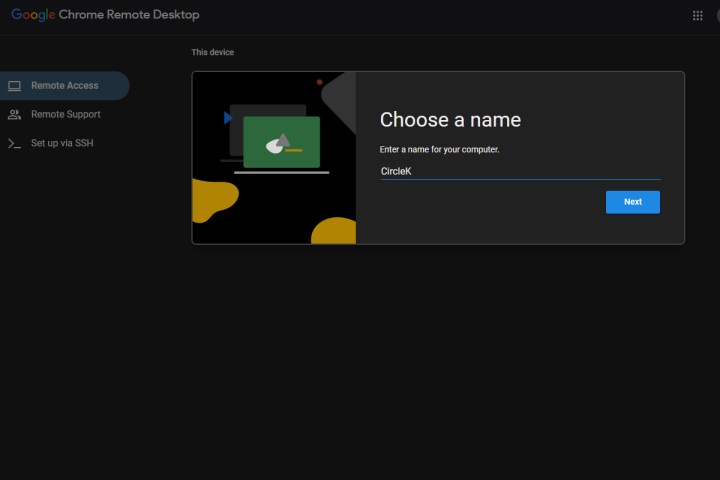
Step 4: Add a pin code that you’ll remember and select the blue Next button. You should then see your PC listed under available remote desktops as Online.
Step 5: Grab your smartphone and either install the Chrome Remote Desktop application and open it, or navigate to the Chrome Remote Desktop page.
Step 6: Select the name of your PC that you want to remotely connect to. Then input your pin and select the blue arrow button to continue.
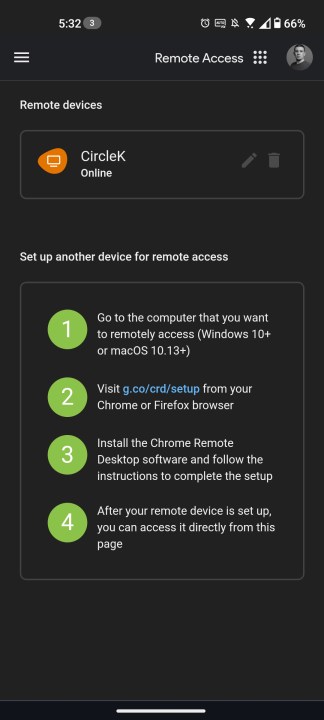
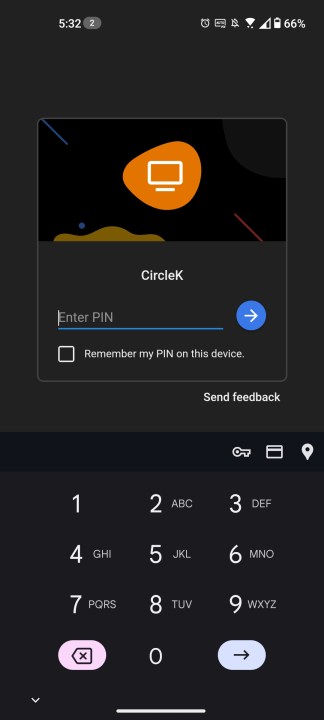
Step 7: You should then have remote control of your PC through your phone. You can now move the mouse around by tapping and dragging on the screen. Taps will equate to left-clicks, and you can hear any sound you have coming through your desktop through your phone as well.
Alternative ways to remote access your desktop
While we like Google’s Chrome Remote Desktop app for its ease of use and compatibility with just about any PC thanks to its web app option, it’s not the only way to remotely access your PC. Here are some good alternatives worth considering:
- Windows Remote Desktop: Long-time Windows users will be familiar with Microsoft’s first-party remote desktop solution. While it will only connect to Windows machines (and even then, only “Professional” versions of Windows or better), it’s available on Android, iOS, and other platforms. You can also use the app to access a Windows Virtual Desktop through a secure channel, which may be useful for traveling professionals.
- TightVNC: The VNC protocol has long been a favorite remote access solution for engineers and power users – long before the rise of smartphones. The original design is open source, so there are a variety of clients on both desktops and smartphones, some paid, some free. The key is finding solutions that are flexible and easy to use in a variety of situations. TightVNC works great for Windows users, but Mac users might want to consider RealVNC instead.
- RemoteMouse: RemoteMouse is a lightweight app for controlling your PC from afar. In a unique twist it lets you use your phone’s gyroscope for gesture controls, and you can use the physical buttons on your device to switch slides on a presentation, or change the volume on your PC. It turns your phone into a remote … mouse.
- Unified Remote: Another popular option for remotely controlling your PC, Unified Remote gives you quick access to media controls too, which is great for adjusting the settings on an HTPC. It’ll let you wake your PC up using Wake on Lan too, making it super handy if you have a HTPC in another room.
Editors’ Recommendations