
Daily Guardian UAEDaily Guardian UAE
  • Home
  • UAE
  • What’s On
  • Business
  • World
  • Entertainment
  • Lifestyle
  • Sports
  • Technology
  • Travel
  • Web Stories
  • More
    • Editor’s Picks
    • Press Release
What's On

A new startup wants to fix the military’s working-dog shortage with cloning and gene editing

October 24, 2026

Fitbit and Pixel Watch can now recognize more than 100 activities automatically

October 24, 2026

These tiny 3D-printed color routers could finally put an end to the grainy night photos that still haunt modern smartphones

October 24, 2026

Epic is throwing $50,000 for vibe-code games. What could possibly go wrong?

October 24, 2026

NBQ Performance in 9 Months 2026 Maintains Resilience, Reaffirming its Leading Position

October 24, 2026
Facebook X (Twitter) Instagram
Finance Pro
Facebook X (Twitter) Instagram
Daily Guardian UAE
Subscribe
  • Home
  • UAE
  • What’s On
  • Business
  • World
  • Entertainment
  • Lifestyle
  • Sports
  • Technology
  • Travel
  • Web Stories
  • More
    • Editor’s Picks
    • Press Release
Daily Guardian UAEDaily Guardian UAE
Home » How to convert a PowerPoint to Google Slides
Technology

How to convert a PowerPoint to Google Slides

By dailyguardian.aeAugust 30, 20243 Mins Read
Share
Facebook Twitter LinkedIn Pinterest Email

While PowerPoint is widely used to develop presentations, using Google Slides has become a popular alternative. Part of what makes it so popular is that it’s free to use, as is other Google software such as Google Docs and Google Sheets – which is a stark contrast to the premium price you’ll pay for Microsoft Office and PowerPoint.

Even if you know how to use Microsoft PowerPoint, you might want to jump ship to Slides, and Google makes it easy to do so. In fact, it takes little more than a few clicks to convert a PowerPoint to Google Slides. Whether you need to change the format for a coworker or want to permanently switch to the free platform, here’s a look at how to convert your PowerPoint into a Google Slides presentation.

Converting a PowerPoint file using Google Slides

Step 1: Open Google Slides and click Blank under Start a New Presentation.

The area to start a new presentation in Google Slides.

Step 2: At the top, under the title settings, click File > Open.

The Open button in Google Slides used for converting a PowerPoint file into a Google Slides format.

Step 3: Click the Upload tab and choose the Select a File From Your Device button. Locate your PowerPoint file and open it (the extension will be .pptx).

Google will now convert that PowerPoint file into a Google Slides format. Once the process is completed, it will automatically be saved into your Google Slides account via Google Drive.

Conveniently, you can now edit that presentation online and, when the need arises, convert it back to a Microsoft PowerPoint file (File > Download > Microsoft PowerPoint).

The Upload section in Google Slides for opening a new file.

Using Google Drive

Another way to convert a PowerPoint file to Google Slides is to use Google Drive.

Step 1: Go to your Google Drive account’s home page. Click the New button and then File Upload. Select your PowerPoint file.

Adding a new file in Google Drive via the New and File Upload buttons.

Step 2: Select the file on Google Drive, right-click it, and click the Open With tab. Finally, click the Google Slides tab.
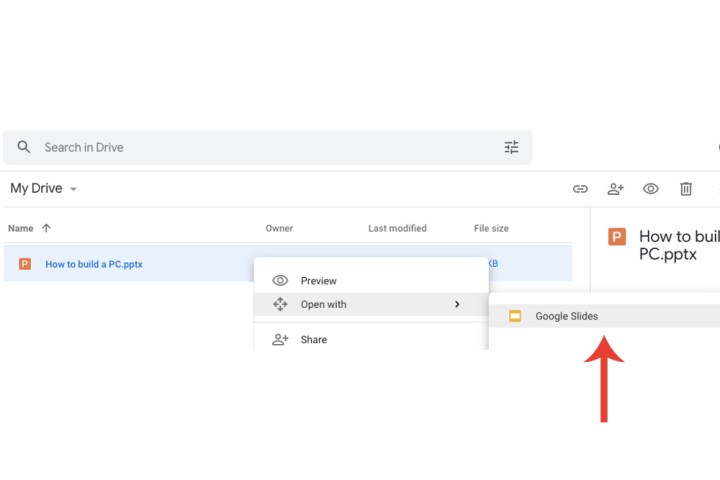
Opening a PowerPoint presentation file on Google Drive with the Google Slides tab.

Step 3: The PowerPoint will be displayed within Google Slides. Unlike uploading directly via Google Slides, you will have to save the file for this method. Select the File tab and click the Save As Google Slides option from the drop-down menu.
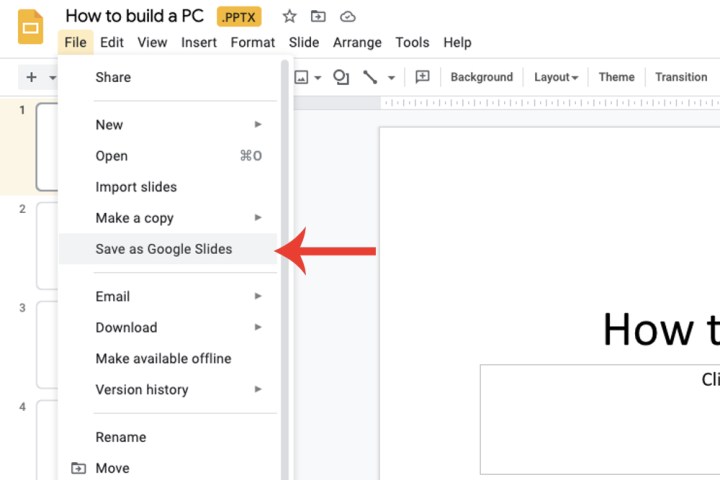
The tab to save a PowerPoint file as a Google Slides file.

Importing specific slides

Google Slides’ ability goes beyond just converting an entire PowerPoint file. You can also choose specific slides you want to import as opposed to the entire presentation itself.

Step 1: Open a new Google Slides presentation. Within the File tab, select the Import Slides option and then choose the Upload tab. Select the PowerPoint file from your PC.
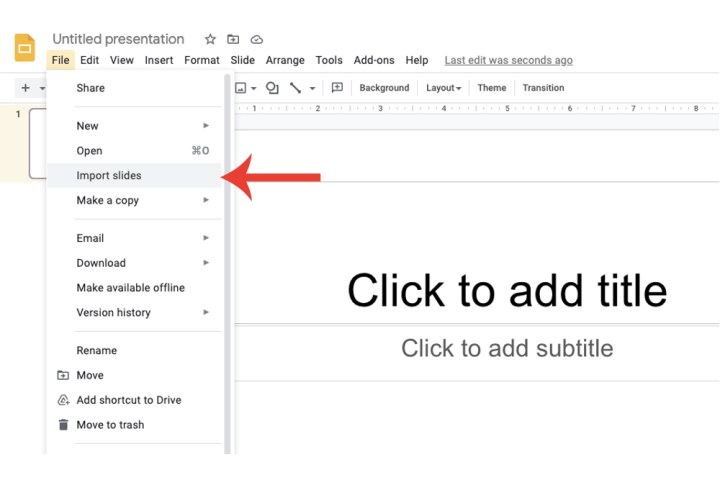
The Import Slides tab on Google Slides.

Step 2: Google will now populate a thumbnail-based view of all the slides contained within that PowerPoint file and allow you to select which specific ones you wish to import and convert. Click the Import Slides button when you’re done.
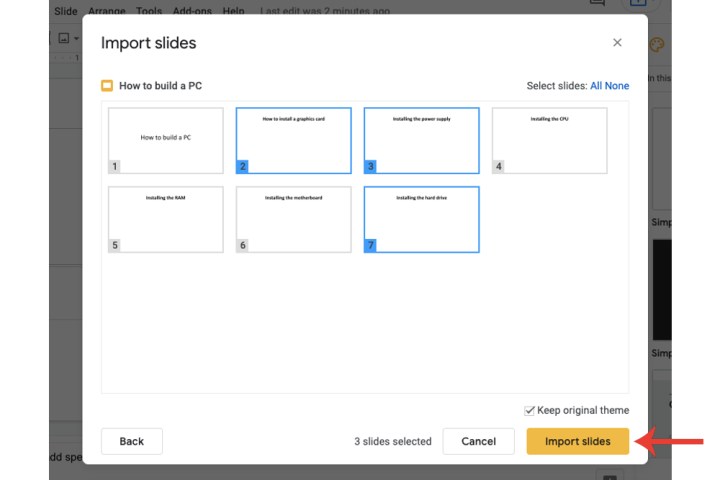
The area where you can select specific slides from a PowerPoint file to import into Google Slides.

While both presentation creation applications are powerful, if you don’t know the basics of composing impactful slides, your presentation will fall flat. Take a look at our collection of PowerPoint best practices — not only will it improve your presentations, it might help you decide which software to use.


Share. Facebook Twitter Pinterest LinkedIn Tumblr Email

Keep Reading

A new startup wants to fix the military’s working-dog shortage with cloning and gene editing

Fitbit and Pixel Watch can now recognize more than 100 activities automatically

These tiny 3D-printed color routers could finally put an end to the grainy night photos that still haunt modern smartphones

Epic is throwing $50,000 for vibe-code games. What could possibly go wrong?

This app turns the iPhone Duo into a pocket-sized Mac

AI helped uncover a hidden PHP flaw. Now websites worldwide are facing millions of hacking attempts.

The Next Phase of the GLP-1 Boom Is About Choice, Access, and Follow-Up

The Galaxy S27 Ultra (and Pro) could finally get bigger batteries as Samsung reportedly locks in the numbers

Apple edges out a win in the PC market’s worst quarter by stumbling less than everyone else

Editors Picks

Fitbit and Pixel Watch can now recognize more than 100 activities automatically

October 24, 2026

These tiny 3D-printed color routers could finally put an end to the grainy night photos that still haunt modern smartphones

October 24, 2026

Epic is throwing $50,000 for vibe-code games. What could possibly go wrong?

October 24, 2026

NBQ Performance in 9 Months 2026 Maintains Resilience, Reaffirming its Leading Position

October 24, 2026

Subscribe to News

Get the latest UAE news and updates directly to your inbox.

Latest Posts

This app turns the iPhone Duo into a pocket-sized Mac

October 24, 2026

AI helped uncover a hidden PHP flaw. Now websites worldwide are facing millions of hacking attempts.

October 23, 2026

The Next Phase of the GLP-1 Boom Is About Choice, Access, and Follow-Up

October 23, 2026
Facebook X (Twitter) Pinterest TikTok Instagram
© 2026 Daily Guardian UAE. All Rights Reserved.
  • Privacy Policy
  • Terms
  • Advertise
  • Contact

Type above and press Enter to search. Press Esc to cancel.