

If you need to know the exact location of a file on your Mac, you’ll need its file path. And you’ll probably want to copy the file path to your clipboard for later use too. Lucky for you, we know how to do that.
In this guide, we’ll go over four easy ways to find and copy a file path on your Mac. With so many quick options to choose from, you’re sure to find the best method for you.
File paths in Finder
One of the easiest ways to view a file path is in Finder on your Mac. Along with it, we’ll show you how to use the context menu to copy that path.
Step 1: Open Finder on your Mac and navigate to the file or folder you want to view.
Step 2: To simply see the file path, select View > Show path bar in the menu bar.
Step 3: You’ll then see the path display at the bottom of the Finder window.

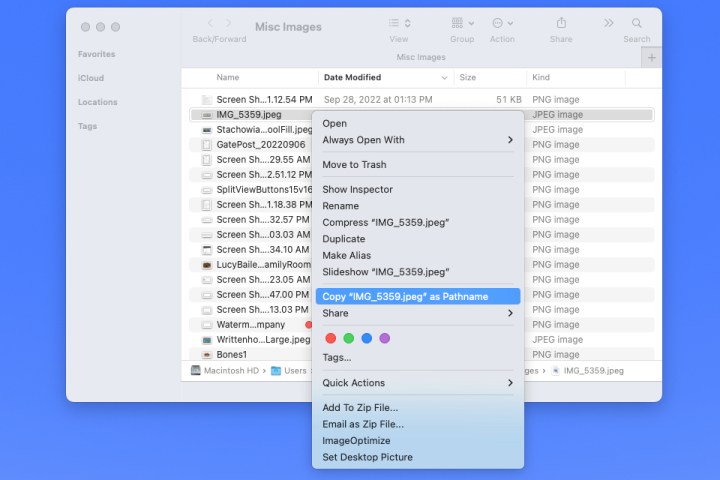
Step 4: To copy the file path, right-click the item in Finder to display the context menu.

Step 5: Hold the Option key while the context menu is open and select Copy [name] as Pathname.
The file path is then on your clipboard for you to paste where you wish.
File paths in Get Info
Another convenient location to view and copy a file path is with the Get Info tool.
Step 1: Select the item on your desktop or in Finder.
Step 2: Press Command + I or right-click and pick Get info.

Step 3: When the Get Info window opens, expand the General section at the top and you’ll see the file path next to Where. Drag your cursor through the path to highlight it.
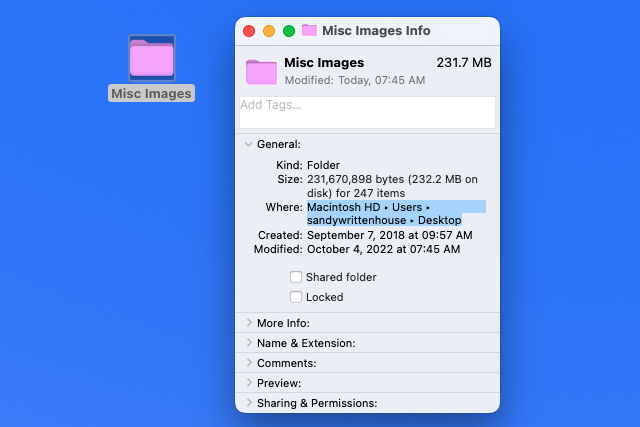
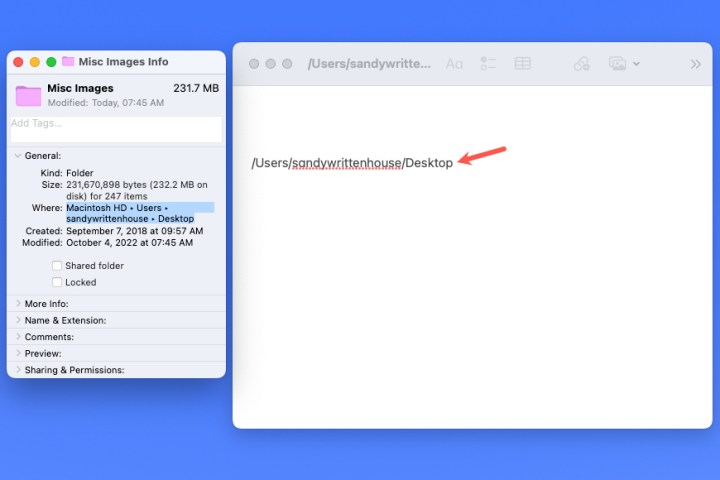
Step 4: Press Command + C to copy the path or right-click and choose Copy as Pathname.

Step 5: With the path on your clipboard, you can then paste it where needed. The path should display correctly with the arrows replaced by forward slashes.
File paths in Go To Folder
You may only think of opening Finder’s Go To Folder tool when you need to navigate somewhere on Mac. But this nifty tool can also provide the file path of an item.
Step 1: With Finder active, select Go > Go to folder from the menu bar.
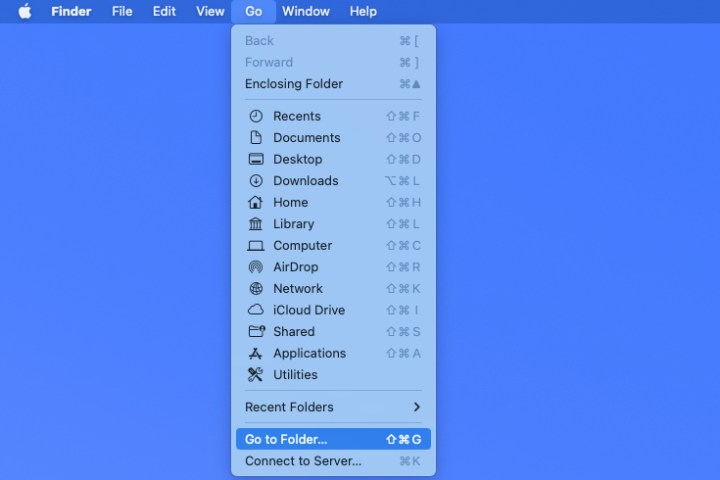
Step 2: When the window opens, select the X on the right side of the Search bar to clear the field if necessary.
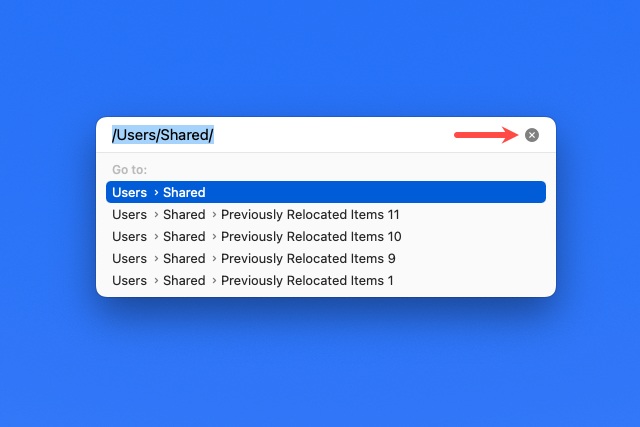
Step 3: Drag your file or folder into the Search bar at the top of the window. You’ll then see the path for the item in that field.
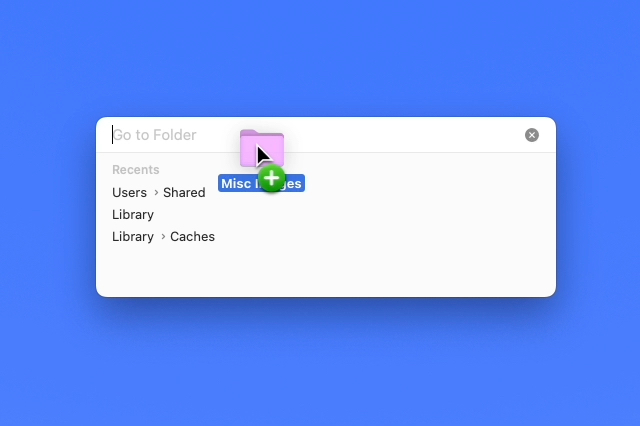
Step 4: From there, select the path and either use Command + C or right-click and pick Copy.
With the path on your clipboard, you can paste it where you like.

File paths in Terminal
If you’re a fan of using Terminal to perform actions on your Mac, then you can use this app to display and copy a file path as well.
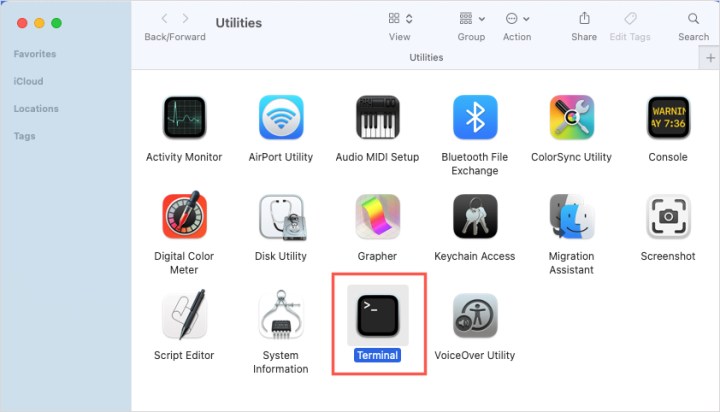
Step 1: Open Terminal as you normally would or by going to the Utilities folder and selecting the application.
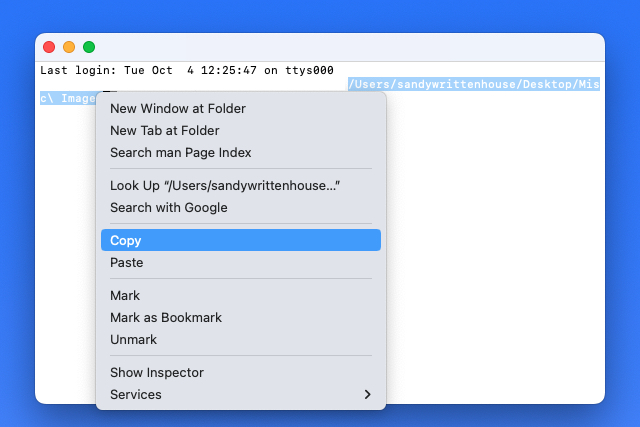
Step 2: When the Terminal window opens, drag your file or folder into it. You’ll then see the file path display in the window.

Step 3: Right-click and choose Copy to place the path on your clipboard and paste it where needed.
Frequently asked questions
What is the path of a file?
A file path is essentially like the navigation directions to the location of a file on your computer. It quite literally tells you the path you would have to follow to find a file if you didn’t already know where it was. If a given file was located within a folder that is also within another folder, the file path would list those folders in the order you would have to click on them to get to the file.
How do I copy a file path on a Mac?
There are a variety of ways to find and copy a file path on a Mac. You can find file path via Finder, Get Info, Go to Folder, or Terminal. The methods for copying the file path once you locate it may vary depending on which method you choose for locating the file path in the first place. But if you need to see how to use any of the aforementioned methods, please see our step-by-step guides for each of them. You can find them earlier in this article.
How do I find a file path in Windows 11?
In Windows 11, you can either right-click on a file on the desktop or in File Explorer. Then in the menu that pops up, you’ll just select Copy as path. This will put the full file path of the file on your Clipboard so you can paste it later.
If you just a want to view a file path, you can just right-click on a file on the desktop or in File Explorer. Then from the menu that appears, you’ll choose Properties. In the Properties window that appears, you’ll see the file path next to the word Location.
Editors’ Recommendations