

Not every purchase we make is purposeful. But when an accidental transaction rears its head, it’s important to have a way to dispute the purchase. Such is the case with the Google Play Store, where you’ll be able to request a refund if you mistakenly purchased an app, movie, TV show, or subscription.
There’s a few different ways to request a refund from the Google Play Store, and we’ve gone ahead and written this guide to teach you the ins and outs of each method.
How to get a refund for apps or games
You can get an app or game refund from the Google Play Store easily if you ask for it within two hours of purchase. Here’s how to do it:
Step 1: Open the Google Play Store app.
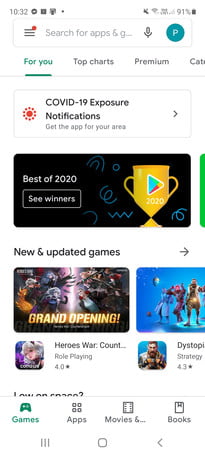
Step 2: Tap the three horizontal lines at the top left to open the menu.
Step 3: Choose Account > Purchase History.
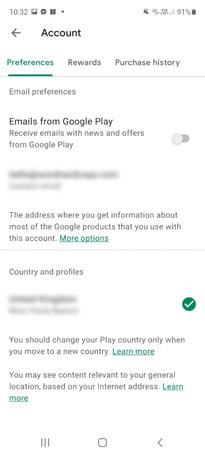
Step 4: Find the app or game you want to return and tap Refund.

Step 5: Tap Yes, the app will be uninstalled, and your money will be refunded.
Step 6: You should get an email about the refund and it will say Canceled next to the app in your Order History.
If you’ve gone past the two-hour limit, but you’re still within 48 hours of purchase, then you can request a refund via your browser. Make sure that you’re signed into your Google account and visit this Google link to fill out a form.
How to get a refund for apps or games past 48 hours of purchase
If it has already been more than two days since you bought the app or game, then you’re going to have to go directly to the developer to request a refund.
Step 1: Open the Google Play Store app.
Step 2: Tap the three horizontal lines at the top left to open the menu.
Step 3: Choose Account > Purchase History.
Step 4: Find the app or game you want to return and tap View.
Step 5: Scroll down until you find Developer Contact and tap Email. This should open a new email in your email program.
Step 6: Explain that you want a refund and why.
It’s best to be polite and explain your reasons fully, because it’s up to the developer whether to grant the refund or not.
How to get a refund for an in-app purchase
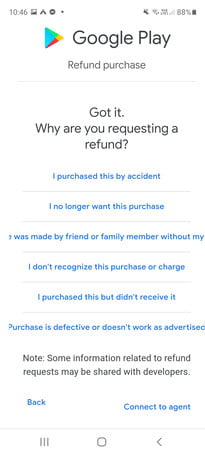
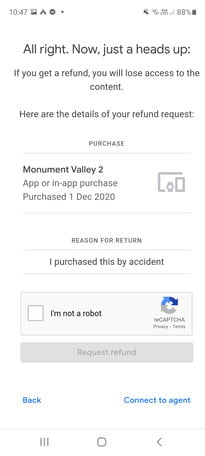
Google may help you get a refund for an in-app purchase, but you must submit a refund request through this Google form.
Make sure that you’re signed in to your Google account, visit the link, and fill out the form. You’ll need to select which in-app purchase you’d like a refund for and select a reason for your request. You will generally get a decision quickly, but it can take up to 48 hours.
If you want a refund on an in-app purchase and it has been more than 48 hours since you bought it, then you’ll need to go directly to the app developer.
Step 1: Open the Google Play Store app.

Step 2: Tap the three horizontal lines at the top left to open the menu.
Step 3: Choose Account > Purchase History.
Step 4: Find the app or game in question and tap View.
Step 5: Scroll down until you find Developer Contact and tap Email. This should open a new email in your email program.
Step 6: Explain that you want a refund and why.
It is always correct and proper to tell the truth in a respectful manner, so you should always explain why you’re wanting a refund as truthfully and respectfully as possible.
How to terminate a subscription
If a subscription is the problem, then you need to ensure that you terminate it as soon as possible. You can terminate your subscription by following the steps below:
Step 1: Open the Google Play Store app.
Step 2: Tap the three horizontal lines at the top left to open the menu.
Step 3: Choose Subscriptions.
Step 4: Find the right one and tap Cancel.
You should know that despite uninstalling an app, you aren’t canceling your subscription and will thus still be liable to pay for it.
How to get refunds for movies, TV shows, music, or e-books
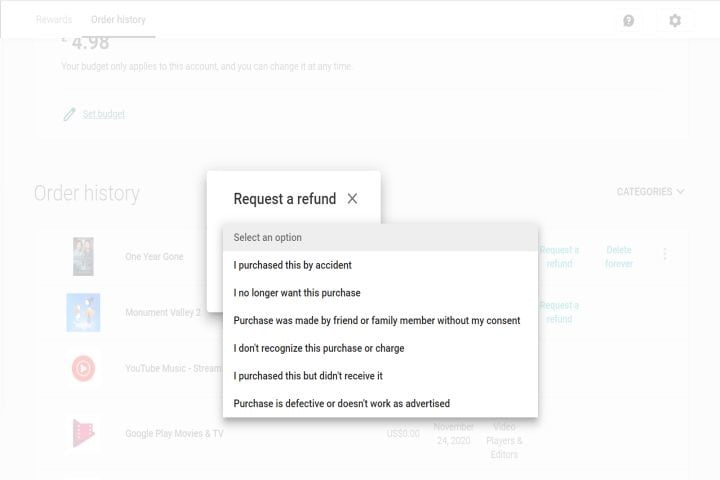
There are many similarities when it comes to the returning rules for movies, TV shows, music, and e-books in the Google Play Store. The standard consensus is that you can return any product penalty-free within a week of buying it. This will afford you a full refund, as long as you haven’t downloaded or played the item. Sadly, you can’t ask for a refund through the Google Play Store app itself, so you’ll need to use your browser. Here are some simple steps:
Step 1: Navigate to your Play Store account in your browser and sign in to your Google account (you may already be logged in).
Step 2: Scroll down to Account in the left-hand menu and click Order History from the top menu. From here, search for the content you want to return.
Step 3: Choose Request a Refund.
Step 4: Pick the specific reason from the drop-down menu and confirm by clicking Submit.
Step 5: You’ll automatically receive an email about your refund request, usually within 48 hours.
Frequently asked questions
How long do Google Play refunds take?
While you’ll more than likely get a notification about your refund request within 48 hours, you should expect it to take more time for the refund to process. This partially depends on your method of payment, however. For example, credit card refunds can take anywhere from 5 to 14 days, meaning your quickest possible refund could potentially be a full week. Don’t vicariously spend money on apps to try them out this way if your funds are limited.
How do I contact Google Play customer service?
Typically, searches for Google Play’s customer service will lead you to help with their gift cards. If you want to get help about Google Play in particular, go to the
main page on your browser and tap the ‘?’ symbol in the upper-right. From there, scroll down and tap ‘Contact Us’ to get in touch with Google directly.
How do I remove a payment method from Google Play?
Adding a payment method to Google Play is easy, but it will take extra steps to remove them later. To do so, open up your Google Play app and tap your profile image (it might just be the first letter of your name or email address) in the upper right and tap ‘Payments & subscriptions’. Choose ‘Payment methods’ and scroll down to the bottom to select the gear icon for more payment settings. From there, you will be taken to a special Google page on your browser where you will have the option to remove a payment method, such as a credit card, from your Google Play account.
Editors’ Recommendations