

People either love the iPhone’s home screen or hate it. Unlike Android, which hides apps away in an app drawer, the iPhone proudly plops app icons down onto the home screen. This means apps are very easily accessible, but it can also lead to your phone feeling cluttered, especially if you’re an app-o-holic. The introduction of the App Library helped this by giving everyone a central place to keep their apps, but for most people, the home screen is still the place to keep apps.
Of course, this becomes a problem if you want to hide an app. Whether it’s not an app you need very often, a sensitive banking app, or anything else you want to keep hidden, having it proclaiming its presence on your home screen is a problem. Thankfully, Apple has included a number of quick and easy ways to hide apps away, without removing them from your phone.
How to hide an app on your iPhone
Hiding an app on your iPhone’s home screen is simple, and very fast.
Step 1: Find the app you want to hide on your home page.
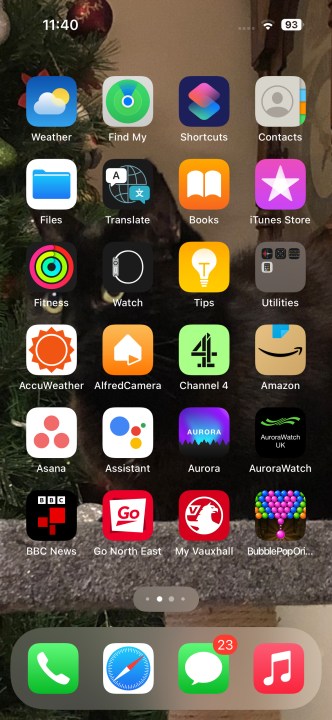
Step 2: Press and hold on the app in question.
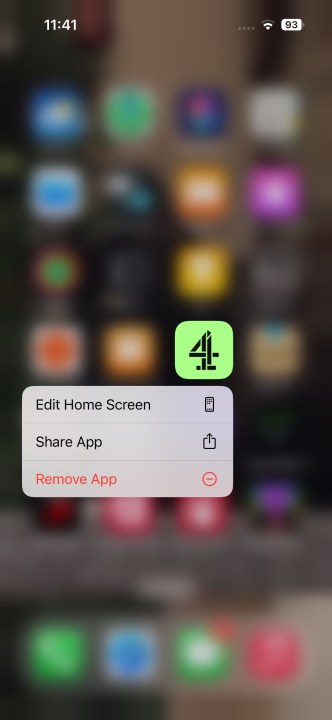
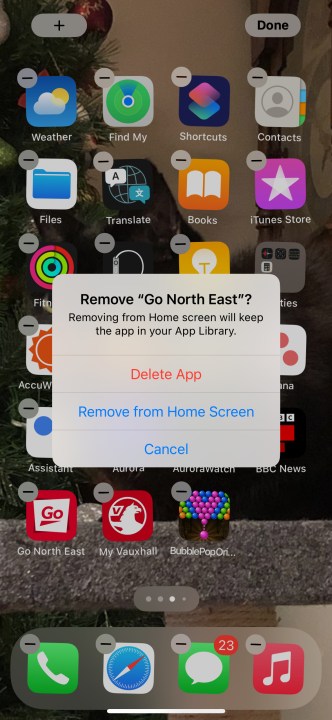
Step 3: A box will pop up. Select Remove app.
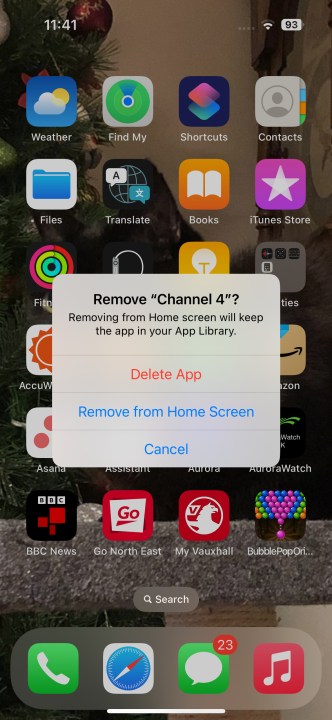
Step 4: It’ll ask you whether you want to uninstall the app, or just remove it from the home screen. Choose Remove from home screen to hide the app without uninstalling it.
How to hide multiple apps at once
Sometimes you want a good old clean-out, and want to hide a bunch of apps from your home screen. Perhaps they’re purely cosmetic apps, and not useful day-to-day, or just want to streamline your experience. No matter why, it’s easy to sort it out.
Step 1: Press and hold on an empty portion of your home screen.
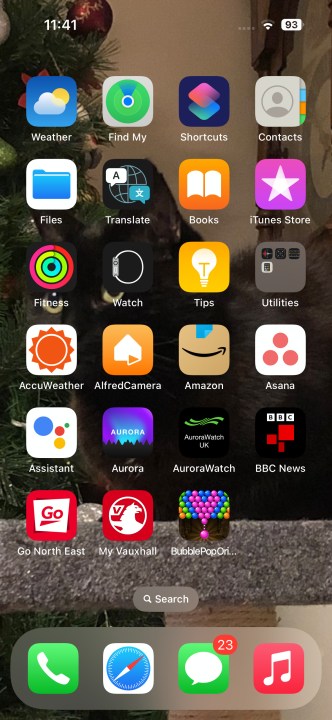
Step 2: Your home screen will enter “jiggle mode”, where all the app icons start jiggling, indicating they can be edited.
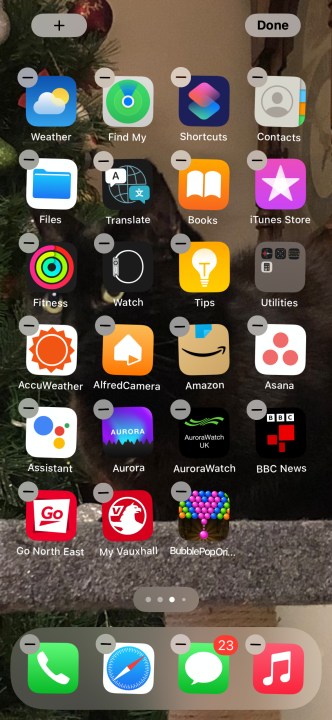
Step 3: Choose the Minus (-) icon by any app you want to hide, and go through the same process as for hiding a single app.
How to find a hidden app
If you’re hiding an app, rather than uninstalling it, then it’s a fairly good guess you want to access that app again. While it’s no longer easily accessible on your home screen, it’s not difficult to find that hidden app again. There are two ways of doing this, and both are very simple.
Step 1: Spotlight Search is a strong iOS feature, and it’s great for finding any app, not just hidden ones.
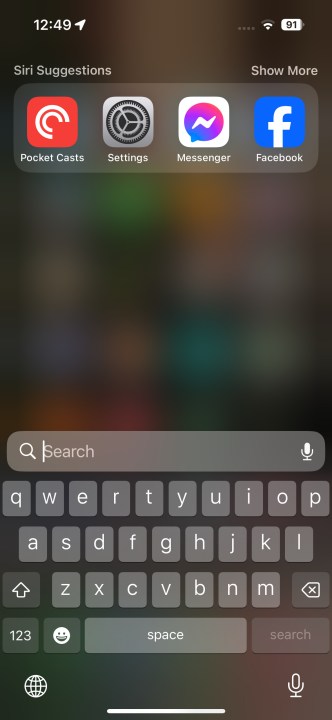
Step 2: To use it, swipe down from your home screen. Don’t swipe from the top of the screen, or you’ll open your notifications. Instead, swipe from the middle.
Step 3: When Spotlight Search appears, type in the name of the app you want.
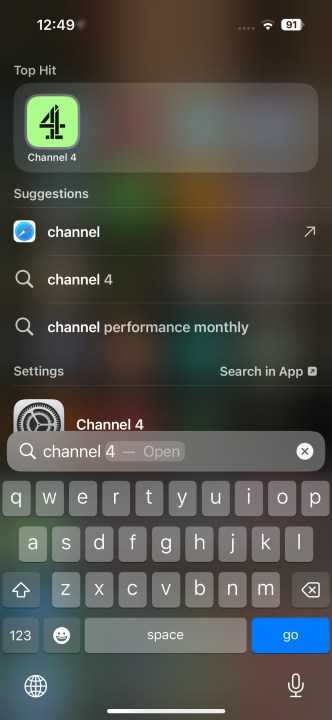
The next method involves the App Library.
Step 1: Swipe to the left until you reach the end of your home screen, and your App Library opens.
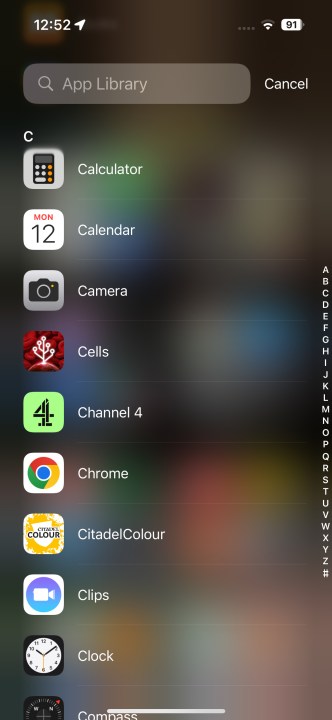
Step 2: Choose the search bar at the top of the screen, then either scroll down the alphabetical list, or search for your chosen app.
How to hide apps in a folder
If you want to hide a particular group of apps, but still keep them accessible together, you can do so with folders.
Step 1: Tap and hold one of the apps you want to hide.
Step 2: Drag the app you’d like to hide onto another app and then let go of the app when it’s on top of the other app. This creates a new folder, which will automatically be named by your iPhone (according to the apps), but you can change the name to something more relevant.
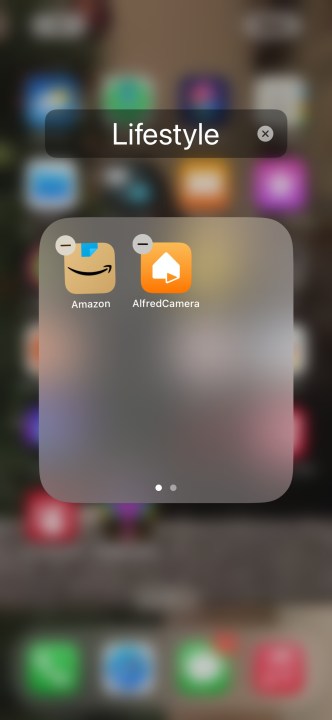
Step 3: If you want to hide another app, drag it into the newly created folder. Repeat until you’ve placed all the apps you want to hide in this folder. You might want to place a few other apps in the folder to fill out the first page, or you can just leave it.
Step 4: Once you’ve transferred all your apps to the new folder, you can adjust their location to hide them on the next page. Doing this is easy; simply tap and drag the chosen app to the folder’s right side until it migrates to the second page. Repeat this method with any other apps you want to remain hidden.
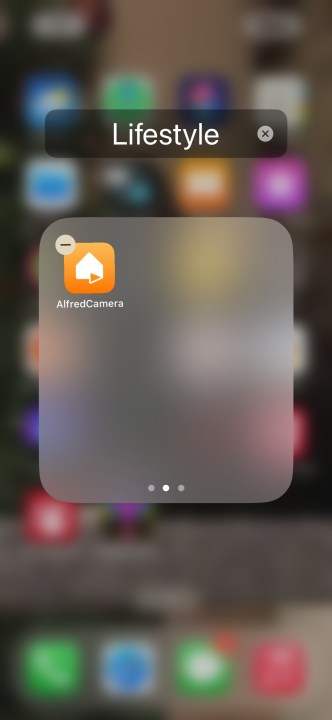
Step 5: Finally, we suggest giving the folder a more modest title. We also included a few related apps on the folder’s first page. Remember that all the apps on the folder’s first page will still be noticeable from the home page; however, it will be much smaller than usual.
Step 6: If you decide you don’t need to hide your apps any longer, you can instantly move them elsewhere. All you need to do is drag them out of the hidden folder and put them back on the home page. To do this, just enable jiggle mode.
With that all said and done, you’re now an iPhone app hiding pro! Whether you use one of these methods or all of them, they’re at your disposal for hiding iPhone apps however you see fit.
Editors’ Recommendations