
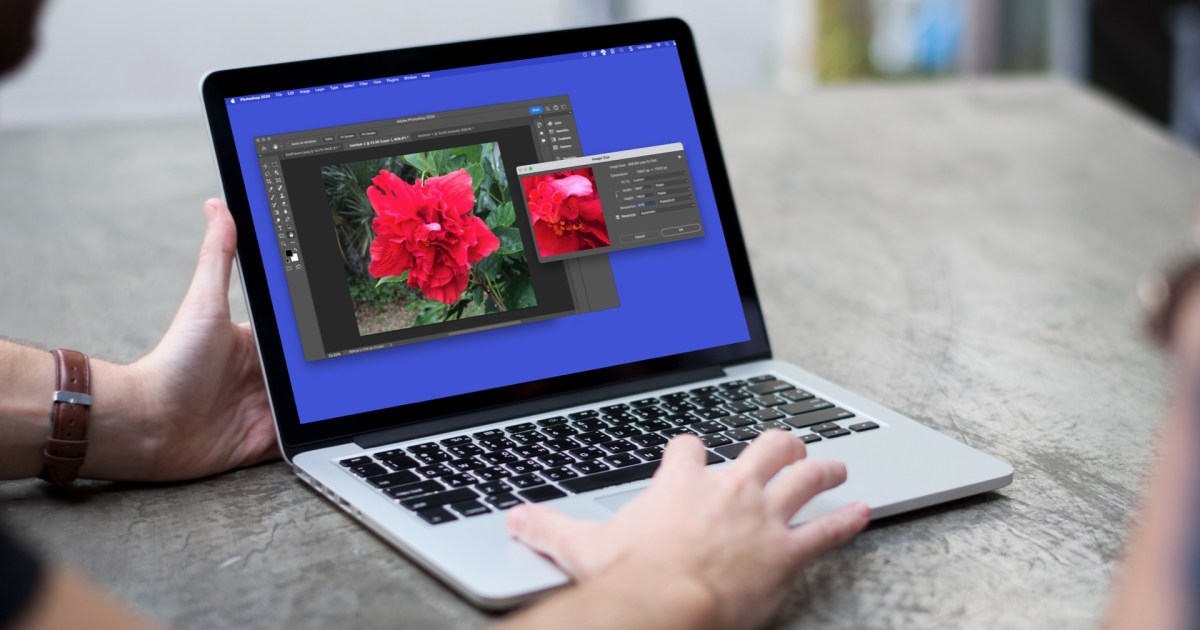
If you have a low-resolution image that you want to enhance or need a sharper, higher-quality picture for your project, you can consider adjusting the resolution. It’s a common problem to run into while editing images in Photoshop.
We’ll walk you through two easy ways to increase the resolution of an image in Adobe Photoshop.

Resampling in Photoshop
Before we walk through changing the resolution in Photoshop, it’s important to understand the term “resampling” as you’ll use this to determine how to adjust the image.
If you resample a picture in Photoshop when you adjust the resolution or dimensions, the number of pixels changes.
When you use the resample option, you can choose the interpolation method to decide how the pixels are added or removed. For example, you can select Bilinear to average the color values of nearby pixels, Bicubic for smooth results when enlarging images, or Automatic to let Photoshop pick the best method based on the type of picture.
Open your image in Photoshop and follow one of the sets of steps below adjust the resolution.
How to change the resolution with resampling in Photoshop
To change the resolution by adjusting the number of pixels in your picture, you can do so with resampling as described above.
Step 1: Select Image in the menu and choose Image Size.

Step 2: In the pop-up window, check the box for Resample and optionally choose an interpolation method in the drop-down menu.
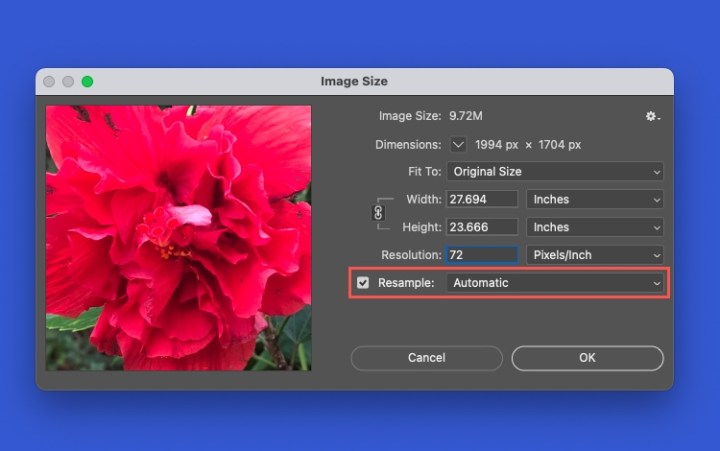
Step 3: Change the amount in the Resolution field and optionally pick a different measurement to the right. You’ll see the Width and Height adjust to accommodate the new resolution.
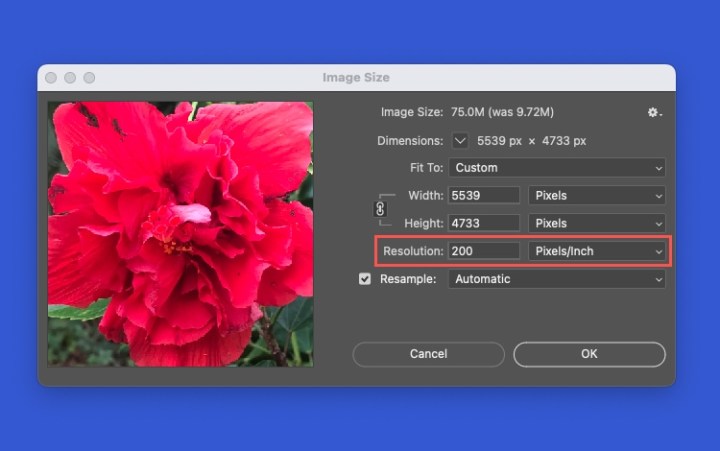
Step 4: You can see a preview the of change on the left side of the pop-up window. To apply the change, select OK.
How to change the resolution without resampling in Photoshop
If you prefer to change the resolution by redistributing the existing pixels in the image, you’ll do so without resampling.
Step 1: Again, select Image in the menu and choose Image Size.
Step 2: In the pop-up window, uncheck the box for Resample. You’ll see that this locks the Width, Height, and Resolution settings together.
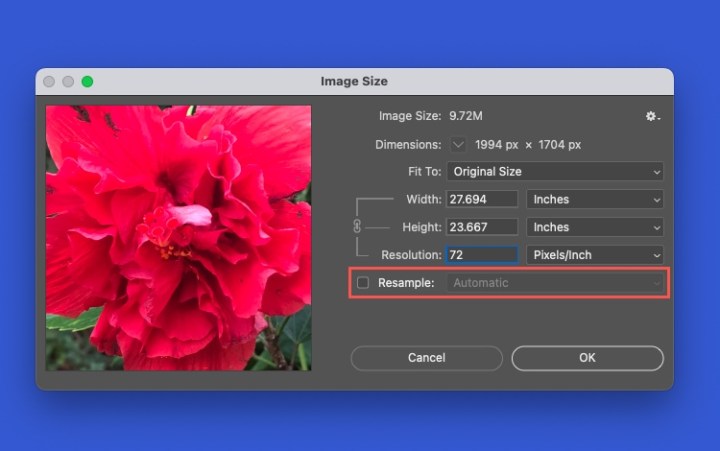
Step 3: Change an amount in the Width, Height, or Resolution field and optionally pick a different measurement to the right. You’ll see both the dimensions and resolution of the image automatically adjust based on the new setting.

Step 4: Check the preview on the left and select OK to apply the change.
How to reset the original resolution
If you make either of the above changes and aren’t happy with the result in the image preview, you can reset the settings in the Image Size window.
Hold Alt on Windows or Option on Mac. When you see the Cancel button change to Reset, select it. You should see the image to revert to the original dimensions and resolution.
If you’ve already selected OK in the Image Size window and applied the new resolution, you can use the Edit menu to Undo the change.

FAQs
What makes a photo have low resolution?
There are several possible reasons that a photo can have a low resolution. If you download an image from a website, snap a photo with the minimal size on the device, or crop an image, these can all lead to low resolution.
What is the highest resolution possible in Photoshop?
The maximum pixel dimension that Photoshop supports is 300,000 by 300,000, which limits both the available print size and resolution for a given image.
Is PNG or JPEG higher quality?
A PNG image is higher quality than a JPEG image. JPEG images are compressed to reduce the file size. This makes JPEGs easier to store and quicker to load on websites. PNG images can handle 16 million colors, are useful for logos, charts, and web graphics, and consume more storage space than JPEG images.