
Daily Guardian UAEDaily Guardian UAE
  • Home
  • UAE
  • What’s On
  • Business
  • World
  • Entertainment
  • Lifestyle
  • Sports
  • Technology
  • Travel
  • Web Stories
  • More
    • Editor’s Picks
    • Press Release
What's On

Is the Dell XPS 16 good for working on the go? Does the Dell XPS have all-day battery life?

March 23, 2026

Apple’s plans to enhance the iPhone camera are tangled in a legal mess

March 23, 2026

Watch this moonwalking humanoid robot impress with lifelike agility

March 23, 2026

Apple is reportedly sitting on new products because Siri AI isn’t ready

March 23, 2026

AI frame generation is coming to the PS5 Pro

March 23, 2026
Facebook X (Twitter) Instagram
Finance Pro
Facebook X (Twitter) Instagram
Daily Guardian UAE
Subscribe
  • Home
  • UAE
  • What’s On
  • Business
  • World
  • Entertainment
  • Lifestyle
  • Sports
  • Technology
  • Travel
  • Web Stories
  • More
    • Editor’s Picks
    • Press Release
Daily Guardian UAEDaily Guardian UAE
Home » How to password protect a Word document
Technology

How to password protect a Word document

By dailyguardian.aeSeptember 19, 20243 Mins Read
Share
Facebook Twitter LinkedIn Pinterest Email

Microsoft Word is suitable for creating all manner of documents. But it doesn’t matter if you use Microsoft Word to create shopping lists or legal documents, you might want to protect the file from prying eyes.

Password protecting a Word file is a great way to add an extra layer of protection to your documents with sensitive data inside. It won’t make it fullproof, but it will make it much harder for anyone to look at the contents of your files without finding out the password first.

Here’s how to password protect a Word document.

How to password protect a Word document

Word has a built-in password protection system you can use to quickly and effectively protect your files.

Step 1: Open the Word document that you want to secure with a password. Then, select File, followed by Info then Protect Document.
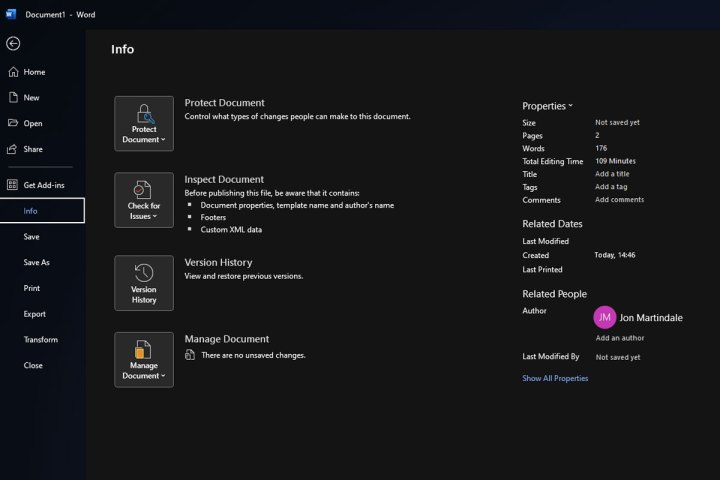
Password Protection activation in Word.

Step 2: You can choose a few options to protect the file, from making it Read Only, so that it can no longer be edited, or you can control the changes that are allowed to be made to the document moving forward.

For our needs, though, you want to select Encrypt with Password.

Adding password to Word document.

Step 3: Type in the password that you want the file to have. Take a serious note of the warning: If you lose the password you will almost certainly lose access to this file and it will be hard to recover. Take this moment to think of a memorable password, or better yet, note it down in your favorite password manager.

Step 4: When prompted, type the password in again. Make doubly sure you know what it is, then select OK.

Step 5: The file will now be password protected. Next time you try to open it, you’ll be prompted to input the password. Type it in, select Enter or the OK button and you can use the file as normal.

How do I get Word?

If you don’t have Word, you can use the online version for free, or you’ll need to subscribe to Microsoft 365. It’s only $5 a month and you get access to all the Office apps as part of that subscription, including Word.

Don’t want to pay or want more more help? Check out our guide on how to get Word for free.

Learn more about how to use Word

Want to become even more of a Word wizard? Check out our guides on how to convert a PDF to Word, and our general beginner’s guide to Word. It’ll teach you everything you need to know to make the most of the world’s most popular word processor.

Have enough of Word and want to break away from the Office apps? There are some great Office alternatives out there.


Share. Facebook Twitter Pinterest LinkedIn Tumblr Email

Keep Reading

Is the Dell XPS 16 good for working on the go? Does the Dell XPS have all-day battery life?

Apple’s plans to enhance the iPhone camera are tangled in a legal mess

Watch this moonwalking humanoid robot impress with lifelike agility

Apple is reportedly sitting on new products because Siri AI isn’t ready

AI frame generation is coming to the PS5 Pro

Why everyone hates NVIDIA DLSS 5 (but will love it eventually)

The future of Windows could include fewer ads and distracting upsells

Windows might finally fix one of its most annoying setup problems

Amazon’s rumored AI phone might be dead on arrival, says analyst

Editors Picks

Apple’s plans to enhance the iPhone camera are tangled in a legal mess

March 23, 2026

Watch this moonwalking humanoid robot impress with lifelike agility

March 23, 2026

Apple is reportedly sitting on new products because Siri AI isn’t ready

March 23, 2026

AI frame generation is coming to the PS5 Pro

March 23, 2026

Subscribe to News

Get the latest UAE news and updates directly to your inbox.

Latest Posts

Why everyone hates NVIDIA DLSS 5 (but will love it eventually)

March 23, 2026

The future of Windows could include fewer ads and distracting upsells

March 23, 2026

Windows might finally fix one of its most annoying setup problems

March 23, 2026
Facebook X (Twitter) Pinterest TikTok Instagram
© 2026 Daily Guardian UAE. All Rights Reserved.
  • Privacy Policy
  • Terms
  • Advertise
  • Contact

Type above and press Enter to search. Press Esc to cancel.