
Daily Guardian UAEDaily Guardian UAE
  • Home
  • UAE
  • What’s On
  • Business
  • World
  • Entertainment
  • Lifestyle
  • Sports
  • Technology
  • Travel
  • Web Stories
  • More
    • Editor’s Picks
    • Press Release
What's On

Empire Developments Breaks Ground on Empire Lake Views, a Landmark 31-Floor Residential Tower in Liwan

December 17, 2025

Adobe’s Firefly AI now lets you edit videos by describing changes

December 16, 2025

HCF Group Unveils Holiday 2025 Initiative Focused on Long-Term Asset Ownership

December 16, 2025

This Roborock S8 MaxV Ultra deal takes $900 off a truly hands-off cleaning setup

December 16, 2025

Cosplay Con 2 Brings Al Wahda Mall to Life with Creativity, Culture & Community

December 16, 2025
Facebook X (Twitter) Instagram
Finance Pro
Facebook X (Twitter) Instagram
Daily Guardian UAE
Subscribe
  • Home
  • UAE
  • What’s On
  • Business
  • World
  • Entertainment
  • Lifestyle
  • Sports
  • Technology
  • Travel
  • Web Stories
  • More
    • Editor’s Picks
    • Press Release
Daily Guardian UAEDaily Guardian UAE
Home » How to print a PowerPoint presentation with notes
Technology

How to print a PowerPoint presentation with notes

By dailyguardian.aeFebruary 29, 20243 Mins Read
Share
Facebook Twitter LinkedIn Pinterest Email

PowerPoint makes it easy to give a great presentation thanks to intuitive software that lets anyone craft an eye-catching deck. What’s even better, however, is the option to use Presenter View. This lets you leave notes for yourself that can be viewed on your computer screen while everyone else is only seeing your presentation.

However, if you’re worried about a technical hiccup taking down your slide or don’t want to be glued to the computer, you’ll probably want to print out your PowerPoint presentation with notes. This lets you see both your slides and your presenter notes, giving you an analog way to carry on the presentation without the need for a monitor.

Interested in the feature? Here’s how to print a PowerPoint presentation with notes on Windows, Mac, or directly from the web.

Print PowerPoint slides with notes on Windows

Printing your presentation in PowerPoint on Windows takes only a few steps. If you want notes with your slides, it’s a simple setting.

Step 1: Open PowerPoint to the presentation you want to print.

Step 2: Select the File tab.

Step 3: Choose Print and select your printer in the Printer drop-down if necessary.

Step 4: In the first drop-down box below Settings, pick which slides you want to print. You can print them all, the current slide, or a custom range.

Step 5: Click the next drop-down box for Print layout and select Notes page. You’ll see a preview on the right.
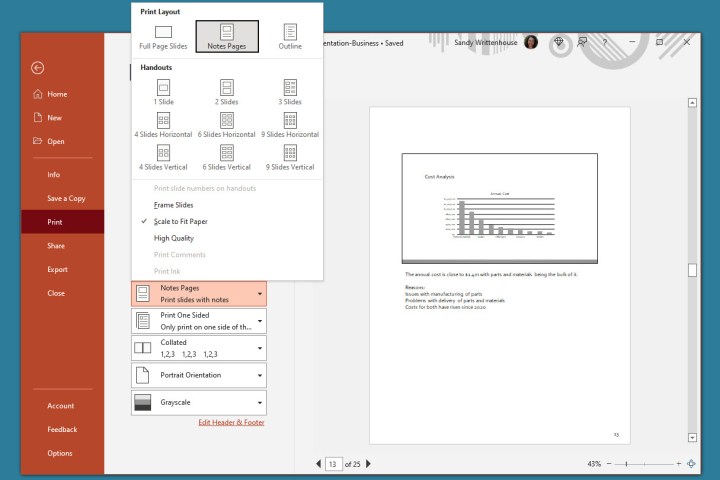
Notes Pages selected to print in PowerPoint.

Step 6: Adjust any other settings you’d like before printing, such as switching Portrait orientation to Landscape orientation or Color to Grayscale.

Step 7: Click Print.
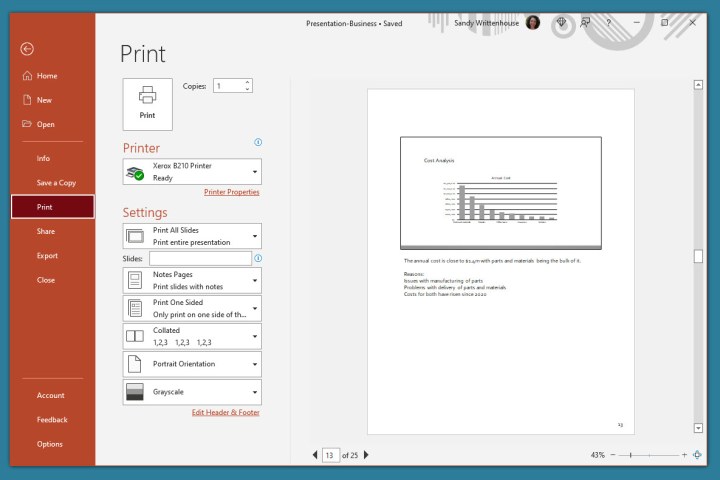
Print screen in PowerPoint on Windows.

Print PowerPoint slides with notes on Mac

If you use Microsoft PowerPoint on Mac, you can print your slides with notes a just a few steps, like on Windows.

Step 1: Open PowerPoint on your Mac to the presentation you’d like to print.

Step 2: Click File > Print from the menu bar.

Step 3: In the pop-up window, choose your printer in the Printer drop-down box at the top if necessary.

Step 4: Choose which slides you’d like to print. You can print all slides, specific numbers, selected slides, or a custom range.
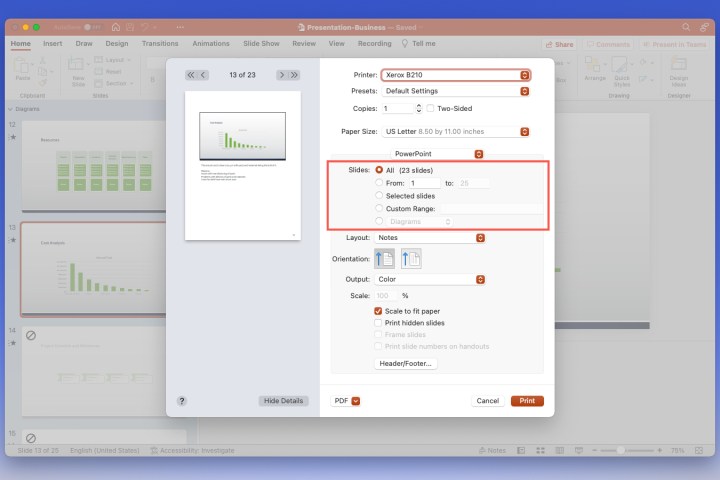
Print all slides in PowerPoint on Mac.

Step 5: Click the Layout drop-down box and choose Notes. You’ll see a preview on the left.
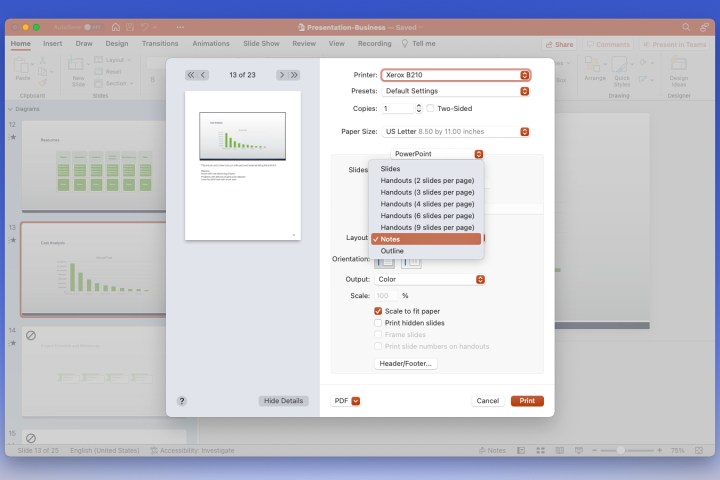
Notes selected to print in PowerPoint.

Step 6: Optionally, adjust any other settings you’d like such as Orientation, Output, or Scale.

Step 7: Click Print.
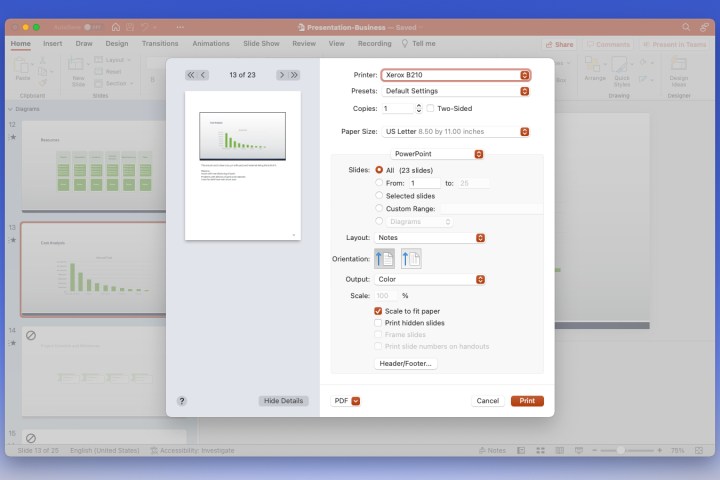
Print screen in PowerPoint on Mac.

Print PowerPoint slides with notes on the web

Maybe you’re using PowerPoint on the web and prefer to print from there.

Step 1: Visit PowerPoint on the web, sign in, and open your presentation.

Step 2: Select the File tab.

Step 3: Choose Print and pick Print notes pages.
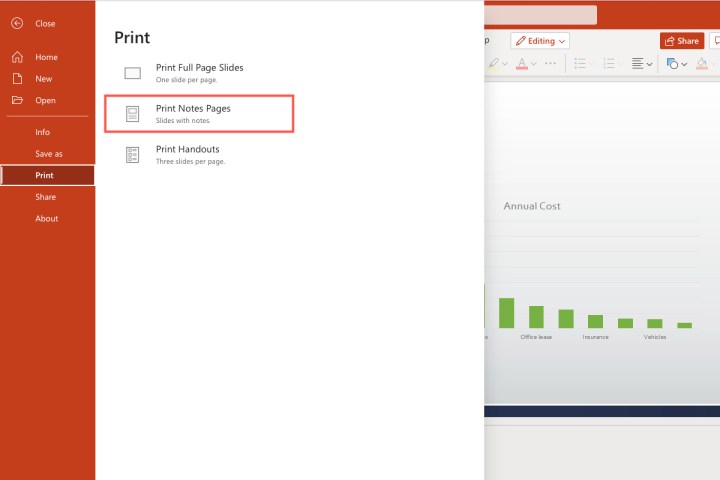
Print Notes Pages selected in PowerPoint on the web.

Step 4: In the small pop-up window, select Open PDF to view your presentation file.
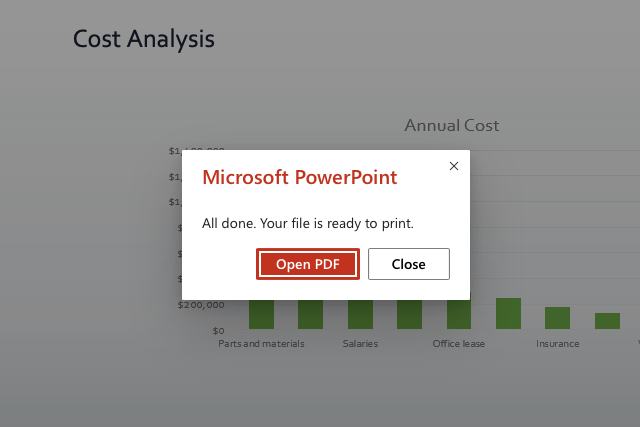
Open PDF dialog box for PowerPoint on the web.

Step 5: Depending on your web browser, click the Print button or download the file to print on your computer.

For additional PowerPoint features, check out Microsoft’s implementation of real-time closed captioning.

Editors’ Recommendations


Share. Facebook Twitter Pinterest LinkedIn Tumblr Email

Keep Reading

Adobe’s Firefly AI now lets you edit videos by describing changes

This Roborock S8 MaxV Ultra deal takes $900 off a truly hands-off cleaning setup

RAM prices are wild, so this 32GB gaming PC for $979.99 is starting to look suspiciously good

Google is shutting down a tool that nudged you about data leaks

Zoom is also getting an AI assistant, if that’s what you need for video calls

iOS 26.3 gives an official glimpse of a convenient iPhone-to-Android migration tool

Your next iPhone might lose the cutout in Apple’s all-screen iPhone 2027 leak

iOS 26 leak, your iPhone’s next big Siri upgrade has a date

Apple Music is returning to your GM car as a native infotainment app

Editors Picks

Adobe’s Firefly AI now lets you edit videos by describing changes

December 16, 2025

HCF Group Unveils Holiday 2025 Initiative Focused on Long-Term Asset Ownership

December 16, 2025

This Roborock S8 MaxV Ultra deal takes $900 off a truly hands-off cleaning setup

December 16, 2025

Cosplay Con 2 Brings Al Wahda Mall to Life with Creativity, Culture & Community

December 16, 2025

Subscribe to News

Get the latest UAE news and updates directly to your inbox.

Latest Posts

RAM prices are wild, so this 32GB gaming PC for $979.99 is starting to look suspiciously good

December 16, 2025

NextWhat advertising wins exclusive VFS Global contract as UAE OOH market surges on premium audience demand

December 16, 2025

Google is shutting down a tool that nudged you about data leaks

December 16, 2025
Facebook X (Twitter) Pinterest TikTok Instagram
© 2025 Daily Guardian UAE. All Rights Reserved.
  • Privacy Policy
  • Terms
  • Advertise
  • Contact

Type above and press Enter to search. Press Esc to cancel.