
Daily Guardian UAEDaily Guardian UAE
  • Home
  • UAE
  • What’s On
  • Business
  • World
  • Entertainment
  • Lifestyle
  • Sports
  • Technology
  • Travel
  • Web Stories
  • More
    • Editor’s Picks
    • Press Release
What's On

NVIDIA CEO Jensen Huang Awarded 2026 IEEE Medal of Honor, Technology’s Most Prestigious Recognition

January 7, 2026

This coin-sized recorder wants to remember your meetings for you

January 7, 2026

Flayva kicks off the new year with a month of creativity, culture, and sustainable experiences

January 7, 2026

I’ve used the Galaxy TriFold and it solves a foldable phone issue I didn’t know I had

January 7, 2026

TCL Displays the Future of Visual Technologies and Intelligent Living with Groundbreaking Products and Solutions at CES 2026

January 7, 2026
Facebook X (Twitter) Instagram
Finance Pro
Facebook X (Twitter) Instagram
Daily Guardian UAE
Subscribe
  • Home
  • UAE
  • What’s On
  • Business
  • World
  • Entertainment
  • Lifestyle
  • Sports
  • Technology
  • Travel
  • Web Stories
  • More
    • Editor’s Picks
    • Press Release
Daily Guardian UAEDaily Guardian UAE
Home » How to reset graphics drivers in Windows 11
Technology

How to reset graphics drivers in Windows 11

By dailyguardian.aeApril 7, 20243 Mins Read
Share
Facebook Twitter LinkedIn Pinterest Email

Having some graphics trouble with your Windows PC? Before you open the nearest real window and toss your treasured gaming rig into the great beyond, you should probably do a little troubleshooting. Luckily, one common culprit is misbehaving drivers. And guess what? These pests can be reset! Here’s a guide to teach you how to do it.

How to restart your graphics driver in Windows 11

If your PC appears to be working fine, but the visuals have frozen, or you’ve had a sudden black screen but the PC seems to be working otherwise, you might need to restart your graphics driver.

Step 1: Press Windows key + Ctrl + Shift + B.

Step 2: Your screen(s) will flash black (if they aren’t black already) as the driver refreshes.

If it worked, you should find your PC is working again. If this problem persists, you might want to consider reinstalling your graphics driver anyway.

How to reinstall your graphics driver on Windows 11

The best way to reset your graphics driver in Windows 11 is by reinstalling it. If you have an AMD, Nvidia, or Intel graphics card, skip to the section below. However, if you’re running a Windows 11 PC with Intel or AMD onboard graphics, you can let Windows do all the heavy lifting for you.

Step 1: Search for Device Manager in Windows search.

Step 2: Look under Display Adapters for your graphics chip. It will be listed as AMD Radeon, Intel UHD, or some variation.
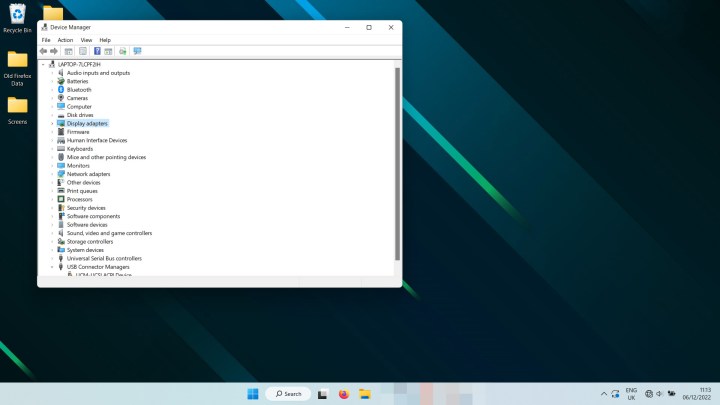
Finding the display adapter in Device Manager in Windows 11.

Step 3: Right-click on the entry and select Uninstall device. It may take a second and your screen may flicker off and on, but when it’s finished, restart your PC.

When Windows 11 boots back up again, it should reinstall the latest Intel or AMD onboard graphics driver for you, hopefully fixing whatever problem you were facing.

How to reinstall your graphics card drivers in Windows 11

If you have an AMD, Nvidia, or Intel graphics card, the process for reinstalling your graphics driver is a little more involved but not much more complicated.

Step 1: Use the Windows 11 search bar to find Add or remove programs and select the appropriate result.
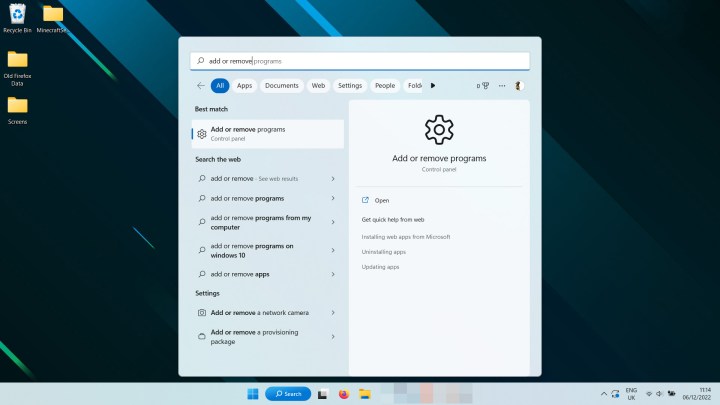
Searching for Add and Remove programs in Windows 11.

Step 2: Scroll through the list or use the search, to find Nvidia, AMD, or Intel graphics drivers. Select the three-dot menu on the right-hand side and select Uninstall.

You may also want to remove the GeForce experience, Nvidia Control Panel, AMD Radeon Adrenaline, and other related applications and drivers.

Finding the Nvidia drivers to uninstall them.

Step 3: Optional: If you want to make doubly sure that your drivers are completely removed, you can also run the third-party application, Display Driver Uninstaller, otherwise known as DDU. Find out how to download it and use it, on the official site.

Step 4: Restart your computer and wait for it to boot back up.

Step 5: Visit your graphics card manufacturer’s website and download the latest version of the most applicable driver for your graphics card. Their respective download sites are:

Step 6: Run the graphics card driver installer and follow the on-screen instructions to reinstall your graphics driver.

Now that you’ve reset your graphics drivers in Windows 11, how about improving gaming performance? Make these in-game settings tweaks to make the most of what you’ve got, or consider overclocking your graphics card to find more performance.

Editors’ Recommendations


Share. Facebook Twitter Pinterest LinkedIn Tumblr Email

Keep Reading

This coin-sized recorder wants to remember your meetings for you

I’ve used the Galaxy TriFold and it solves a foldable phone issue I didn’t know I had

Your Zenbook A16 gets an 18-core Snapdragon X2 Elite Extreme

Acer’s Swift 16 AI touchpad could make your tablet optional

Eureka’s new smart vacuums bring premium floor care to everyday homes

SmallRig brings a microphone to CES 2026 which was designed by a Grammy-winning engineer

FOSSiBOT’s rugged tech illustrates the convergence of power, vision, and mobility

Recording 8K drone footage just got easier thanks to Potensic’s new upgrade

Nomad’s eSIM offers take one stressful task off your holiday planning list

Editors Picks

This coin-sized recorder wants to remember your meetings for you

January 7, 2026

Flayva kicks off the new year with a month of creativity, culture, and sustainable experiences

January 7, 2026

I’ve used the Galaxy TriFold and it solves a foldable phone issue I didn’t know I had

January 7, 2026

TCL Displays the Future of Visual Technologies and Intelligent Living with Groundbreaking Products and Solutions at CES 2026

January 7, 2026

Subscribe to News

Get the latest UAE news and updates directly to your inbox.

Latest Posts

Your Zenbook A16 gets an 18-core Snapdragon X2 Elite Extreme

January 7, 2026

Eywa Way of Water: Where Regenerative Luxury -Flows Into Life

January 7, 2026

Acer’s Swift 16 AI touchpad could make your tablet optional

January 7, 2026
Facebook X (Twitter) Pinterest TikTok Instagram
© 2026 Daily Guardian UAE. All Rights Reserved.
  • Privacy Policy
  • Terms
  • Advertise
  • Contact

Type above and press Enter to search. Press Esc to cancel.