
Daily Guardian UAEDaily Guardian UAE
  • Home
  • UAE
  • What’s On
  • Business
  • World
  • Entertainment
  • Lifestyle
  • Sports
  • Technology
  • Travel
  • Web Stories
  • More
    • Editor’s Picks
    • Press Release
What's On

Windows 11 is about to serve haptic feedback for a whole bunch of tasks

April 4, 2026

Claude just shut the door on OpenClaw (unless you pay more)

April 4, 2026

PS6 might be closer than you think, and it’s not coming alone

April 4, 2026

Mercedes brings steer-by-wire to production cars, and it’s a big shift

April 4, 2026

Perplexity’s privacy lawsuit bombshells will make you sweat about using the AI tool

April 4, 2026
Facebook X (Twitter) Instagram
Finance Pro
Facebook X (Twitter) Instagram
Daily Guardian UAE
Subscribe
  • Home
  • UAE
  • What’s On
  • Business
  • World
  • Entertainment
  • Lifestyle
  • Sports
  • Technology
  • Travel
  • Web Stories
  • More
    • Editor’s Picks
    • Press Release
Daily Guardian UAEDaily Guardian UAE
Home » How to send a voice message on your iPhone
Technology

How to send a voice message on your iPhone

By dailyguardian.aeFebruary 19, 20242 Mins Read
Share
Facebook Twitter LinkedIn Pinterest Email

Typing out text messages to people is one of the simplest functions of your iPhone. However, there are times where you need to send a message but can’t easily type on your keyboard — whether you’re out grocery shopping, cooking, doing dishes, etc.

Luckily, your iPhone 15 or other iOS device has a tool that lets you record and send audio messages directly from the Messages app. Here’s how it works.

How to send a voice message on your iPhone

To send a voice message on your iPhone, simply follow these directions:

Step 1: First, open the Message app on your iPhone.

Step 2: Choose an Existing message from the list or tap the Message icon at the top right to begin a new message. In that case, choose a New contact.

Step 3: Tap the + at the bottom left, then select Audio.
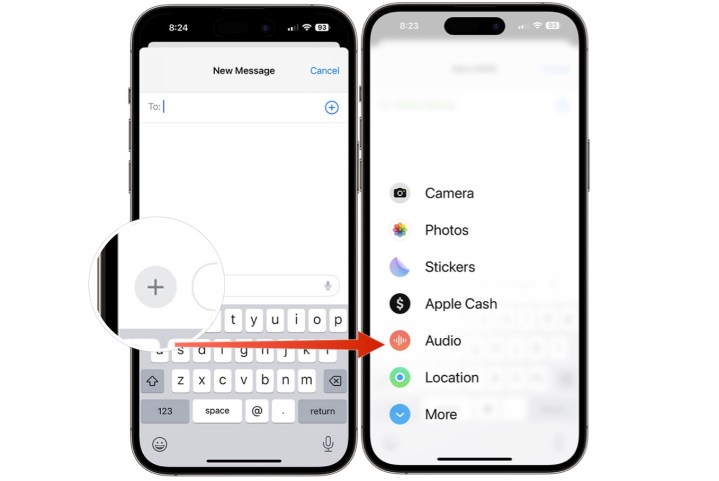
Screenshot showing how to start an audio file in Messages on iPhone.

Step 4: Using your voice, Record a message.

Step 5: Tap the red square icon to Stop recording.
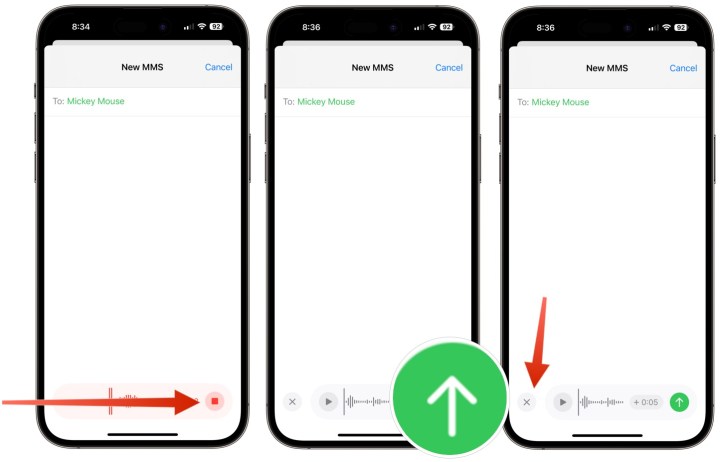
Screenshot showing how to record and send an audio message in the Messages app on iPhone.

Step 6: Tap the Up arrow to send the message, or tap the + icon to add time to the message. Alternatively, tap the X icon to delete the message.

Step 7: You can listen to an audio message prior to sending it. To do so, after tapping the Red square icon to stop recording, choose the icon that shows a Right arrow to listen to the recording.
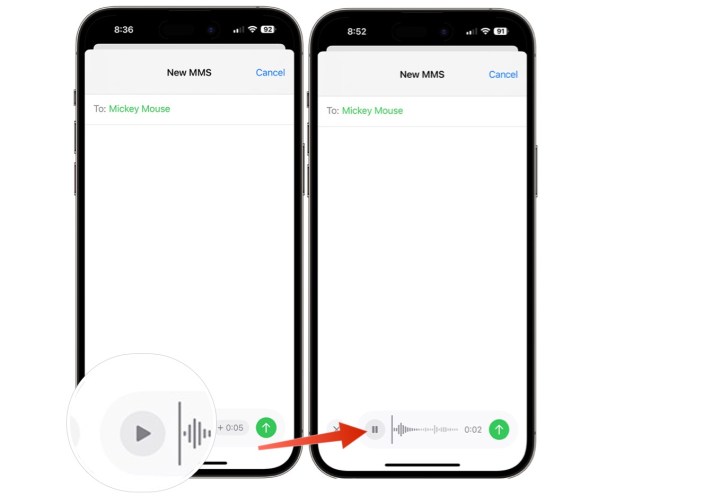
Screenshot showing how to listen to an audio file through the Messages app on iPhone.

Step 8: Tap the Pause icon to pause the recording.

How to save an audio message

After you send or listen to an audio message, you have two minutes to save it to your phone. Otherwise, it gets deleted automatically. To save it:

Step 1: Open the Message app on your iPhone.

Step 2: Choose the message that has the audio message.
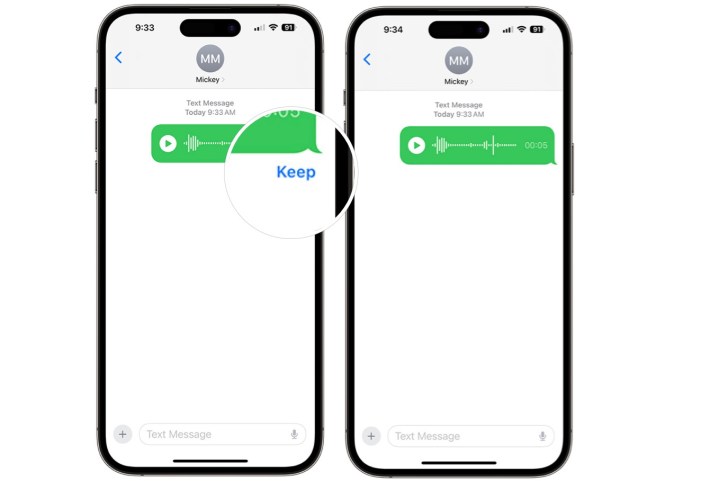
Screenshot showing how to keep an audio recording in the Messages app on iPhone.

Step 3: Tap Keep under the audio message to keep it. The audio message will remain in the Messages app.

Just like that, you’ve become a pro at recording, sending, and saving audio messages! You can send audio messages to other iMessage users and your Android contacts using SMS texting, so feel free to send audio messages to whoever you’d like.

Editors’ Recommendations


Share. Facebook Twitter Pinterest LinkedIn Tumblr Email

Keep Reading

Windows 11 is about to serve haptic feedback for a whole bunch of tasks

Claude just shut the door on OpenClaw (unless you pay more)

PS6 might be closer than you think, and it’s not coming alone

Mercedes brings steer-by-wire to production cars, and it’s a big shift

Perplexity’s privacy lawsuit bombshells will make you sweat about using the AI tool

Maul – Shadow Lord is returning for a second season to expand the Star Wars lore

A smartphone giant spills the beans on absurd price hike for compoents

Claude AI can now tap into emails, files, and even run tasks on your PC

Aiper Experts Duo: This AI-driven pool cleaning duo makes 24/7 carefree pool ownership a reality

Editors Picks

Claude just shut the door on OpenClaw (unless you pay more)

April 4, 2026

PS6 might be closer than you think, and it’s not coming alone

April 4, 2026

Mercedes brings steer-by-wire to production cars, and it’s a big shift

April 4, 2026

Perplexity’s privacy lawsuit bombshells will make you sweat about using the AI tool

April 4, 2026

Subscribe to News

Get the latest UAE news and updates directly to your inbox.

Latest Posts

Maul – Shadow Lord is returning for a second season to expand the Star Wars lore

April 4, 2026

A smartphone giant spills the beans on absurd price hike for compoents

April 4, 2026

Claude AI can now tap into emails, files, and even run tasks on your PC

April 3, 2026
Facebook X (Twitter) Pinterest TikTok Instagram
© 2026 Daily Guardian UAE. All Rights Reserved.
  • Privacy Policy
  • Terms
  • Advertise
  • Contact

Type above and press Enter to search. Press Esc to cancel.