
Daily Guardian UAEDaily Guardian UAE
  • Home
  • UAE
  • What’s On
  • Business
  • World
  • Entertainment
  • Lifestyle
  • Sports
  • Technology
  • Travel
  • Web Stories
  • More
    • Editor’s Picks
    • Press Release
What's On

Moto Watch can go nearly two weeks and brings Polar’s pro-tier fitness perks 

January 7, 2026

Amazon is putting Alexa+ on Samsung TVs, cars, and even your finger

January 7, 2026

Xreal puts a blazing-fast 240Hz display on your face with the ROG R1 AR glasses

January 7, 2026

Sony unveils new concept car and confirms when first Afeela 1 vehicles will arrive

January 7, 2026

HP’s first HyperX OMEN gaming laptop packs an RTX 5090 mobile GPU and OLED screen

January 7, 2026
Facebook X (Twitter) Instagram
Finance Pro
Facebook X (Twitter) Instagram
Daily Guardian UAE
Subscribe
  • Home
  • UAE
  • What’s On
  • Business
  • World
  • Entertainment
  • Lifestyle
  • Sports
  • Technology
  • Travel
  • Web Stories
  • More
    • Editor’s Picks
    • Press Release
Daily Guardian UAEDaily Guardian UAE
Home » How to turn off notifications in Windows 11
Technology

How to turn off notifications in Windows 11

By dailyguardian.aeJanuary 31, 20242 Mins Read
Share
Facebook Twitter LinkedIn Pinterest Email

Windows 11’s notification center delivers notifications to your desktop from specific apps. However, if you don’t want to receive notifications at all, or want to turn off notifications in Windows 11 for certain apps, you can do this easily through the System Settings. Similarly, you can decide which notifications to receive at certain times of the day.

How to turn off Windows 11 notifications

Windows 11 notifications can be useful, but not at all times. It’s possible to turn all notifications on or off, as well as select which apps have priority when do not disturb is on. By knowing how to turn on Windows 11 notifications, you can ensure you only receive important information when you need it.

To customize your Windows 11 notifications, you’ll need to go through the following steps. This will allow you to turn notifications on or off for apps on your device.

Step 1: Select Start> *Settings**> *System*> *Notifications*.

Step 2: Select Notifications to expand, turn notifications on/off, turn banners on/off, and turn sounds on/off.

Step 3: If you want to turn off tips and suggestions about Windows, scroll down to Additional settings and toggle the options on/off.

How to use Windows 11 do not disturb

If you want notifications to appear on your Windows 11 device only during certain times, for example, outside of work hours, you can turn on Do not disturb. This will ensure you keep your focus on what’s important.

Step 1: Select Start> Settings> System> Notifications

Step 2: Navigate to Do not disturb and toggle on/off.

Step 3: To turn on Do not disturb automatically, you can navigate to the Turn on do not disturb automatically option and select a specific time to turn on notifications.
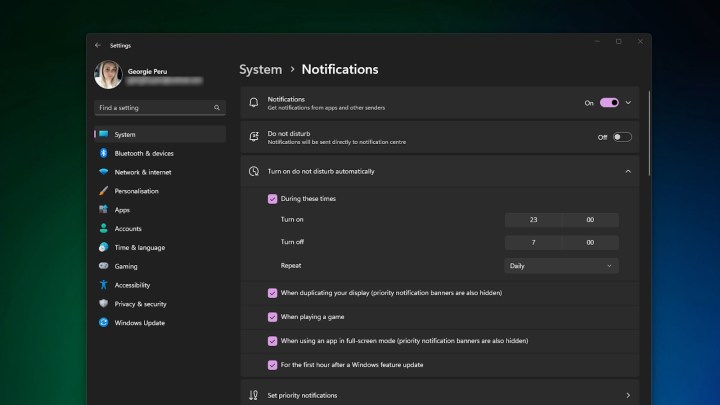
The do not disturb automatic settings in Windows 11.

How to prioritize notifications

Using Windows 11 do not disturb notification settings can stop notifications when you don’t want them to appear. However, there may be some app you want to receive notifications from, like Mail, which can remain in the notification center even while do not disturb is on.

Step 1: Select Start> Settings> System> Notifications.

Step 2: Navigate to Set priority notifications.
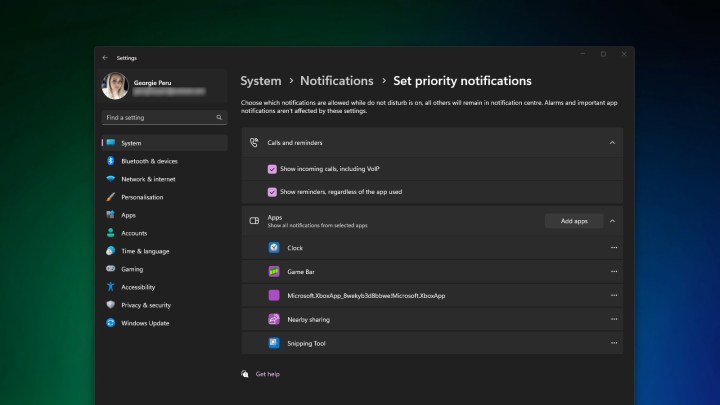
The priority notifications setting in Windows 11.

Step 3: Select Add apps to choose which app or apps you want to receive notifications from.
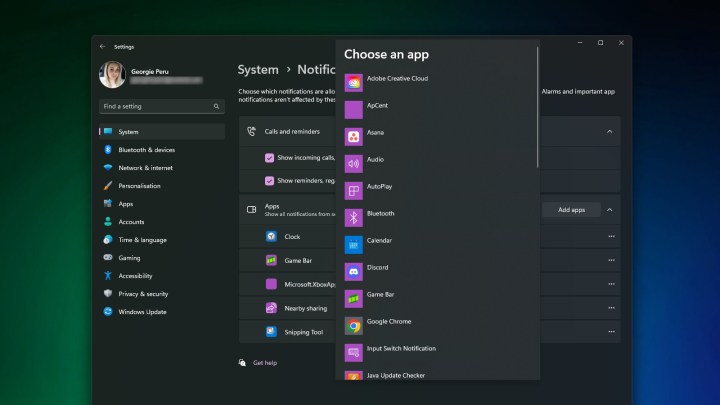
The add apps to windows 11 set priority notifications.

Editors’ Recommendations


Share. Facebook Twitter Pinterest LinkedIn Tumblr Email

Keep Reading

Moto Watch can go nearly two weeks and brings Polar’s pro-tier fitness perks 

Amazon is putting Alexa+ on Samsung TVs, cars, and even your finger

Xreal puts a blazing-fast 240Hz display on your face with the ROG R1 AR glasses

Sony unveils new concept car and confirms when first Afeela 1 vehicles will arrive

HP’s first HyperX OMEN gaming laptop packs an RTX 5090 mobile GPU and OLED screen

HP’s EliteBook X G2 laptops put serious AI power in shockingly light designs

Dell revives Area 51 gaming PCs with the world’s fastest gaming CPU

Save $120 on a 3-channel dash cam with front, cabin, and rear coverage

Razer’s new Wolverine V3 controller is the fastest in the world, but it’s designed for something you won’t expect

Editors Picks

Amazon is putting Alexa+ on Samsung TVs, cars, and even your finger

January 7, 2026

Xreal puts a blazing-fast 240Hz display on your face with the ROG R1 AR glasses

January 7, 2026

Sony unveils new concept car and confirms when first Afeela 1 vehicles will arrive

January 7, 2026

HP’s first HyperX OMEN gaming laptop packs an RTX 5090 mobile GPU and OLED screen

January 7, 2026

Subscribe to News

Get the latest UAE news and updates directly to your inbox.

Latest Posts

HP’s EliteBook X G2 laptops put serious AI power in shockingly light designs

January 7, 2026

Dell revives Area 51 gaming PCs with the world’s fastest gaming CPU

January 6, 2026

Save $120 on a 3-channel dash cam with front, cabin, and rear coverage

January 6, 2026
Facebook X (Twitter) Pinterest TikTok Instagram
© 2026 Daily Guardian UAE. All Rights Reserved.
  • Privacy Policy
  • Terms
  • Advertise
  • Contact

Type above and press Enter to search. Press Esc to cancel.