

Modern digital game distribution makes buying and installing games easier than ever. If you play games on a PC, there is a very good chance you’re using Steam. With many games requiring more and more storage space for all those HD textures and uncompressed audio tracks, most players don’t have space for every game they own on their hard drives. Plus, with those attractive Steam sales that are the source of the bulk of our libraries, it’s easy to amass a huge offering of games.
If you’re switching to buying games on the Epic Games store, you might not even want your older collection of Steam games installed on your system at all, and Epic is quickly building up its own library of digital titles. Luckily, we’ll show you how to uninstall Steam games so you can clear space on your hard drive.
Uninstalling games through Steam
The quickest and easiest method to uninstall a game is through Steam itself.
Step 1: Open the Steam client and log in, if required.
Step 2: Click the Library tab in the top navigation menu.
Step 3: Locate and right-click the game you want to uninstall in your library, which should open a drop-down menu. From there, head down to Manage, and then a new drop-down menu will appear. On that drop-down, click Uninstall.

Step 4: Click Uninstall again to confirm.

Uninstalling Steam games through Windows
If you would rather not uninstall your games directly through Steam, you can delete the game at the system level. Much like any other Windows application, you can uninstall your Steam games through Windows’ own Programs and Features menu.
Although this process will still take you to the Steam interface for the final step, you might prefer this method if you’re cleaning out various parts of your system at once.
Step 1: Search for “apps and features” or navigate to the Control Panel shortcut in the Start menu, and click the Uninstall a Program option under Programs.
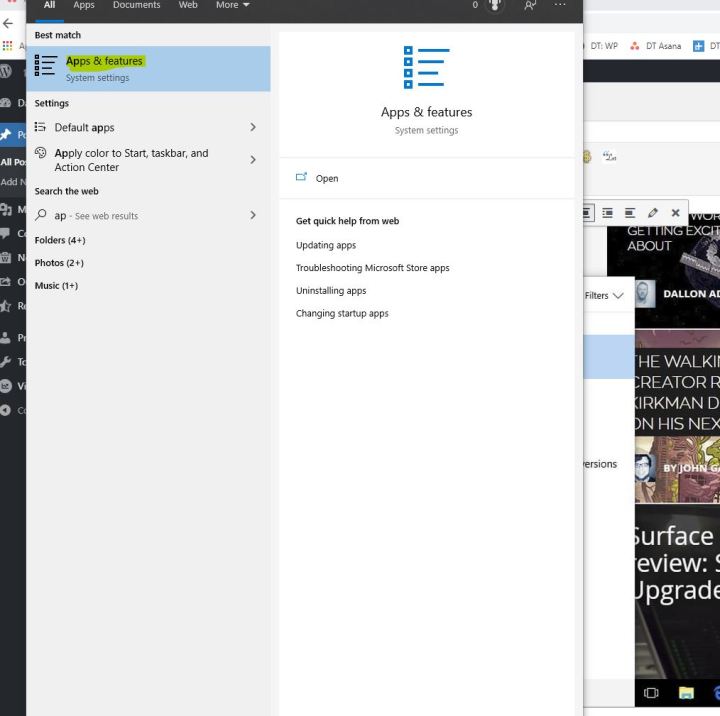
Step 2: Find the game you want to uninstall. Listing every program by name or install date may help you find things quickly. When you’ve found it, click Uninstall from the menu above or right-click the game and click Uninstall from the resulting menu.

Step 3: You will then be taken to the Steam interface. Log in, if needed. When presented with the final confirmation box, click Uninstall to finalize the uninstall. Your game will be deleted.
Completely removing Steam game files from the computer
While all of the above methods should work for uninstalling Steam Games, it never hurts to double-check with a manual uninstallation. Manually deleting your game files is a bit more complicated, but it’s the best way to be sure you’ve entirely erased the game (and all of its files) from your system.
Don’t forget that the games you’ve uninstalled will still show up in your Steam library even if they’re no longer a part of your system.
Step 1: Under your computer’s file explorer, navigate to your Steam install folder. On Windows 10, your Steam folder is in C:Program Files (x86)Steam by default.
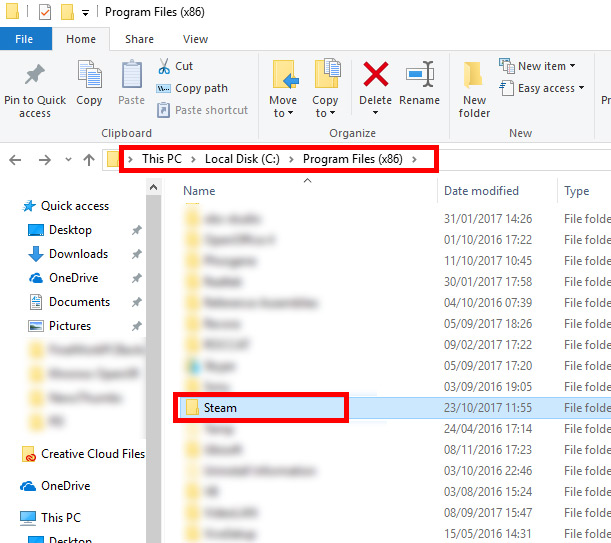
Step 2: Search for and select the Steamapps folder and then the Common folder.
Step 3: Once you’re in the Common folder, you’ll notice that there are several additional folders in storage. There should be one folder in place for every single game you installed on your computer. Find the name of the game you wish to remove, select the folder, and click the delete key. You could also always right-click on the specific folder and click Delete on the drop-down menu that appears on the screen.
Keep in mind that after you officially delete the folder, that corresponding game will be gone. Your saved items and progress will all be lost, so make sure you actually want to delete the game. If you decide that you’d like to play the game again after removing it, you’ll need to install it again. Your new game will default back to its original settings.
Steam likes to leave a backdoor, though, for players who delete games from their computer. The program allows gamers to access configuration and saved files on your device in case you do eventually decide to reinstall the game. To fully remove these files, too, you can navigate to the Saved Games folder, the Documents folder, or the AppData folder under C: Users[YourUsername].
How to reinstall deleted Steam games
After following the steps above, the game will now be uninstalled. The game will still appear in your Steam list on the left, but you’ll need to reinstall it to play.
Step 1: If you ever want to reinstall it, double-click the game’s name or right-click and choose Install from the pop-up menu.
Step 2: Follow the on-screen instructions. To save space on your main drive, you could consider installing the game in a secondary location.
Editors’ Recommendations