

Whether you have an average laptop or one of the best laptops around, one of the best ways to improve the experience is to use an external monitor.
That’s not something you can take with you easily, but a bigger screen can make you more productive, make your games more immersive, and give you greater multi-tasking capabilities. Here’s how to use a monitor with your laptop to give you a much bigger screen for work and play.
Check your connections
Before you can connect a monitor to your laptop, you need to know what kind of connection options you have.
Step 1: Grab your laptop and look on its sides and on the back to see what kind of ports it has.
Some notebook computers have an HDMI output, which can make connecting an external monitor very easy, as almost any modern display supports HDMI. Most modern laptops come with some form of USB-C connector. The exact specifications of it can vary dramatically, as newer USB4 and Thunderbolt 3/4 ports use the same USB-C connector, but can support much greater bandwidths and therefore resolutions and refresh rates.
Older laptops may have legacy outputs like VGA or mini-DisplayPort, too. While it won’t necessarily be easy to find a compatible monitor to work with those standards, they’re still a viable solution for using a monitor with your laptop.
Want some more information on identifying ports? Here’s our guide to all of your laptop connectors.

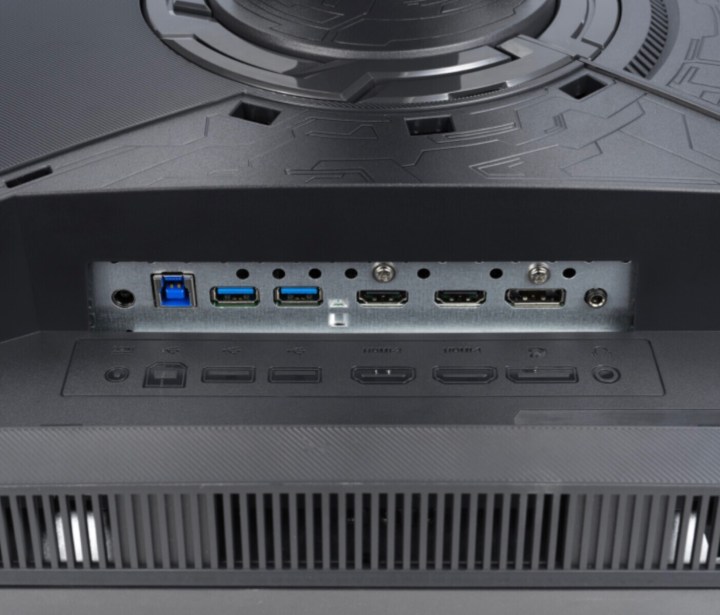
Step 2: If you already have a monitor that you want to use with your laptop, then you need to look at the connection options it has, too. Turn it around, or upside down — depending on where it’s connectors are located — and see what you’re working with.
Most modern(ish) displays will support HDMI and DisplayPort, while older ones will support more legacy connection options like DVI-D and VGA. Some monitors also support USB-C as an input option, which makes connecting modern laptops with USB-C connections very easy.
If you’re buying a new monitor to use with your laptop, buy one that has a port that’s compatible with the output options from your laptop. You can follow our guide on choosing a monitor, or take a look at our list of the best monitors for additional help.
Grab a cable
Now that you know what connections you can use at each end of the connection, you need to decide on the cable you’re going to use. If both your laptop and the monitor have the same type of connection option, then you can use that cable type with no extra complexity. HDMI to HDMI, USB-C to USB-C, DisplayPort, to DisplayPort, and so on.
However, if your monitor has different connection options to your laptop, then you might need to use an adapter or converter. There are ways to convert just about any video port into another. For example, there are HDMI to DisplayPort adapters, or USB-C to HDMI adapters. You could also use a docking station or hub to give yourself a range of connection options, though that’s typically more expensive than a single adapter, and some of them need external power.
If you have multiple connection options, then pick whichever one is the most convenient for you whilst also supporting the refresh rate and resolutions you want to run the monitor at. The specifications for different cables and connections can vary dramatically between generations, so you’ll need to look at what you have, and what you want, to see which is best. We have guides on HDMI 2.1, and its earlier standard, HDMI 2.0, as well as the high-end DisplayPort 2.1.
Connect your laptop to the monitor
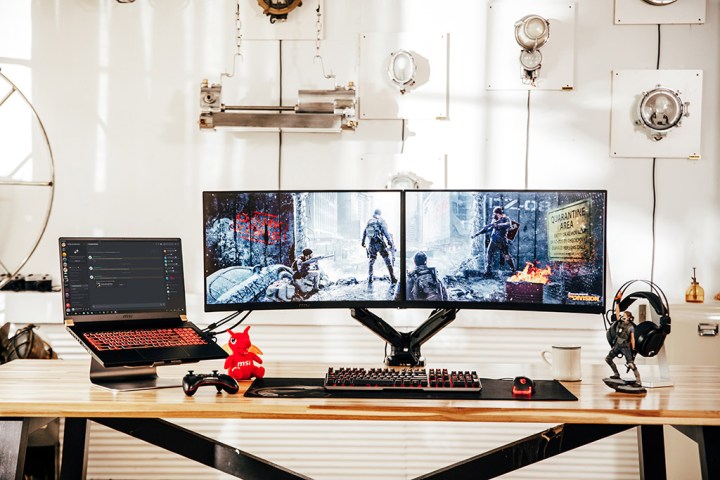
The final step in connecting your laptop to a monitor, is to actually connect your laptop to your monitor.
Step 1: Plug the end of your cable (or cable and adapter chain) into your laptop, and the other end into your monitor.
Step 2: Turn the laptop on if it isn’t already and wait a moment. If the cables are all compatible and plugged in correctly, you should see your laptop screen duplicate on the external monitor. This is the default in Windows, but you can adjust it if you prefer.
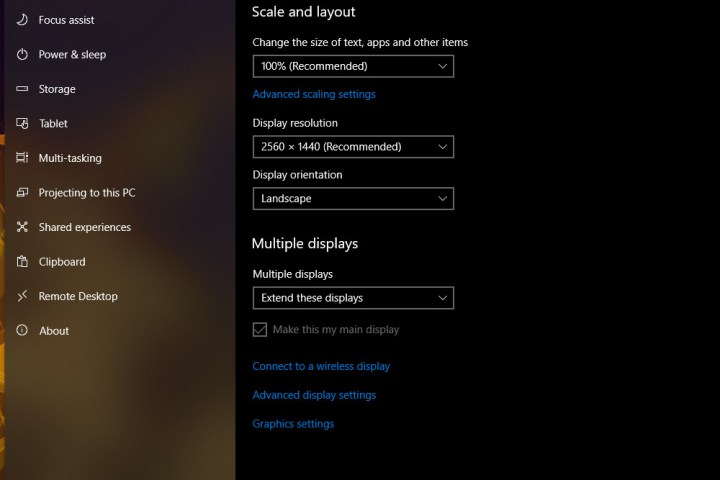
Step 3: To change the monitor so that it extends, rather than duplicates your display, navigate to your laptop’s display settings, and change it to Extend instead.
For Windows PCs, navigate to: Settings > System > Display. Then under the Multiple displays heading, set the drop down to Extend these displays.
For Mac computers and MacBooks, navigate to: System Preferences > Displays > Arrangement. To make the displays mirror, tick the Mirror Displays box. To have them extend, untick it.
Would you rather connect your laptop to your TV? It gives you a much bigger screen to work or play on, and can be great for console game ports. Here’s how to connect your laptop to a TV in a few different ways.
Want to reverse the whole process and use your laptop as the monitor instead? You can do that too.