

Did you know you can use your Amazon Echo smart speaker or your Echo Show smart display as a doorbell chime? As long as you have a compatible doorbell product that Alexa can handshake with, you’ll be able to receive doorbell notifications in the form of audible chimes, as well as video live-feeds (if you’re using an Echo Show).
Fortunately, the process of linking your compatible doorbell product to Amazon Alexa is a relatively straightforward one, and we’ve put together this step-by-step guide to help you along the way!
Install a compatible video doorbell
Amazon’s Echo — and Alexa working with it — need a compatible smart doorbell to make a connection. Without the right doorbell, none of this is possible. Amazon has a whole list of various doorbells that are compatible with Alexa, but for this particular example, we’re going to choose a Ring Video Doorbell. Ring’s doorbells are some of the best video doorbells on the market, and they work very well with Alexa, so they make for an excellent demonstration. We also have a complete guide on how to install your Ring Doorbell.
Mount your video doorbell, make sure it’s turned on, and use the video doorbell app to set it up, connect it to your Wi-Fi, and get everything in working order. Once you are satisfied, it’s time to work with your Echo.
Enable the corresponding skill on the Alexa app
Step 1: Open up your Alexa app, select the More button in the lower-right corner, and then select Skills & Games from the new list.

Step 2: Now you will want to search for the corresponding Alexa Skill for your smart device. Select the Magnifying Glass in the upper-right corner, and type in “Ring,” then select the Ring skill when it appears in the results.
Note: You can also say something like, “Alexa, search for new smart devices,” to get started, but this can be a little clunky if Alexa struggles to recognize the Ring Video Doorbell at first. It’s a good idea to use the app if voice commands aren’t working as well.

Link the two devices
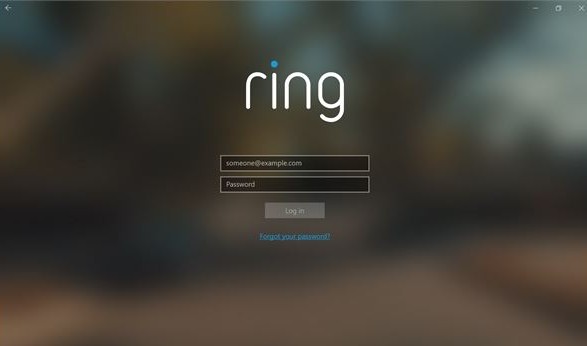
Select Enable to Use on the Ring Skill. Alexa will now walk you through the steps to link your Ring Video Doorbell to your Echo, starting with having you log in to the Ring app with your Ring account information (have this handy). Follow all the prompts, and give Alexa permission to access your Ring data when asked.
When you are finished, you should see a notification that the Ring Doorbell is now linked with Alexa. However, this doesn’t always mean that your Echo is fully connected yet.
Wait for about a minute, then head to the Alexa app again, select Devices, and select All Devices.
Look for your Ring Video Doorbell’s name to make sure the Ring Doorbell is found and connected. If it isn’t, select the Plus Sign in the upper-right so Alexa can locate it and connect properly.

Visit your doorbell page on the Alexa app
Step 1: Since you’re already in Devices, this next step won’t take long! Select your Ring Doorbell, and examine the settings. You will see two separate sections, one for Doorbell Announcement and one for Motion Announcement. You can enable both of them if you want, but for a true doorbell chime, you will want to make sure that at least Doorbell Announcement is enabled.
Step 2: Now select the option that says Doorbell Sound. Here, you can pick from a variety of different chimes that your Echo will make when the doorbell is activated. Pick your preferred option here.
Step 3: If you have an Echo Show model, you can also command it to show a livestream of the Ring Video Doorbell’s feed whenever you get an alert.
This saves some time if you are busy around your home and don’t have your phone handy to bring up a feed there.

Check that your Echo is ready to chime
Step 1: Your Echo should be ready to act as a doorbell chime now, but there’s one last step you should take.
Head back to your Alexa app home screen and select Devices again, and then select All Devices and find the Echo that you want to chime.
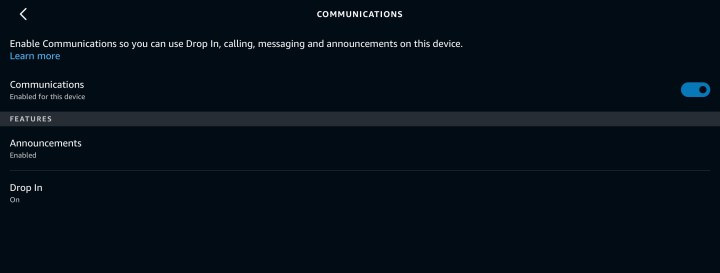
Step 2: Select Communications from the Echo menu.
Step 3: Make sure that Communications itself is enabled and that Announcements are enabled. Now you should be good to go!
Add other Alexa skills as preferred
You don’t need to do anything else to receive doorbell chimes from your Echo, but if you want to experiment, you can check out skills like Door Chimes to add new sounds to your doorbell.
Can I set up doorbell chimes with Google Assistant?
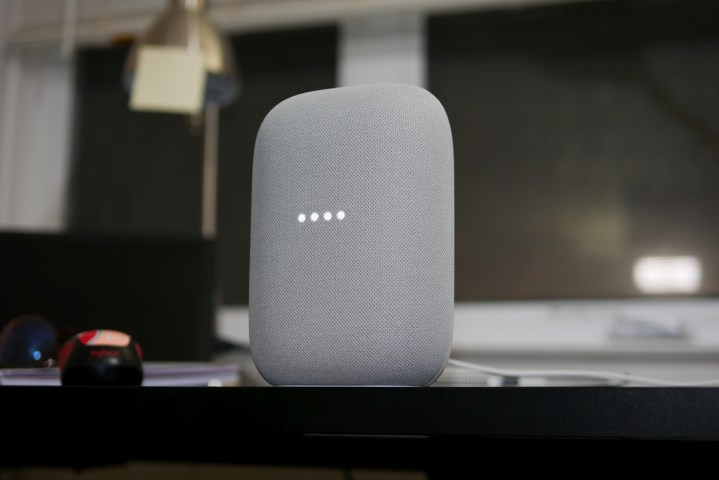
Yes you can! Using the Google Home app, you’ll be able to set up Google Nest and Home smart speakers and displays to play visitor notifications (doorbell chimes) whenever a guest rings your compatible doorbell product.
Step 1: After you’ve finished setting up your doorbell with its respective companion app, launch Google Home and tap Devices. Then tap Add Partner Device.
Step 2: Next, tap and hold the device tile for the doorbell product, then tap Settings > Doorbell. Then turn Visitor Announcements on. If you’re using a first-gen Nest doorbell, press and hold the doorbell tile, then tap Settings > Visitor Announcements.
Depending on the type of video doorbell you’re using, you may also be able to watch video using a Chromecast, Google TV, or Android TV streaming device or smart TV.
Why won’t my Ring Video Doorbell work with my Echo Show?
If your Echo Show isn’t playing chimes when someone rings your doorbell, there’s a couple of things you can try to fix the issue.
First and foremost, you’ll want to make sure your Echo Show is set up as an Announcement Device in the Alexa app.
Even if you’re seeing live video feeds on your Echo Show when someone rings your doorbell, that doesn’t mean the Echo device is being instructed to make audible chimes.
Sometimes a simple reset is all it takes! With that in mind, you could also try disabling and re-enabling the Ring skill in the Alexa app.
Editors’ Recommendations