

When Samsung announced its Galaxy S24 series, it also revealed a slew of new features in its Galaxy AI suite.
One of these new features is Circle to Search, which lets you easily search for anything on the screen with a simple gesture. It’s like a mashup of Google Lens and a screenshot search, and you can activate it from pretty much any app, not just your web browser.
Since Google is behind this partnership feature, it’s not exclusive to just Galaxy S24 devices. In fact, the Google Pixel 8 and Pixel 8 Pro also got Circle to Search in the January Feature Drop update. It’s also coming to more Android phones in the future.
If you have a supported Samsung or Google phone, here’s how to use Circle to Search.
How to enable Circle to Search
Before you can start using Circle to Search, you need to make sure that the feature is enabled first. When setting up your Galaxy S24, for example, there is a prompt when you do a long press on the home button or navigation bar (depending on if you use buttons or gesture navigation) with two options: Google Assistant or Circle to Search. Make sure that Circle to Search was selected during that prompt to make it the default option.
If you made Google Assistant the shortcut for long pressing on the button or bar, don’t worry — you can manually change the setting.
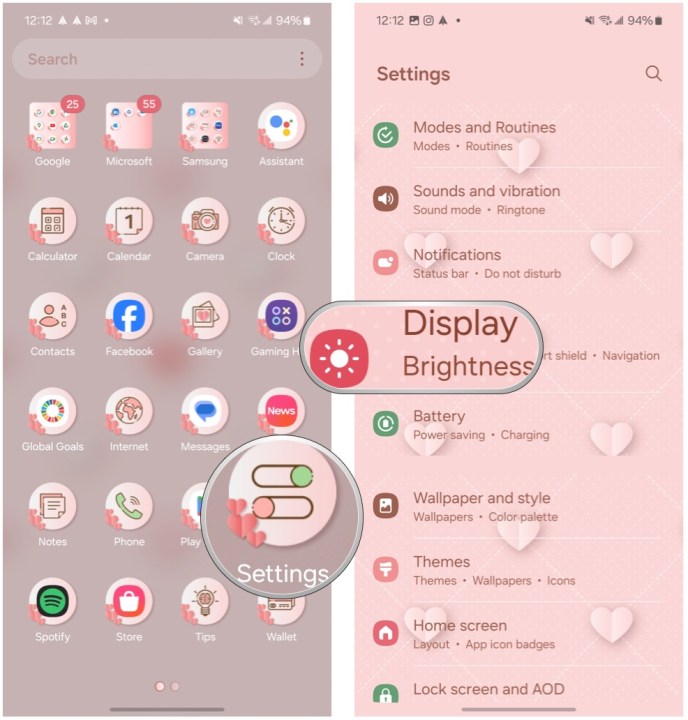
Step 1: Open Settings on your phone.
Step 2: Scroll down and select Display.
Step 3: Scroll down and select Navigation Bar.
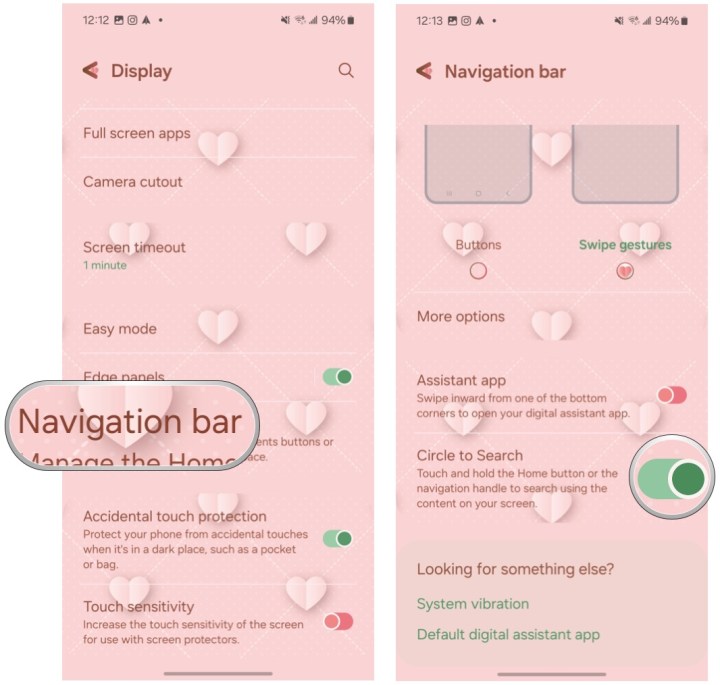
Step 4: Select the toggle for Circle to Search and make sure it’s in the ON position.
If you have a Google Pixel 8, Circle to Search should be enabled by default. If not, check to make sure you’re running the latest software.
How to use Circle to Search
Since Circle to Search works pretty much anywhere, you don’t even need to be in your preferred web browser to use it. You could be browsing Facebook, Instagram, Threads, a news app, or whatever else — Circle to Search is accessible anywhere.
Step 1: Make sure the subject you want to look up is on the screen of your phone.
Step 2: Long press on your home button or navigation bar to activate Circle to Search.
Step 3: A transparent, blue tinted overlay will appear on the screen, along with a Google search bar at the bottom.
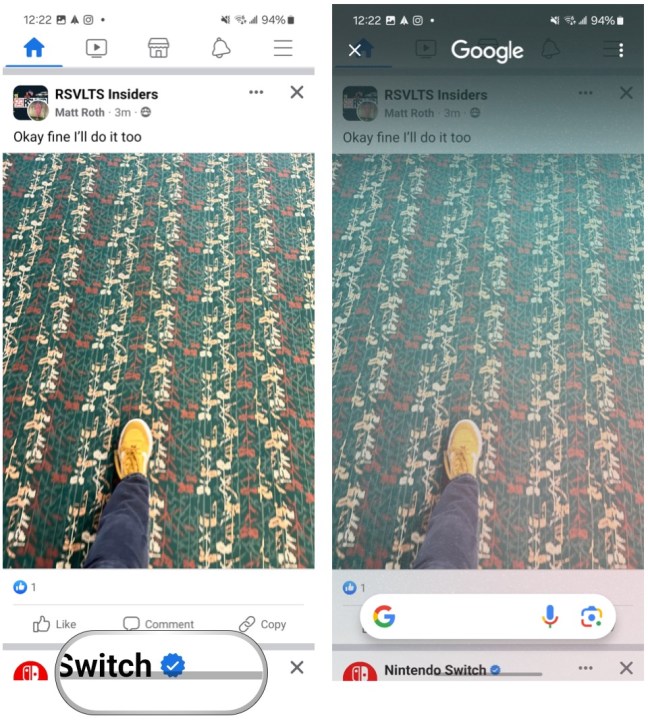
Step 4: Tap, draw, or circle on the thing you want to search for.
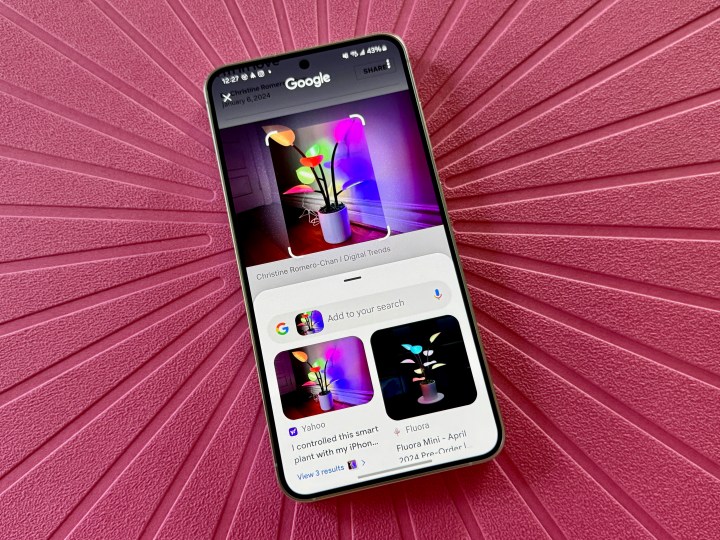
Step 5: Relevant text and image based search results will appear at the bottom.
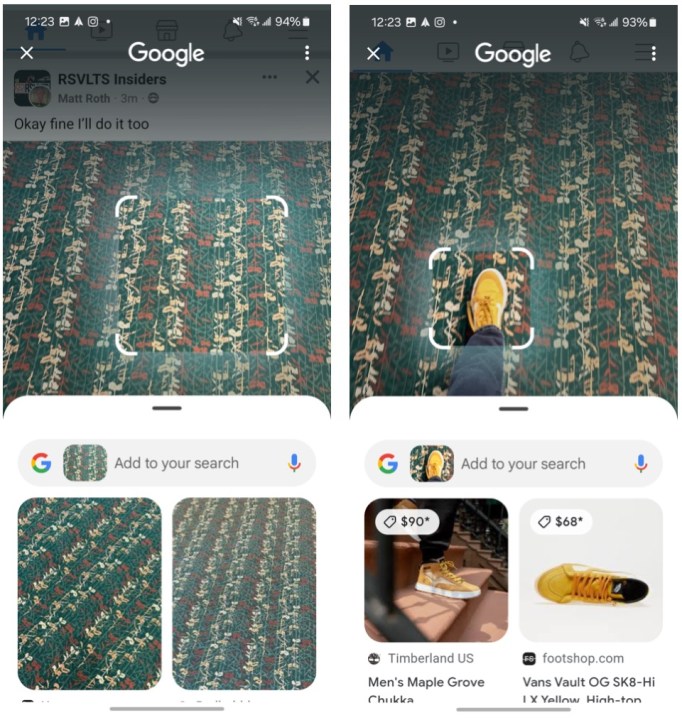
Step 6: Not satisfied? Make the selection again or search for something else.
How to add to searches with Circle to Search
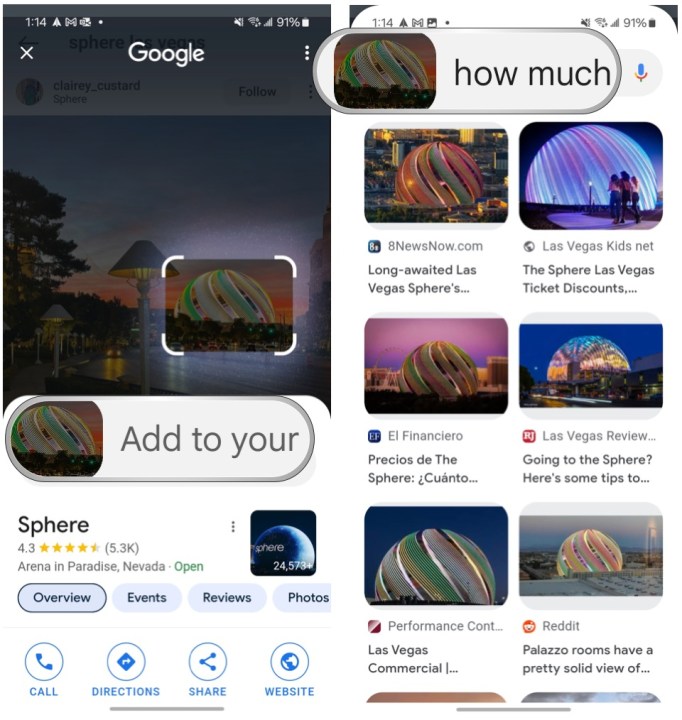
You can further add context and even ask for more specific details about what you selected in Circle to Search. This is very useful if you want to dig deeper into whatever it is you’re looking for, such as price of tickets for a venue or the like.
Step 1: When you have made a selection for Circle to Search and have results, select the Add to your search input field.
Step 2: Type or dictate what context you want to add.
How to exit out of Circle to Search
Once you’re done searching, you’ll want to get out of the Circle to Search overlay. It’s easy to do.
Step 1: If you use Button navigation, just select the Back button to go back to your app.
Step 2: If you use Swipe gesture navigation, just swipe inward from either side of the screen to get back to your app.
What phones is Circle to Search available on?
As mentioned above, Circle to Search is currently available on Samsung Galaxy S24 and Google Pixel 8 phones. The full list includes:
We’re expecting Circle to Search to come to more Android phones down the road, but Google hasn’t officially said which ones will get it next. Once we know more, we’ll update this list accordingly.
Editors’ Recommendations