
Daily Guardian UAEDaily Guardian UAE
  • Home
  • UAE
  • What’s On
  • Business
  • World
  • Entertainment
  • Lifestyle
  • Sports
  • Technology
  • Travel
  • Web Stories
  • More
    • Editor’s Picks
    • Press Release
What's On

RMK and IDCMI Merge: Aluclad® Joins Expanded Product Portfolio

April 20, 2026

Blue Origin successfully re-uses a New Glenn rocket for the first time ever

April 20, 2026

Azizi Developments Launches Broker Engagement Program in Dubai

April 20, 2026

This AI tech can understand words that are not even spoken out loud

April 20, 2026

China moves to regulate AI “digital humans” as industry booms

April 20, 2026
Facebook X (Twitter) Instagram
Finance Pro
Facebook X (Twitter) Instagram
Daily Guardian UAE
Subscribe
  • Home
  • UAE
  • What’s On
  • Business
  • World
  • Entertainment
  • Lifestyle
  • Sports
  • Technology
  • Travel
  • Web Stories
  • More
    • Editor’s Picks
    • Press Release
Daily Guardian UAEDaily Guardian UAE
Home » How to use Google’s Gemini AI app on your Android phone
Technology

How to use Google’s Gemini AI app on your Android phone

By dailyguardian.aeFebruary 9, 20243 Mins Read
Share
Facebook Twitter LinkedIn Pinterest Email

Google’s collaboration AI tool, Bard, has changed its name and is now known as Gemini. The tool is also now available as an app on the Google Play Store, meaning it’s easier than ever to chat with Google’s AI assistant on your Android phone.

If you’re interested in using Gemini on your Android phone, you’ve come to the right place. We’ll show you how to download the app, how to use its different features, and how you can even make it a Google Assistant replacement.

How to download the Google Gemini app

To get started, you’ll need to first download the Gemini app on your Android device. Here’s how to get started:

Step 1: Visit the Google Play Store on your phone.

Step 2: Search for the Google Gemini app in the store.

Steps showing how to install the Google Gemini app on an Android phone.

Step 3: Select the Install button next to the app’s name.

Step 4: Just like that, you’ve downloaded Google Gemini on your phone.

How to use the Google Gemini app

With the Gemini app now installed on your Android device, you can start to experience the new tool. To begin using the app:

Step 1: Open the Gemini app.

Step 2: Select Get started.

Step 3: After reviewing the ways Gemini can help, select More, then on the next page, select I agree.

A screenshot showing how to get started with the Gemini app.

Step 4: The ways Gemini can help are expanding each day. It can help you bring ideas to life, help you learn a skill, make it easier to perform tasks on your phone, and much more.

Via voice, text, or an image, you can now begin using Gemini. Add what you want in the box that says Type, Talk, or share a photo, then select the mail icon. You can also start with a suggestion from the top of the app.
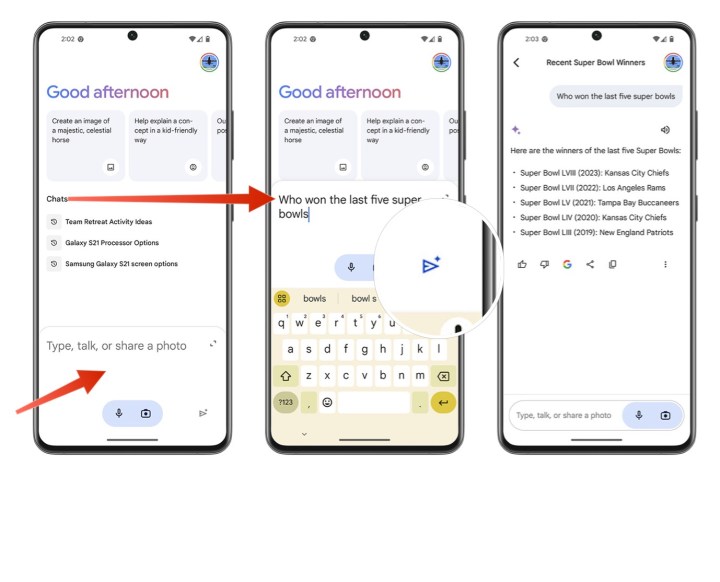
screenshot showing how to ask Gemini a question.

Step 5: Repeat Step 4 to do more search.

Step 6: As you perform different searches in Gemini, previous requests/questions will appear in the Chats section near the middle of the screen.

How to replace the Google Assistant with Gemini

After installing Gemini, you can have it replace Google Assistant whenever you say “Hey Google” or “OKGoogle.” To change the setting so that Gemini is what answers you and not Google Assistant, do the following:

Step 1: In the Gemini app, select your Profile picture at the top right.

Step 2: Next, select Settings.

Steps to change the digital assistant on your Android device to Gemini, not Google Assistant.

Step 3: Choose Digital assistants from Google.

Step 4: Select Gemini as your default digital assistant*
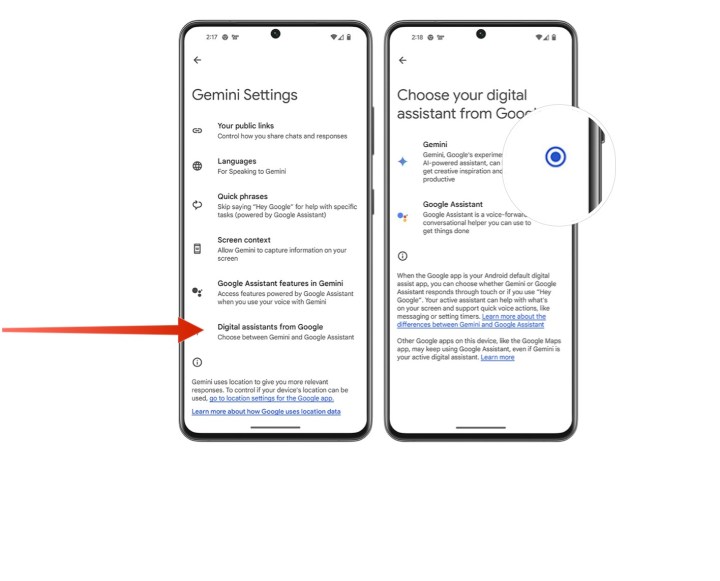
Steps to change the digital assistant on your Android device to Gemini, not Google Assistant.

Step 5: Repeat these steps and choose Google Assistant if you no longer want Gemini to answer to the commands “Hey Google” and “OK Google.”

For the time being, the Gemini app is currently only available for Android phones in the U.S. and with the English language. We expect it to expand to additional countries and languages soon, but the timing for that is unclear.

Gemini is being added to the Google app on iOS “in the coming weeks.” It won’t be a dedicated Gemini app like the one above, but Google is adding the same Gemini functionality to its Google app for the iPhone.

Editors’ Recommendations


Share. Facebook Twitter Pinterest LinkedIn Tumblr Email

Keep Reading

Blue Origin successfully re-uses a New Glenn rocket for the first time ever

This AI tech can understand words that are not even spoken out loud

China moves to regulate AI “digital humans” as industry booms

Character.AI turns books into roleplay bots amid ongoing safety concerns

Lego Batman feels like the best Dark Knight game in years and I can’t wait for it

Microsoft’s new Windows 11 freebies are useful, but they also feel a little desperate

That missing MagSafe on iPhone Fold? Here’s what’s really going on

iPhone Fold design leak suggests Apple is playing it smart

8 Siri features that could make iOS 27 a blockbuster upgrade

Editors Picks

Blue Origin successfully re-uses a New Glenn rocket for the first time ever

April 20, 2026

Azizi Developments Launches Broker Engagement Program in Dubai

April 20, 2026

This AI tech can understand words that are not even spoken out loud

April 20, 2026

China moves to regulate AI “digital humans” as industry booms

April 20, 2026

Subscribe to News

Get the latest UAE news and updates directly to your inbox.

Latest Posts

Character.AI turns books into roleplay bots amid ongoing safety concerns

April 20, 2026

Lego Batman feels like the best Dark Knight game in years and I can’t wait for it

April 20, 2026

Microsoft’s new Windows 11 freebies are useful, but they also feel a little desperate

April 20, 2026
Facebook X (Twitter) Pinterest TikTok Instagram
© 2026 Daily Guardian UAE. All Rights Reserved.
  • Privacy Policy
  • Terms
  • Advertise
  • Contact

Type above and press Enter to search. Press Esc to cancel.