
Daily Guardian UAEDaily Guardian UAE
  • Home
  • UAE
  • What’s On
  • Business
  • World
  • Entertainment
  • Lifestyle
  • Sports
  • Technology
  • Travel
  • Web Stories
  • More
    • Editor’s Picks
    • Press Release
What's On

Middle East to draw over $100bn a year in energy, renewables, healthcare and digital investment by 2026

January 12, 2026

Fresh Galaxy S27 Ultra leak reveals potential camera upgrades coming your way

January 12, 2026

HID Spotlights Unified, Cyber-Secure Trusted Identity Solutions at Intersec Dubai 2026 to Support The Region’s Rapidly Growing Security Market

January 12, 2026

Gemini now lets you shop Walmart and Sam’s Club products without leaving the chat

January 12, 2026

Energy Leaders Abunayyan Holding and Nextpower Complete Formation of Joint Venture, Nextpower Arabia

January 12, 2026
Facebook X (Twitter) Instagram
Finance Pro
Facebook X (Twitter) Instagram
Daily Guardian UAE
Subscribe
  • Home
  • UAE
  • What’s On
  • Business
  • World
  • Entertainment
  • Lifestyle
  • Sports
  • Technology
  • Travel
  • Web Stories
  • More
    • Editor’s Picks
    • Press Release
Daily Guardian UAEDaily Guardian UAE
Home » How to use Split Screen View on a Samsung tablet
Technology

How to use Split Screen View on a Samsung tablet

By dailyguardian.aeFebruary 25, 20243 Mins Read
Share
Facebook Twitter LinkedIn Pinterest Email

There are a number of reasons to buy one of the best Samsung tablets. Perhaps you need a big and beautiful screen to really punch through that Netflix watchlist. You might be looking to harness the power of the S Pen to create some masterpieces. Or you may be looking for a capable gaming tablet and work machine. Samsung’s Galaxy Tab range can handle all of these roles, and do it with ease.

But no matter your needs, it’s important to make the most of a big screen. Having a larger screen is the major advantage of a tablet over a smartphone, and that large screen is particularly well-suited to multitasking and showing multiple apps at once. So whether you’re checking directions while messaging, taking notes while sitting in a meeting, or reading a book while keeping an eye on social media, here’s how to use split-screen view on a Samsung Galaxy Tab tablet.

How to use split-screen mode in Android 9.0 Pie and later

The easiest way to use split-screen mode is by using Android’s built-in tools. Split-screen view was introduced on Samsung devices in Android 9.0 Pie — over four years ago now — and so most modern Samsung tablets should have access to this feature. Here’s how to use it.

Step 1: Open the first app for split-screen view. This isn’t required, but you do need to be able to find the app on your recent apps list.

how to use split screen on any samsung tablet recent apps view galaxy tab

Step 2: Open your recent apps list by either swiping up from the bottom of your tablet and holding it for a second, or by tapping the Recent apps button in your navigation bar.

Step 3: Tap your chosen app’s icon.
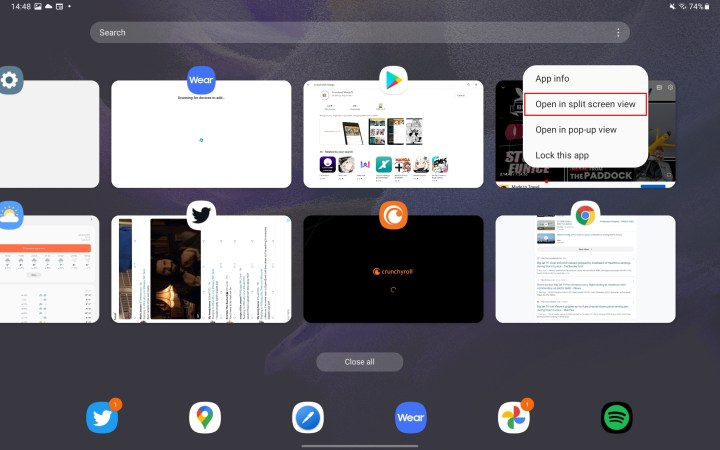
how to use split screen on any samsung tablet recent apps 2 view galaxy tab

Step 4: Tap Open in split-screen view.
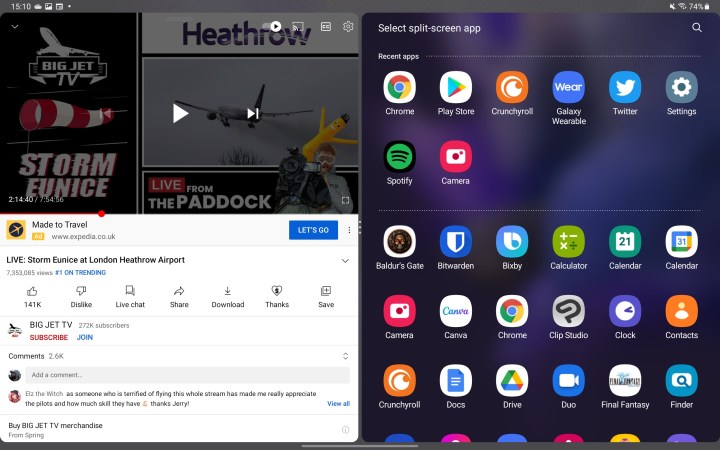
how to use split screen on any samsung tablet with app drawer view galaxy tab

Step 5: Your app will open on the right-hand side, and your app drawer will open on the left.
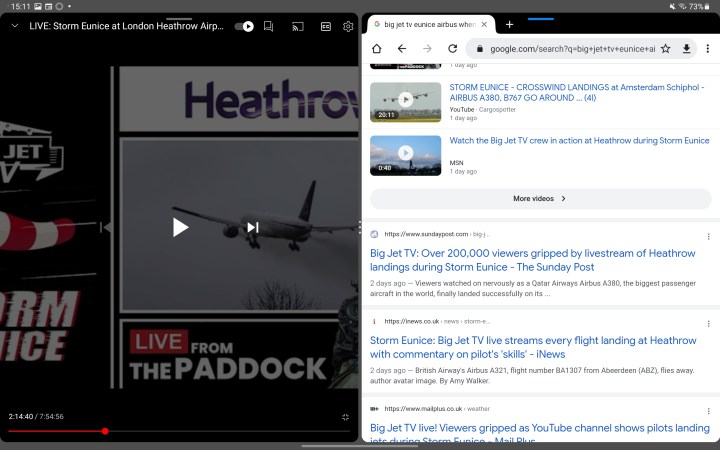
how to use split screen on any samsung tablet in view galaxy tab

Step 6: Select the second app you want to open in your app drawer and it’ll pop-up next to your first app.

From here, you can use the two apps as you normally would, but there are some other tricks you can use as well. You can resize the windows by dragging the bar between the two, but you can also open one app in Pop-up View instead.

How to turn off split screen on a Samsung tablet

When you are ready to turn off split screen, open up the Recent apps list again. At the top, there should be an ‘X’ you can tap to stop the split screen mode. Alternatively, you can swipe the partition bar all the way to one side, making the remaining app fullscreen.

how to use split screen on any samsung tablet pop up view from galaxy tab

Opening an app in a pop-up window

Instead of opening your chosen app in split-screen mode, you can instead open it in a little pop-up window. You can do this from the recent apps menu, or while you already have an app open in split-screen view.

To open from the recent apps menu:

Step 1: Open your recent apps menu.

Step 2: Tap the app’s icon and select Open in pop-up view.

Already have the app open in split-screen view? Here’s how to turn it into a pop-up window.

Step 1: Tap the blue line at the top of the app.

Step 2: Select the Pop-up View icon. It should be the first one on the list.

Editors’ Recommendations


Share. Facebook Twitter Pinterest LinkedIn Tumblr Email

Keep Reading

Fresh Galaxy S27 Ultra leak reveals potential camera upgrades coming your way

Gemini now lets you shop Walmart and Sam’s Club products without leaving the chat

Meta Smart Glasses Could Make Conversations Easier in Noisy Places

Instagram says it fixed the issue behind shady password reset emails

The Atlas humanoid robot attempted a backflip. Here’s what happened

Google’s Gemini AI will go shopping for you without hopping between sites and apps

Samsung Could Bring Advanced Privacy Screens to Entire Galaxy S26 Range

Now that Stranger Things is over, you should watch these 7 similar TV shows

What we learned about Dolby Vision 2 at CES 2026

Editors Picks

Fresh Galaxy S27 Ultra leak reveals potential camera upgrades coming your way

January 12, 2026

HID Spotlights Unified, Cyber-Secure Trusted Identity Solutions at Intersec Dubai 2026 to Support The Region’s Rapidly Growing Security Market

January 12, 2026

Gemini now lets you shop Walmart and Sam’s Club products without leaving the chat

January 12, 2026

Energy Leaders Abunayyan Holding and Nextpower Complete Formation of Joint Venture, Nextpower Arabia

January 12, 2026

Subscribe to News

Get the latest UAE news and updates directly to your inbox.

Latest Posts

HONOR Announces the Official Availability of HONOR X8d

January 12, 2026

ATM unveils groundbreaking 2026 conference programme, setting a new benchmark for strategic insight across global travel and tourism

January 12, 2026

Meta Smart Glasses Could Make Conversations Easier in Noisy Places

January 12, 2026
Facebook X (Twitter) Pinterest TikTok Instagram
© 2026 Daily Guardian UAE. All Rights Reserved.
  • Privacy Policy
  • Terms
  • Advertise
  • Contact

Type above and press Enter to search. Press Esc to cancel.