

If you have an iPhone, and especially an iPhone 15, you might have started to wonder how to make your iPhone stop overheating so often. This problem is not, as it turns out, your fault. There are tons of reports of iPhone 15s overheating. Luckily, Apple has released a patch to fix the iPhone 15’s overheating problem. Though, of course, any iPhone can overheat.
Here, we’ll take you through the steps to update your iPhone — no matter the version — to get the latest patches. Then, we’ll go over other common issues that cause iPhones to overheat, iPhone 15 or not.
Here are a few of the warning signs that your phone is on the verge of overheating: It may feel hot to the touch, run slower, fail to charge, show a black display, play low-quality audio, have slow graphical response, or have a non-shooting camera.
Under normal circumstances, overheating should not happen. The iPhone’s sensors warn you long before it gets to a dangerous or damaging temperature, and the iPhone is designed to dissipate heat. You may get a temperature warning when your device exceeds the temperature limit, saying, “iPhone needs to cool down before you can use it.” At that point, your phone is inoperative until it cools off, except for emergency calls.
Is your iPhone running hot? Here are some solutions.
Run the latest software
Both iOS and apps should be up to date for optimal performance. Outdated iPhone software can cause an overloaded CPU, resulting in overheating.
Update all the apps you run, as updates often deliver critical security patches and improved functionality. Outdated apps can overload the processor and cause heat buildup.
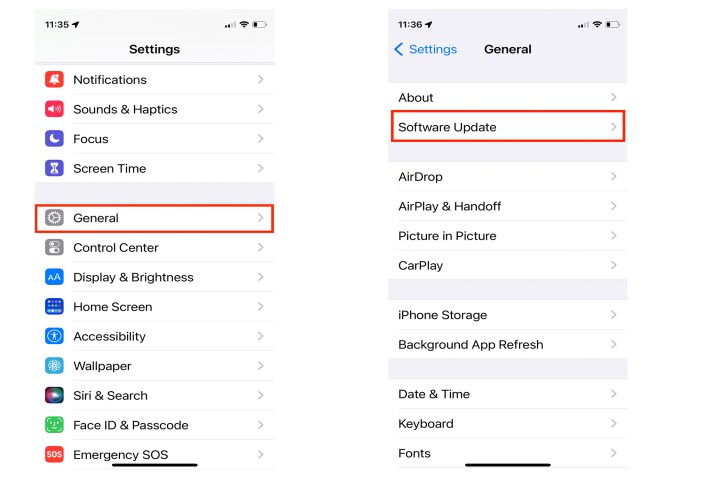
Step 1: To update iOS, go to Settings > General > Software update.
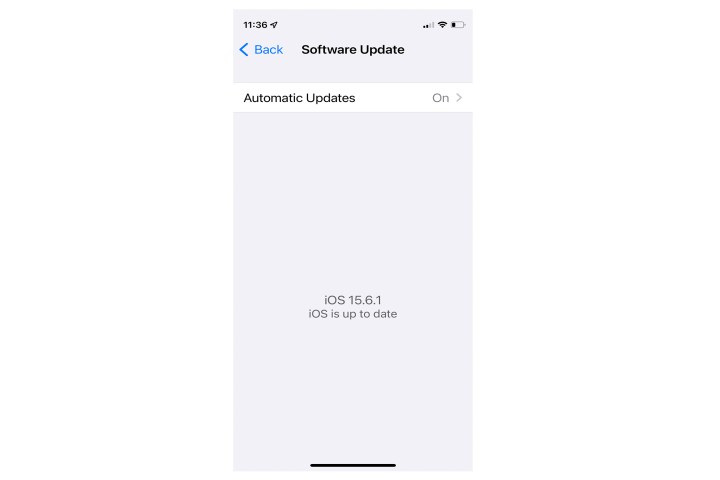
Step 2: If Auto Updates is enabled, you will see either a prompt to update or the message that your iOS version is up to date.
Step 3: Launch the App Store.

Step 4: Tap the Profile icon in the upper-right, scroll down to Available updates, and tap Update all.

Step 5: Tap Done.

Enable auto-brightness
Having your iPhone’s brightness at maximum can cause overheating and drain your phone’s battery quickly. Your iPhone should adjust its brightness automatically according to the ambient light.
Step 1: Access the iOS Control center and use the slider to decrease the brightness level.

Step 2: Go to Settings > Accessibility > Display and text size.

Step 3: Scroll down to the bottom and ensure Auto-brightness is enabled.

Turn off Bluetooth and other services
Bluetooth requires constant resources from your phone, whether it’s searching for a device or staying paired.
Turn off Bluetooth when you’re not using it and make sure that apps like Safari, Bluetooth, Wi-Fi, maps, navigation apps, and location services are also turned off when you’re trying to cool off a hot phone.
Step 1: To disable Bluetooth, open Settings > Bluetooth and toggle it off.

Step 2: To deactivate cellular data, open Settings > Cellular > Cellular data and toggle it off.

Step 3: Disable your iPhone’s personal hotspot by opening Settings > Personal hotspot and toggling it off.

Step 4: To turn off AirDrop, open Settings > General > AirDrop > Receiving off.

Remove the case
The iPhone disperses heat through its metal frame, but a case can prevent your iPhone from releasing heat. Check to make sure the case on your iPhone isn’t causing the overheating.
Step 1: Remove the case from your iPhone and test for a day or two. If the overheating stops, try a lighter case.

Step 2: Also, try placing your phone in front of a cooling fan. Seriously.
Turn on Airplane mode
Your iPhone constantly communicates with the internet in the background if it is connected to Wi-Fi. That connection uses plenty of juice, even if you’re not using your iPhone. Turn on Airplane mode in addition to turning off Bluetooth and Location Services to bring down your iPhone’s temperature.
Swipe down from the top right of your phone and tap the Airplane icon.

Restart your iPhone
If your iPhone is running hot, perform a force restart. Turn your iPhone off entirely and then turn it back on again. A force restart halts power from the iPhone’s battery, allowing you to reset your iPhone.
To force restart an iPhone X, XS, XR, 8, SE (2nd-generation), 11, 12, or 13 model, press and quickly release the Volume up button, press and quickly release the Volume down button, then press and hold the Side button until the Apple logo appears.
For iPhone 6, 6S, 7, and SE (1st-gen), press and hold the Volume down button and the Sleep/wake button at the same time until the Apple logo appears.


Disconnect the charger
It is normal for your iPhone to warm up a little while charging, but if your handset feels hot to the touch, there’s something wrong.
Make sure you use an Apple-certified charger and cable. While there are many iPhone chargers out there, few are MFi certified or fully support the handset.
Also, ensure that the Lightning port is clean and free of any dirt or lint. Any piled-up lint or debris may prevent the charger from working properly, resulting in overheating.

Remove the phone from direct sunlight
The optimal temperature range for your iPhone is 32 to 95 degrees Fahrenheit or 0 to 35 Celsius. Direct sunlight can increase the air temperature, and with the heat generated by your phone’s normal processes, you may end up with an overheated iPhone.
Close excess apps
Having multiple processes running simultaneously makes your iPhone work harder and feel hotter.
Double-click your iPhone’s Home button (for older models and the SE) or swipe from the bottom (newer models) to access and scroll through all open apps. Then, swipe upward to close them.

Use low-power mode
In low-power mode, the iPhone uses less energy and only carries out essential functions, thus saving battery life while the phone runs cooler. Your iPhone produces less heat when the battery discharges more slowly.
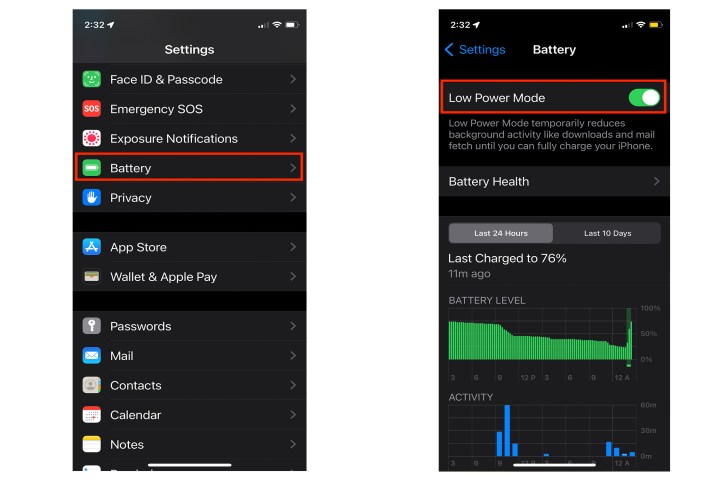
Step 1: Go to Settings > Battery and toggle on Low power mode.
Step 2: You can also access the setting from Control Center. Set that up from Settings > Control center, then select Low power mode to add it to Control Center.

Editors’ Recommendations