

WhatsApp offers many features that traditional SMS or iMessage don’t. Besides free-of-cost messaging or calling services without geographical restrictions, all of its functionality is available across platforms without discrimination based on your operating system or its web client. To highlight parts of any message, you can also use special formatting — a feature that is rare among messaging apps.
Over the years, WhatsApp has gained extensive markup features, not only to format text, but also to make lists or quote text. The following sections take you through the simple steps to format text on WhatsApp to make your messages more structured and compelling.
How to bold text in WhatsApp using symbols
There are broadly two ways to add formatting to your WhatsApp texts, and the first one involves using simple markup notations similar to word processors such as Microsoft Word or Google Docs. Here is how you can bold, italicize, or strikthrough text messages using symbols.
To bold any part of the text, use asterisks ( * ) before and after that portion.

How to italicize text in WhatsApp using symbols
You can italicize text by using underscore ( _ ) symbols on both sides of the text.

How to strikethrough text in WhatsApp using symbols
To strikethrough a part of your text, add the text between two squiggly dashes, aka tilde ( ~ ), symbols.

How to monospace text in WhatsApp using symbols
To change your entire — or part of the — message to a monospace font* place the desired portion between three backticks ( “` ). Note, this symbol is different from the standard apostrophe, which is either straight, curly, or forward-leaning.
How to format text in WhatsApp using quick toggles
Besides the standard markup options to bold, italicize, strikethrough, or monospace text on WhatsApp, you can use another method as discussed below.
Step 1: While typing the message, tap and hold to select the portion you want to format.
Step 2: When you lift your thumb from the screen, a menu will pop-up. Here you can tap the bold or italicize options to change the text accordingly. On desktop, you can also use keyboard shortcuts like Ctrl + B (or Command + B) to format text directly.
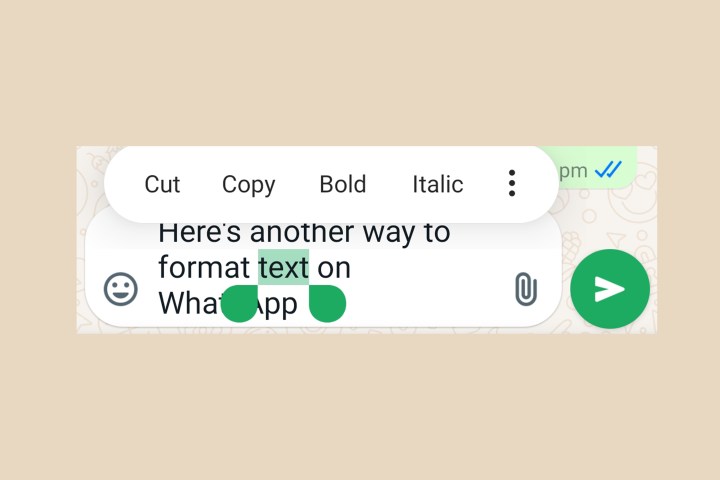
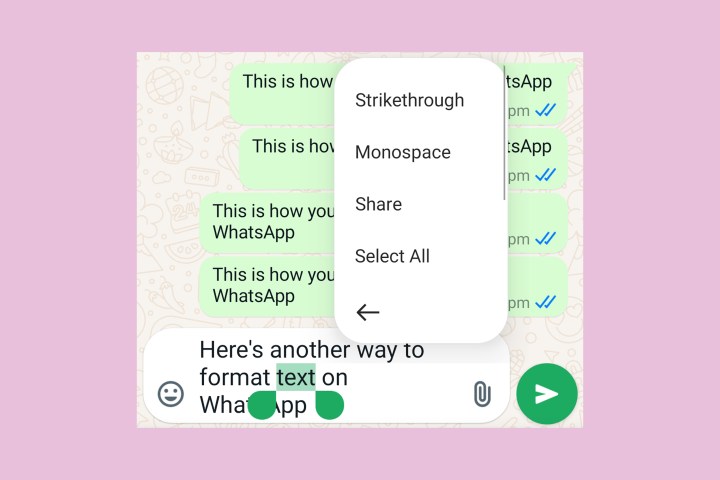
Step 3: Tap the three-dot button to access other options such as strikethrough and monospace.
How to add a list or use advanced markup in WhatsApp messages
Besides standard formatting features, WhatsApp recently added the option to create numbered or bulleted lists within messages using markup text similar to the first method we discussed above. In addition, you can use advanced formatting options such as indent and code view on WhatsApp with the simple steps listed below.
Step 1: To start a bulleted list, start a new line with an asterisk ( * ) or a dash ( – ).
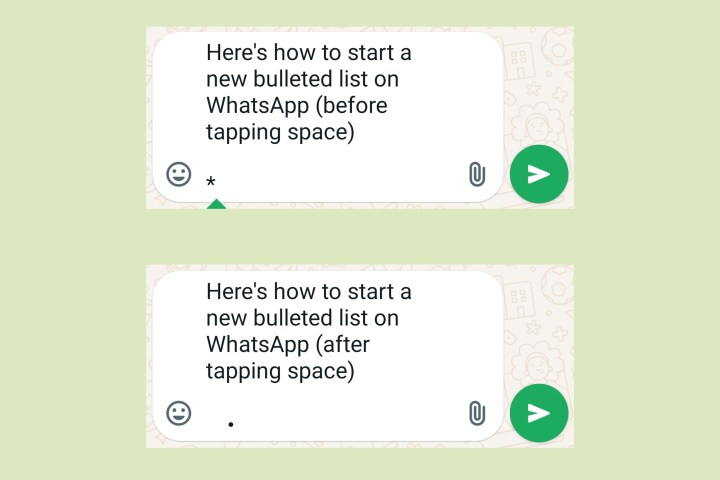
Step 2: For a numbered list, simply start a new line with a number and period followed by a space — similar to a Word document. For instance, start a new numbered list with “1. “. Now when you tap/press Enter to start a new line, there will be an automatic increment in the number.
If you just want to type these characters without converting it to a list, simply press backspace and WhatsApp will change it back to normal text.

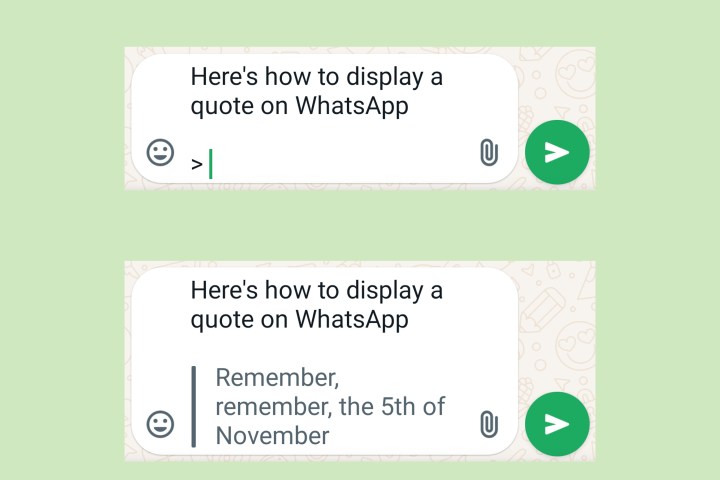
Step 3: To display text as a quote, add a greater-than symbol ( > ) at the beginning of a new line with the desired text succeeding it.
Step 4: Lastly, to highlight any special text as code, simply enclose the text between single backticks ( ` ) on either side.

With these simple steps, you can easily organize the flow of information in your messages. Whether you’re sending an important work message or simply making a list for an upcoming trip, these formatting options can be very useful. Even better is the fact that they appear consistently on all platforms — whether you are using WhatsApp on mobile, on the desktop, or with web app.
Editors’ Recommendations