
Over the years, Apple has turned Apple Notes into one of the best note-taking apps for the iPhone. The problem is that most people use the app just as a place to dump info and do not use it to its full potential. Today, I will share seven of my favorite Apple Notes tips that will elevate your note-taking experience.
Switch between recently opened notes
I constantly jump between draft articles, shopping lists, and random ideas. Until I found this shortcut, jumping between notes was annoying. Open any note and tap the three-dot menu in the top right corner.
From there, tap Recent Notes, and you’ll see a list of the notes you opened most recently. It’s a small feature, but it saves me from endlessly scrolling through folders just to find the note I was using two minutes ago.
Highlight your favorite text
Sometimes, a part of a note is important enough to deserve its own highlight. Apple introduced this feature with iOS 18, allowing users to highlight important text in their notes. To highlight text on your iPhone, open the note and double-tap a word to select it. Use the drag handles to expand your selection to whatever you want to highlight.
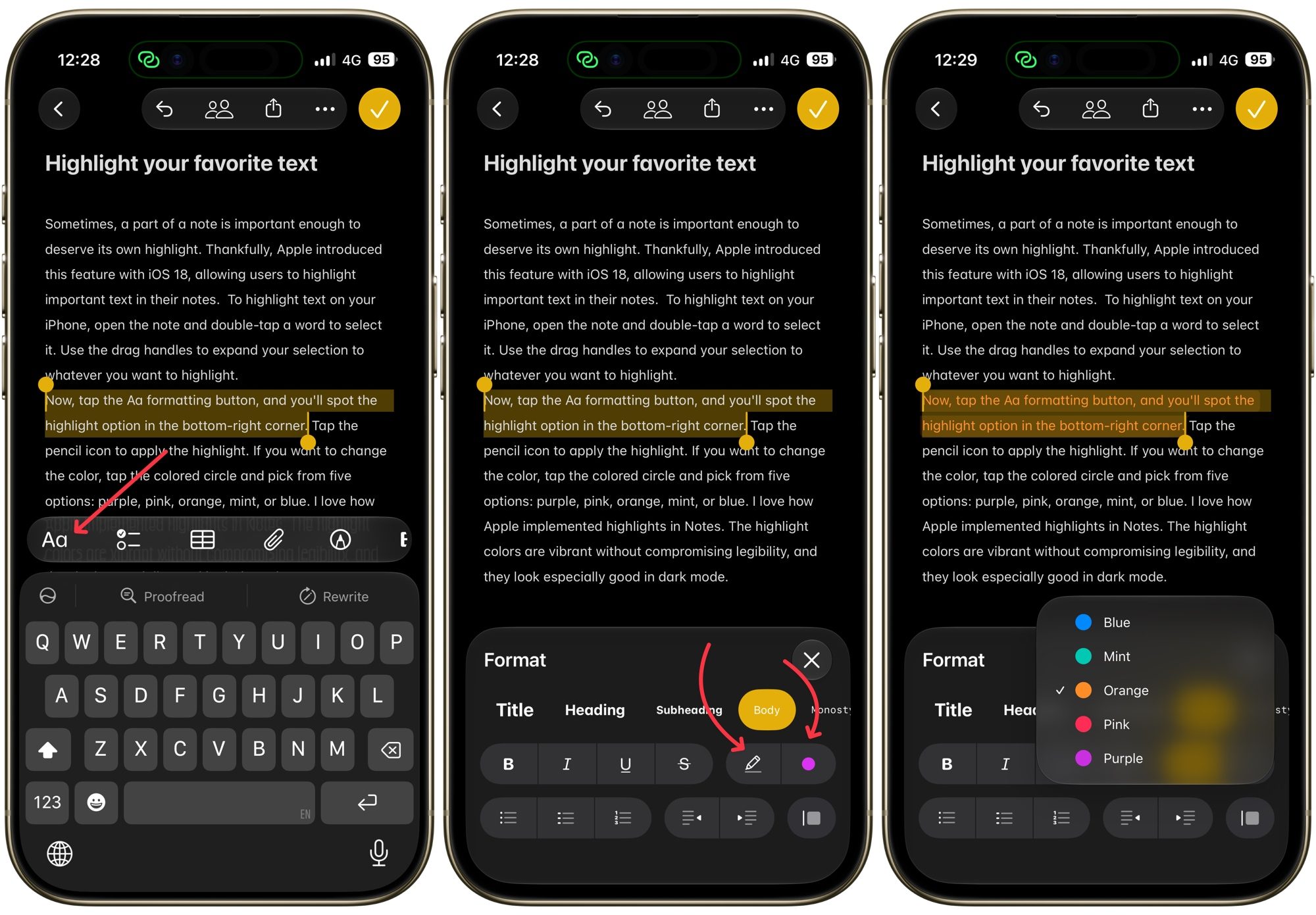
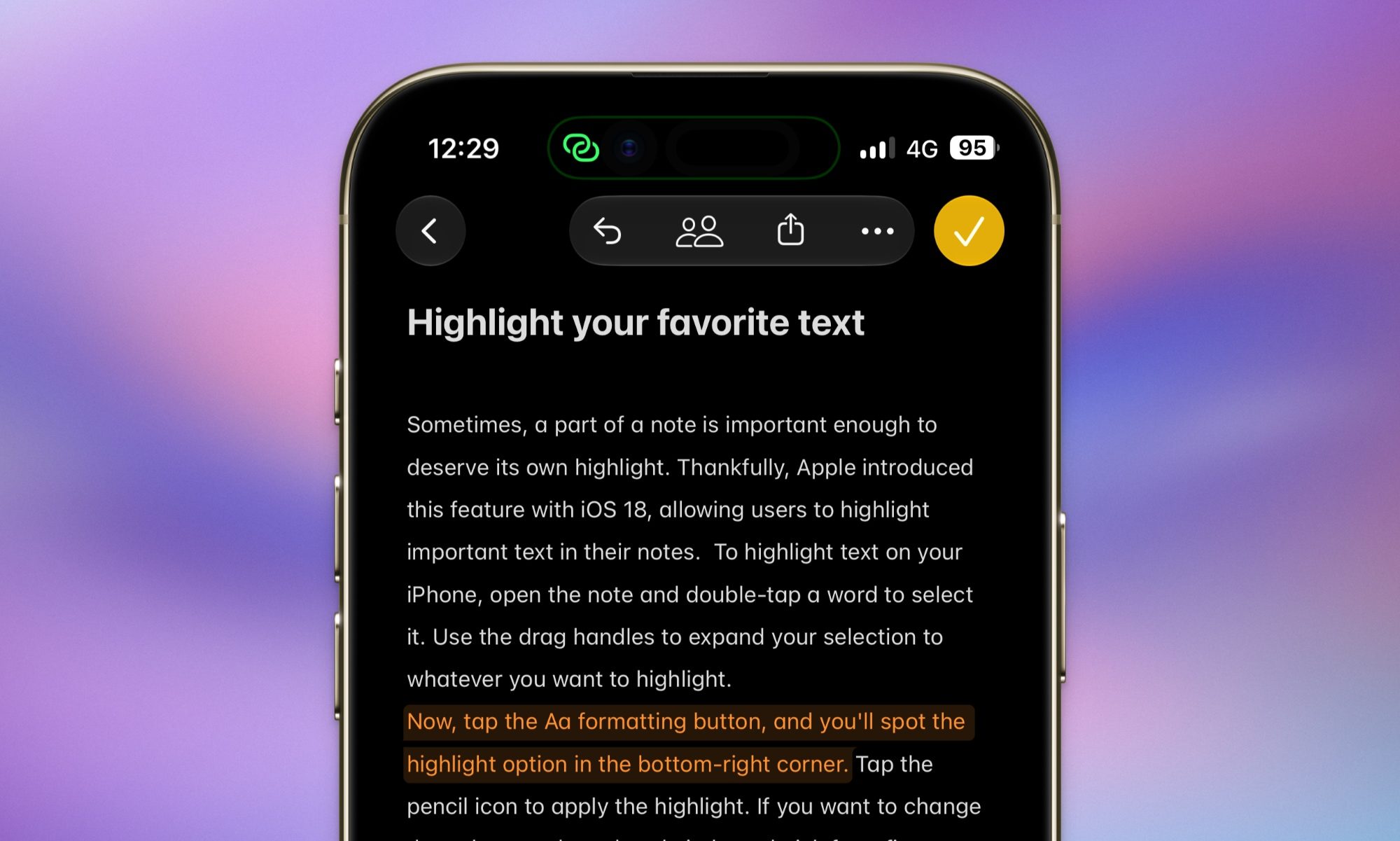
Now, tap the Aa formatting button, and you’ll spot the highlight option in the bottom-right corner. Tap the pencil icon to apply the highlight. If you want to change the color, tap the colored circle and pick from five options: purple, pink, orange, mint, or blue. I love how Apple implemented highlights in Notes. The highlight colors are vibrant without compromising legibility, and they look especially good in dark mode.
Capture quick notes in seconds
When inspiration strikes, the last thing you want is to fumble through the Notes app to jot it down. Quick Note solves exactly that problem. To use this feature, first you have to add it to your Control Center. Swipe down from the top right of your screen to open it, tap the plus icon, then tap Add a Control. Search for Quick Note and add it to your Control Center.
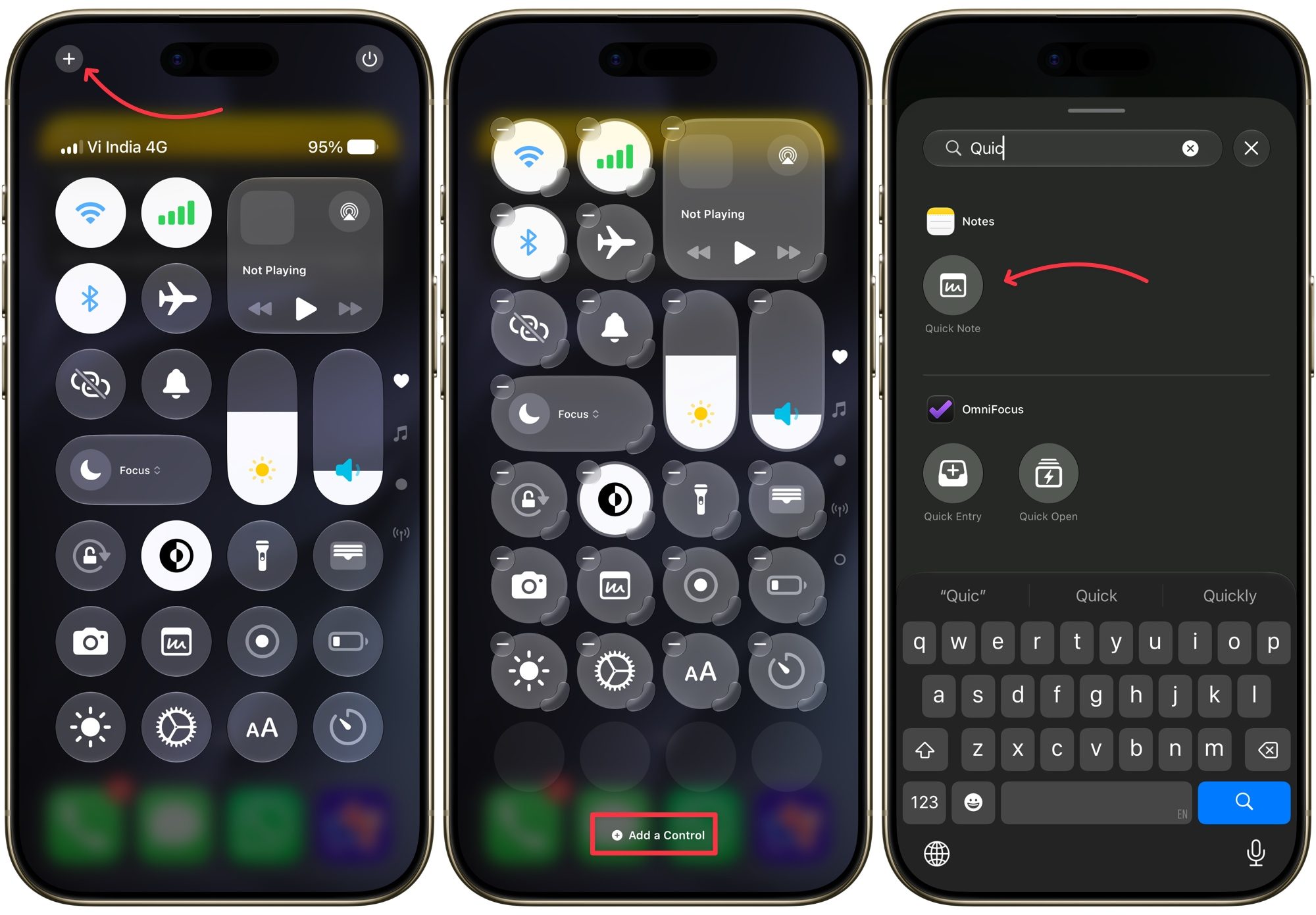
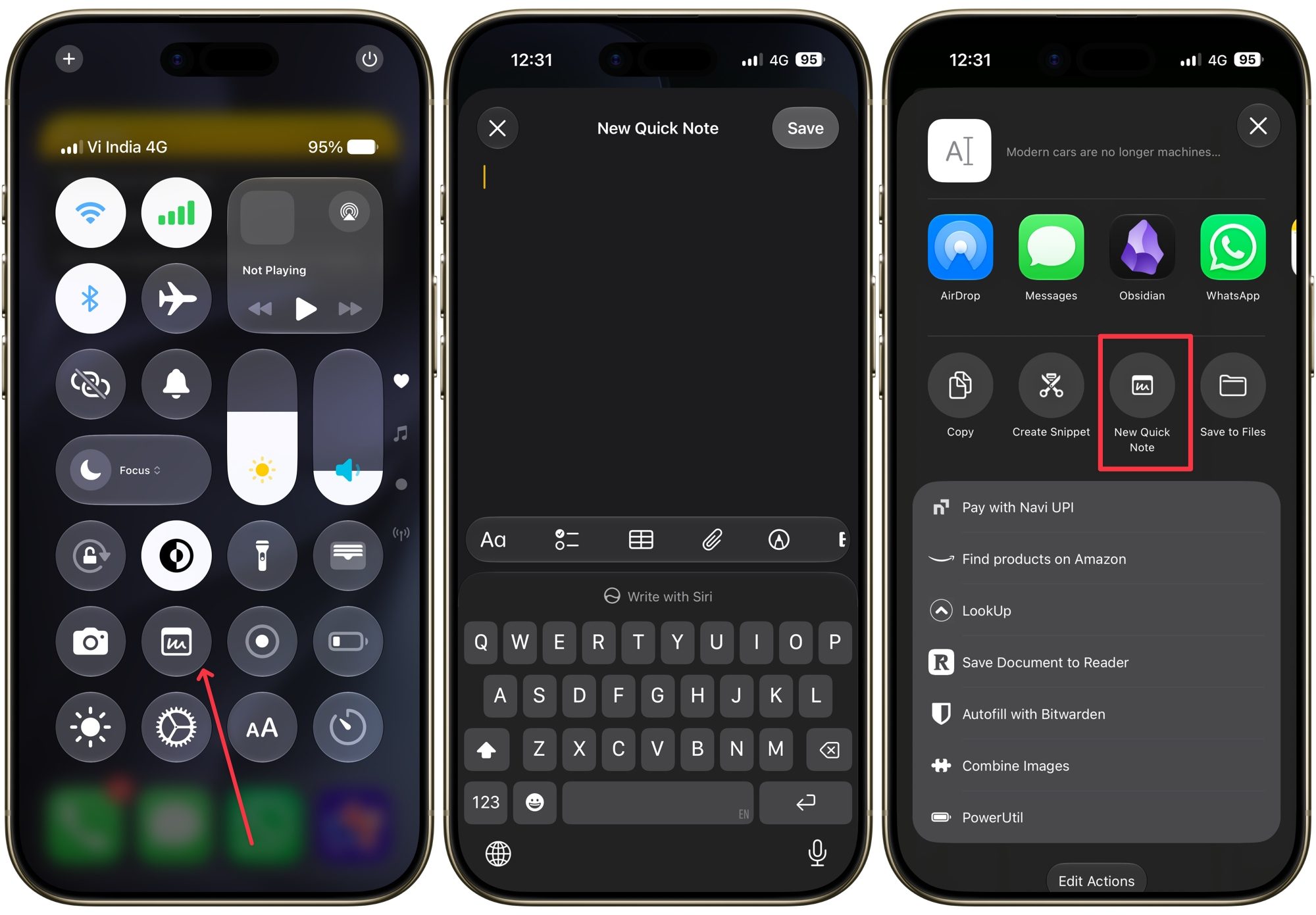
From then on, swiping down from the top right corner gives you instant access to the Quick Note icon, which looks like a little box with a scribble. Type your note, tap Save, and it lands straight in the Notes app. You can even create a Quick Note from inside another app. Say you’re reading an article in Arc Search browser and want to save a link or a chunk of text. Just tap the Share icon and choose Add to Quick Note.
Lock sensitive notes with a password
While your iPhone offers robust security, even allowing you to lock apps with your Face ID or Touch ID, some notes carry important and confidential information that needs that extra layer of security. That’s where the note locking feature comes in handy.
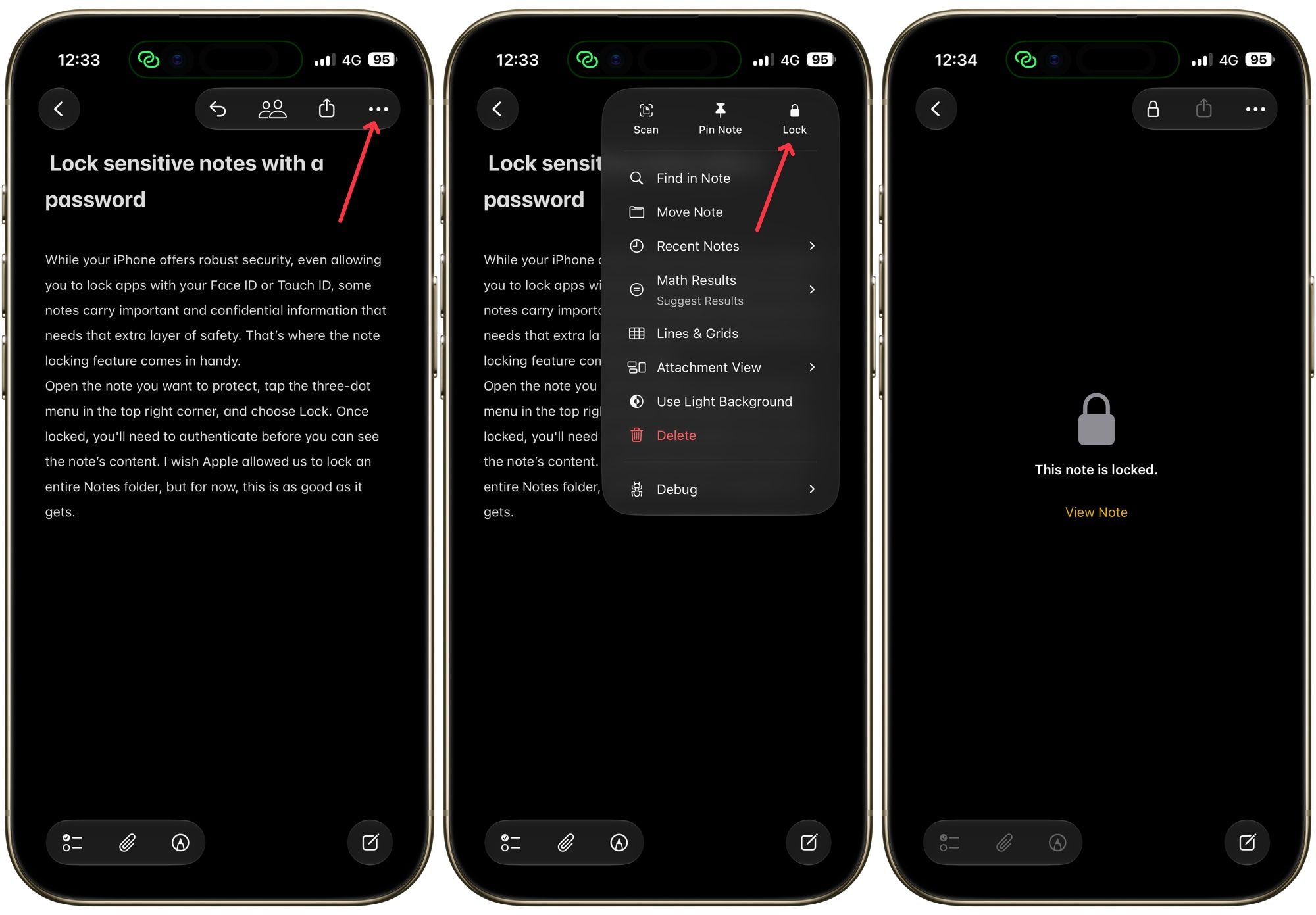
Open the note you want to protect, tap the three-dot menu in the top right corner, and choose Lock. Once locked, you’ll need to authenticate before you can see the note’s content. I wish Apple allowed us to lock an entire Notes folder, but for now, this is as good as it gets.
Find all your attachments in one place
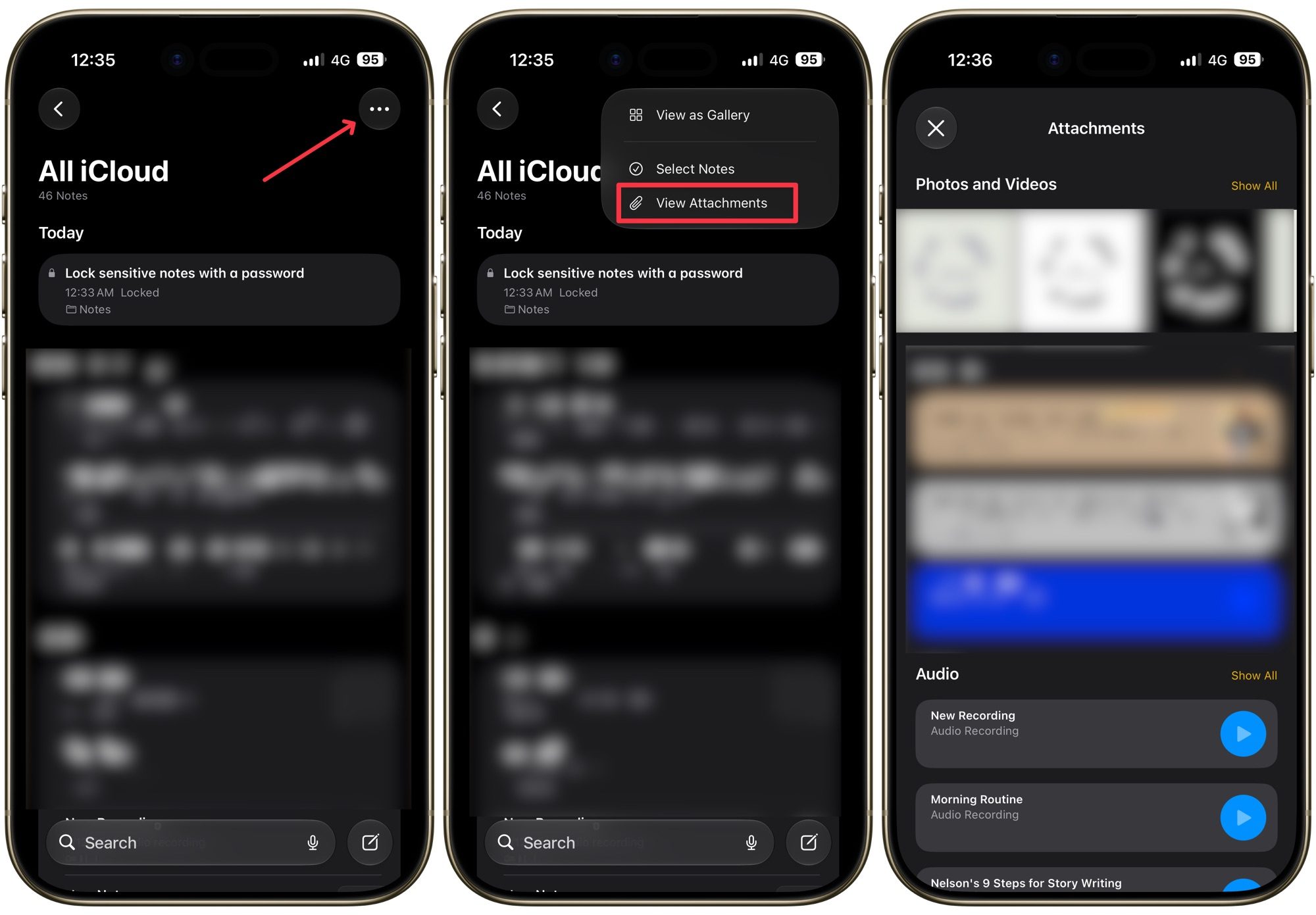
Sometimes you know you have saved a document in Notes but can’t remember the note’s title. I want to save you the ordeal of opening all your notes individually to find that document. Tap the three-dot menu and select View Attachments, and Notes will pull up every photo, scan, audio recording, and document you’ve saved across all your notes in one scrollable window. It has saved me more than once from scouring through dozens of notes looking for a single screenshot.
Organize notes with tags and smart folders
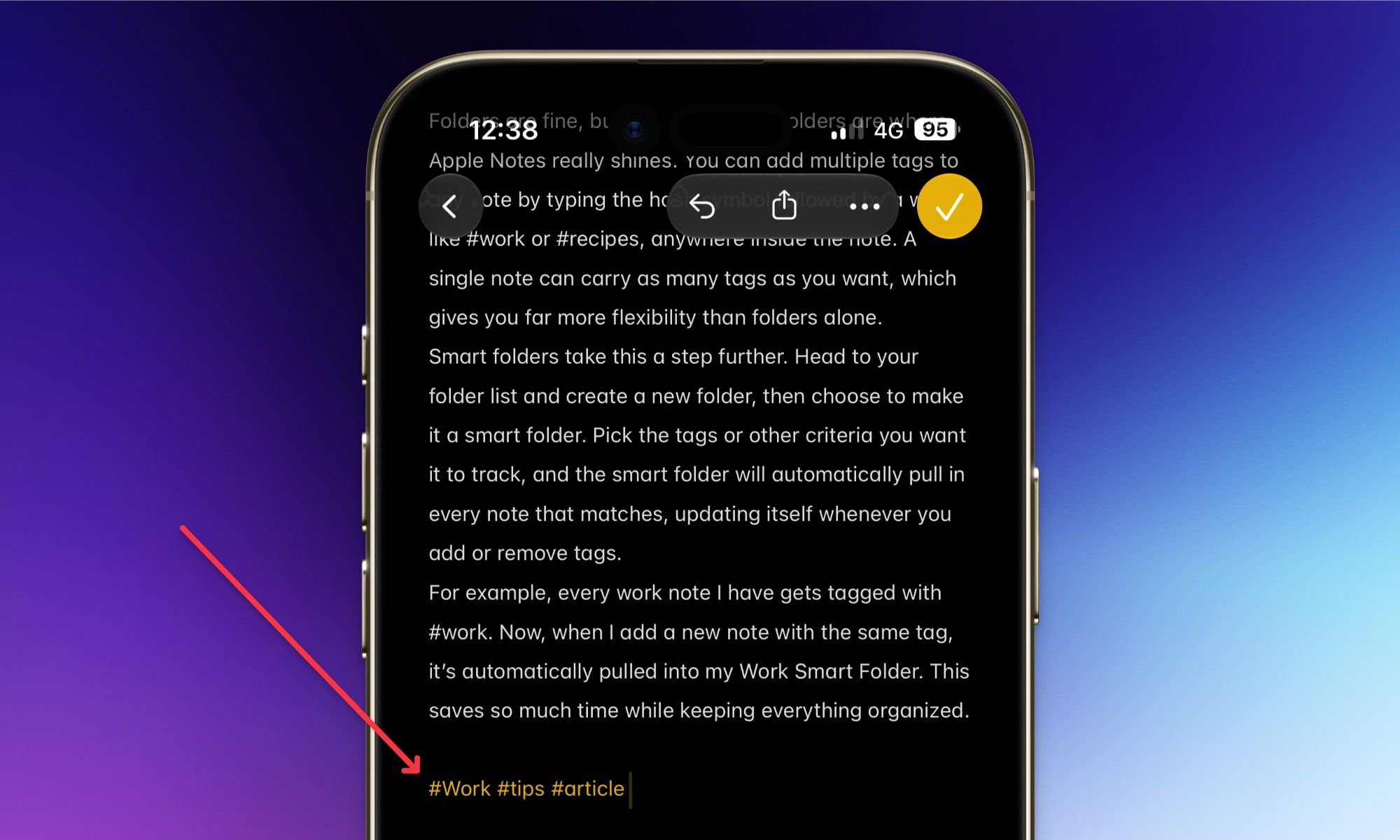
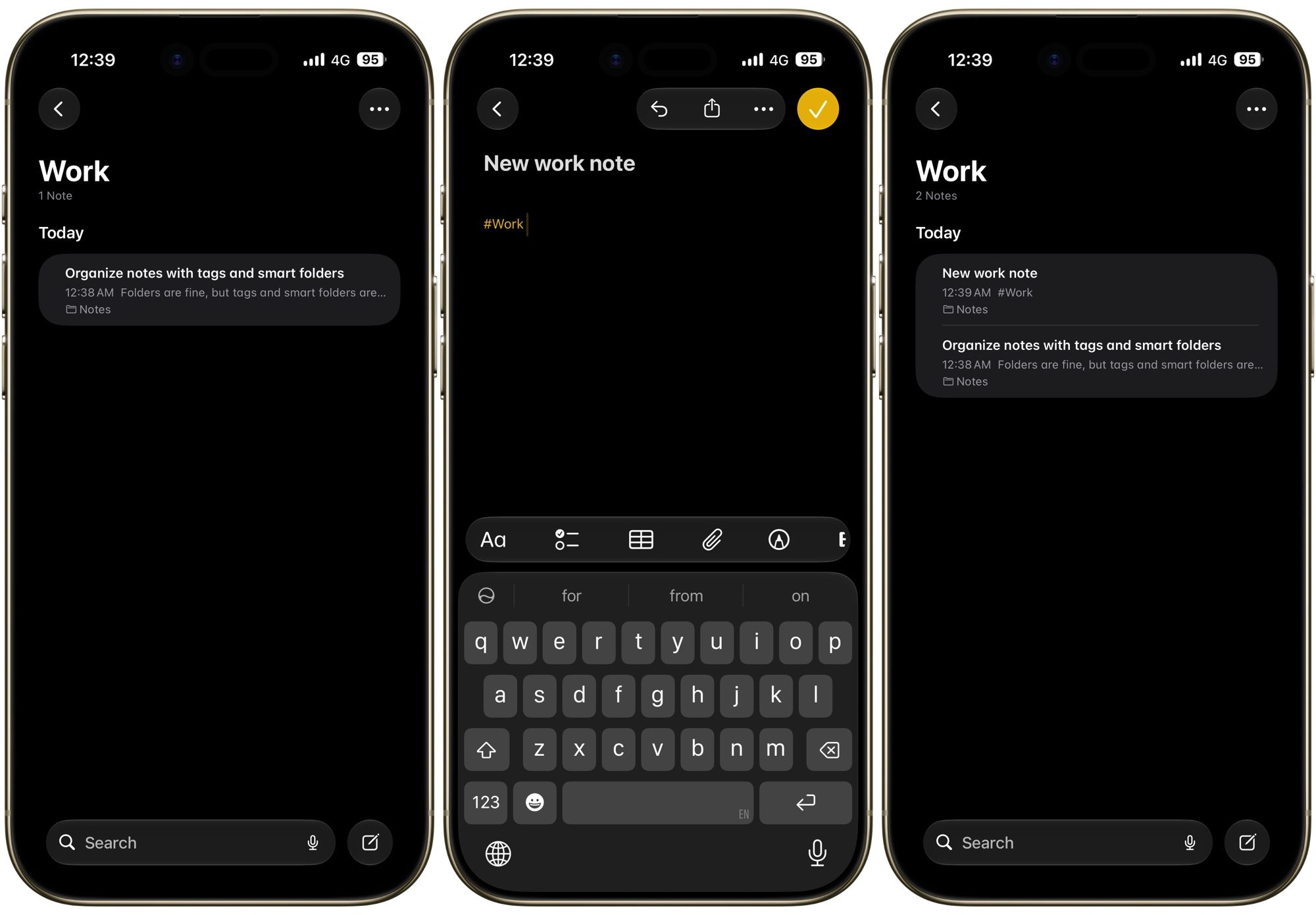
I love organizing my notes using tags. You can add multiple tags to any note by typing the hash symbol followed by a word, like #work or #recipes, anywhere inside the note. A single note can carry as many tags as you want, which gives you far more flexibility than folders alone.
Smart folders take this a step further. Head to your folder list and create a new folder, then choose to make it a smart folder. Pick the tags or other criteria you want it to track, and the smart folder will automatically pull in every note that matches, updating itself whenever you add or remove tags.
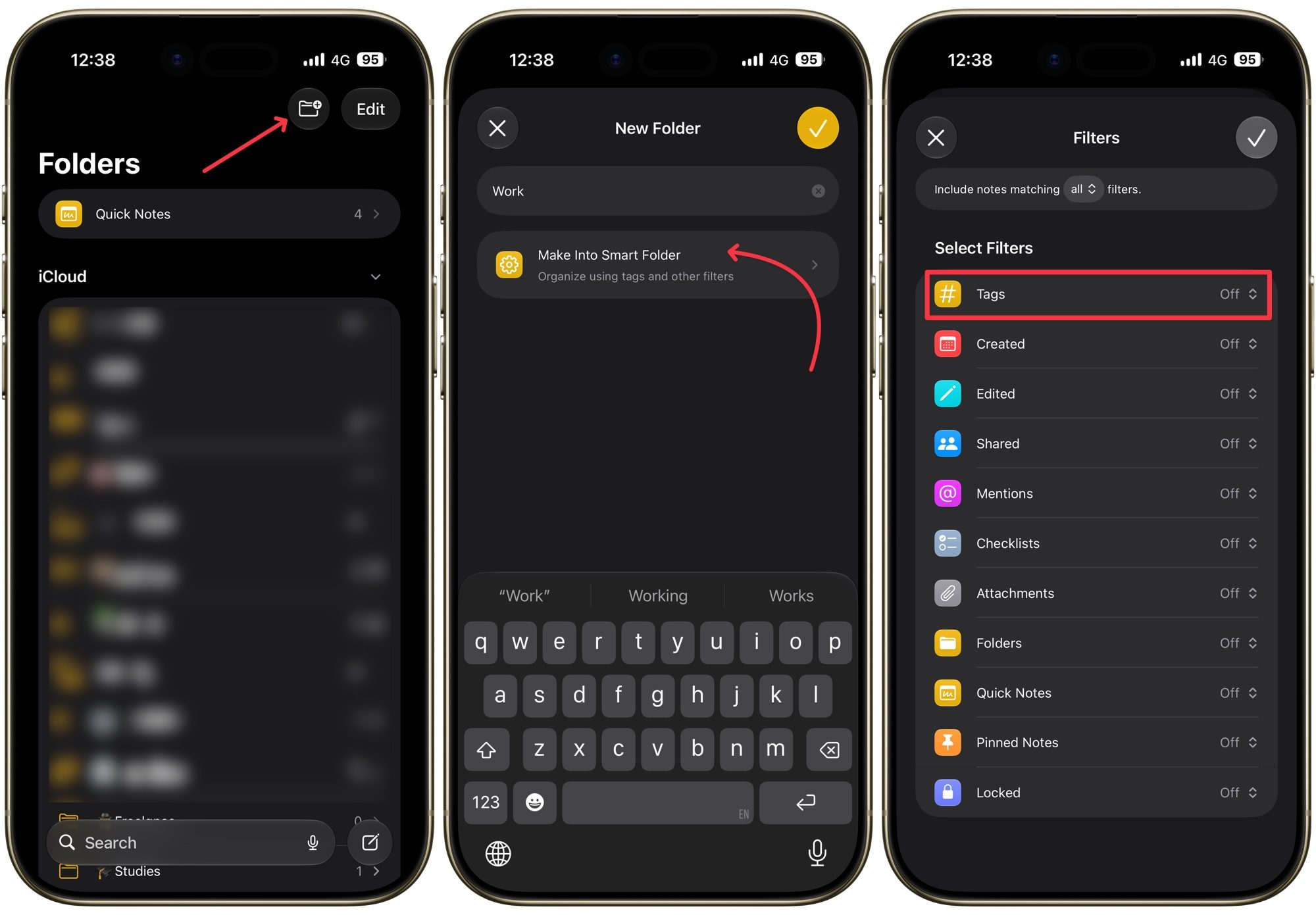
For example, every work note I have gets tagged with #work. Now, when I add a new note with the same tag, it’s automatically pulled into my Work Smart Folder. This saves so much time while keeping everything organized.
Link notes to build your own table of contents
This might be my favorite trick on this list. Did you know that Apple Notes supports linked notes, letting you create your personal web of knowledge? Open the note you want to link from and double-tap a word to use as your anchor text, adjusting the selection with the drag handles if needed.
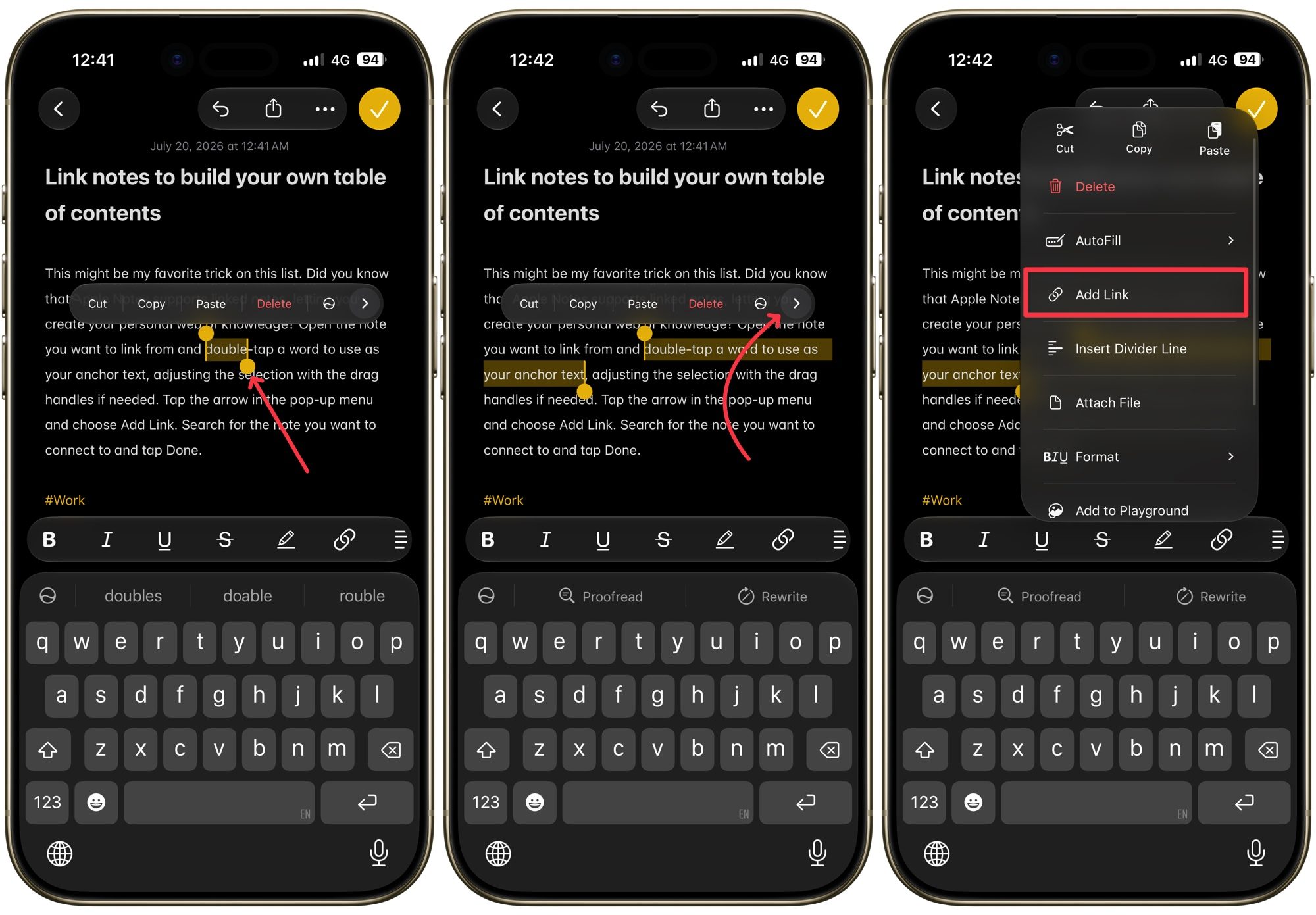
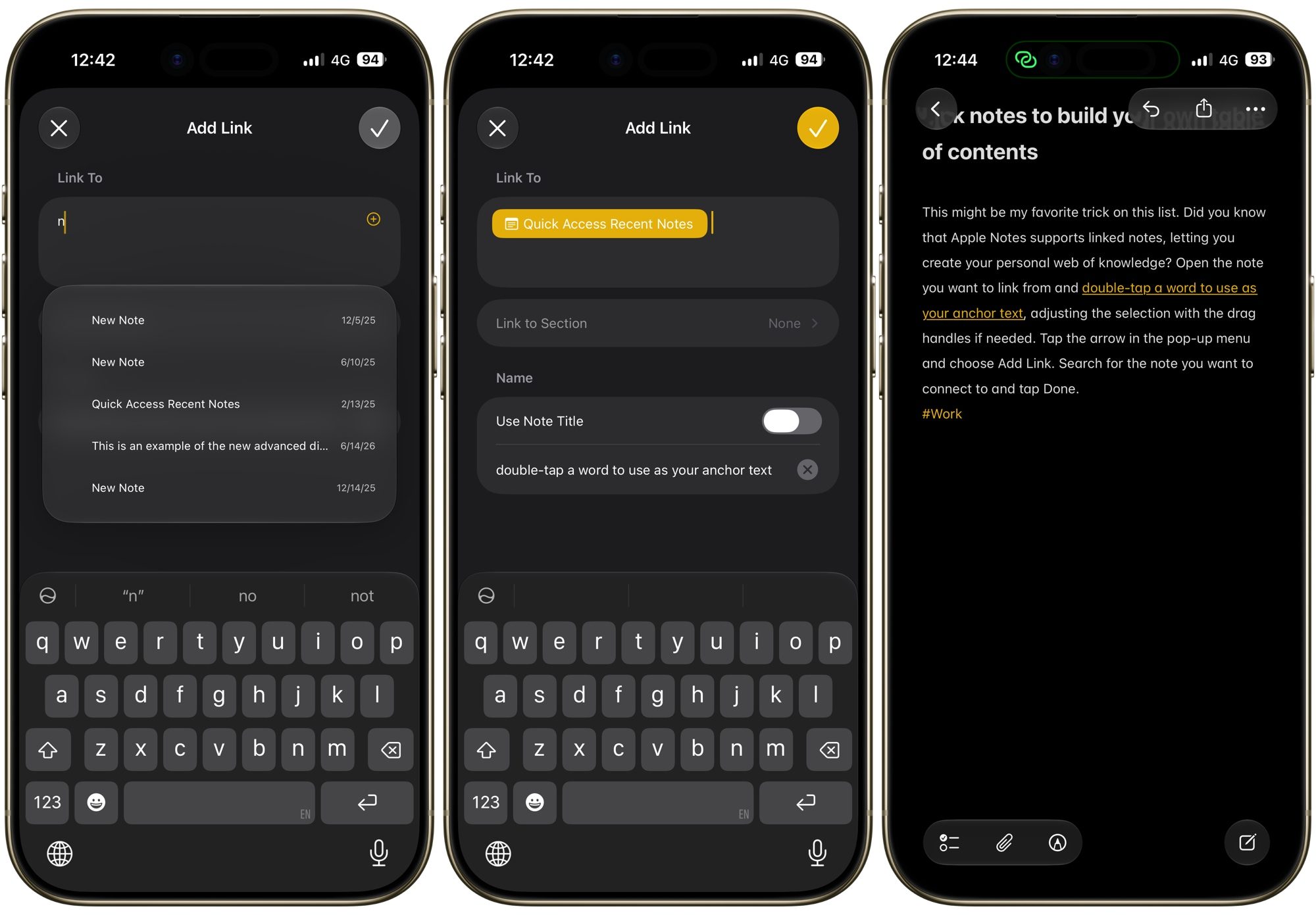
Tap the arrow in the pop-up menu and choose Add Link. Search for the note you want to connect to and tap Done.
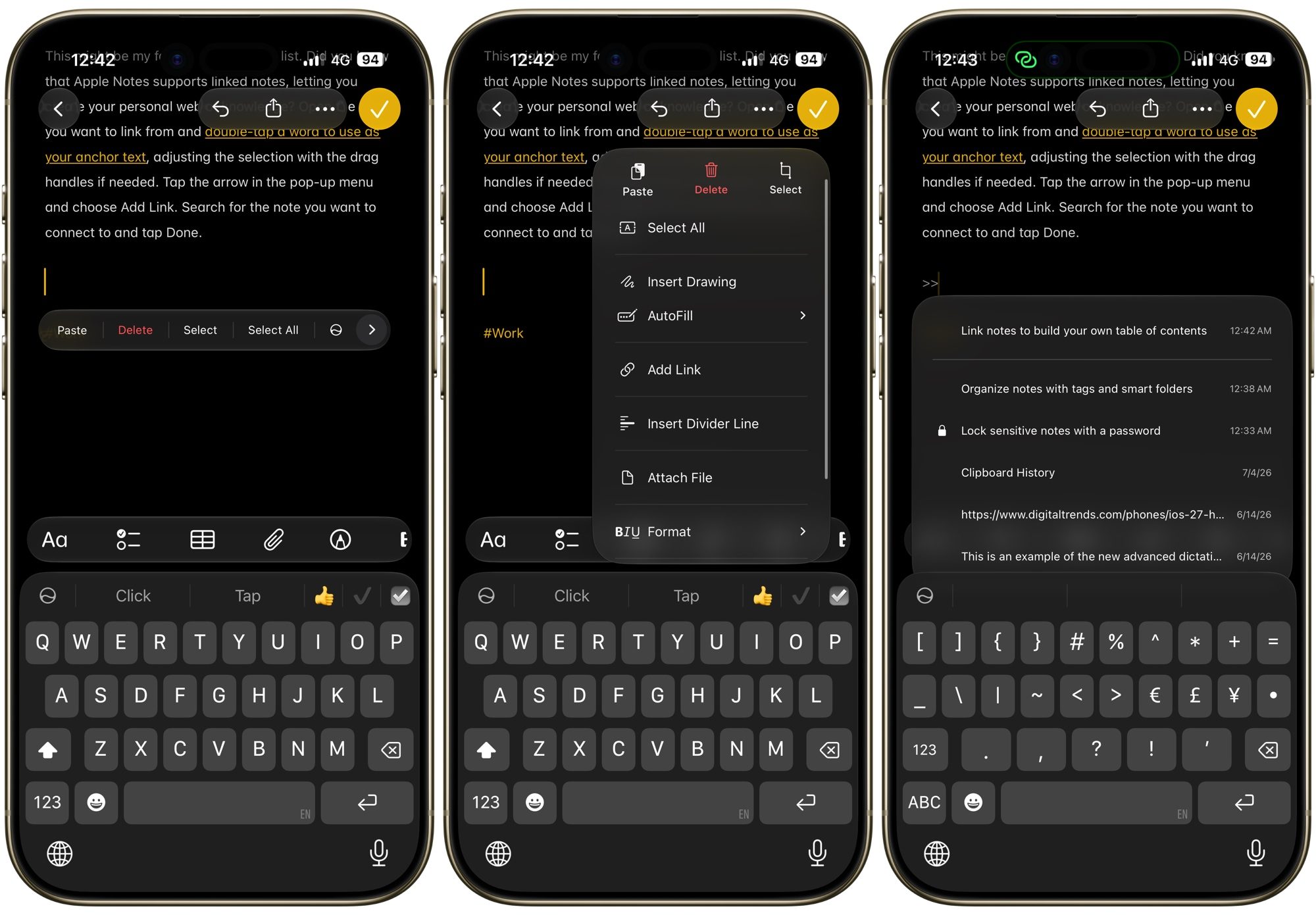
If you’d rather add a link without anchor text, long-press wherever you want the link to sit, tap the arrow for more options, choose Add Link, and search for your note the same way. There’s also a faster shortcut for this: type two greater than signs (>>) to pull up a search field right inside your note, then search and select the note you want to link.
I use this feature to build a single home note that links out to all my most used notes, essentially turning it into a table of contents for my entire notes library. It has completely changed how I navigate Apple Notes, and I would not go back to scrolling through folders now.
Final thoughts
These are the seven Apple Notes tricks that have made the biggest difference in how I use the app on a daily basis. None of them require a third-party app or any complicated setup, just a few taps buried in menus you’ve probably scrolled past a hundred times. Give a few of them a try, and let me know which one surprised you the most.