Daily Guardian UAEDaily Guardian UAE
  • Home
  • UAE
  • What’s On
  • Business
  • World
  • Entertainment
  • Lifestyle
  • Sports
  • Technology
  • Travel
  • Web Stories
  • More
    • Editor’s Picks
    • Press Release
What's On

Adobe put an AI coworker for your edits in Photoshop, Express, and even Acrobat reader

March 21, 2026

Erling Haaland invests in Norway Chess to launch the new Total Chess World Championship Tour

March 21, 2026

AI mental health risks exposed as chatbots sometimes enable harm

March 21, 2026

Pixel Watch update issues could be skewing your daily activity data

March 21, 2026

I just watched Project Hail Mary, here’s why it’s one of the best movies of the year

March 21, 2026
Facebook X (Twitter) Instagram
Finance Pro
Facebook X (Twitter) Instagram
Daily Guardian UAE
Subscribe
  • Home
  • UAE
  • What’s On
  • Business
  • World
  • Entertainment
  • Lifestyle
  • Sports
  • Technology
  • Travel
  • Web Stories
  • More
    • Editor’s Picks
    • Press Release
Daily Guardian UAEDaily Guardian UAE
Home » How to change the font size on a Kindle
Technology

How to change the font size on a Kindle

By dailyguardian.aeNovember 17, 20243 Mins Read
Share
Facebook Twitter LinkedIn Pinterest Email

If you enjoy reading, but don’t want to carry around big heavy books, then you definitely want to invest in something like an e-reader. One of the best e-readers on the market is the Amazon Kindle, which comes in a variety of models to suit everyone’s needs.

But when you’re reading on an e-reader, you may need to adjust the font and text size to better suit your own personal needs, as the default settings may not be for everyone. Thankfully, your Kindle reading experience can be tweaked to however you want, and it’s quite easy.

Whether you have the base model Kindle, a Kindle Paperwhite, the Kindle Colorsoft, or the Kindle Scribe, here’s how to do it.

How to adjust your book’s font size on your Kindle

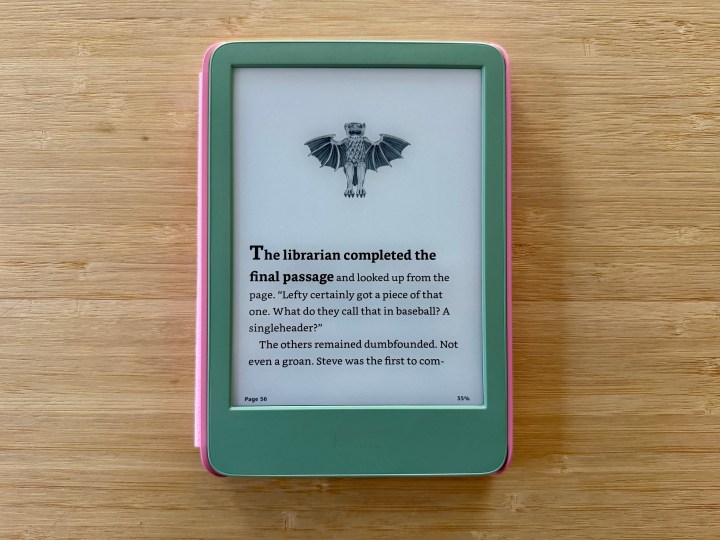
When it comes to reading, the typeface and size used can really make all the difference in terms of a comfortable experience. After all, you don’t want to have tiny font if you have to strain your eyes, and you don’t want a large font if you want as much text as possible on the screen at once to reduce page turns.

Step 1: Navigate to your Library on your Kindle device.

Step 2: Select a book you want to read.
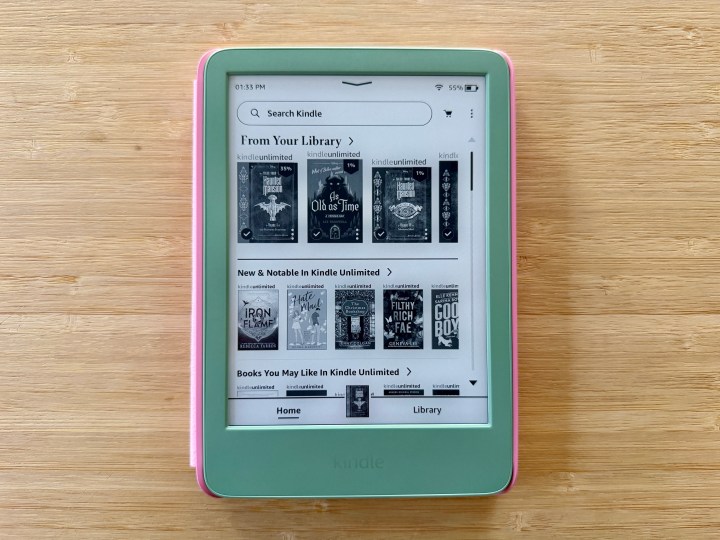
On your Kindle, navigate to your library and select a book to read.

Step 3: Tap the top of the screen to bring up the menu interface.
Tap near the top of the screen to bring up the menu interface.

Step 4: Select the Book text settings from the menubar. This is the option that looks like “Aa.”

Select the book font settings from the menubar.

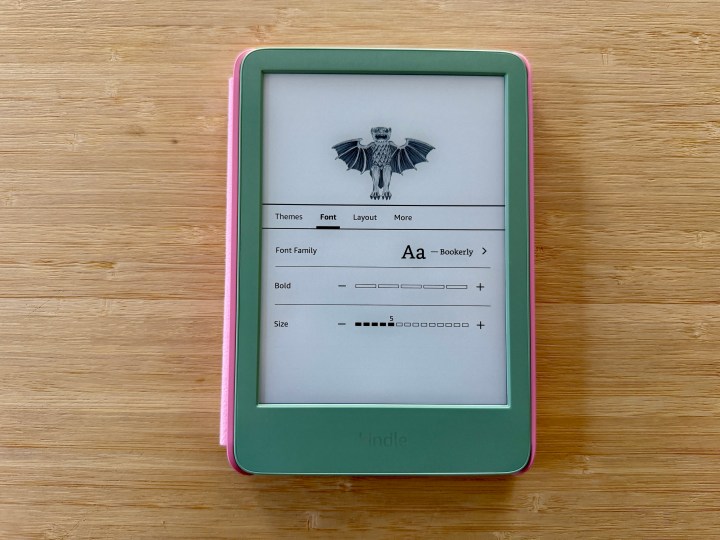
Step 5: Select Font.

Select Font to bring up the font options, including the typeface, bolding, and size.

Step 6: Select Font family if you want to change the typeface. The default option is Bookerly, but there are eight more options to pick from, including a font designed to improve readability for people with dyslexia (OpenDyslexic).
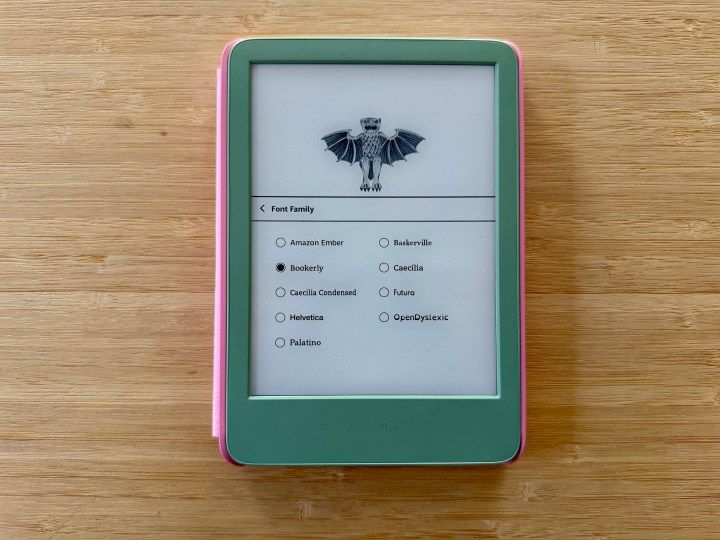
The typeface options if you want to change them on your Kindle.

Step 7: Select minus (-) or plus (+) if you want to increase the Bold setting.

Step 8: Under Size, select the minus (-) or plus (+) to increase or decrease Font size.

Step 9: Tap anywhere outside of the settings box to exit.

How to adjust the book’s theme and layout settings on your Kindle

In addition to adjusting the font and size, you can also adjust the theme or layout of your books. On a Kindle, a theme is like a preset setting for the font size and layout, but these can be tweaked to your own personalized needs too.

Step 1: Navigate to your Library on your Kindle device.

Step 2: Select a book you want to read.

On your Kindle, navigate to your library and select a book to read.

Step 3: Tap the top of the screen to bring up the menu interface.

Tap the top of the screen of your Kindle to bring up the menu interface.

Step 4: Select the Book text settings from the menubar. This is the option that looks like “Aa.”

Select the book font settings from the menubar.

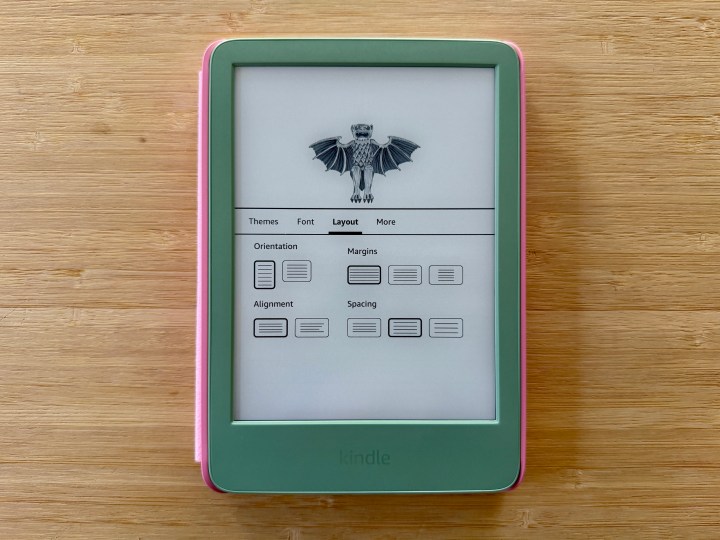
Step 5: Select Layout.

Select Layout and chooses your options as you see fit.

Step 6: Select your orientation, alignment, margins, and spacing from the available options.

Step 7: Select Theme from the menu.
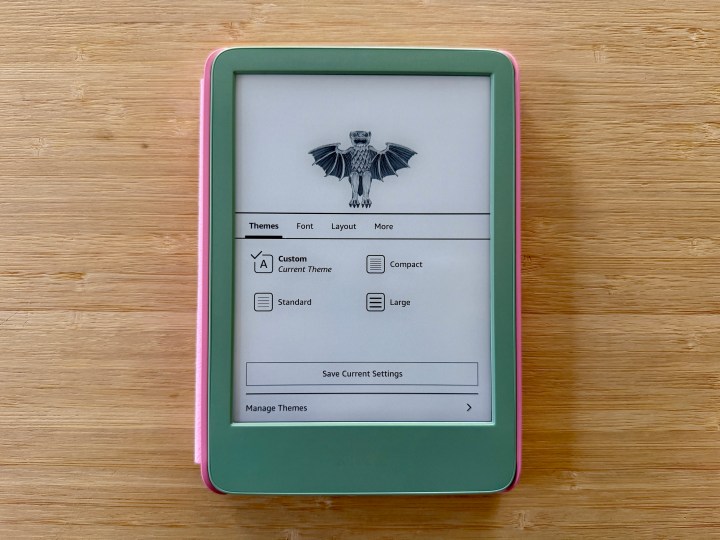
Select Theme and choose a preset for your book.

Step 8: You can select a preset theme that will override other font and layout settings. If you made other changes, it will appear as a Custom theme.


Share. Facebook Twitter Pinterest LinkedIn Tumblr Email

Keep Reading

Adobe put an AI coworker for your edits in Photoshop, Express, and even Acrobat reader

AI mental health risks exposed as chatbots sometimes enable harm

Pixel Watch update issues could be skewing your daily activity data

I just watched Project Hail Mary, here’s why it’s one of the best movies of the year

Android Canary update brings big changes, but nothing is guaranteed

Google experiments with AI-generated headlines in search results

Google will still let you sideload apps, but there’s a catch now

Xiaomi SU7 EV makes Tesla look bad with sheer style and substance

iOS 26.4 brings mood-based Music widgets to your iPhone’s home screen

Editors Picks

Erling Haaland invests in Norway Chess to launch the new Total Chess World Championship Tour

March 21, 2026

AI mental health risks exposed as chatbots sometimes enable harm

March 21, 2026

Pixel Watch update issues could be skewing your daily activity data

March 21, 2026

I just watched Project Hail Mary, here’s why it’s one of the best movies of the year

March 21, 2026

Subscribe to News

Get the latest UAE news and updates directly to your inbox.

Latest Posts

Android Canary update brings big changes, but nothing is guaranteed

March 21, 2026

Google experiments with AI-generated headlines in search results

March 21, 2026

Google will still let you sideload apps, but there’s a catch now

March 21, 2026
Facebook X (Twitter) Pinterest TikTok Instagram
© 2026 Daily Guardian UAE. All Rights Reserved.
  • Privacy Policy
  • Terms
  • Advertise
  • Contact

Type above and press Enter to search. Press Esc to cancel.