
Daily Guardian UAEDaily Guardian UAE
  • Home
  • UAE
  • What’s On
  • Business
  • World
  • Entertainment
  • Lifestyle
  • Sports
  • Technology
  • Travel
  • Web Stories
  • More
    • Editor’s Picks
    • Press Release
What's On

Acer thinks you need a gaming monitor with a 1,000Hz refresh rate at any cost

January 8, 2026

Naox launches earbuds that can take EEG to measure your brain activity

January 8, 2026

ChatGPT Health wants to be your medical AI assistant, but don’t expect a diagnosis

January 8, 2026

This smart product ensures you’ll never forget to water your garden again

January 8, 2026

Lenovo reveals the most stylish PC I’ve ever seen and it easily outshines the iMac

January 8, 2026
Facebook X (Twitter) Instagram
Finance Pro
Facebook X (Twitter) Instagram
Daily Guardian UAE
Subscribe
  • Home
  • UAE
  • What’s On
  • Business
  • World
  • Entertainment
  • Lifestyle
  • Sports
  • Technology
  • Travel
  • Web Stories
  • More
    • Editor’s Picks
    • Press Release
Daily Guardian UAEDaily Guardian UAE
Home » How to turn off notifications in Windows 11
Technology

How to turn off notifications in Windows 11

By dailyguardian.aeJanuary 31, 20242 Mins Read
Share
Facebook Twitter LinkedIn Pinterest Email

Windows 11’s notification center delivers notifications to your desktop from specific apps. However, if you don’t want to receive notifications at all, or want to turn off notifications in Windows 11 for certain apps, you can do this easily through the System Settings. Similarly, you can decide which notifications to receive at certain times of the day.

How to turn off Windows 11 notifications

Windows 11 notifications can be useful, but not at all times. It’s possible to turn all notifications on or off, as well as select which apps have priority when do not disturb is on. By knowing how to turn on Windows 11 notifications, you can ensure you only receive important information when you need it.

To customize your Windows 11 notifications, you’ll need to go through the following steps. This will allow you to turn notifications on or off for apps on your device.

Step 1: Select Start> *Settings**> *System*> *Notifications*.

Step 2: Select Notifications to expand, turn notifications on/off, turn banners on/off, and turn sounds on/off.

Step 3: If you want to turn off tips and suggestions about Windows, scroll down to Additional settings and toggle the options on/off.

How to use Windows 11 do not disturb

If you want notifications to appear on your Windows 11 device only during certain times, for example, outside of work hours, you can turn on Do not disturb. This will ensure you keep your focus on what’s important.

Step 1: Select Start> Settings> System> Notifications

Step 2: Navigate to Do not disturb and toggle on/off.

Step 3: To turn on Do not disturb automatically, you can navigate to the Turn on do not disturb automatically option and select a specific time to turn on notifications.
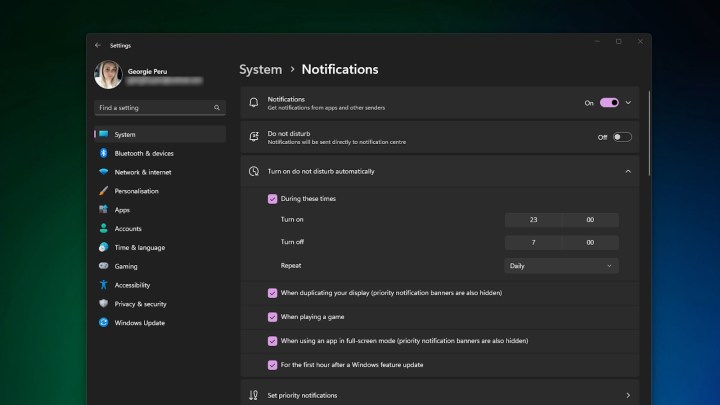
The do not disturb automatic settings in Windows 11.

How to prioritize notifications

Using Windows 11 do not disturb notification settings can stop notifications when you don’t want them to appear. However, there may be some app you want to receive notifications from, like Mail, which can remain in the notification center even while do not disturb is on.

Step 1: Select Start> Settings> System> Notifications.

Step 2: Navigate to Set priority notifications.
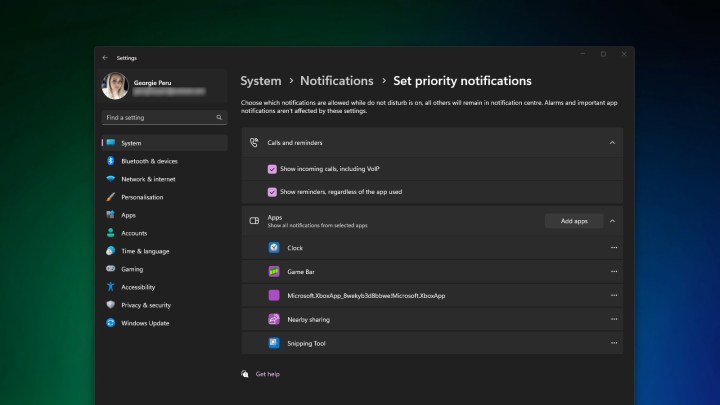
The priority notifications setting in Windows 11.

Step 3: Select Add apps to choose which app or apps you want to receive notifications from.
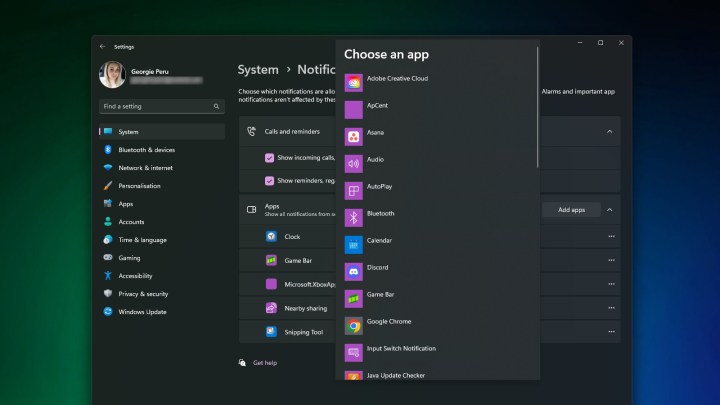
The add apps to windows 11 set priority notifications.

Editors’ Recommendations


Share. Facebook Twitter Pinterest LinkedIn Tumblr Email

Keep Reading

Acer thinks you need a gaming monitor with a 1,000Hz refresh rate at any cost

Naox launches earbuds that can take EEG to measure your brain activity

ChatGPT Health wants to be your medical AI assistant, but don’t expect a diagnosis

This smart product ensures you’ll never forget to water your garden again

Lenovo reveals the most stylish PC I’ve ever seen and it easily outshines the iMac

Nothing Phone (3) drops to $639, saving you $160 on a standout Android flagship

Spotify wants your friends to know exactly what you’re listening to

Save 57% on a Samsung Chromebook that’s great for school basics

Apple is planning a massive iPhone camera upgrade, but it’s years away

Editors Picks

Naox launches earbuds that can take EEG to measure your brain activity

January 8, 2026

ChatGPT Health wants to be your medical AI assistant, but don’t expect a diagnosis

January 8, 2026

This smart product ensures you’ll never forget to water your garden again

January 8, 2026

Lenovo reveals the most stylish PC I’ve ever seen and it easily outshines the iMac

January 8, 2026

Subscribe to News

Get the latest UAE news and updates directly to your inbox.

Latest Posts

Nothing Phone (3) drops to $639, saving you $160 on a standout Android flagship

January 8, 2026

Spotify wants your friends to know exactly what you’re listening to

January 7, 2026

Save 57% on a Samsung Chromebook that’s great for school basics

January 7, 2026
Facebook X (Twitter) Pinterest TikTok Instagram
© 2026 Daily Guardian UAE. All Rights Reserved.
  • Privacy Policy
  • Terms
  • Advertise
  • Contact

Type above and press Enter to search. Press Esc to cancel.