
Daily Guardian UAEDaily Guardian UAE
  • Home
  • UAE
  • What’s On
  • Business
  • World
  • Entertainment
  • Lifestyle
  • Sports
  • Technology
  • Travel
  • Web Stories
  • More
    • Editor’s Picks
    • Press Release
What's On

Falconbridge Advisors Establishes Doha Operations Supporting Qatar’s Growth Agenda

February 2, 2026

Sony leak shows a new look for upcoming WF-1000XM6 earbuds and a big audio upgrade

February 2, 2026

Dayne Turbitt Joins Snowflake to Lead EMEA Business to Continued Success

February 2, 2026

Chrome may soon use Gemini antiscam protection to flag scams, but it won’t watch every site you visit

February 2, 2026

LINQ Modular and SIBS Join Forces to Scale Industrialised Construction in Middle East

February 2, 2026
Facebook X (Twitter) Instagram
Finance Pro
Facebook X (Twitter) Instagram
Daily Guardian UAE
Subscribe
  • Home
  • UAE
  • What’s On
  • Business
  • World
  • Entertainment
  • Lifestyle
  • Sports
  • Technology
  • Travel
  • Web Stories
  • More
    • Editor’s Picks
    • Press Release
Daily Guardian UAEDaily Guardian UAE
Home » How to delete a user on your Mac and free up disk space
Technology

How to delete a user on your Mac and free up disk space

By dailyguardian.aeFebruary 3, 20244 Mins Read
Share
Facebook Twitter LinkedIn Pinterest Email

If you have an account on your Mac that’s no longer used and is taking up valuable disk space, you can remove it in just a few steps. Our guide will take you through everything you need to do to delete a user on a Mac quickly and easily.

There are plenty of other changes you can make to improve your Mac — if you want to use Split View on a Mac or learn some handy trackpad gestures, we’ve got you covered. But for now, let’s set about deleting a user on your Mac.

Ensure you have administrator access

Deleting a Mac user account requires you to have administrator access. You’ll need to be logged in to the administrator account and know the admin username and password to continue. You’ll also have to ensure you’re not logged in to the account you wish to delete — if you want to remove an administrator account, you’ll have to create another admin account and log in with that first.

Step 1: Open the Settings app and select Users & Groups in the left-hand sidebar. You will now see a list of all the accounts on your Mac.

Step 2: Select the small i button to the right of the user account you want to delete. This will load a pop-up window where you can change the account’s name, reset its password, and switch it being an administrator account (or revoke that status).

Step 3: In the bottom-left corner of this pop-up window you’ll see a button reading Delete User. Select this button. You might have to enter your admin password the first time you do this.
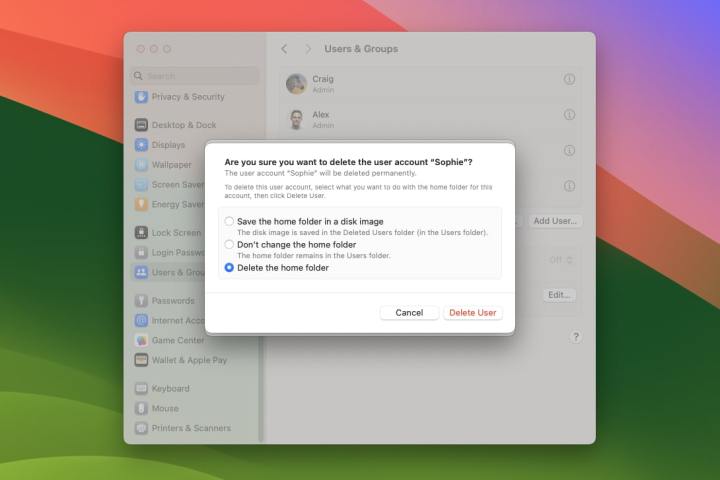
The Settings app in macOS Sonoma showing an option to delete a Mac user's account.

Step 4: Your Mac will give you a few options for what to do next. You can save the account’s home folder to a disk image, which will preserve all their documents and information in case you want to restore the account later (the disk image of their files is saved in /Users/Deleted Users/). You can also leave the user’s home folder where it is (which keeps it in /Users/), or delete it entirely.

Step 5: Once you’ve made your choice, pick Delete User. The account will now be removed.
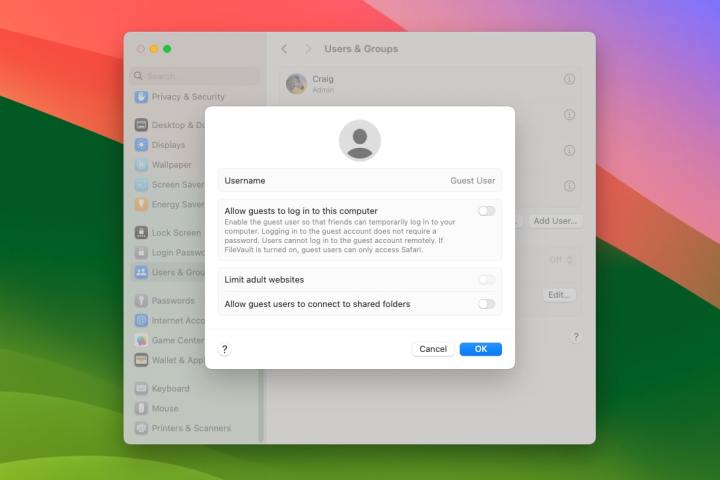
The Settings app in macOS Sonoma showing an option to enable or disable a guest user.

Remove the guest user account

Creating a guest user means you can let friends, family, and coworkers use your computer without gaining access to any of the private data stored in your own account. That’s helpful if you want to let them use your Mac from time to time, but don’t want them messing with your personal account. And if you want to instead remove the guest account, it’s easy to do.

Step 1: As before, open the Settings app and head to Users & Groups.

Step 2: At the bottom of the list of accounts, you’ll see one called Guest User. Select the small i button on its right-hand side.

Step 3: To remove the guest account, simply disable the toggle next to Allow guests to log in to this computer. Select OK when you’re finished.

Step 4: The pop-up window where you can disable the guest user account also lets you adjust its settings. If you’d prefer to keep the guest user account active but want to restrict it a little more, you can limit its access to adult websites and decide whether guest users can connect to shared folders using the toggles in this pop-up section.

Deleting a user account on your Mac is easy to do and a good way to free up space on your computer. Provided you have admin access when you try to do it, it should take more than a few minutes.

Editors’ Recommendations


Share. Facebook Twitter Pinterest LinkedIn Tumblr Email

Keep Reading

Sony leak shows a new look for upcoming WF-1000XM6 earbuds and a big audio upgrade

Chrome may soon use Gemini antiscam protection to flag scams, but it won’t watch every site you visit

Nothing’s cheaper Headphone (a) could be launching soon, and here’s what you can expect

Honda just tested an AI system that lets your car automatically report potholes and damaged signs

Sony’s wild PlayStation controller patent gives you buttons anywhere you want

Your wait for a refreshed Apple Studio Display may be nearly over

You might finally see CarPlay Ultra beyond a $200,000 Aston Martin

If Apple drops 128GB again, your iPhone 18 Pro gets pricy fast

SpaceX video shows off next-gen Starship booster ahead of 12th flight

Editors Picks

Sony leak shows a new look for upcoming WF-1000XM6 earbuds and a big audio upgrade

February 2, 2026

Dayne Turbitt Joins Snowflake to Lead EMEA Business to Continued Success

February 2, 2026

Chrome may soon use Gemini antiscam protection to flag scams, but it won’t watch every site you visit

February 2, 2026

LINQ Modular and SIBS Join Forces to Scale Industrialised Construction in Middle East

February 2, 2026

Subscribe to News

Get the latest UAE news and updates directly to your inbox.

Latest Posts

Nothing’s cheaper Headphone (a) could be launching soon, and here’s what you can expect

February 2, 2026

“بن غاطي” تسجّل أرباحًا قياسية للعام الثالث على التوالي

February 2, 2026

Honda just tested an AI system that lets your car automatically report potholes and damaged signs

February 2, 2026
Facebook X (Twitter) Pinterest TikTok Instagram
© 2026 Daily Guardian UAE. All Rights Reserved.
  • Privacy Policy
  • Terms
  • Advertise
  • Contact

Type above and press Enter to search. Press Esc to cancel.