

Apple made a big change with the iPhone 14, moving to an eSIM-only configuration that makes it impossible to use your current phone’s SIM card. That continues with the iPhone 15, with no physical SIM card slot available on the new lineup. However, all is not lost, as there are a few simple ways to transfer your SIM from an Android phone to an iPhone 15.
The easiest way to get your SIM from Android to iPhone 15 is by going through one of the major carriers, such as AT&T and Verizon. This works in a few different ways, but rest assured that your Android SIM can be brought over to the wonderful world of iPhone eSIM.
While eSIM is big with Apple products, it’s worth noting that it’s not the only phone that uses the technology. Many Android phones use eSIM cards too – though you can only use Apple’s eSIM Quick Transfer app when going from an old iPhone to a new iPhone, with no help for Android users.
With that in mind, here’s a look at how to get your Android SIM onto your iPhone 15.
How to activate an eSIM using eSIM Carrier Activation
If you purchased your iPhone 15 from a carrier that supports Apple’s eSIM Carrier Activation, there’s a good chance that it will be ready to go right out of the box, regardless of the platform you’ve come from. This is similar to how most carriers previously shipped a new SIM card to use along with your new iPhone, with a quick process for activating the new SIM card and deactivating the old one.
U.S. mobile providers that support Apple’s Carrier Activation feature include AT&T, Verizon, and T-Mobile, as well as Boost Mobile, Cellcom, Credo Mobile, C Spire, FirstNet, H2O Wireless, Spectrum Mobile, Straight Talk, Strata, Tracfone, US Cellular, and Xfinity Mobile.
With eSIM Carrier Activation, your iPhone 15 is preassigned to your carrier’s network based on its IMEI and other internal device identifiers. When you first set up your iPhone 15, it downloads the necessary information to configure the eSIM for your account. You only need to ensure your iPhone is connected to a Wi-Fi network during the setup process.
Step 1: Swipe up from the Welcome screen to begin setting up your new iPhone 15.
Step 2: When prompted, choose a Wi-Fi network to connect to and enter the Wi-Fi password.
Step 3: Wait for the iPhone 15 activation process to complete.
Step 4: If a Choose a cellular plan screen appears, select the plan associated with your eSIM, and then select Continue.
Step 5: Select Continue when the Cellular setup complete message appears.
Mobile operators that support eSIM Carrier Activation can also configure your eSIM remotely. If your eSIM isn’t provisioned automatically during the initial setup process, either because it wasn’t set up correctly or you purchased it from Apple or another retailer, you can give their customer support a call and ask them to set it up for you.
In this case, finish setting up your iPhone. Once your carrier provisions your eSIM on their end and it’s ready to go, you’ll receive a notification that says Carrier cellular plan ready to be installed. Select that and follow the instructions to accept your new plan.
How to transfer your eSIM using a carrier’s app
Many mobile apps provided by carriers to manage your account also offer ways to transfer a physical SIM or eSIM from another phone over to the new eSIM in your iPhone 15.
The method to do this will depend on the carrier and app you’re using, but the one thing they all have in common is that you won’t be able to configure your eSIM during the initial setup process. Instead, you’ll need to set your iPhone 15 up over a Wi-Fi connection, skip the eSIM setup, and then download and use your carrier’s app once everything else is up and running.
Step 1: Swipe up from the Welcome screen to begin setting up your new iPhone 15.
Step 2: Continue through the setup process until you reach the Set up cellular screen.
Step 3: Select Set up later in Settings.
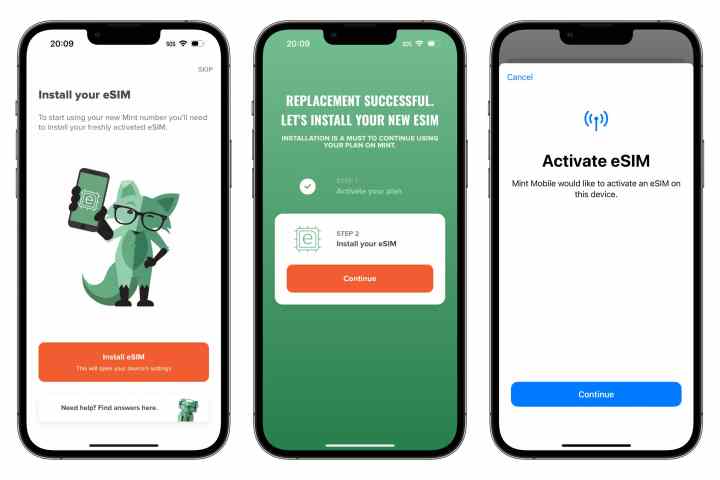
Step 4: Finish setting up your iPhone. After you’ve completed the setup process and arrived at your home screen, download your carrier’s app from the App Store and follow the instructions to Install or Transfer your eSIM from your old phone.
How to transfer your eSIM using a QR code
If your carrier supports it, you can also configure your eSIM during the initial setup by scanning a QR code. This code is provided by your carrier and may be sent to you in the mail, provided at a retail outlet, or shown in your customer account on the carrier’s website.
The advantage of this method over using a mobile app is that you can scan this QR code while setting up your iPhone 15 and you’ll be ready to go right away.
Step 1: Swipe up from the Welcome screen to begin setting up your new iPhone 15.
Step 2: Follow the setup process until you reach the Set up cellular screen.
Step 3: Select Use QR code.
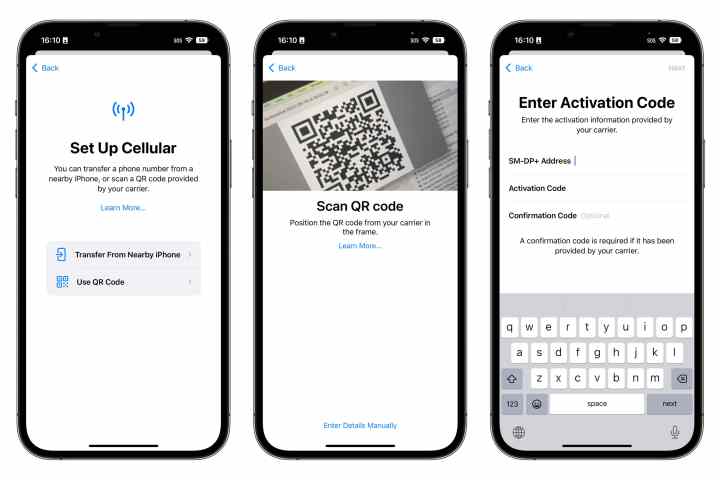
Step 4: Follow the instructions to point your iPhone camera at the QR code. You can do this using a printed code or directly from a second screen, such as your old phone, a tablet, or a computer.
Step 5: If you’re unable to scan the QR code, or your carrier provides you with manual activation codes instead, select Enter details manually and type in the activation information provided by your carrier on the next screen.
Step 6: Wait for the iPhone 15 eSIM activation process to complete.
Step 7: Select Continue when the Cellular setup complete message appears.
The steps above should help you move your primary line from a physical SIM or eSIM on your Android smartphone to an eSIM on your new iPhone 15. However, when in doubt, we strongly recommend calling your carrier for assistance. There are 40 carriers in the U.S. that support eSIM, and each may have a slightly different method for provisioning an eSIM, especially those that don’t use Apple’s eSIM Carrier Activation feature.
Note that the iPhone 15 has two eSIM cards, allowing you to support two phone lines simultaneously. While you can only move your primary line over during the initial setup, you can move a second line or configure a new one later through the Settings app. Check out our guide on how to set up and use a second line on an iPhone with an eSIM for more information.
Editors’ Recommendations