

Not everyone can upgrade their gaming stations with the latest GPUs and additional RAM to push game performance as far as it can go. You might just want to know if your current PC can handle the latest title you’re excited to play.
In that case, finding out such information usually isn’t that hard. Games often have information on recommended specifications so that gamers can compare the specs to what they currently have and see if they are good to go or not. While recommended specs may not be able to max out resolution or show off a gaming PC, they should be good enough for gameplay and to allow you to have an enjoyable experience. Here’s how to find those system requirements and check your PC’s specs.
How to check if your PC meets a game’s system requirements
Step 1: Google the game you want to play, along with a phrase like “PC specification recommendations.” Game publishers are very good at putting these recommendations on their own sites, Steam, and other places, so results should immediately appear.
For example, here are the Overwatch 2 system requirements published by Blizzard. Once you have found the official recommendations, save the webpage or take a screenshot for comparison.
Step 2: Note that many games, such as Overwatch 2, have both minimum requirements and recommended specifications. Minimum requirements will help you scrape by, although you may have to lower graphics settings and accept that performance won’t always be great. Recommended specs are a much better level to compare against for a good gaming experience – but you also have to work with what you have, so be prepared to make some changes to game settings if necessary.
Step 3: Now it’s time to find your current PC specifications. Log into your PC if necessary and press the Ctrl + Shift + Escape keys to bring up Task Manager. Or, you could just search for “task manager” in the search bar and select it.
Step 4: If necessary, select More details in the Task Manager.
Step 5: In the new window, select the Performance tab.
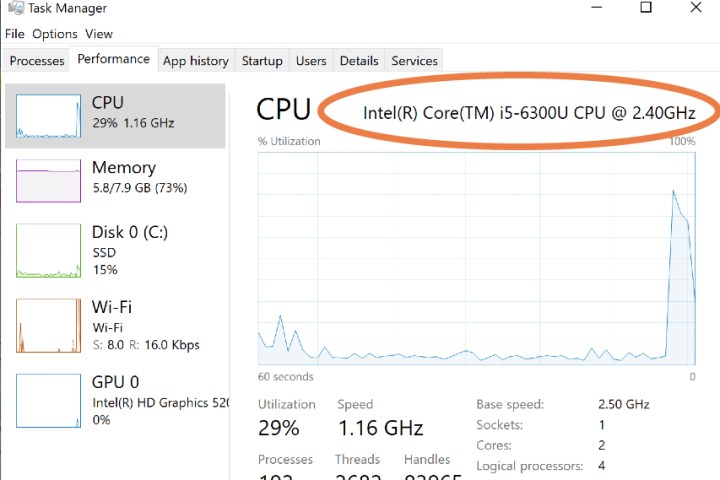
Step 6: On the left of the performance window, you’ll see sections for CPU, Memory, Disk, GPU, and more. For each section, you can view current performance and – most importantly – the exact specification your PC is working with.
Step 7: Go through the sections one by one and compare your specs to the game’s requirements. Specs don’t always have to be one-to-one: When necessary, compare things like the number of cores, GPU memory, and similar important features. If your PC meets or exceeds these important details, then you don’t have to worry about playing the game. Remember to check disk space too, so you know you have enough room to download the game files.
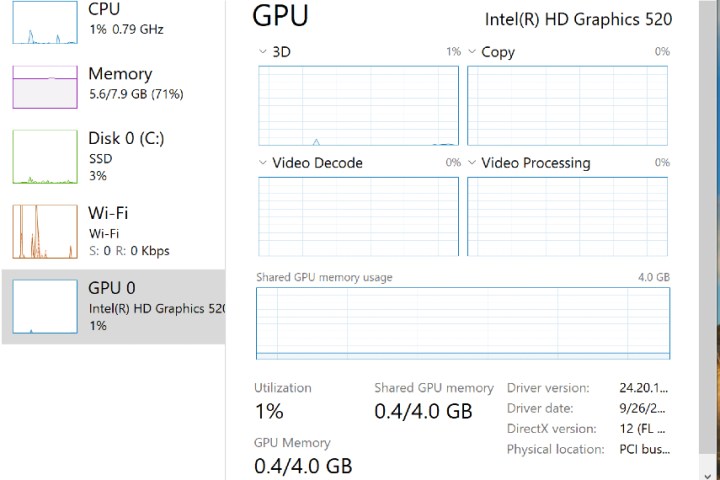
Step 8: If Task Manager isn’t an option for you, search for the “about” section on your computer. This section typically provides information about the components that the PC came with, which may be enough to eyeball recommended specifications.
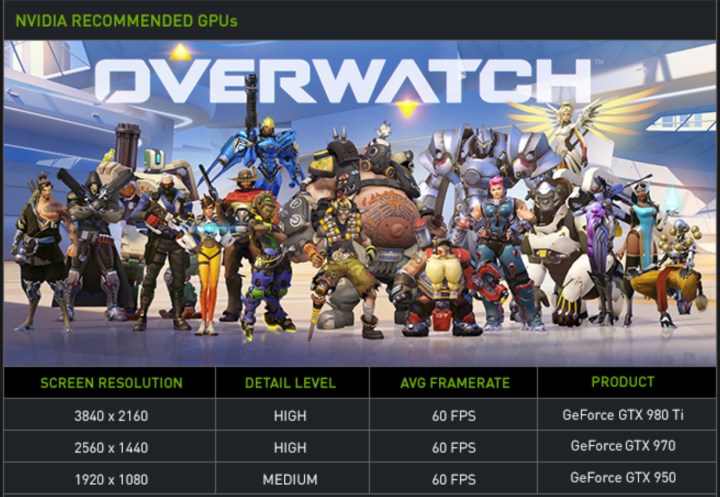
Step 9: If you have an aftermarket GPU, you may also want to check the GPU brand to see if it has its own recommendations for specific games. They often will, especially for AAA titles. Here’s Nvidia’s own page for Overwatch recommendations, for example.
What about automatic checkers?
Some tools are designed to automatically check if the computer can handle a specific game. One example is System Requirements Lab, where you can search for the latest games. But these tools can often struggle to properly read the specs of the computer that they are running on. This leads to a lot of failed guesses on their part, which is why it’s always a good idea to manually check yourself. Plus, once you know, you can always reference back as needed.
Editors’ Recommendations