

Knowing how much VRAM your graphics card has is incredibly important for modern gaming. Most need a certain amount to run at all, and if you want to optimize your game performance and visuals, you need to know how much VRAM you’re working with. Many games have VRAM use bars within their settings menu, so you can often see how much you have in there.
If your game doesn’t show you that, or you just want to know right now without booting up any games, here are some other ways to find out how much VRAM your GPU has.
Check the labels
If your graphics card is relatively new, just reach for the box. Graphics card memory is so important for modern graphics cards, that the quantity and generation of it is almost always listed on the box in some capacity. It could be the marketing stickers or the spec table on the back, but either or both should tell you how much VRAM your graphics card has.
Alternatively, look on the card itself. Most graphics cards have a model number sticker somewhere on the back that typically includes the quantity of RAM it has on board. The manufacturer’s website will also have a full specs table with all the information you need, as should the online store you bought it from (if applicable).
Check your VRAM using DXDiag
The DirectX Diagnostic Tool, or DxDiag, is an iconic Windows tool used to test the DirectX API’s functionality in Windows, as well as troubleshoot video and sound issues. It’s been part of Windows for many generations, but it still has its uses — like checking your VRAM.
Step 1: Search for “DxDiag” in the Windows search box and select the corresponding result.
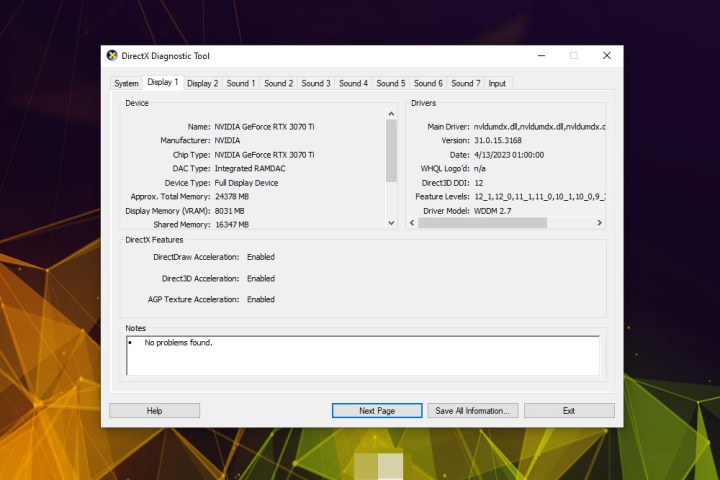
Step 2: Wait a minute or so for the diagnostic tool to complete, then select your main display from the tabs at the top of the window. In most cases, this will be Display 1.

Step 3: Under the Device heading you should see information about your graphics card model. Next to Display Memory it should tell you your VRAM total in Megabytes. You can round that to the nearest 1,000 for the colloquial understanding of VRAM.
In this example, the Nvidia RTX 3070 Ti is listed as having 8031MB of Display Memory. That equates to 8GB, as per the model’s specifications.
Frequently Asked Questions
Is VRAM in your CPU?
VRAM, short for video random access memory, is located within your GPU. VRAM temporarily stores the data needed to display graphics on your computer.
Is there a way to test VRAM?
DirectX Diagnostic Tool, or DxDiag, can be used to test the VRAM on your Windows computer, not to mention troubleshoot audio and video issues. There are also a number of third-party software programs that serve this function.
How do I access VRAM settings?
Many games have VRAM use bars within their settings menu, so you can often see how much you have in there. Alternatively, you can access VRAM information by using the DxDiag program on your Windows computer.
- Bring up a Windows search bar and type in “DxDiag”
- Select your main display from the tabs
- Wait for the diagnostic tool to run
- Information about your graphics card model will be displayed under the “Device” heading
How do I check my VRAM on macOS?
Checking the VRAM on a Mac computer is a simple two step process.
- Navigate to the Apple icon at the top of your screen, then scroll down to “About This Mac,” and click on that.
- Next to “Graphics” row, you’ll see your VRAM amount
- For more detailed VRAM information on your Mac, click “System Report,” then navigate down to the “Graphics” tab. There is a dedicated line for VRAM information in this window.
For more information on your graphics card, you can use an in-depth third-party tool like HWInfo. That one is particularly good for checking your CPU temperature, too.
Editors’ Recommendations