Daily Guardian UAEDaily Guardian UAE
  • Home
  • UAE
  • What’s On
  • Business
  • World
  • Entertainment
  • Lifestyle
  • Sports
  • Technology
  • Travel
  • Web Stories
  • More
    • Editor’s Picks
    • Press Release
What's On

New leaks add weight to rumors of a slimmer Dynamic Island on iPhone 18

March 31, 2026

Apple’s iMac could get a massive display upgrade, but not anytime soon

March 31, 2026

Bain & Company’s 2026 List: Rising Brands in FMCG

March 30, 2026

Your Android Auto can now plan EV trips with AI-powered charging stops

March 30, 2026

Abu Dhabi Implements Key Decisions for Real Estate Governance

March 30, 2026
Facebook X (Twitter) Instagram
Finance Pro
Facebook X (Twitter) Instagram
Daily Guardian UAE
Subscribe
  • Home
  • UAE
  • What’s On
  • Business
  • World
  • Entertainment
  • Lifestyle
  • Sports
  • Technology
  • Travel
  • Web Stories
  • More
    • Editor’s Picks
    • Press Release
Daily Guardian UAEDaily Guardian UAE
Home » How to control notification badges on your iPhone and iPad
Technology

How to control notification badges on your iPhone and iPad

By dailyguardian.aeFebruary 25, 20243 Mins Read
Share
Facebook Twitter LinkedIn Pinterest Email

Your iPhone makes it easy to know when you’ve received a notification, letting you enable pop-up messages, audible chimes, and notification badges so you can keep tabs on all your apps. And while most of these features are great, many users will quickly find notification badges to be intrusive and stress-inducing.

Notification banners are the tiny red dot you’ll see at the top-right corner of any app that has an alert. These can become frustrating, as a screen filled with notification badges (or a single Gmail app reminding you to check your 500 unread messages) can be an absolute eyesore. Thankfully, Apple makes it easy to control your notification badges with iOS 17.

Here’s a look at how to control notification badges on your iPhone and iPad.

Show or hide notification badges on your home screen

In most iOS versions, including the latest iOS 17, you control notifications via Settings, where you can enable or disable them with a toggle, as well as specify how they should look and when and where they can appear. You can choose the look, location, and duration of banners, control audio alerts, and choose how and when to view notification badges.

Step 1: Open the Settings app.

Step 2: Tap Notifications.

iPhone Notification settings.

Step 3: Observe the list of apps under Notification style.
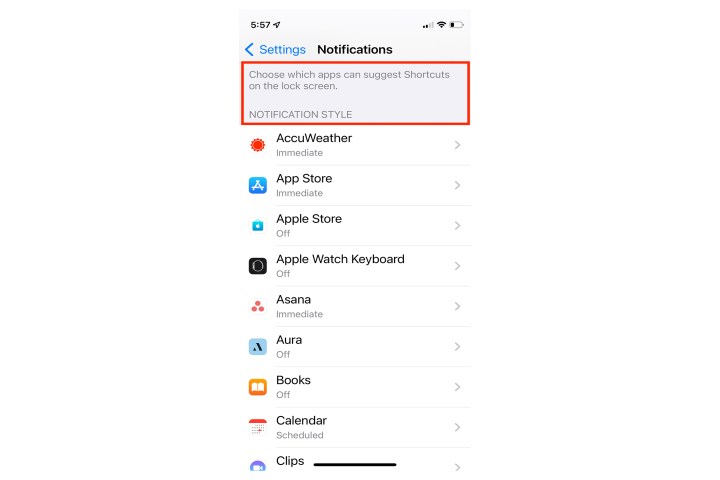
iPhone Notifications Style setting.

Step 4: Each app notification is handled separately, so review the settings by tapping each app one by one.

iPhone notification settings for Accuweather app.

Step 5: Within each app, you will see a list of options. To get rid of the badge, toggle the Badges option off.

Application badges on iOS 16.

Show or hide notification badges in App Library

By default, notification counters do not appear in the App Library. Many iPhone users prefer to minimize the number of apps on the home screen via the use of the App Library, so if you prefer to see numbered alert badges while using the library, you must enable this option. Here’s how to do it.

Step 1: Launch the Settings app on your iPhone or iPad.

Apple iOS badge on home screen.

Step 2: Tap Home Screen and App Library.

iPhone Settings Home Screen option.

Step 3: In the Notification badges section, toggle on the switch for Show in App Library.
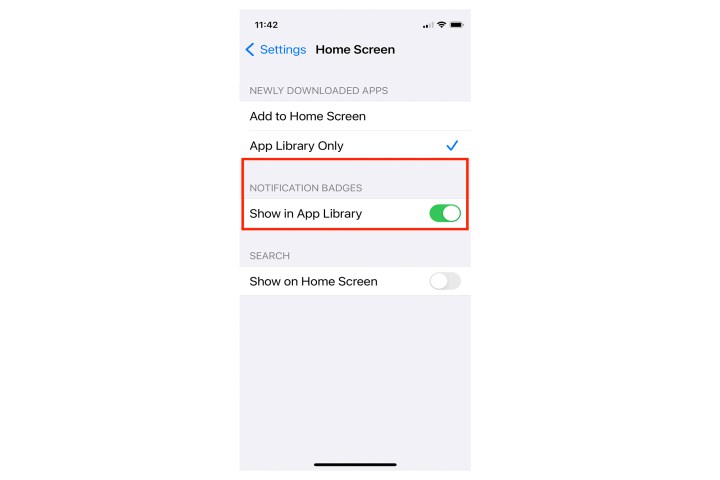
iOS home screen badge switch.

Step 4: If seeing the badge in your App Library is preferable, just switch the toggle back on for the full effect.
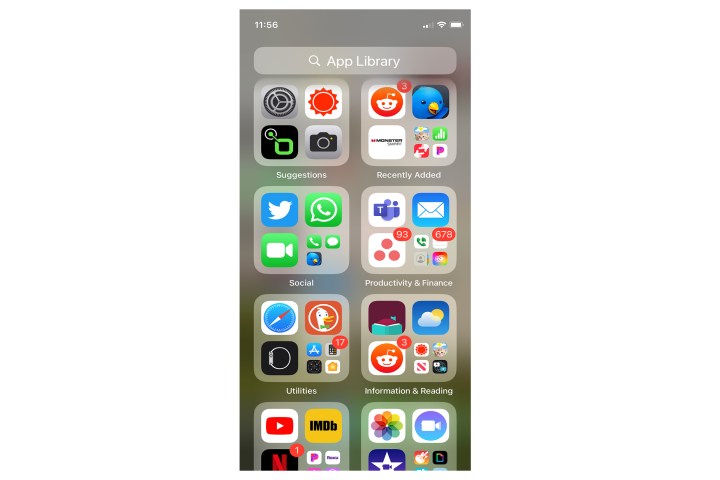
Badges in iOS 16 App Library.

How to disable app notification badges in Focus mode

The iPhone’s Focus mode blocks incoming notifications, but it still can allow the red counter badges to appear on your home screen app icons. You can set your Focus mode to hide them when active. Here’s how.

Step 1: Launch the Settings app and select Focus.
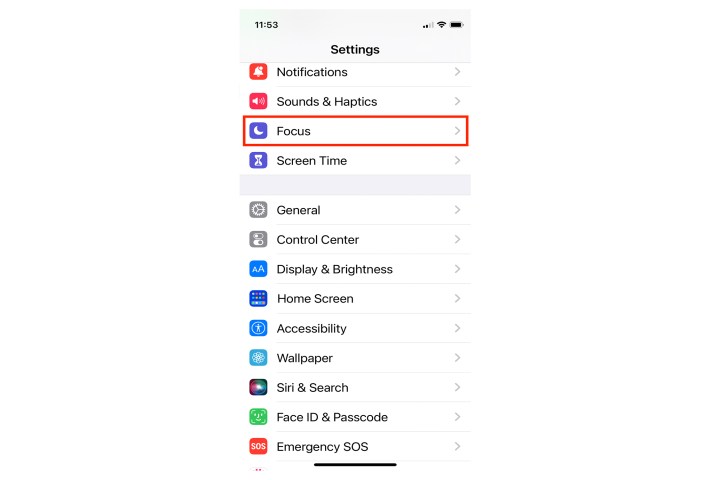
Apple Focus for iOS 16.

Step 2: Tap Do not disturb.

iOS 16 Do Not Disturb setting.

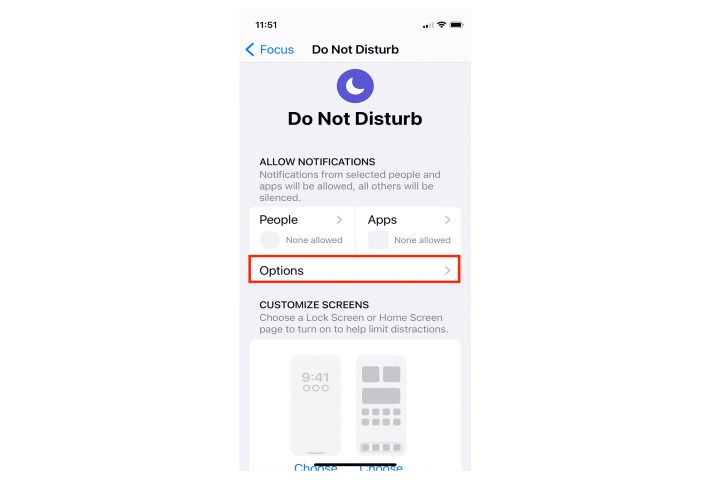
Step 3: Tap Options.

iOS 16 Options command.

Step 4: Toggle on the Hide notification badges switch.
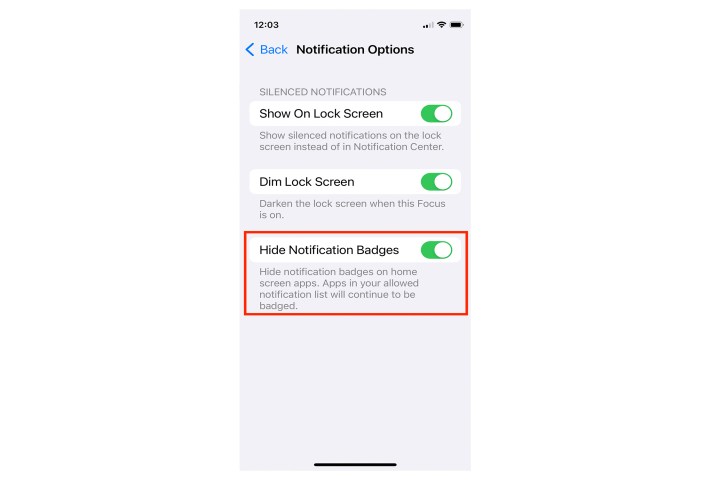
iOS 16 Hide Badges option.

Editors’ Recommendations


Share. Facebook Twitter Pinterest LinkedIn Tumblr Email

Keep Reading

New leaks add weight to rumors of a slimmer Dynamic Island on iPhone 18

Apple’s iMac could get a massive display upgrade, but not anytime soon

Your Android Auto can now plan EV trips with AI-powered charging stops

Apple’s anonymous email feature isn’t nearly as anonymous as you might think

Which software offers global accounting compliance?

Microsoft’s Copilot Cowork arrives with smarter AI research tools to spot gaps in your work

The Asus Morph 96 Wireless gives you the custom keyboard feel without the DIY hassle

AI can beat chess grandmasters, but it can’t adapt to modern video games

WhatsApp support for CarPlay is right around the corner

Editors Picks

Apple’s iMac could get a massive display upgrade, but not anytime soon

March 31, 2026

Bain & Company’s 2026 List: Rising Brands in FMCG

March 30, 2026

Your Android Auto can now plan EV trips with AI-powered charging stops

March 30, 2026

Abu Dhabi Implements Key Decisions for Real Estate Governance

March 30, 2026

Subscribe to News

Get the latest UAE news and updates directly to your inbox.

Latest Posts

Apple’s anonymous email feature isn’t nearly as anonymous as you might think

March 30, 2026

FAB’s AI Agentathon Boosts Banking Innovation with Presight

March 30, 2026

Which software offers global accounting compliance?

March 30, 2026
Facebook X (Twitter) Pinterest TikTok Instagram
© 2026 Daily Guardian UAE. All Rights Reserved.
  • Privacy Policy
  • Terms
  • Advertise
  • Contact

Type above and press Enter to search. Press Esc to cancel.