Daily Guardian UAEDaily Guardian UAE
  • Home
  • UAE
  • What’s On
  • Business
  • World
  • Entertainment
  • Lifestyle
  • Sports
  • Technology
  • Travel
  • Web Stories
  • More
    • Editor’s Picks
    • Press Release
What's On

Arthur, Powell set to power Emirates Eagles’ Abu Dhabi T10 debut

September 26, 2026

UAE Food Cluster Convenes Future Food Forum 2026 Amid AED 40 Billion Sector Growth Push

September 26, 2026

Al-Futtaim ACE launches 2027 Outdoor Living Collection, styled for together time

September 25, 2026

N S Lootah Motors L.L.C Opens First International SOUO Showroom in Dubai

September 25, 2026

Gulf Giants Development crowned DP World ILT20 Development Tournament champions

September 25, 2026
Facebook X (Twitter) Instagram
Finance Pro
Facebook X (Twitter) Instagram
Daily Guardian UAE
Subscribe
  • Home
  • UAE
  • What’s On
  • Business
  • World
  • Entertainment
  • Lifestyle
  • Sports
  • Technology
  • Travel
  • Web Stories
  • More
    • Editor’s Picks
    • Press Release
Daily Guardian UAEDaily Guardian UAE
Home » How to control notification badges on your iPhone and iPad
Technology

How to control notification badges on your iPhone and iPad

By dailyguardian.aeFebruary 25, 20243 Mins Read
Share
Facebook Twitter LinkedIn Pinterest Email

Your iPhone makes it easy to know when you’ve received a notification, letting you enable pop-up messages, audible chimes, and notification badges so you can keep tabs on all your apps. And while most of these features are great, many users will quickly find notification badges to be intrusive and stress-inducing.

Notification banners are the tiny red dot you’ll see at the top-right corner of any app that has an alert. These can become frustrating, as a screen filled with notification badges (or a single Gmail app reminding you to check your 500 unread messages) can be an absolute eyesore. Thankfully, Apple makes it easy to control your notification badges with iOS 17.

Here’s a look at how to control notification badges on your iPhone and iPad.

Show or hide notification badges on your home screen

In most iOS versions, including the latest iOS 17, you control notifications via Settings, where you can enable or disable them with a toggle, as well as specify how they should look and when and where they can appear. You can choose the look, location, and duration of banners, control audio alerts, and choose how and when to view notification badges.

Step 1: Open the Settings app.

Step 2: Tap Notifications.

iPhone Notification settings.

Step 3: Observe the list of apps under Notification style.
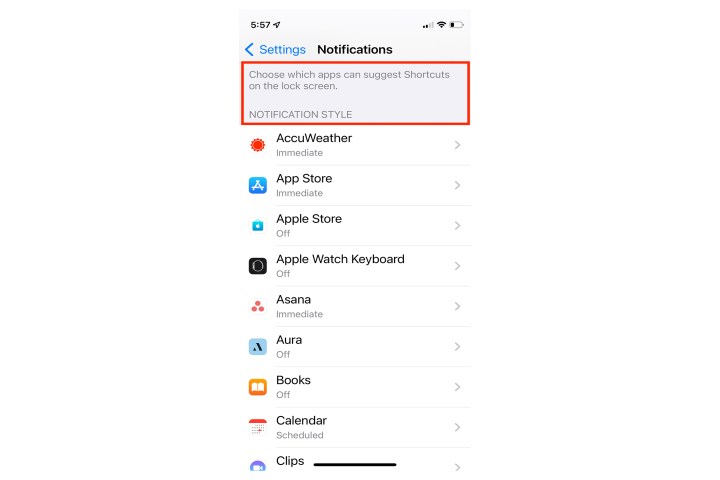
iPhone Notifications Style setting.

Step 4: Each app notification is handled separately, so review the settings by tapping each app one by one.

iPhone notification settings for Accuweather app.

Step 5: Within each app, you will see a list of options. To get rid of the badge, toggle the Badges option off.

Application badges on iOS 16.

Show or hide notification badges in App Library

By default, notification counters do not appear in the App Library. Many iPhone users prefer to minimize the number of apps on the home screen via the use of the App Library, so if you prefer to see numbered alert badges while using the library, you must enable this option. Here’s how to do it.

Step 1: Launch the Settings app on your iPhone or iPad.

Apple iOS badge on home screen.

Step 2: Tap Home Screen and App Library.

iPhone Settings Home Screen option.

Step 3: In the Notification badges section, toggle on the switch for Show in App Library.
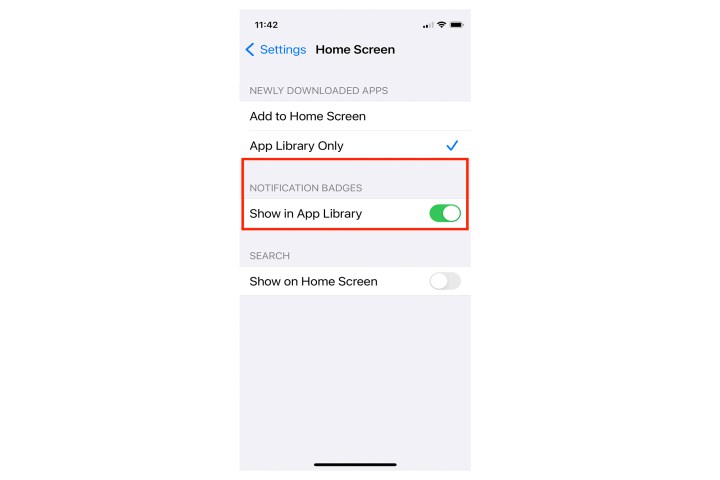
iOS home screen badge switch.

Step 4: If seeing the badge in your App Library is preferable, just switch the toggle back on for the full effect.
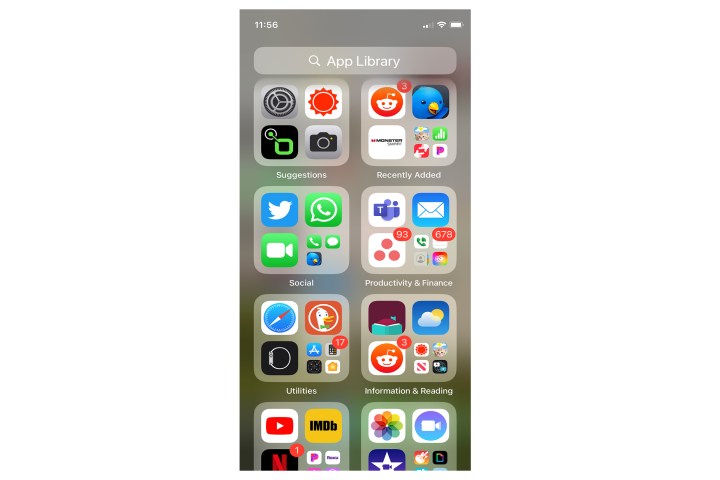
Badges in iOS 16 App Library.

How to disable app notification badges in Focus mode

The iPhone’s Focus mode blocks incoming notifications, but it still can allow the red counter badges to appear on your home screen app icons. You can set your Focus mode to hide them when active. Here’s how.

Step 1: Launch the Settings app and select Focus.
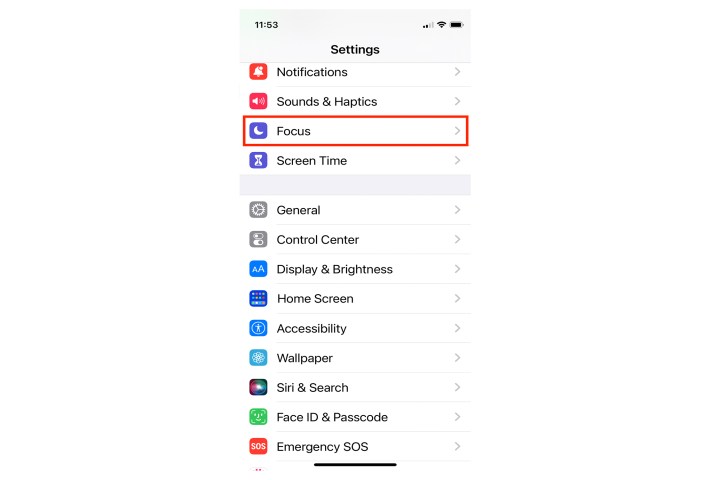
Apple Focus for iOS 16.

Step 2: Tap Do not disturb.

iOS 16 Do Not Disturb setting.

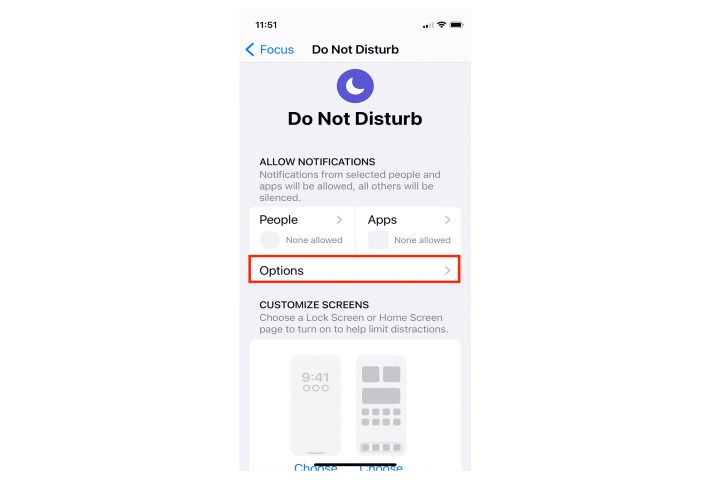
Step 3: Tap Options.

iOS 16 Options command.

Step 4: Toggle on the Hide notification badges switch.
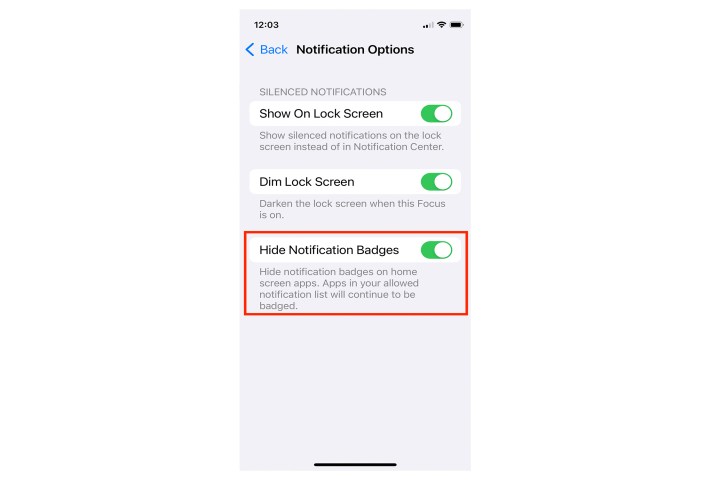
iOS 16 Hide Badges option.

Editors’ Recommendations


Share. Facebook Twitter Pinterest LinkedIn Tumblr Email

Keep Reading

Lenovo AeroBlade imagines a laptop as thin as a foldable phone, thanks to solid-state cooling

Lenovo puts Nvidia RTX Spark into its new Yoga Pro laptops for local AI at IFA 2026

Motorola’s new Edge 70 Plus packs a 200MP camera and a massive battery

We got GTA VI limited-edition DualSense controllers before GTA VI

Anker unveils smarter chargers and power banks built to fight heat and battery degradation

Anker’s new Soundcore Sleep earbuds can mask snoring and even track your heart rate

TCL P80 series finally marries eye-friendly NXTPAPER tech with an AMOLED panel

Anker’s new MindBase wants to be the brain of your entire home security system

I found 5 cleaning deals worth sweeping up this Labor Day

Editors Picks

UAE Food Cluster Convenes Future Food Forum 2026 Amid AED 40 Billion Sector Growth Push

September 26, 2026

Al-Futtaim ACE launches 2027 Outdoor Living Collection, styled for together time

September 25, 2026

N S Lootah Motors L.L.C Opens First International SOUO Showroom in Dubai

September 25, 2026

Gulf Giants Development crowned DP World ILT20 Development Tournament champions

September 25, 2026

Subscribe to News

Get the latest UAE news and updates directly to your inbox.

Latest Posts

MONACO YACHT SHOW BRINGS ITS WORLD OF YACHTING TO SAUDI ARABIA WITH THE RED SEA YACHT SHOW

September 25, 2026

Dubai Land Department Brings ‘Dubai RE connect’ to Bengaluru to Expand Real Estate Investment

September 25, 2026

Mayo Clinic researchers identify why some lung tumors respond well to immunotherapy

September 25, 2026
Facebook X (Twitter) Pinterest TikTok Instagram
© 2026 Daily Guardian UAE. All Rights Reserved.
  • Privacy Policy
  • Terms
  • Advertise
  • Contact

Type above and press Enter to search. Press Esc to cancel.