
Daily Guardian UAEDaily Guardian UAE
  • Home
  • UAE
  • What’s On
  • Business
  • World
  • Entertainment
  • Lifestyle
  • Sports
  • Technology
  • Travel
  • Web Stories
  • More
    • Editor’s Picks
    • Press Release
What's On

Liwa International Festival 2026 Welcomes Over 700,000 Visitors to the Al Dhafra Region

February 24, 2026

Why Tesla should worry about BYD’s latest move

February 24, 2026

Zabadani Real Estate records Dh3 billion worth of land deals in 2025

February 24, 2026

Your wait for Rainbow Six Mobile comes to an end with its global Android and iOS launch

February 24, 2026

Fertility Treatments Can Safely Continue During Ramadan, Expert Offers Practical Tips for Couples

February 24, 2026
Facebook X (Twitter) Instagram
Finance Pro
Facebook X (Twitter) Instagram
Daily Guardian UAE
Subscribe
  • Home
  • UAE
  • What’s On
  • Business
  • World
  • Entertainment
  • Lifestyle
  • Sports
  • Technology
  • Travel
  • Web Stories
  • More
    • Editor’s Picks
    • Press Release
Daily Guardian UAEDaily Guardian UAE
Home » How to delete apps on an Apple TV
Technology

How to delete apps on an Apple TV

By dailyguardian.aeFebruary 9, 20243 Mins Read
Share
Facebook Twitter LinkedIn Pinterest Email

Apple TV is easily one of the best streaming devices you can get, hands down. It’s a gateway to all your streaming services like Netflix and Disney+, and it can be used for gaming, fitness, music streaming, and other fun and helpful apps. But therein lies the problem — there’s almost too much to do with the Apple TV, so much so that over time, your device’s home screen can get pretty crowded with apps.

The good news is that you can clean things up pretty easily, either by offloading apps you don’t use, but want to keep in the background, or giving the ax to apps that you’re just done with. Here’s how to delete apps on Apple TV.

How do I delete an app on Apple TV?

It’s time to cull your app herd, and it’s easy to do. But don’t worry, you canc any apps you delete without needing to purchase them again, but keep in mind that deleting an app will also remove its data, which may not be recovered.

Certain apps, like Apple’s own native apps such as Podcasts, Fitness, or Apple Music, can’t be deleted at all, but can be moved into folders to organize things better or keep them out of sight. But first, here’s how to delete an app from your Apple TV.

Step 1: From your Apple TV’s Home Screen, scroll over or down to find the app that you want to uninstall, and hover over it with your remote cursor.

Step 2: Press and hold down the remote’s Select button for a couple of seconds until a menu appears. On newer Siri remotes, that button is the center of the clickpad at the top of the remote. On older Siri remotes, you’ll want to press down on the middle of the touch surface without moving.
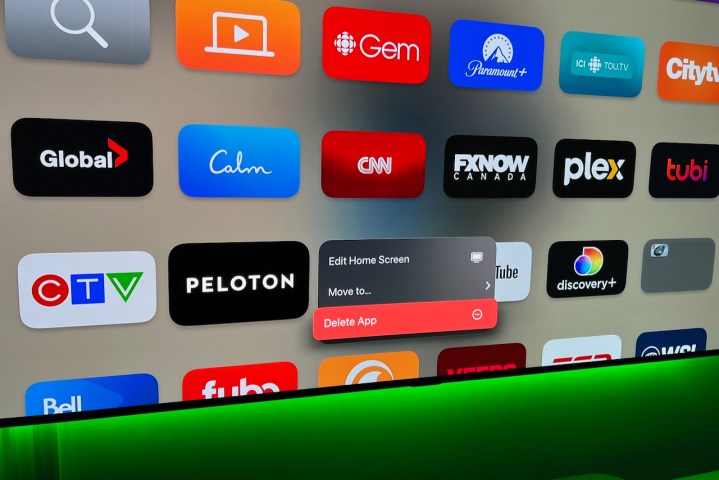
How to delete apps from Apple TV.

Step 3: The menu will give you options to Edit Home Screen, allowing you to move the app icon to another location; Move to…, which lets you create a new folder to group similar apps in (just like on your iPhone) or move the app to an existing folder; and finally, Delete App, which is why you’ve come here.

Step 4: Choose Delete from the new menu and you’ll have the option to delete the app or Offload the app (you can no longer hide apps on Apple TV via the Settings menus. Offloading apps keeps the icon on your device, but effectively removes the app). Select Delete and the app is gone.
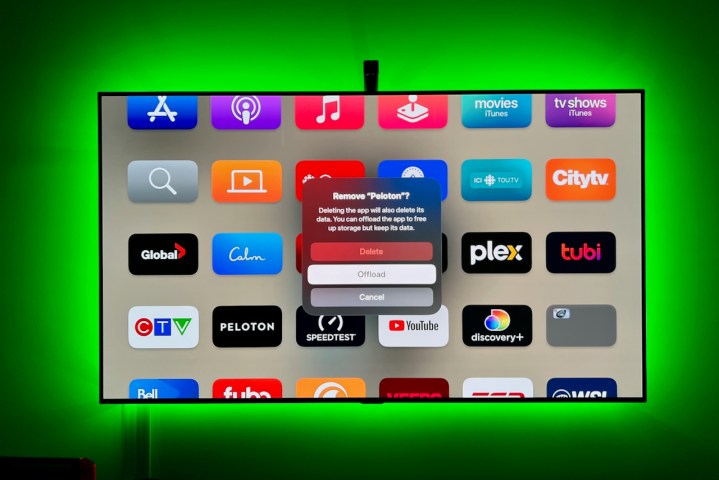
How to delete apps from Apple TV.

Additionally, if you are using multiple Apple TVs on different screens, you’ll want to go to the Users and Accounts section in Settings, choose your profile, and enable the option One Home Screen. This will sync up any changes that you make to apps and your Home Screen on one device to all your other tvOS devices, so you don’t have to repeat the steps.

One final note — you can switch between light and dark modes on Apple TV using the Appearance option in the General section of Settings. This may make navigation easier, or could help you find the apps you are looking for more quickly. You can also use automatic mode, which switches to dark mode at night.

Editors’ Recommendations


Share. Facebook Twitter Pinterest LinkedIn Tumblr Email

Keep Reading

Why Tesla should worry about BYD’s latest move

Your wait for Rainbow Six Mobile comes to an end with its global Android and iOS launch

Google’s new plan to check if your AI is actually ethical

Honor put the Magic V6 through an extreme zip line test to show off its upgraded hinge

WhatsApp could soon let you schedule messages so you never forget to hit send

Xbox might turn Game Pass Ultimate into a mega bundle

Samsung finally lets you pick your AI assistant on Galaxy phones

Galaxy S26 Ultra surfaces in early unboxing, highlighting key upgrades

The “daylight” display: screens that actually work in the sun

Editors Picks

Why Tesla should worry about BYD’s latest move

February 24, 2026

Zabadani Real Estate records Dh3 billion worth of land deals in 2025

February 24, 2026

Your wait for Rainbow Six Mobile comes to an end with its global Android and iOS launch

February 24, 2026

Fertility Treatments Can Safely Continue During Ramadan, Expert Offers Practical Tips for Couples

February 24, 2026

Subscribe to News

Get the latest UAE news and updates directly to your inbox.

Latest Posts

Google’s new plan to check if your AI is actually ethical

February 24, 2026

MERED and Pininfarina Academy Convene Next-Generation Designers in Dubai

February 24, 2026

Honor put the Magic V6 through an extreme zip line test to show off its upgraded hinge

February 24, 2026
Facebook X (Twitter) Pinterest TikTok Instagram
© 2026 Daily Guardian UAE. All Rights Reserved.
  • Privacy Policy
  • Terms
  • Advertise
  • Contact

Type above and press Enter to search. Press Esc to cancel.