

With more and more people upgrading from Windows 10 to Windows 11, many users are having to adjust to the new layout and style of Windows 11. One feature that’s important to be able to locate is the specs of your PC, as being able to see what components you have can help to figure out if you need to upgrade a particular component.
There are a few easy ways to see your PC specs in Windows 11, so here we’ll show you how so that you’ll be prepared for next time you need to look up some information about your computer.
Using About PC
For a real straightforward way to look at your basic PC specs, check out the About PC screen.
Step 1: Open the Windows Settings screen by pressing Windows key + I.
Step 2: Select System from the left-hand menu.
Step 3: Scroll down the list, and select About This PC from the bottom.
Step 4: Here you’ll find all the important information on your CPU model, your memory quantity and speed, Windows version, and more.
It won’t tell you much more, though. For that, you’ll need to use one of the other methods below.

Using System Information
One of the easiest ways to see your computer specifications in Windows 11 is via the System Information App.
Step 1: Use the Windows search bar to look for MSInfo.
Step 2: That will bring up a list that should show a link to the System Information App. Select it.
You’ll be able to see the build of Windows 11 you’re running, the System model, the Processor, BIOS version, RAM, virtual memory, and more.
Step 3: In the screen that pops up you’ll have information on your CPU, memory, motherboard, and more. You can find more detailed information on USB ports, your network, sound device, display(s) and more, by selecting the menus on the left-hand side.
Using HWInfo
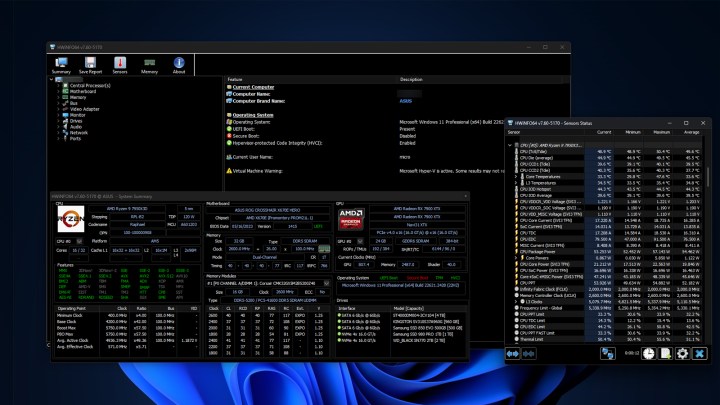
If you want to look at live information on your system, like its power usage, clock speeds, or temperatures, you need a third-party application. I really like HWInfo.
Step 1: Download HWInfo from the official website and install it like you would any other application.
Step 2: Launch the app, and if you want to just see live information, select Sensors only. Otherwise you can leave both boxes unticked and get the full system summary, and the live sensor window.
Step 3: To see live information, select Sensors from the top menu. The window that appears will have a lot of information about your PC’s live stats, like its clock speeds for each core, your graphics card power draw, and more. It’s extremely in-depth, so can be a little overwhelming, but rest assured if you wanted to know something about your PC, it’s there.
The main HWInfo window will tell you in-depth information about every component in your PC. Just select it to learn more.
Where is computer configuration in Windows 11?
While you’re looking for details about your specs, you might also want to look for the system configuration utility. This can be handy for changing your computer’s boot settings, for example, or seeing what services are running. The easiest way to access the system configuration utility is by going to the Start menu, and then selecting Run. Then type in MSCONFIG and press enter.
This opens up the utility, and from here you can perform any operations that you need to, such as switching over to diagnostic startup mode (useful if your computer is having serious issues) and seeing what programs are set to begin automatically on startup (useful to block any programs you don’t want running, or to automatically start programs that you do want to run whenever your computer is booted up).
Now you know your PC’s specs, do you want to learn more about tracking its temperatures? Here’s our guide on managing your processor temperatures.
Editors’ Recommendations