
Daily Guardian UAEDaily Guardian UAE
  • Home
  • UAE
  • What’s On
  • Business
  • World
  • Entertainment
  • Lifestyle
  • Sports
  • Technology
  • Travel
  • Web Stories
  • More
    • Editor’s Picks
    • Press Release
What's On

ICAI Dubai Chapter Welcomes New Executive Committee 2026

April 6, 2026

This mini PC is 26% off, and the spec sheet makes most full-size desktops at this price look wasteful

April 6, 2026

One of the best TV deals available right now: Samsung’s 65-inch QD-OLED S84F at $949 with $1,050 off

April 6, 2026

Citron Launches ‘Rise by Citron’

April 6, 2026

Dubai Chamber Sees Surge with 2,709 New Companies in March 2026

April 6, 2026
Facebook X (Twitter) Instagram
Finance Pro
Facebook X (Twitter) Instagram
Daily Guardian UAE
Subscribe
  • Home
  • UAE
  • What’s On
  • Business
  • World
  • Entertainment
  • Lifestyle
  • Sports
  • Technology
  • Travel
  • Web Stories
  • More
    • Editor’s Picks
    • Press Release
Daily Guardian UAEDaily Guardian UAE
Home » How to turn off notifications in Windows 11
Technology

How to turn off notifications in Windows 11

By dailyguardian.aeJanuary 31, 20242 Mins Read
Share
Facebook Twitter LinkedIn Pinterest Email

Windows 11’s notification center delivers notifications to your desktop from specific apps. However, if you don’t want to receive notifications at all, or want to turn off notifications in Windows 11 for certain apps, you can do this easily through the System Settings. Similarly, you can decide which notifications to receive at certain times of the day.

How to turn off Windows 11 notifications

Windows 11 notifications can be useful, but not at all times. It’s possible to turn all notifications on or off, as well as select which apps have priority when do not disturb is on. By knowing how to turn on Windows 11 notifications, you can ensure you only receive important information when you need it.

To customize your Windows 11 notifications, you’ll need to go through the following steps. This will allow you to turn notifications on or off for apps on your device.

Step 1: Select Start> *Settings**> *System*> *Notifications*.

Step 2: Select Notifications to expand, turn notifications on/off, turn banners on/off, and turn sounds on/off.

Step 3: If you want to turn off tips and suggestions about Windows, scroll down to Additional settings and toggle the options on/off.

How to use Windows 11 do not disturb

If you want notifications to appear on your Windows 11 device only during certain times, for example, outside of work hours, you can turn on Do not disturb. This will ensure you keep your focus on what’s important.

Step 1: Select Start> Settings> System> Notifications

Step 2: Navigate to Do not disturb and toggle on/off.

Step 3: To turn on Do not disturb automatically, you can navigate to the Turn on do not disturb automatically option and select a specific time to turn on notifications.
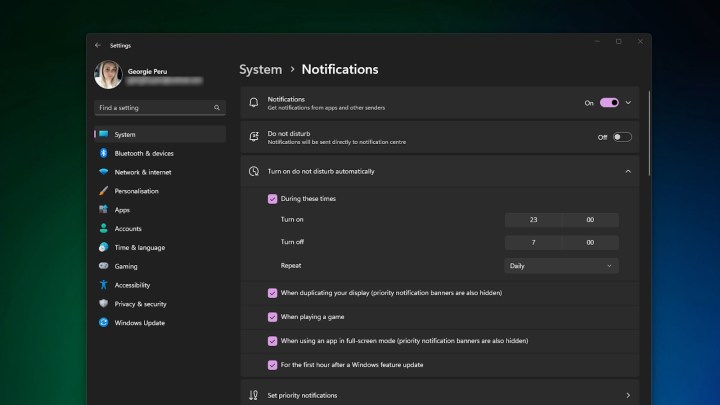
The do not disturb automatic settings in Windows 11.

How to prioritize notifications

Using Windows 11 do not disturb notification settings can stop notifications when you don’t want them to appear. However, there may be some app you want to receive notifications from, like Mail, which can remain in the notification center even while do not disturb is on.

Step 1: Select Start> Settings> System> Notifications.

Step 2: Navigate to Set priority notifications.
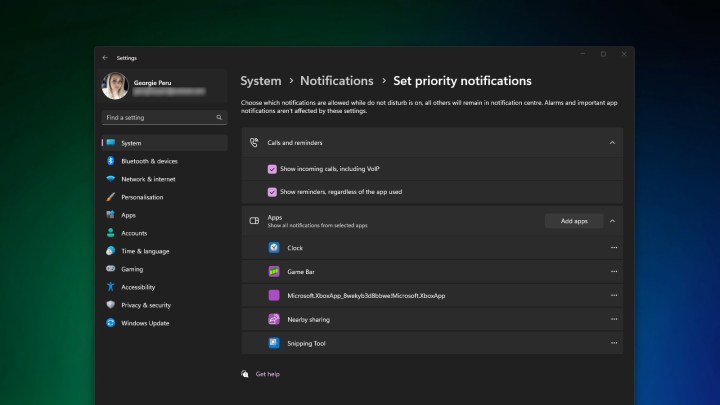
The priority notifications setting in Windows 11.

Step 3: Select Add apps to choose which app or apps you want to receive notifications from.
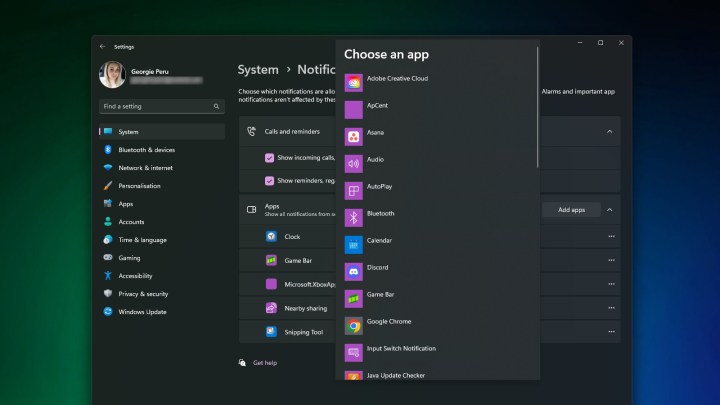
The add apps to windows 11 set priority notifications.

Editors’ Recommendations


Share. Facebook Twitter Pinterest LinkedIn Tumblr Email

Keep Reading

This mini PC is 26% off, and the spec sheet makes most full-size desktops at this price look wasteful

One of the best TV deals available right now: Samsung’s 65-inch QD-OLED S84F at $949 with $1,050 off

Netflix told by court to refund customers over repeated price hikes

iOS 26.5 public beta is here, but you can skip it for now

Your Pixel 10 can now run Steam games offline (sort of)

McDonald’s made a cool controller hack for a universal gaming problem

Doctors came up with an app to save you from jumping to wrong conclusions

Check out this stunning Earth shot as Artemis II crew edges toward new record

Samsung just gave up on its own Messages app

Editors Picks

This mini PC is 26% off, and the spec sheet makes most full-size desktops at this price look wasteful

April 6, 2026

One of the best TV deals available right now: Samsung’s 65-inch QD-OLED S84F at $949 with $1,050 off

April 6, 2026

Citron Launches ‘Rise by Citron’

April 6, 2026

Dubai Chamber Sees Surge with 2,709 New Companies in March 2026

April 6, 2026

Subscribe to News

Get the latest UAE news and updates directly to your inbox.

Latest Posts

Ericsson and du enhance Fixed Wireless Access services in the UAE

April 6, 2026

Netflix told by court to refund customers over repeated price hikes

April 6, 2026

iOS 26.5 public beta is here, but you can skip it for now

April 6, 2026
Facebook X (Twitter) Pinterest TikTok Instagram
© 2026 Daily Guardian UAE. All Rights Reserved.
  • Privacy Policy
  • Terms
  • Advertise
  • Contact

Type above and press Enter to search. Press Esc to cancel.