

Safe mode is an important debugging tool for devs on computer, but you can also turn safe mode on on your Android phone. Doing so can can give you access to important tools and change your phone’s interface. Likewise, since safe mode restricts access to certain Android features and apps, you won’t want to get stuck in safe mode. So, if you learn how to turn safe mode on, you’ll also want to learn how to turn safe mode off on your Android phone or table to get it working like normal again. Here, we’ll show you how to do both, plus a couple of things you can do in safe mode on Android in case you don’t already know.
Safe mode on your phone, like safe mode on a computer, is the best way to diagnose any problems with your device. When started, it blocks third-party apps from running and turns on airplane mode, sealing your device away from anything that it didn’t ship with. If you notice your device speeding up in Safe Mode, then it’s likely a third-party app causing an issue. If not, well, at least you’ve ruled something out.
Before starting safe mode, though, make sure to Google your device’s symptoms to see whether anyone else has had similar issues and, hopefully, might have fixed theirs. Historically, there have been problems like the Android System WebView issue, which caused app crashes on a number of Android devices.
Here’s how you can start safe mode.
How to turn on safe mode on an Android phone
If you have a Samsung Galaxy Z Flip5, Google Pixel 8 Pro, or any other Android smartphone or tablet, then the process for turning on safe mode is as follows.
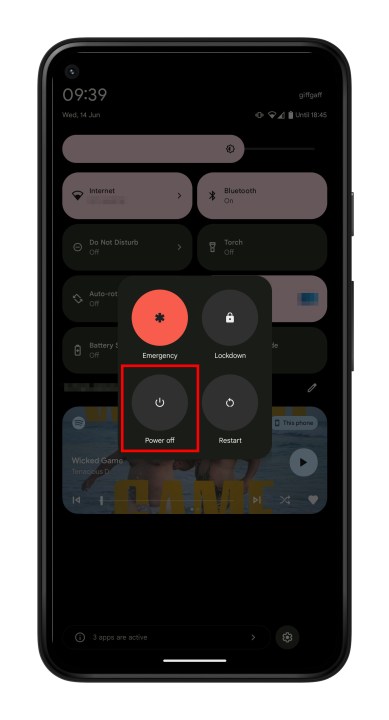
Step 1: Swipe down twice on your notification shade and choose the Power options button.
Step 2: Select and hold Power off.
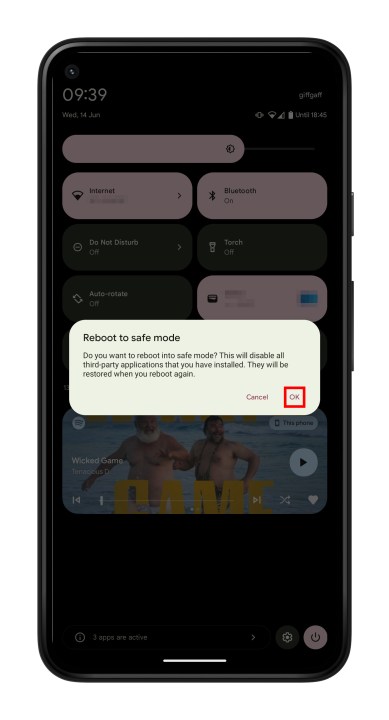
Step 3: When the Reboot to safe mode prompt appears, choose OK.
Your device will restart, and you will see a safe mode prompt in the bottom-left corner. This method works for most Android phones, though you may have to hold your Power button to pull up your shutdown menu instead if you’re not using the latest version of Android.
How to turn on safe mode with the buttons
Whether you have a OnePlus 11, Motorola Edge Plus, or an older Android smartphone or tablet like the Samsung Galaxy S20, the process for turning on your safe mode option with the keys is as follows.
Step 1: Press and hold the Power button and select Power off to turn your device off.
Step 2: Press and hold the Power button.
Step 3: Release the Power button and press and hold the Volume down button.
Step 4: Keep holding it until your device boots up.
Step 5: You can let go when you see the words “safe mode” in the bottom-left corner.
This method works for most Android phones and tablets.
How to turn off safe mode on an Android phone
Because you don’t want to use your device like this forever, here’s how to exit safe mode.
Step 1: Find the shutdown menu by tapping the Power options button by pulling down the notification shade twice.
Step 2: Choose the Restart option.
That’s it. A simple restart of your Android device will disable safe mode.
What is safe mode?
You can uninstall problematic apps and use your phone’s core functions while in safe mode. If you find your issue is gone in while your phone is in safe mode, then you can either uninstall apps one by one and test in normal mode again to try and identify the problem app, or you can factory reset your device and selectively install apps and games, making sure to watch out for a recurrence of any problem after each install.
If your device continues to crash, overheat, or otherwise perform poorly in safe mode, then the issue might not be with a downloaded application — but rather the operating system or the phone’s hardware. Try a factory reset, and if that doesn’t resolve things, contact your retailer, carrier, or phone manufacturer and find out about a replacement or repair for your mobile device.
Editors’ Recommendations