
Apple Notes is one of my go-to note-taking apps. It’s free, it comes preinstalled on every Apple device I own, and it already packs a solid set of features like shared notes, notes locking, the ability to attach different file types, and notes linking, among many others. For most people, that’s plenty to get by.
That said, there are a handful of features I keep hoping Apple will add to Notes someday. So, I keep checking the new features with every single iOS and macOS update, and I keep coming up empty. Until Apple decides to catch up, I found a free extension called ProNotes that adds most of these missing pieces right into the app. Let me walk you through what it brings to the table.
A formatting bar that comes to you
Normally, if you want to format text in Notes, you have to select it and then reach all the way up to the toolbar. ProNotes fixes this by showing a small formatting bar right above your selected text. I can change font size, add bold, insert a link, or turn a line into a checklist without moving your cursor far from where you’re already working. It sounds like a small thing, but once you get used to it, going back to the old way feels like a chore.
Format text using markdown shortcuts
While I love the formatting bar, my favorite way to format a note is with Markdown. If you’ve used apps like Obsidian, you probably already know your way around Markdown shortcuts. ProNotes brings the same shortcuts to Apple Notes. Type # and hit space to create a title, ## for a heading, and ### for a subheading.
You can also type – followed by a space to create a checklist, three backticks for a monostyled block, and > for a block quote. I’ve gotten so used to typing these shortcuts everywhere else that having them finally work in Notes feels right.
Slash commands for when you forget the shortcuts
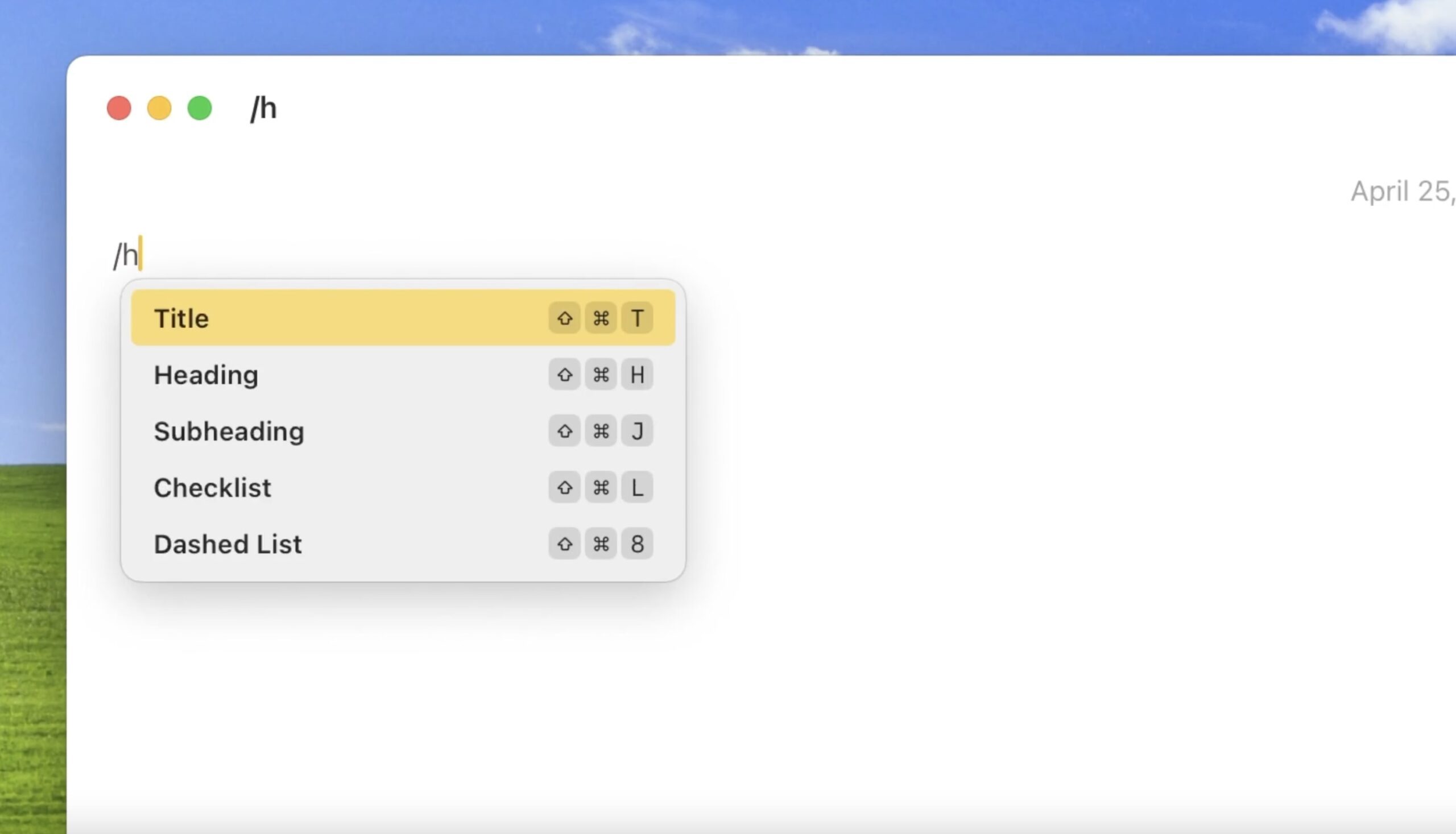
Not everyone wants to remember a dozen keyboard shortcuts, and that’s where slash commands come in handy. Type a forward slash followed by a command like /title, /heading, /checklist, /table, or /quote, and ProNotes inserts the right formatting for you. There’s even a shortcut for adding a table, which Apple Notes still doesn’t support on its own.
Backlinks finally make it to Apple Notes
macOS Sonoma added the ability to link a note to another, which was a welcome update. With the latest macOS Golden Gate update, Apple added the ability to link to subheadings, allowing me to easily create a table of contents.
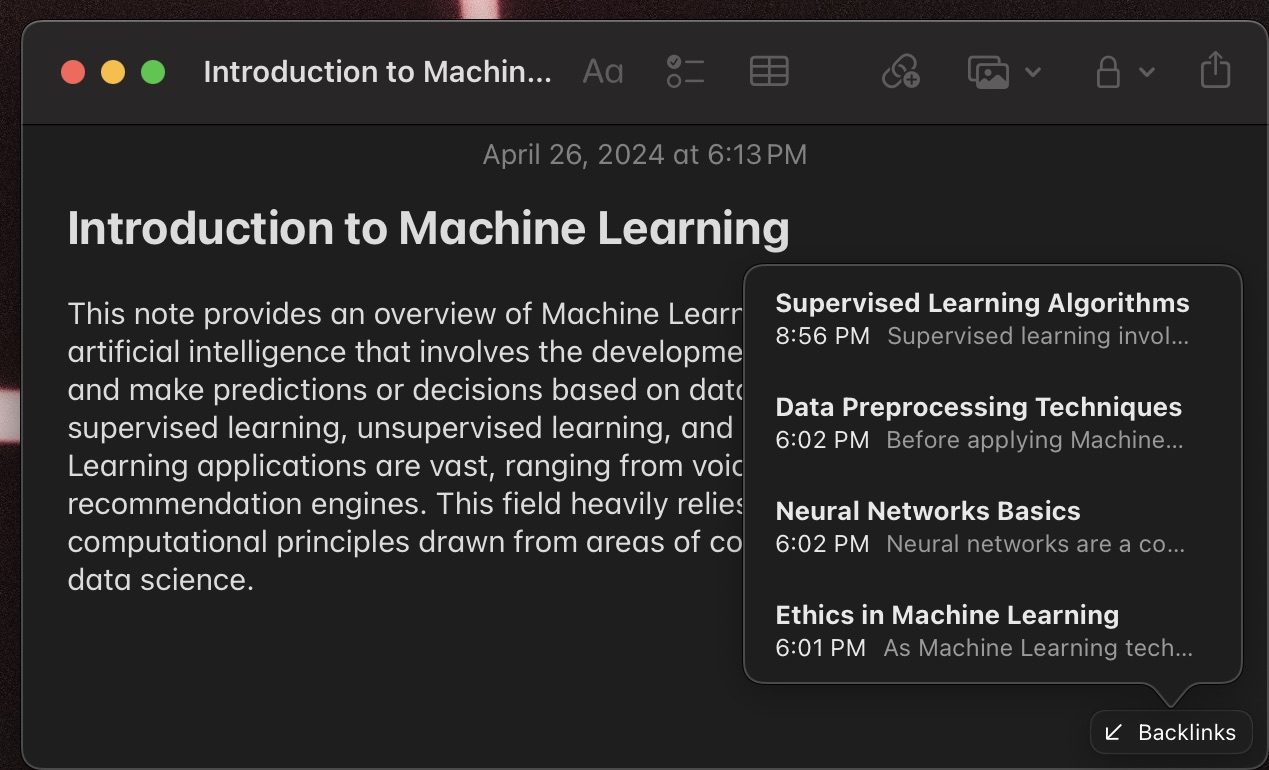
However, what both these updates didn’t add was a way to see which notes are linking back to the one you’re viewing. ProNotes fills that gap with a Backlinks feature, so you can open any note and instantly see every other note that references it.
If you use Notes to build out a personal wiki or keep track of connected ideas, this feature alone might be worth installing the extension.
Save time with templates
Templates are another feature I wish Apple had built in from day one. With ProNotes, you create a folder named Templates, drop your template notes inside it, and then use a slash command to pull one up whenever you need it. Just type the word template or the title of your template, and it shows up ready to insert.
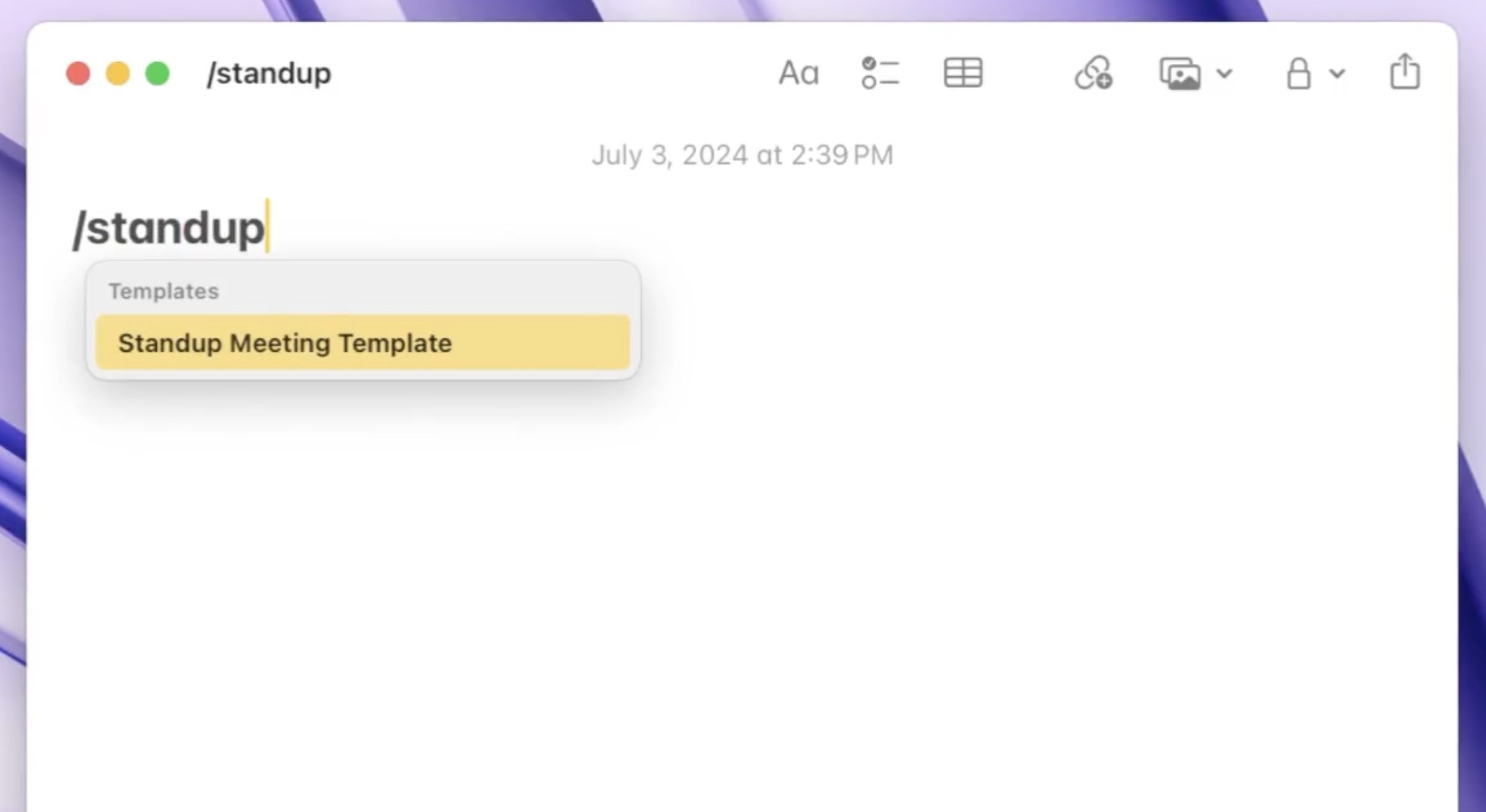
ProNotes is smart enough to strip out the template’s title when it drops the content into your note, so you’re not left cleaning up after it. You can also use variables like @today or @date inside your templates, and they’ll automatically update to the current date in your locale’s format.
If you take a lot of meeting notes or any other type of notes with the same structure, this feature alone will save you a ton of time.
Find any note in seconds
Apples Notes has a good search function, but what I miss most when using it is the search bar that I get with other note-taking apps like Obsidian. In Obsidian, I can hit a keyboard shortcut to open a floating search bar, which lets me quickly search and open notes. ProNotes adds this functionality to Notes, making it so much easier to search for notes.
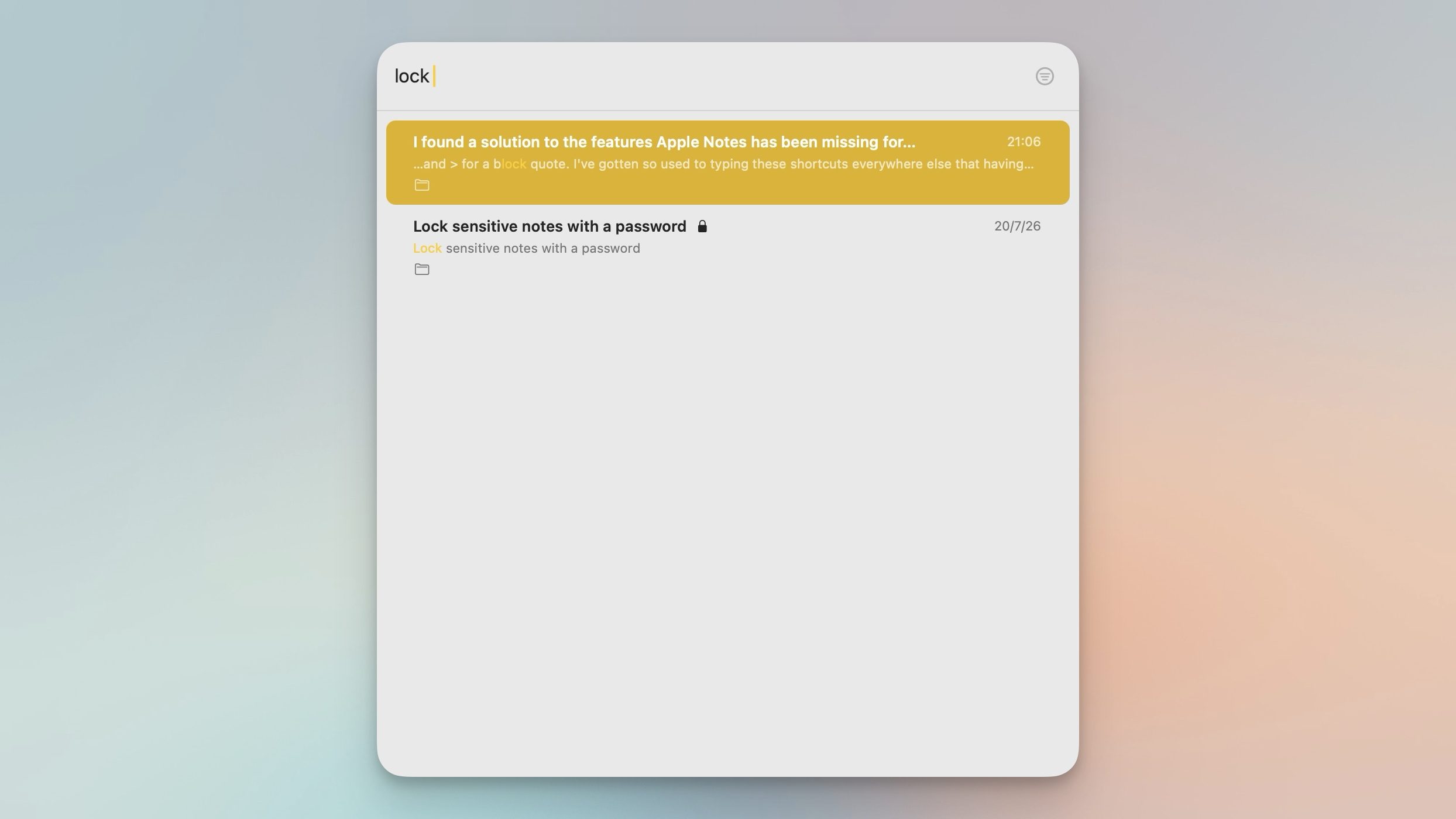
I can hit Command and P inside Notes, and ProNotes opens a keyboard-friendly search window that lets me find any note in seconds. I can even set up separate shortcuts, one that works only inside Notes and another that works system-wide, so I can jump straight to a note from anywhere on my Mac.
ProNotes AI, if you want to pay for it
ProNotes also offers a paid AI tier if you want to take things further. It can continue writing a sentence or paragraph for you, improve your writing, summarize long notes, fix spelling and grammar, and make your text shorter or longer depending on your needs.
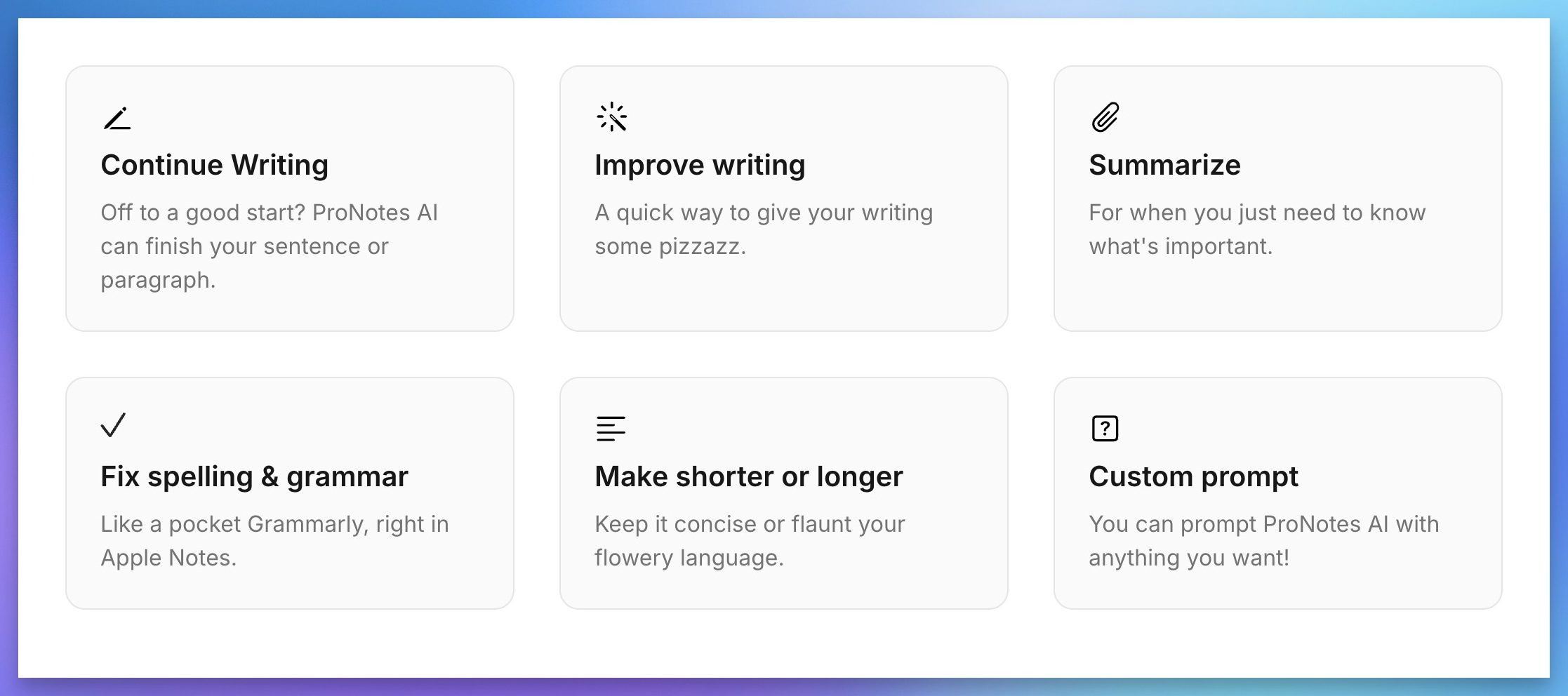
There’s also a custom prompt option if you want to ask the AI to do something specific. These are optional extras though, and everything I mentioned above works without paying a cent. I don’t pay for this feature as AI is not a big part of my note-taking system, but if you find this feature useful or just want to support the developer of this awesome extension, you can get the paid plan.
Final thoughts
Apple Notes is already a great app, and ProNotes makes it feel like the app I always wanted it to be. From the formatting bar to backlinks to templates, every feature feels like something Apple should have added years ago. If you use Apple Notes daily like I do, give ProNotes a try.