
If you have ever handed your Mac to a friend, family member, or coworker for “just a minute,” you know the mild panic that follows. Sure, your Mac has a lock screen, but once someone is past it, they can open Messages, Photos, Notes, Mail, WhatsApp, and your browser.
iPhones had the same issue, but Apple solved it by adding an app lock feature with the iOS 18 update. Sadly, no such feature exists for macOS. That’s where the new FaceGate app for Mac can help you. It’s a free and open-source app that lets you lock apps on your Mac and even has some novel tricks up its sleeve. So, let’s talk about it, shall we?
How to install FaceGate on your Mac
Before we look at the app’s features, let’s see how you can install it. Getting FaceGate up and running is fairly simple, and you have three ways to do it depending on your comfort level with Terminal.
The easiest method is the automated script. Just open Terminal and run the install command from the FaceGate website, and it will download, verify, and set up the app for you automatically. I recommend this method to most users.
If you prefer doing things manually, you can download the DMG file from the GitHub releases page instead. Since the app is not signed with a paid Apple developer certificate, you will need to run a quick Terminal command to prevent macOS’s Gatekeeper from barring the app.
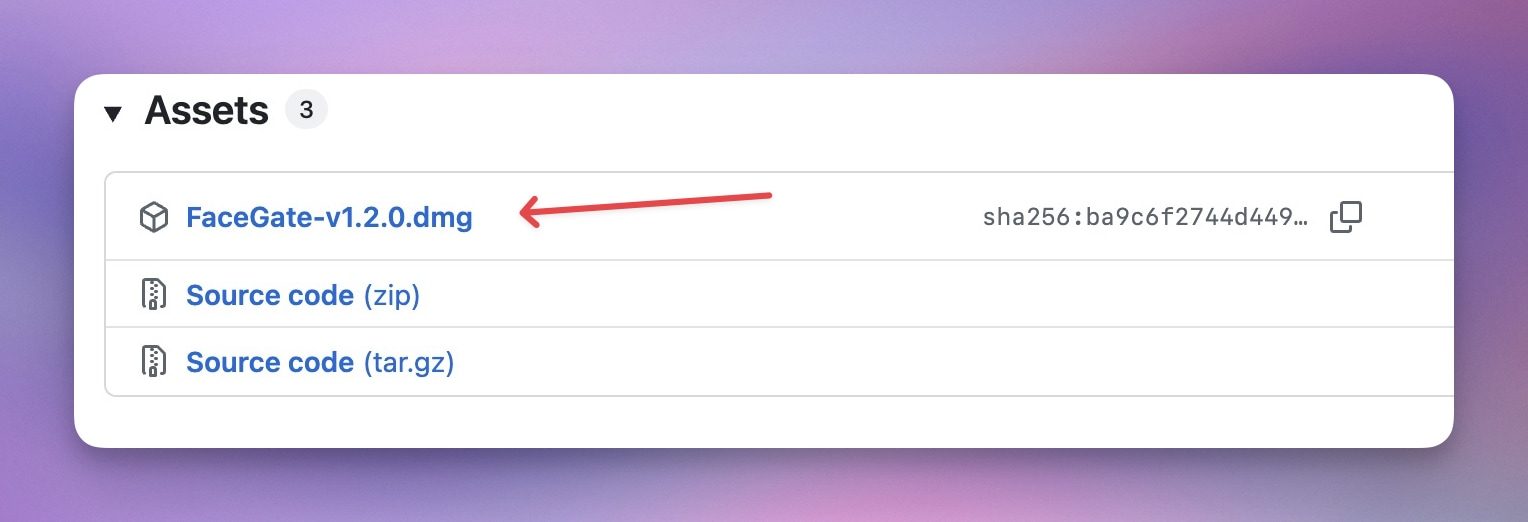
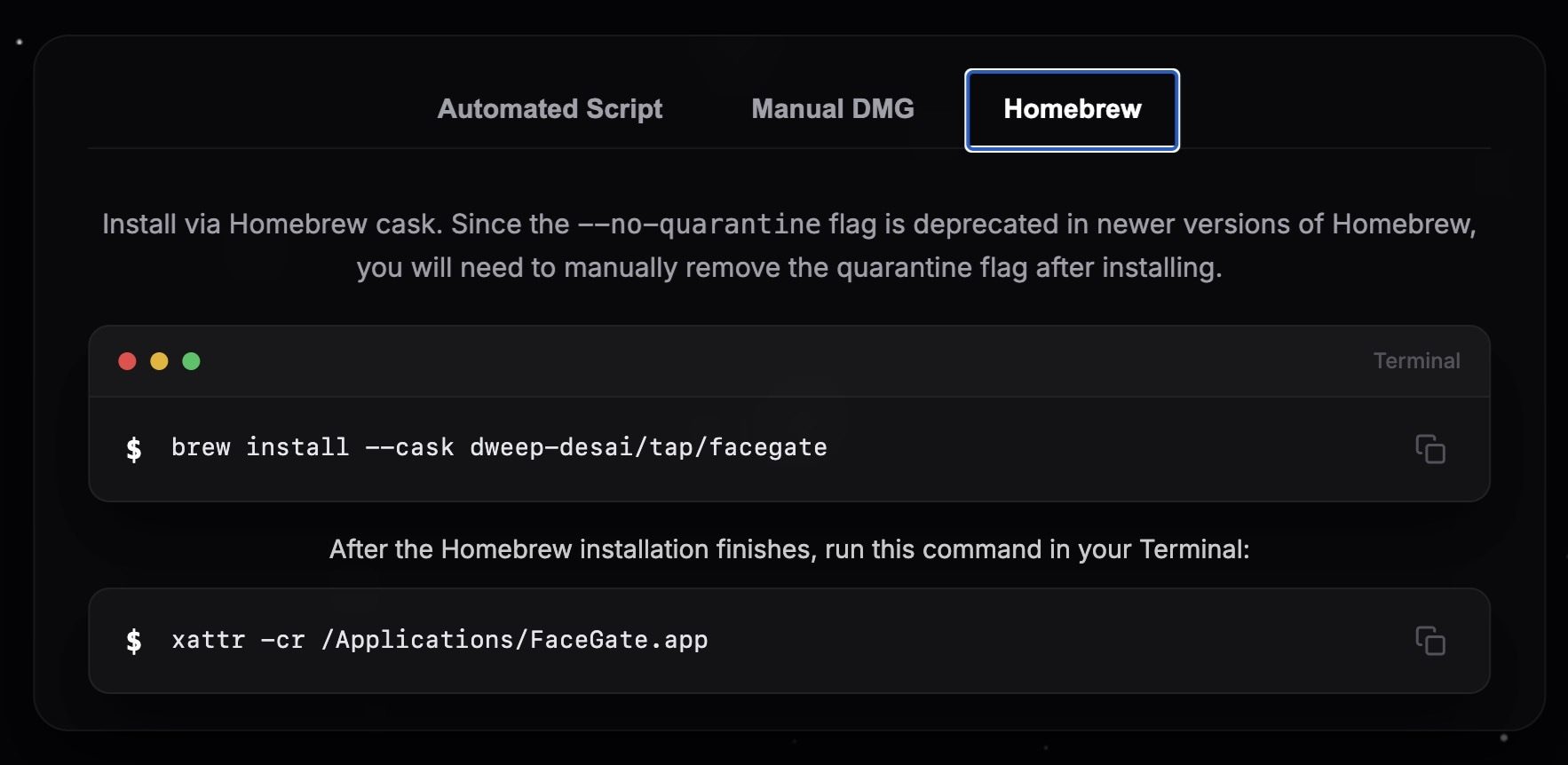
Homebrew users have a third option. You can install FaceGate using a Homebrew cask. Though you will still need to run that same quarantine removal command afterward since Homebrew’s no-quarantine flag has been deprecated in newer versions.
Face unlock finally comes to the Mac
Now that we have installed the app, let’s talk about its features. What makes FaceGate stand out is that it brings Face Unlock to macOS, something no other app locker currently offers.
It uses a software-based face recognition pipeline that runs directly on your Mac’s Apple Silicon Neural Engine, and the entire process happens offline. To make sure someone cannot unlock your apps by simply holding up a photo or video of you, it also asks for a quick head pose challenge, like turning left, right, or tilting your head, before letting you in.
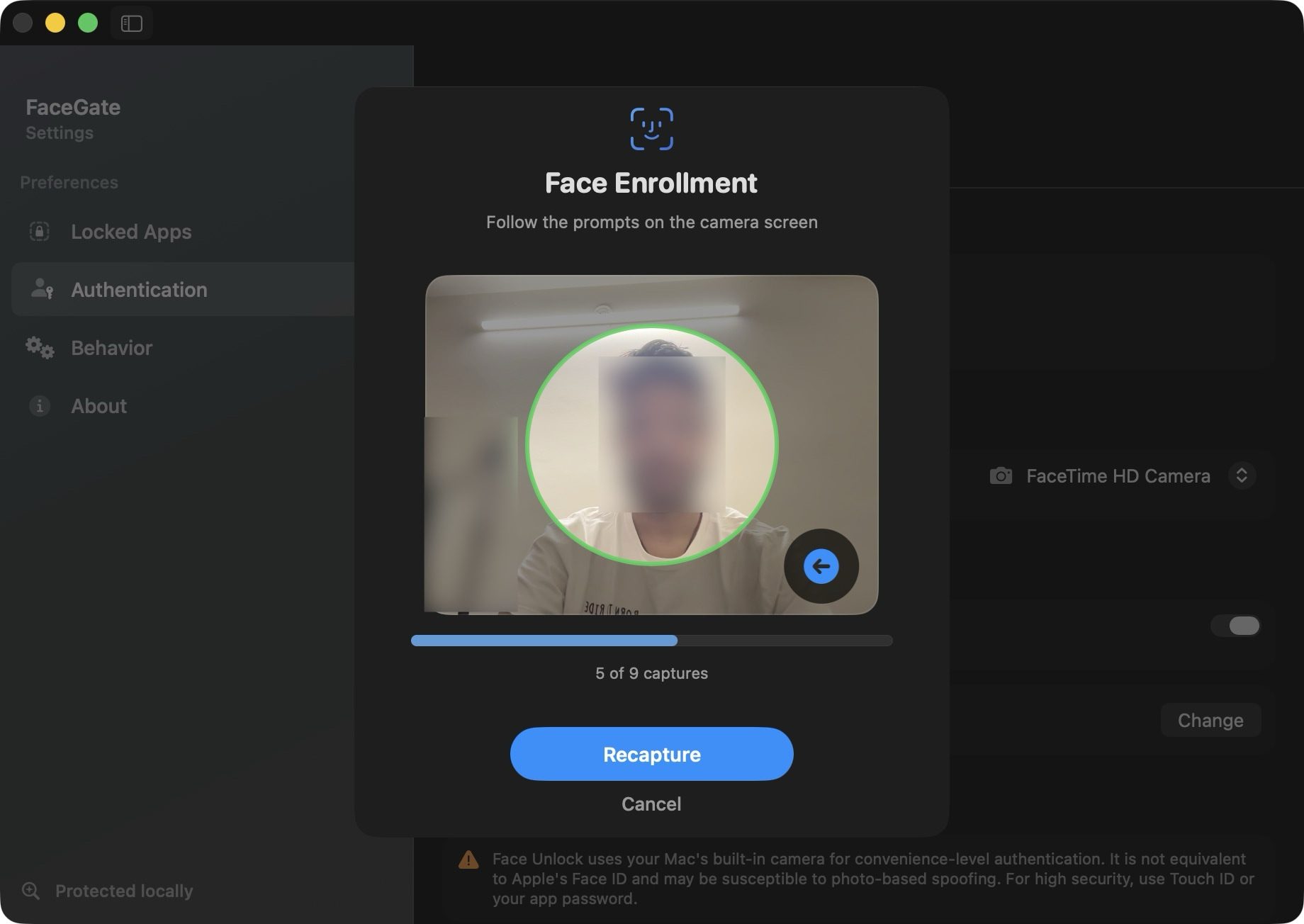
If you only hand over your Mac to someone for a few minutes, this level of security is both convenient and sufficient. However, it’s not foolproof. Since Macs don’t have Face ID hardware, Face Unlock uses a software implementation.
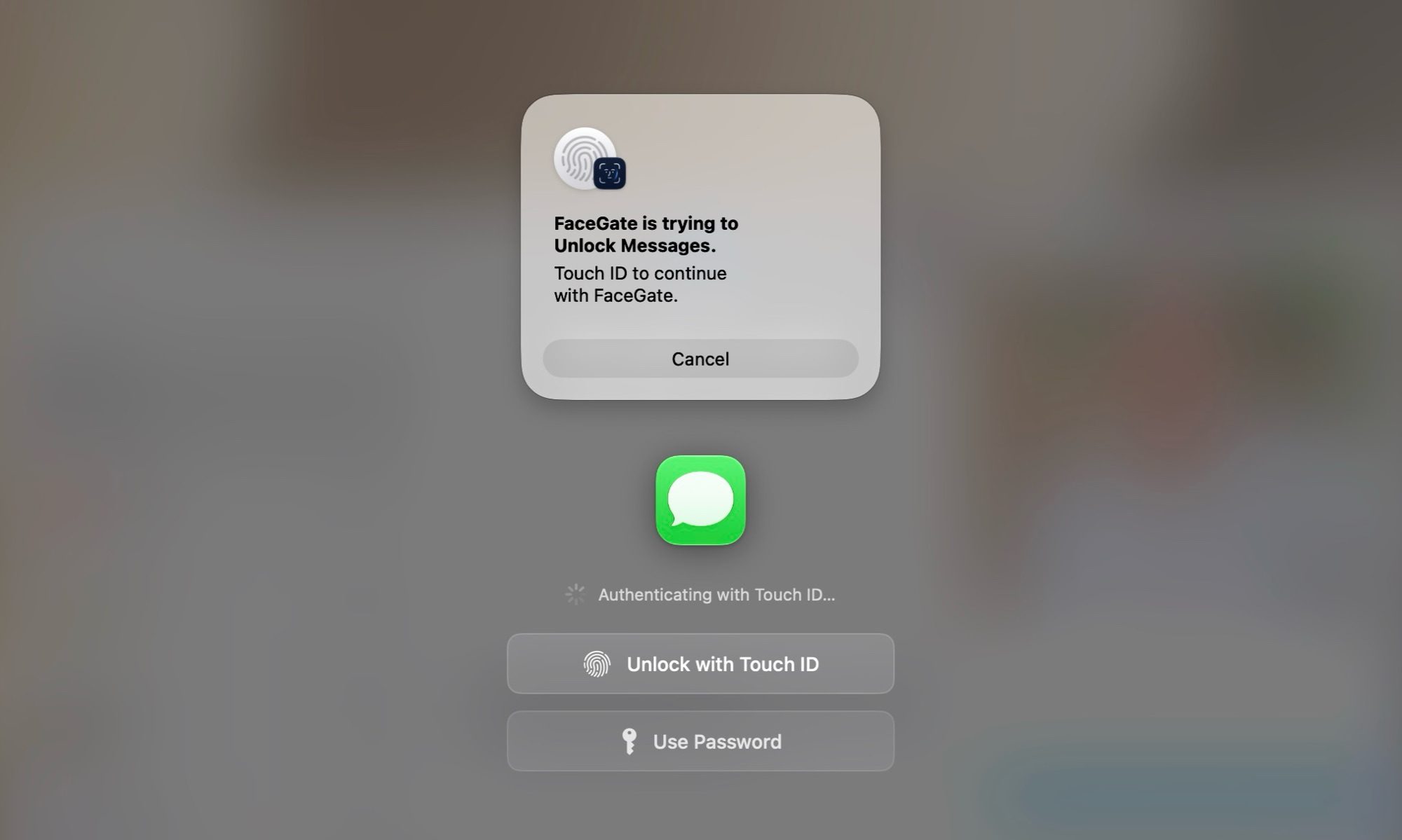
If you want full security, I recommend you stick to using Touch ID. If neither of these methods works or is supported on your Mac (say you are using a Mac mini), you can always fall back to using passwords.
Locking rules that actually fit how you work
FaceGate gives you a surprising amount of control over how strict or relaxed you want it to be. You can decide how long an app stays unlocked once you access it, whether that means keeping it open indefinitely while you are using it, or having it lock itself the moment you switch away or close it.
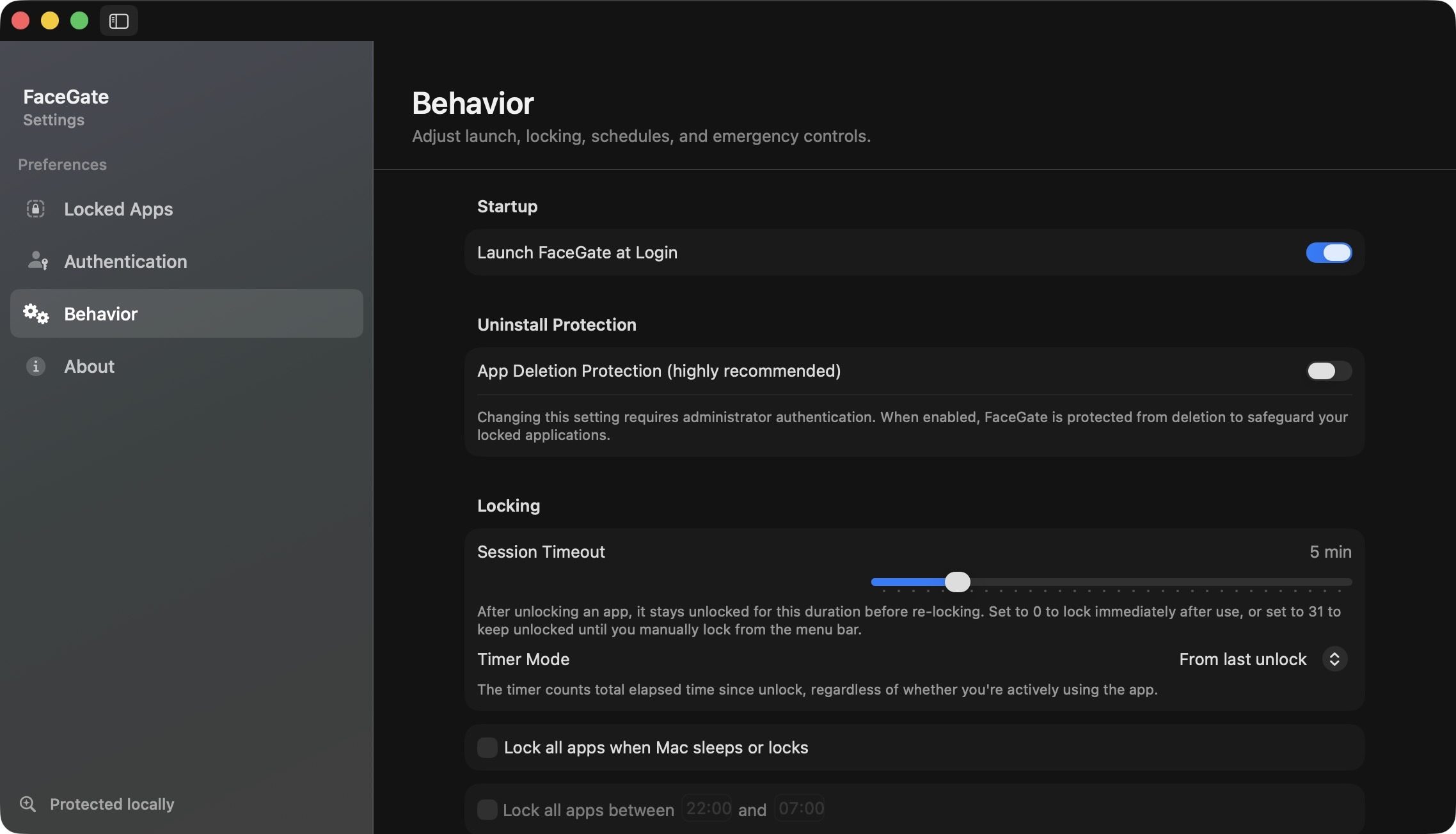
You can also set up custom schedules for when your apps should automatically lock or unlock, which is handy if you want extra protection during certain hours. On top of that, FaceGate automatically locks your apps whenever your Mac goes to sleep, wakes up, or when the screen locks, so you are never left exposed if you step away without thinking about it.
Designed to prevent workarounds
One of the more thoughtful touches here is FaceGate’s tamper protection. You can set up the app so that it cannot be quit, disabled, or uninstalled without administrator authentication.
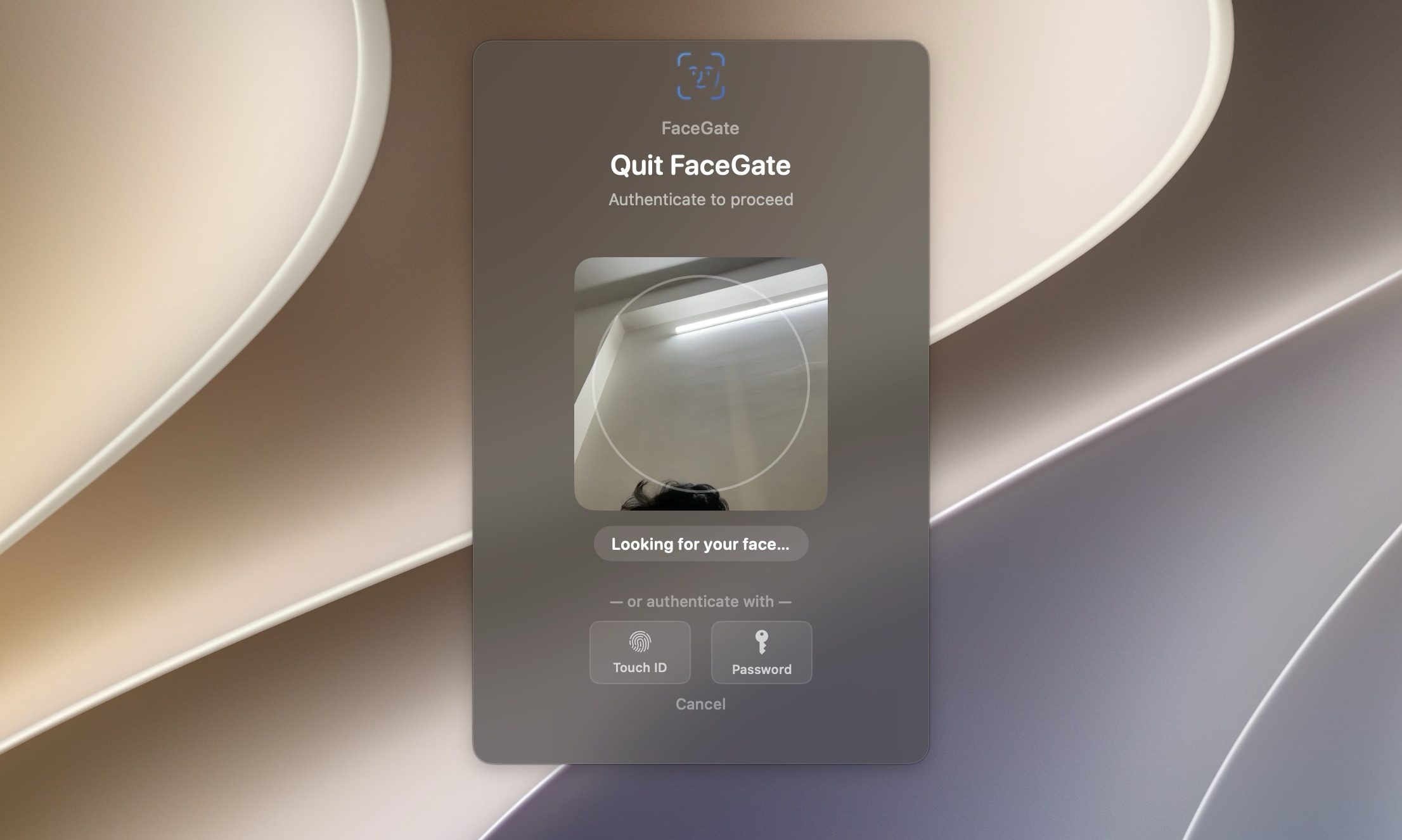
That means it is not something that can be casually bypassed by anyone trying to get around it. It also accounts for multiple displays, so your locked apps stay locked no matter which screen they happen to be on.
No cloud, no accounts, no catch
On the privacy front, FaceGate checks every box you would want. Everything runs locally on your Mac, there is no telemetry, no accounts to create, and no subscription to worry about.
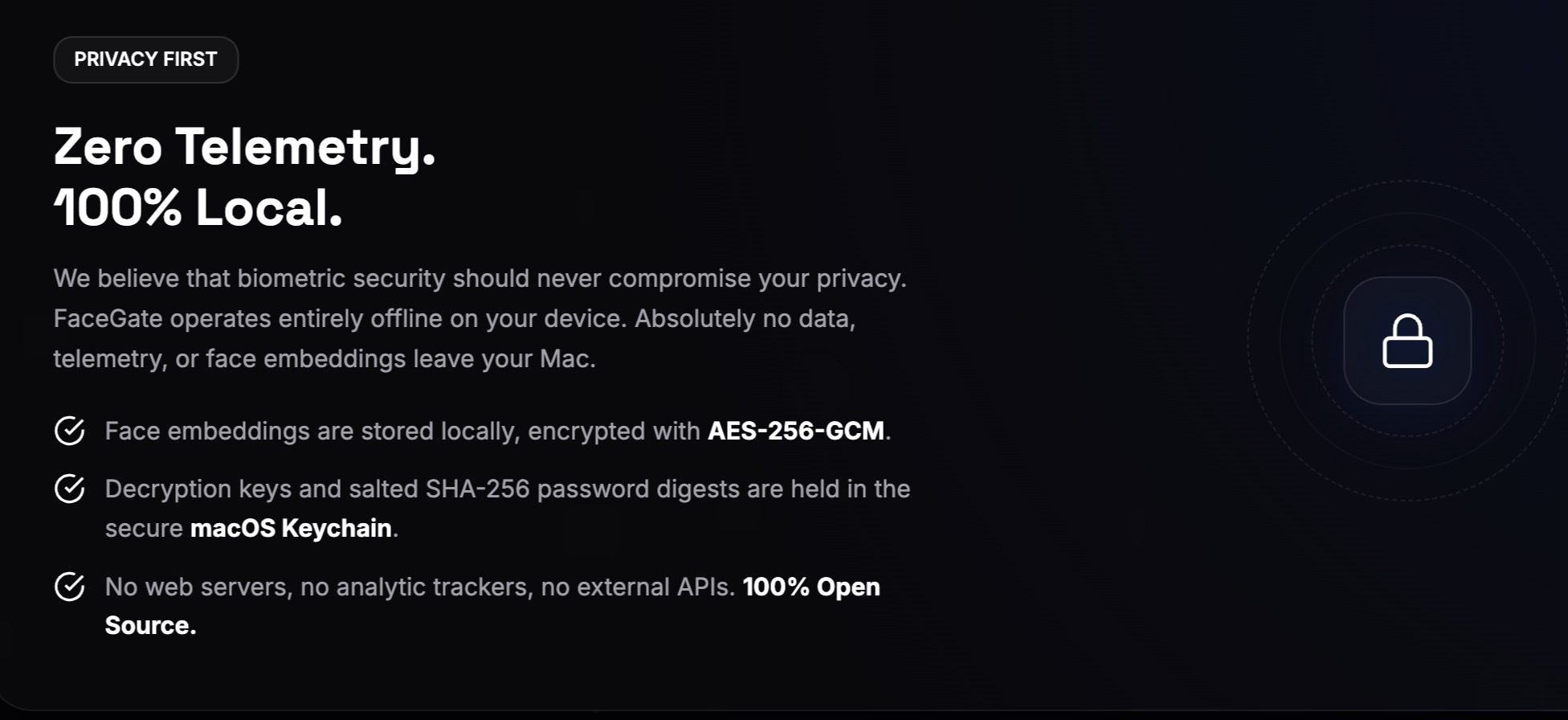
Your face embeddings are encrypted using AES-256-GCM, and your password digests live safely inside the macOS Keychain, so nothing about how you unlock your apps ever leaves your device. I also love that the app lets you delete your facial data if you no longer use it.
FaceGate is an app every Mac user should install
I have tried several app lock services for Mac before, but none have come closer to what FaceGate offers. Not only does it add a convenient Face Unlock feature, but it’s also completely free and doesn’t show any ads.
If you have been wishing for a simple way to keep prying eyes out of your personal apps without locking down your entire Mac, this is worth checking out.