
Daily Guardian UAEDaily Guardian UAE
  • Home
  • UAE
  • What’s On
  • Business
  • World
  • Entertainment
  • Lifestyle
  • Sports
  • Technology
  • Travel
  • Web Stories
  • More
    • Editor’s Picks
    • Press Release
What's On

SPADREC Expands Sport Investment Portfolio with Addition of SportsLab

May 11, 2026

I hate scalpers, and Valve’s Steam Machine queue is exactly what we need

May 11, 2026

Mado Fujairah Tennis Festival makes perfect start

May 11, 2026

Wordle is getting a TV show on NBC, and it already feels like a betrayal

May 11, 2026

TikTok is going ad-free. At a monthly fee, of course.

May 11, 2026
Facebook X (Twitter) Instagram
Finance Pro
Facebook X (Twitter) Instagram
Daily Guardian UAE
Subscribe
  • Home
  • UAE
  • What’s On
  • Business
  • World
  • Entertainment
  • Lifestyle
  • Sports
  • Technology
  • Travel
  • Web Stories
  • More
    • Editor’s Picks
    • Press Release
Daily Guardian UAEDaily Guardian UAE
Home » What graphics card do I have? How to find out what GPU is in your system
Technology

What graphics card do I have? How to find out what GPU is in your system

By dailyguardian.aeOctober 8, 20243 Mins Read
Share
Facebook Twitter LinkedIn Pinterest Email

Knowing what graphics card/GPU (that’s graphics processing unit) you have makes it much easier to know what games you can play. A high-end graphics card will unlock any game you like with advanced settings like ray tracing, while a weaker GPU might leave you unable to even start some newer AAA games. In that scenario, you’re going to need an upgrade.

Here’s how to find out what GPU you have in your PC, so you know whether what you have is enough, or you need to choose an upgrade from the best graphics cards around.

Check what graphics card you have on Windows

If you’re running Windows, the easiest and quickest way to check what graphics card you have is through the Task Manager. The screenshots below are from Windows 10, but the instructions work the same from Windows 7 right through to Windows 11.

Step 1: Press Ctrl *+ *Alt + Delete on your keyboard, then select Task Manager from the screen that pops up.

Alternatively, you can right-click the task bar and select Task Manager from there.
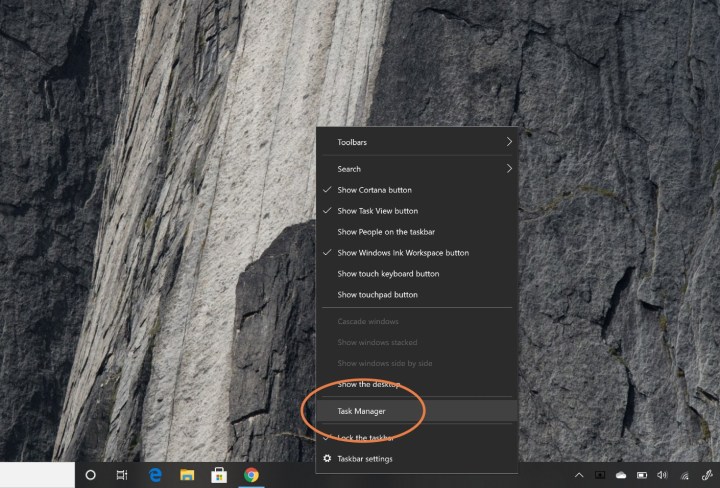
Opening Windows 10 Task Manager.

Step 2: If your task manager is in its minimized form, select More details at the bottom to unlock the full Task Manager.

Get your weekly teardown of the tech behind PC gaming

Step 3: Select the Performance tab at the top of the screen. This is where you’ll find all kinds of information on your processor, memory, storage, and graphics.
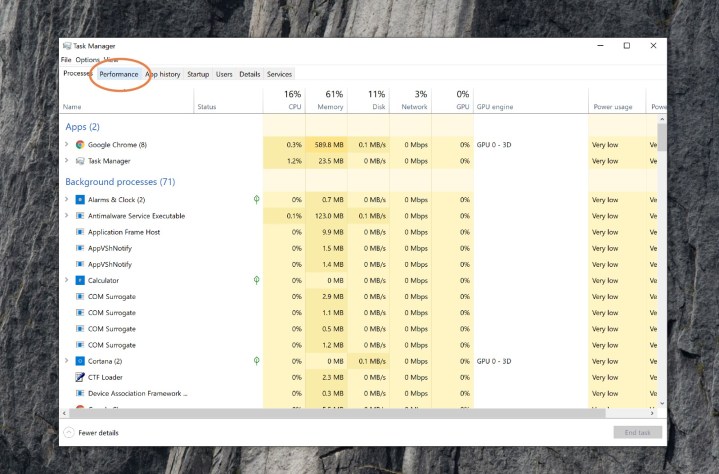
Windows 10 task manager.

Step 4: Scroll down the list on the left-hand side until you find GPU 0. Listed underneath that heading in the left-hand menu will be your graphics card.

If the name is truncated, as in this example, select it and you’ll see the full name of the graphics card or GPU in the top right. In this case, it’s an Nvidia RTX 3070 Ti.
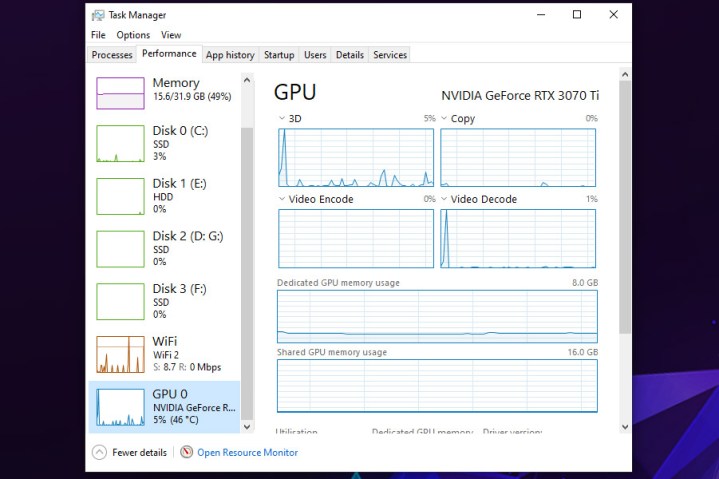
Windows 10 task manager performance tab.

Step 5: If you’re interested in learning more about your computer, you can also use Task Manager to look at details of your processor, memory, and storage, by selecting the individual elements along the left-hand side. This can be particularly handy if you’re looking to upgrade, or build yourself a new computer.
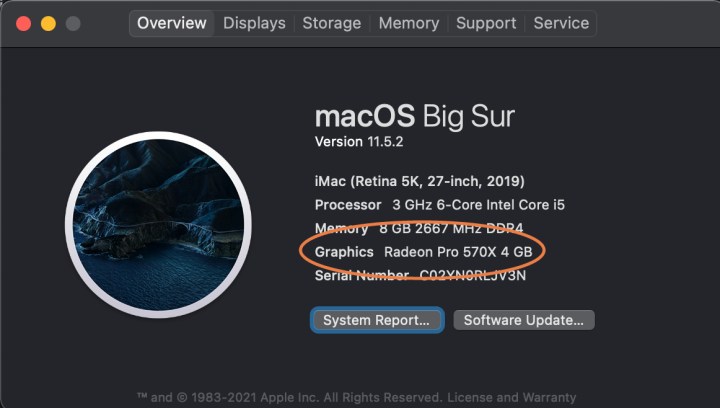
Find your Mac's Graphics information.

How to find out what graphics card you have on a Mac

You might not be able to upgrade your Mac in the same was as a PC, but if you want to optimize your Mac for gaming, then you’ll want to know what graphics card you have. Here’s how to find out what it is.

Step 1: Select the Apple icon in the upper-left side of the screen.

Step 2: From the menu that appears, select About this Mac.

Step 3: The window that appears will contain all the basic information about your Mac, including its processor, memory, storage drive, and its graphics card or GPU.

Buying a new GPU for your PC is invariably expensive. As such, it is important to do as much research as possible before committing to buy. Our guide on how to choose a graphics card can help set you in the right direction.


Share. Facebook Twitter Pinterest LinkedIn Tumblr Email

Keep Reading

I hate scalpers, and Valve’s Steam Machine queue is exactly what we need

Wordle is getting a TV show on NBC, and it already feels like a betrayal

TikTok is going ad-free. At a monthly fee, of course.

Discord Nitro now includes Xbox Game Pass as a freebie

Beatbot Sora 70 Leads This Summer’s Smart Pool Upgrades, With Sora 30 and AquaSense Expanding the Range

Windows 11 is testing a low-latency mode and it visibly speeds up app launch

Chuwi’s CoreBook Air wants to be the rare ultra-light Copilot+ laptop without an outrageous price

Bots now account for over half of the internet traffic and they’re raising all kinds of hell

BYD’s blazing-fast Flash charging tech for EVs got hot enough to roast a turkey

Editors Picks

I hate scalpers, and Valve’s Steam Machine queue is exactly what we need

May 11, 2026

Mado Fujairah Tennis Festival makes perfect start

May 11, 2026

Wordle is getting a TV show on NBC, and it already feels like a betrayal

May 11, 2026

TikTok is going ad-free. At a monthly fee, of course.

May 11, 2026

Subscribe to News

Get the latest UAE news and updates directly to your inbox.

Latest Posts

“آلام والتهابات المفاصل بسبب نمط الحياة الحديث”

May 11, 2026

Discord Nitro now includes Xbox Game Pass as a freebie

May 11, 2026

العمود الفقري في سن المراهقة: ما هو الجنف وكيف نحمي أبناءنا؟

May 11, 2026
Facebook X (Twitter) Pinterest TikTok Instagram
© 2026 Daily Guardian UAE. All Rights Reserved.
  • Privacy Policy
  • Terms
  • Advertise
  • Contact

Type above and press Enter to search. Press Esc to cancel.